




You open the main user’s account in the National Invoicing System (JoFotara) and click the device linking option (ربط الأجهزة), thinking it is a step you cannot skip. Then you find that the sub-user no longer sees the Issue an invoice tile (تنظيم فاتورة). That is where the question starts (in short, unlink devices JoFotara), and the Income and Sales Tax Department (ISTD) answers it in its questions and answers guide for the National Invoicing System, issued in 2026.
The official answer, in brief, is that unlinking is not a setting you change yourself. It is a request you submit to ISTD, and it is open to one specific group only. This article explains what the device linking option does in the first place and what ISTD’s text on unlinking says, word for word. It then covers who may submit the request and who may not, the request type, what to write in the notes box, how to confirm the result, and when to contact ISTD.
What the device linking option does and why people ask to undo it
After the account is created in JoFotara, the main user logs in. A home screen then appears with four options, Add a sub-user (إضافة مستخدم فرعي), device linking (ربط الأجهزة), View invoices (عرض الفواتير) and Settings (إعدادات). The Issue an invoice tile (تنظيم فاتورة) is not on this screen, because issuing invoices on the portal is the sub-user’s job. Both home screens are explained in detail in our article JoFotara Home Screen: Each Option Explained.
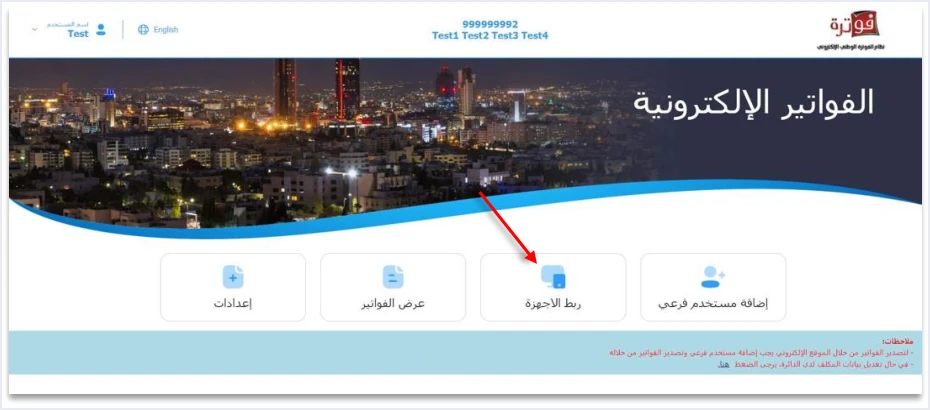
ISTD’s procedures guide for joining the Jordanian National Electronic Invoicing System (2026 edition) places device linking on the path for a business that has accounting software. The taxpayer chooses this option, creates a Client ID and a Secret Key, and then completes the technical requirements so that its invoices are sent straight from its software. ISTD’s technical guide for integrating with the National Invoicing System through the API, version 1.5, gives this step in more detail. The taxpayer enters a username and selects the income-source sequence, and the system then generates the two values. The whole step is explained in our article JoFotara Client ID and Secret Key: Device Linking Steps.
The other path, for a business with no accounting software, starts with the Add a sub-user option (إضافة مستخدم فرعي). The taxpayer then logs in as the sub-user and issues invoices on the portal. In the joining guide the two paths are alternatives, not two steps one after the other. How they relate to each other is the subject of our article JoFotara Portal and Device Linking: Using Both Together.
This is where the problem comes from. In its ninth question, the questions and answers guide describes a case in which the sub-user does not see the Issue an invoice tile, and it traces the case to the taxpayer having clicked the device linking option. So a taxpayer who took the linking path while meaning to take the portal path finds that the sub-user can no longer issue invoices on the platform.
Unlink devices JoFotara: what the questions and answers guide says
The guide asks the question directly in its eleventh question, in these words.
«كيف يمكنني فك ربط الأجهزة كوني قمت بالربط عن طريق الخطأ؟»
In English, the question asks how to unlink devices after linking them by mistake. The answer is a single line, the same answer as question 9 (نفس إجابة السؤال رقم 9). ISTD publishes this guide in Arabic only; the English here is our rendering, and the Arabic text is the authority.

In other words, the answer on unlinking is the same answer the guide gives when the Issue an invoice tile is missing for the sub-user. That answer takes up a full page of the guide (p. 6), headed steps for submitting a request to cancel device linking (خطوات تقديم طلب الغاء ربط الأجهزة), and it ends with a note that sets out who may make the request. Three facts follow from it before any detail.
- Unlinking is a request to ISTD. The guide mentions no button on the portal and no reset that the taxpayer carries out alone.
- The request goes through ISTD’s e-services site, through the Internal services menu (الخدمات الداخلية), not through the JoFotara portal.
- ISTD is the one that reviews the request, and the guide limits it to a specific group in plain terms.
Who may request unlinking: two conditions together
The note with which ISTD closes the page of steps reads as follows.
«طلب فك ربط الأجهزة يكون فقط لمن ليس لديه نظام محاسبي ويكون قام بالربط عن طريق الخطأ اما من يمتلك نظام محاسبي يلزمه ربط نظامه مع نظام الفوترة»
In English, ISTD says that a request to unlink devices is only for a business that has no accounting system and that linked by mistake, and that a business that has an accounting system must link its system with the invoicing system. ISTD publishes this guide in Arabic only; the English here is our rendering, and the Arabic text is the authority.
The first part of the note sets two conditions that must both be met. The first is that the taxpayer has no accounting system. The second is that the linking was done by mistake. The guide backs up the first condition in the request itself, since it asks the taxpayer to undertake in the notes that it has no accounting system. The second part of the note is ISTD’s position on a business that has an accounting system, and a later section of this article comes back to it.
The table below shows the situations you may be in, and what the guide says about each. The guide does not address the last two in its text, so we do not guess at them.
Scroll the table sideways to see the remaining columns
The undertaking in the request is written in your name, so do not write it unless it is true in your case. If you are unsure whether either condition applies to you, ask ISTD before you send the request, not after.
Before you request, confirm that linking is the cause
In the questions and answers guide, a missing Issue an invoice tile has more than one cause, and each cause has a different fix. There is no point in requesting unlinking if linking was not the cause in the first place. Check three points.
- Which user did you log in as? If the screen in front of you has four options, including device linking (ربط الأجهزة) and Add a sub-user (إضافة مستخدم فرعي), you are on the main user’s page. The Issue an invoice tile never appears on this page, and the fix in the guide’s tenth question is to create a sub-user, log out, and then log in with it. This case has nothing to do with linking. The two accounts are explained in our article JoFotara Sub-User vs Main User: Roles and Permissions.
- Can the sub-user log in at all? If the message The account has been suspended, please contact the system administrator (تم إيقاف الحساب الرجاء الاتصال بمسؤول النظام) appears at login, the sub-user is suspended. The guide’s stated cause is that you suspended the sub-user (قمت بإيقاف المستخدم الفرعي), and its fix is for the main user to reactivate the sub-user.
- Was device linking actually clicked? If you are on the sub-user’s page, the Issue an invoice tile does not appear, and you know that the device linking option was used from the main user’s account, this is the case that questions 9 and 11 of the guide answer.
This article deals with the remedy for that third case, which is the request itself. A rejection that comes back from the API with an error code is a different matter, covered in our article JoFotara Error Codes: Why an Invoice Is Rejected and How to Fix It.
Steps to request unlinking devices, in brief
The request follows the same route that the guide uses for other cases, and only the request type and the note text change. We have explained this route step by step, with what appears on each screen, in our article ISTD Internal Service Request: The Steps. The part that is specific to unlinking comes down to three stages.
- Logging in and reaching the request form. You log in to your account on ISTD’s website with your tax number and password. You then choose Internal services (الخدمات الداخلية), and then Send an internal service request (ارسال طلب خدمة داخلية).
- Choosing the request type. From the dropdown list you choose the invoicing-system support request (طلب دعم فني لنظام الفوترة), then click Next (التالي). In the guide’s screenshot this type appears among other items in the same list, such as income return amendment (تعديل اقرار دخل) and sales tax return amendment (تعديل اقرار ضريبة مبيعات), so check that you have chosen the right type.
- Writing the note and sending. A window appears with the Taxpayer notes box (ملاحظات المكلف). You write in it what the guide asks for, then click Send the request (ارسال الطلب).
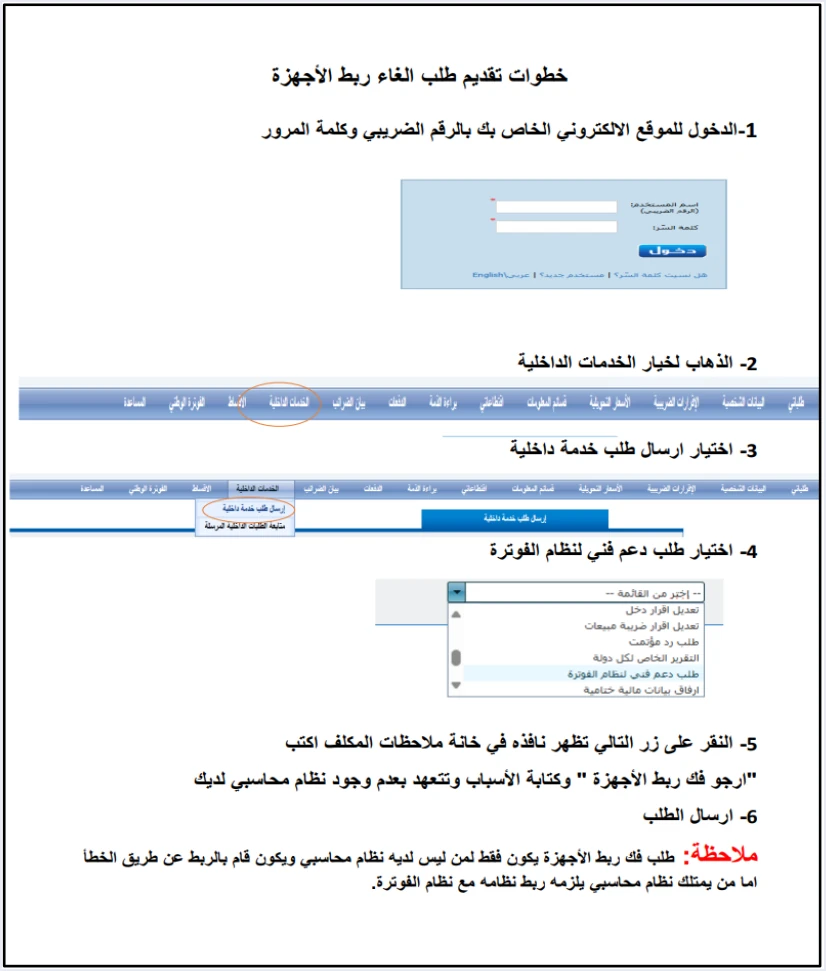
Note that the request is submitted from the e-services site, which you enter with your tax number and password, and not from the JoFotara portal where you linked the devices. So do not look for an unlinking option inside the portal.
What to write in the Taxpayer notes (ملاحظات المكلف)
The unlinking request differs from other requests in the guide, because its note is not a fixed sentence that you copy. In step 5 the guide asks you to write please unlink the devices (ارجو فك ربط الأجهزة), to write your reasons, and to undertake that you have no accounting system. So the note brings together three elements.
- The request itself, in the guide’s words, please unlink the devices (ارجو فك ربط الأجهزة).
- The reasons, meaning how the linking happened by mistake.
- The undertaking that you have no accounting system.
The guide gives no ready-made text for the reasons. So we suggest the wording below as an illustration from Qoyod. It is not text from the guide, so adjust it to match what actually happened in your case.
Please unlink the devices (ارجو فك ربط الأجهزة). I clicked the device linking option (ربط الأجهزة) from the main user’s account by mistake while setting up the account, when I meant to issue invoices on the platform through the sub-user. I undertake that I have no accounting system.
These are practical tips for writing the note. They are our suggestions, not conditions set by the guide.
- State what happened, with the facts. Say roughly when you clicked the option, from which account, and what you want to go back to.
- If you have more than one income-source sequence, name the one concerned. In the technical guide the linking credentials are tied to a specific income-source sequence, and the questions and answers guide does not set the scope of unlinking when there are several sequences. Naming the sequence avoids confusion.
- Do not write your password, your Client ID or your Secret Key in the note. The guide asks for none of them, and the technical guide places responsibility for keeping the linking credentials confidential on the taxpayer.
- Keep the request to unlinking alone. If you have another problem with the account, go back to the guide’s answer for it. Some problems have their own request type and their own note text, such as adding an active income-source sequence.
After sending: tracking the request and the limits of what the guide says
You track the request from the neighboring option in the same menu, Internal services (الخدمات الداخلية) and then Track sent internal requests (متابعة الطلبات الداخلية المرسلة). The questions and answers guide says nothing more about tracking.
The questions and answers guide gives no processing time for an unlinking request, does not say how you are told of the result, and does not say what happens if the request is refused. Nor does the guide’s page say that the Client ID and Secret Key generated at linking are canceled once the link is undone. So we offer no answer on any of these points, and the correct answer lies with ISTD.
The same guide has something to reassure a taxpayer who issued invoices on the portal before linking. In its fourteenth question, ISTD’s questions and answers guide states that the platform lets you return invoices sent through it in all cases, whether or not the business has linked a system.
How to confirm that unlinking is done
The guide describes no specific way to check the result of the request. The practical sign is the symptom that led you to make it, which is the Issue an invoice tile coming back to the sub-user’s screen. You can check in three steps.
- Log out of the portal if you are logged in.
- Log in as the sub-user. Both accounts log in to the portal with the same three fields, the tax number, the username and the password.
- Look at the home screen. In the joining guide, the sub-user’s screen has only two tiles, Issue an invoice (تنظيم فاتورة) and View invoices (عرض الفواتير). If both appear, issuing from the portal is open to you again.
The list of linked devices in the technical guide shows a column named User status (حالة المستخدم) that holds an on and off switch. The guide does not explain the effect of that switch in its text, and the questions and answers guide does not mention it in its answer on unlinking. So do not rely on it. The route that ISTD sets out is the request.
If you have an accounting system: linking is the path, not undoing it
The second part of ISTD’s note, quoted in full above, is aimed at a different group. It says that a business that has an accounting system must link its system with the invoicing system. This is ISTD’s position as stated in the questions and answers guide, and the guide gives no date and no penalty with it. We read this sentence alongside Article 4 of Regulation No. 34 of 2019 on Organizing and Controlling Invoicing Affairs, as amended, in our article Is Linking Accounting Software to JoFotara Mandatory?
So an unlinking request is not a route for a business that has accounting software and wants to go back to issuing its invoices on the portal. The request itself rests on a written undertaking that there is no accounting system. The next step for that business is to complete the linking, not to reverse it. Moving from one linked program to another is covered in our article Change Accounting Software Linked to JoFotara: What to Do.
Keep the linking credentials. The joining guide asks for this in the following words.
«تأكد من حفظ بيانات الربط في مكان آمن وعدم مشاركتها مع أحد»
In English, the joining guide tells you to keep the linking credentials in a safe place and not to share them with anyone. ISTD publishes this guide in Arabic only; the English here is our rendering, and the Arabic text is the authority.
Coordinate the technical side. The joining guide states the following.
«يتوجب على المكلف التنسيق مع مبرمج النظام أو مزود الحلول التقنية المعتمد لديه لاستكمال المتطلبات الفنية اللازمة لربط نظامه مع نظام الفوترة الوطني الإلكتروني»
In English, the guide says that the taxpayer must coordinate with the system’s programmer or with the technical solutions provider that the taxpayer works with, to complete the technical requirements needed to link its system with the National Electronic Invoicing System. ISTD publishes this guide in Arabic only; the English here is our rendering, and the Arabic text is the authority.
Start sending from your software once the technical requirements are complete. According to the guide, this is the last step on the linking path.
For a wider view of the system and how to connect your business to it, read our article Jordan’s National E-Invoicing System, or see how Qoyod works with JoFotara on our National Invoicing System page.
When to contact ISTD
Contact ISTD in four cases. The first is when you are unsure whether the two conditions of the request apply to you, for example if you linked on purpose, or if you had an accounting system and then stopped using it. The second is when the request sits on the tracking screen for a long time without any change. The third is when the request is completed and the Issue an invoice tile is still missing from the sub-user’s screen. The fourth is when you have more than one income-source sequence and do not know which one the linking covered.
ISTD’s guides give two written contacts. The first is the e-services email address printed on the e-services login screen, according to the joining guide (p. 5). It is etax.inquiry@istd.gov.jo, the email address of the site you submit the request from. The second is ISTD’s technical support committee for invoicing affairs, which the technical integration guide (version 1.5, p. 104) refers you to in these words.
«لمزيد من الاستفسارات يمكن التواصل مع لجنة الدعم الفني لشؤون الفوترة في دائرة ضريبة الدخل والمبيعات على الرابط التالي: https://istd.gov.jo»
In English, the guide says that for further inquiries you can contact the technical support committee for invoicing affairs at the Income and Sales Tax Department through the link https://istd.gov.jo. ISTD publishes this guide in Arabic only; the English here is our rendering, and the Arabic text is the authority.
Before you contact ISTD, prepare what will keep the exchange short.
- The business’s tax number.
- The date you sent the request, and its details as they appear under Track sent internal requests (متابعة الطلبات الداخلية المرسلة).
- The note text you wrote, and the income-source sequence concerned if you have more than one.
- A screenshot of the sub-user’s screen as it appears to you, without the password and without the linking credentials.
Qoyod and the linking path
To be precise, Qoyod does not submit the unlinking request for you, because it is a request made on ISTD’s site in your name and with your own undertaking. The request is also meant, in the first place, for a business that has no accounting system.
If your business works with accounting software, or plans to, the linking path is its path according to ISTD’s stated position. If you choose the linking path with Qoyod Cloud Accounting Software, integrated with the National Invoicing System, the Client ID and the Secret Key from the device linking screen are what it needs from you. The taxpayer needs no digital certificate or signature of their own to send invoices through Qoyod. Qoyod builds the invoice file in UBL 2.1 format with its unique identifier (UUID) and sends it to the National Invoicing System without any manual intervention. ISTD returns the invoice status and any error message, and Qoyod shows them in its status panel.
E-invoicing and full accounting in one system
Qoyod is integrated with the National Invoicing System (JoFotara). You issue your invoice in Jordanian dinars from Qoyod, it is booked to your ledgers automatically and sent to the system, and once it is accepted it comes back with a QR code from the Income and Sales Tax Department.
Frequently asked questions
Can I unlink devices myself from the JoFotara portal?
The questions and answers guide mentions no button or setting for this. Unlinking is done through an internal service request of the invoicing-system support request type (طلب دعم فني لنظام الفوترة), and ISTD is the one that reviews it.
Who may request unlinking devices?
Under ISTD’s text, the request is open to a business that meets two conditions together. It linked by mistake and it has no accounting system, and it undertakes this in writing in the note of the request.
I have accounting software and want to go back to issuing on the portal. Does the request help me?
The request is not a route for this case. The guide states that a business that has an accounting system must link its system with the invoicing system, so the next step is to complete the linking.
What do I write in the Taxpayer notes (ملاحظات المكلف) box?
You write please unlink the devices (ارجو فك ربط الأجهزة), then the reasons that led to linking by mistake, then an undertaking that you have no accounting system, as the guide asks.
How long does unlinking take?
The guide gives no processing time for the request. You track it from Track sent internal requests (متابعة الطلبات الداخلية المرسلة), and if the wait is long, contact ISTD.
How do I know that the unlinking is done?
Log in as the sub-user and look at its home screen. If the Issue an invoice tile (تنظيم فاتورة) appears next to View invoices (عرض الفواتير), issuing from the portal is open to you again.
References
- Income and Sales Tax Department (ISTD), questions and answers guide for the National Invoicing System, 2026 (in Arabic), questions 9 and 11, pp. 6 and 7.
- Income and Sales Tax Department (ISTD), procedures guide for joining the Jordanian National Electronic Invoicing System, 2026 edition (in Arabic).
- Income and Sales Tax Department (ISTD), technical guide for integrating with the National Invoicing System through the API, version 1.5 (in Arabic).




