




The JoFotara Client ID and Secret Key are two values the National Invoicing System (JoFotara) generates for you on the device linking screen (ربط الأجهزة). With them, your accounting software sends your invoices to the Income and Sales Tax Department (ISTD) in your name. ISTD’s technical guide for linking calls them Client ID and Secret Key, while the portal interface shows them under their Arabic names, رقم المستخدم and المفتاح السري.
In short, you log in to JoFotara as the main user, choose device linking, then create a new link in which you set a username and select the income-source sequence. The system then generates the two values automatically.
This article stops at the moment the two values leave ISTD’s portal. It covers where the screen is, the steps to create them, what linking changes, where to find the values later and how to protect them. Entering them in your software and starting to send invoices are covered in a separate article that we point to at the end.
What the JoFotara Client ID and Secret Key are
Version 1.5 of ISTD’s technical guide for linking relies on these two values to authenticate the invoices a linked accounting system sends. It does not ask the taxpayer for a digital certificate or an electronic signature of their own.
Three facts about the two values settle most questions.
- The system generates them, and you do not choose them. Your part on the screen is to type a username and select the income-source sequence. The system then creates the two values.
- Each Client ID and Secret Key pair is tied to one income-source sequence, the sequence you selected when you created the link.
- The main user creates them. Device linking is one of the tiles on the main user’s home screen. It does not appear on the sub-user’s screen, which is limited to Issue an invoice (تنظيم فاتورة) and View invoices (عرض الفواتير).
What you need before you open the device linking screen
The device linking screen is the last stop in the portal stage, not the first. Before you reach it, you need three things.
- An account on the National Invoicing System. It is created through ISTD’s e-services.
- The main user’s login details. You log in with three fields, the tax number, the username and the password.
- An active income-source sequence. ISTD’s questions and answers guide names the lack of one as a reason the registration screen cannot be reached at all. The official fix is an internal service request of the type Opening a new income source and group (فتح مصدر دخل ومجموعة جديدة).
A fourth point is not a technical condition, but it matters more than the other three. You should already have decided to issue your invoices from accounting software rather than from the portal. The reason is explained in the section on what linking changes, below.
Where to find the device linking screen
You reach the National Invoicing System from the ISTD website, through Log in to e-services (الدخول للخدمات الإلكترونية) and then National Invoicing (الفوترة الوطني) in the services bar. After you log in as the main user, the home screen shows four tiles, Add a sub-user (إضافة مستخدم فرعي), device linking (ربط الأجهزة), View invoices (عرض الفواتير) and Settings (إعدادات).
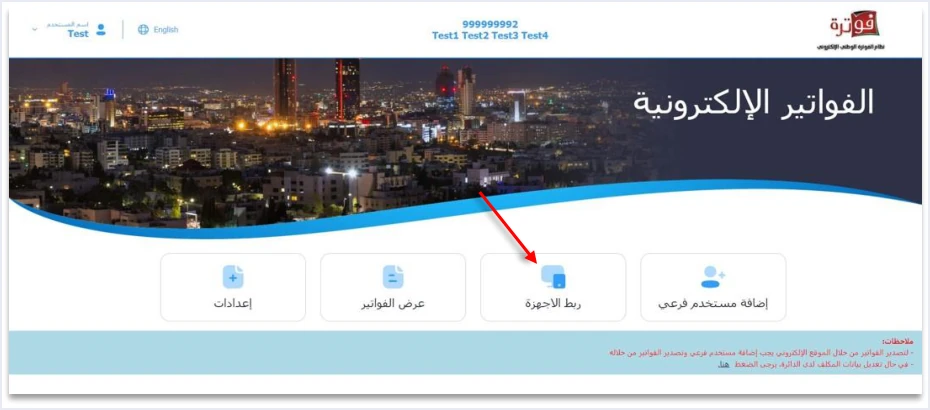
There is no Issue an invoice tile on this screen. The main user manages the account. Issuing on the portal is done by the sub-user, and issuing from accounting software goes through device linking.
Steps to create the Client ID and Secret Key
These are the steps as ISTD’s technical guide for linking shows them on pp. 6 to 8.
- Log in to the National Invoicing System as the main user through ISTD’s e-services.
- Choose device linking (ربط الأجهزة) on the home screen.
- Press New link (ربط جديد). The Add user window (إضافة مستخدم) opens.
- Type a username for the link and select the income-source sequence from the dropdown list, then press Add (إضافة).
- The system generates the Client ID and Secret Key automatically, and the new link appears in the device linking list.
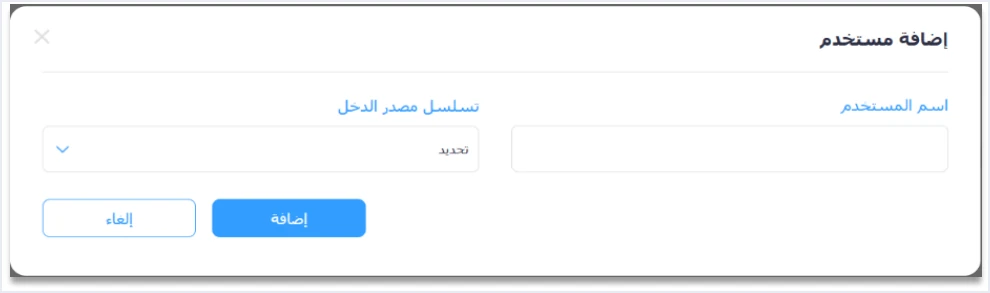
These are the interface labels as they appear in the technical guide’s screenshots, and they may change when the portal is updated. What every official guide agrees on is that the path starts at device linking and ends with the two values being generated. The technical requirements for linking come after that.
The username you type in the window appears in the User column (المستخدم) of the device linking list. Choose a name that identifies the link and points to the software or the branch that will use it.
The income-source sequence: you select it, the system does not generate it
A frequent mistake in explanations of this screen is to say that the system generates three values. In fact the system generates only two. You select the income-source sequence yourself from the list of sequences registered under your tax number.
This choice deserves attention for two reasons.
- The sequence is a mandatory element of every invoice your software sends through the API, according to the technical guide for linking.
- A wrong sequence is the first cause the technical guide gives for error 500, alongside a wrong tax number.
If your business has more than one income-source sequence, remember that each Client ID and Secret Key pair is bound to the sequence you created it under. The sequence your software sends in the invoice must match the sequence of the link it sends through.
Before you press Add: linking stops invoice issuing on the portal
This section is the reason for the note above. Linking is not a step you can open, look at and close again, because it changes the way you issue invoices.
What ISTD says. ISTD’s questions and answers guide describes a case in which the sub-user no longer sees the Issue an invoice option. The cause ISTD gives is that the taxpayer clicked the device linking option. In other words, linking removes invoice issuing from the portal.
What the platform interface says. The 2024 user guide for the platform shows a confirmation message before the link is completed. The message warns that the taxpayer will not be able to issue invoices on the platform after linking with devices. That guide was prepared by a software vendor, not by ISTD, and the current interface may differ from it. The effect it describes, however, is confirmed by ISTD in its questions and answers guide, as shown above.
Unlinking is not a self-service setting. There is no button that restores the previous state. Unlinking goes through an internal service request of the type invoicing-system support request (طلب دعم فني لنظام الفوترة), and ISTD decides on it. ISTD limits it to a business that has no accounting system and linked by mistake, and the applicant undertakes in writing that it has no accounting system.
In the same guide, ISTD adds that a business that has an accounting system is required to link that system with the National Invoicing System.
The same guide also has reassurance for anyone who issued invoices on the portal before linking. The platform lets you return invoices sent through it in all cases, whether or not the business has linked.
The questions and answers guide does not define how far this effect reaches when one business has several income-source sequences. If you have more than one sequence and want to link only some of them, check with ISTD before you press Add.
Where to find the Client ID and Secret Key after you create them
The two values do not disappear once they are generated. The device linking list shows each link in its own row, with the columns User (المستخدم), User status (حالة المستخدم), Client ID (رقم المستخدم), Secret Key (المفتاح السري) and income-source sequence (تسلسل مصدر الدخل). Each of the two values has a copy button next to it, and a New link button above the list adds another link.
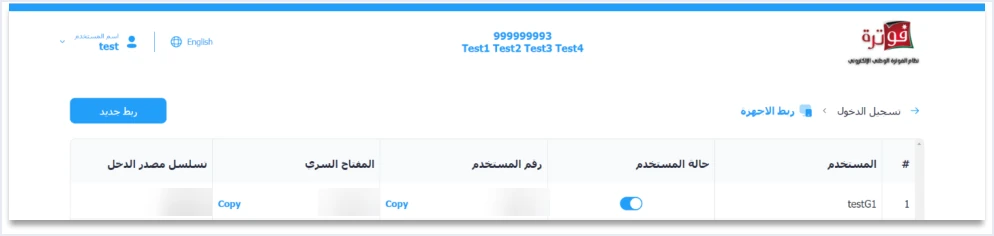
Three notes on this list.
- Copy the two values with the copy button, not by hand. Typing them leaves room for a missing character or an extra space, and that is enough for authentication to fail.
- The User status column has an on and off switch, but the technical guide does not explain what it does. Do not build an assumption on it, and ask ISTD before you change it on a link that is working.
- Version 1.5 of the technical guide describes no procedure for regenerating the two values. If you need to, the point of contact is ISTD’s technical support committee for invoicing affairs.
How to keep the two values safe
The official guides place responsibility for the two values on the taxpayer alone. The joining guide tells you to keep the linking credentials in a safe place and not to share them with anyone. The technical guide for linking adds that the taxpayer bears full responsibility for any unauthorized use.
One of the ten operating instructions in the technical guide is titled Security (الأمان). Its point is to protect the Client ID and Secret Key and not to store them in the open inside program code. Several practical habits follow from that principle.
- Share them only with the person who will enter them in the software, such as your accountant or the technical provider you work with.
- Do not send them as a screenshot or a chat message that stays saved on several devices.
- Blur both values in any screenshot you share when asking for help, as in the image above.
- Keep access to the main user as narrow as possible, because the device linking list shows the two values to anyone who logs in with it.
What happens if the two values are entered wrongly
The technical guide for linking ties error 403 (Forbidden) to a wrong Client ID or Secret Key. This means the software reached the system, but the system refused to authenticate it. You can find this error and the other sending errors, with their causes, in our article JoFotara Error Codes: Why an Invoice Is Rejected and How to Fix It.
The technical guide also lists the two values among the causes of error 500, but less often than the tax number and the income-source sequence. If either error appears right after linking, start your check with three points.
- The two values were copied from the list with the copy button, not typed by hand.
- The two values were taken from the right row, if you have more than one link.
- The income-source sequence in the invoice matches the sequence of the link.
After the two values are generated: where the technical work begins
Once the Client ID and Secret Key are generated, your work on ISTD’s portal for this stage is done. ISTD says the taxpayer must coordinate with the system’s programmer or the technical solutions provider it works with to complete the technical requirements. This means the provider the taxpayer itself uses, not a vendor list kept by ISTD.
What follows, entering the two values in the software and sending the first invoice, is explained in our article on the technical linking steps, one by one. For a wider view of the system and how to connect your business to it, read our article Jordan’s National E-Invoicing System.
If your software is Qoyod Cloud Accounting Software, integrated with the National Invoicing System, the two values are what it needs from you on this screen. Qoyod builds the invoice file in UBL 2.1 format with its unique identifier (UUID) and sends it to the National Invoicing System without any manual intervention. Once ISTD accepts the invoice it returns a QR code, and Qoyod shows that code on the invoice.
E-invoicing and full accounting in one system
Qoyod is integrated with the National Invoicing System (JoFotara). You issue your invoice in Jordanian dinars from Qoyod, it is booked to your ledgers automatically and sent to the system, and once it is accepted it comes back with a QR code from the Income and Sales Tax Department.
Frequently asked questions
What are the Client ID and Secret Key in JoFotara?
They are two values the system generates on the device linking screen, which ISTD’s technical guide calls Client ID and Secret Key. A linked accounting system uses them to authenticate when it sends invoices to the Income and Sales Tax Department.
Who can create the Client ID and Secret Key?
The main user creates them, because device linking is one of the tiles on the main user’s home screen. The sub-user’s screen is limited to Issue an invoice (تنظيم فاتورة) and View invoices (عرض الفواتير).
Does the system generate the income-source sequence along with the two values?
It does not. You select the income-source sequence from a list in the linking window, and the system generates only the Client ID and Secret Key. Each pair of values is tied to the sequence you selected.
Can I go back to issuing invoices on the portal after linking?
You cannot do it through a setting of your own, because unlinking is a support request submitted to ISTD through internal services. ISTD limits it to a business that has no accounting system and linked by mistake.
Where do I find the two values if I did not save them?
You find them in the main user’s device linking list. Each link appears in a row that includes the Client ID and the Secret Key, with a copy button next to each.
Which error appears if the Secret Key is wrong?
ISTD’s technical guide for linking ties error 403 to a wrong Client ID or Secret Key. It also lists them among the causes of error 500, but less often than the tax number and the income-source sequence.
References
- Income and Sales Tax Department (ISTD), technical guide for integrating with the National Invoicing System through the API, version 1.5 (in Arabic), pp. 6 to 8.
- Income and Sales Tax Department (ISTD), procedures guide for joining the Jordanian National Electronic Invoicing System, 2026 edition (in Arabic).
- Income and Sales Tax Department (ISTD), questions and answers guide for the National Invoicing System, 2026 (in Arabic).
- User guide for the National Invoicing System platform (2024), prepared by a software vendor (secondary source) (in Arabic).
- ISTD’s National Invoicing System guides (in Arabic)




