




You open your e-services account with the Income and Sales Tax Department (ISTD) to start joining the National Invoicing System (JoFotara). You look in the services bar for the option that takes you there, and it is not there. ISTD’s questions and answers guide covers this exact case (in short, JoFotara option missing e-services), and it gives both an official cause and an official fix.
According to the guide, the cause is that the taxpayer’s file type is users (مستخدمين). The fix is an internal service request to convert the file to individuals (أفراد). This article explains where the option is supposed to appear and what the guide says the cause is. It then walks through the six steps of the request, with each option named as it appears on screen, how to track the request, and how to confirm that the problem is solved. It ends with what this request does not fix and when to contact ISTD.
Where the National Invoicing option should appear
ISTD’s procedures guide for joining the Jordanian National Electronic Invoicing System (2026 edition) divides joining into six general steps. The first is going to ISTD’s website. The second is logging in to the e-services. The third is moving to the National Invoicing System, and the fourth is creating an account in the system. The fifth and sixth are the two alternative paths after the account is created, which are issuing invoices on the portal or device linking.
The option this article is about sits in the second step, and it is what leads to the third. From the website istd.gov.jo you go to Log in to e-services (الدخول للخدمات الإلكترونية). Once logged in, the taxpayer chooses National Invoicing (الفوترة الوطني) from the services bar. A verification code (CAPTCHA) screen then appears, headed Electronic Invoicing System (نظام الفوترة الإلكتروني), followed by the account creation screen. At this stage the guide requires pop-ups to be allowed in the browser.
So when the option is missing from the bar, joining stops at its very start. It stops before the CAPTCHA and before any account exists in JoFotara. At this point the problem has nothing to do with the main user, the sub-user or the income-source sequence. All of those come on later screens that the taxpayer has not reached yet.
JoFotara option missing e-services: why it happens
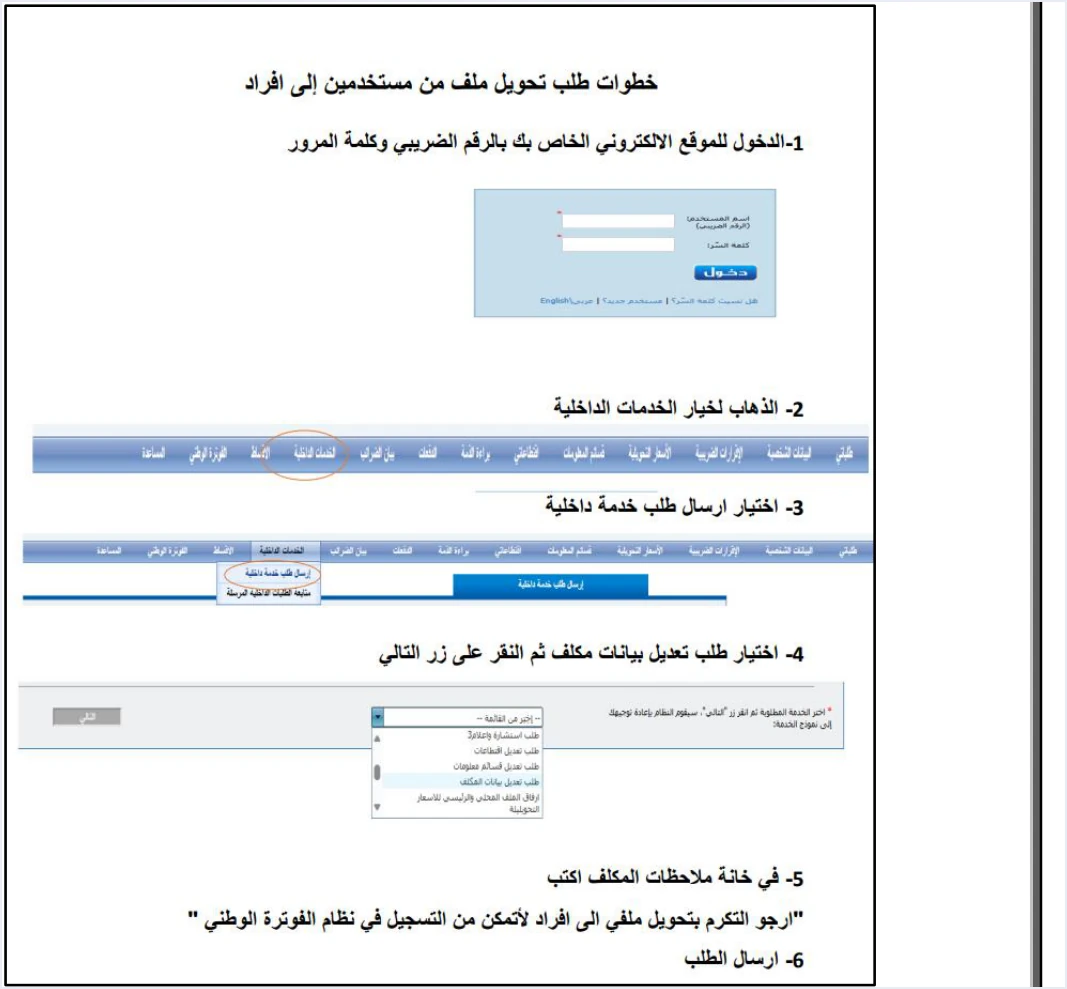
ISTD’s questions and answers guide for the National Invoicing System (2026) lists this case as its seventh question. It gives one cause, which is that the taxpayer’s file type at ISTD is users (مستخدمين). It gives one fix, which is converting the file to individuals (أفراد) through a request that the taxpayer submits personally. The page in the guide that explains the fix is headed steps to request converting a file from users to individuals (خطوات طلب تحويل ملف من مستخدمين إلى افراد).
That is where the source stops, and the limits are worth knowing before you read any other explanation.
- The guide does not define the users file type. It does not explain what makes a file that type, or how it differs from individuals outside this case.
- The guide names no other effect of the conversion. It does not say that changing the file type touches anything in your tax file other than whether the option appears.
- The guide gives no processing time for the request, and it does not say how you are told the outcome.
We do not guess at any of these points. If you need an answer to one of them before you submit the request, the place to ask is ISTD itself, and the contact routes are at the end of this article.
The request is filed on the e-services site, not the JoFotara portal
Before the steps, note where the request is submitted. The conversion does not happen inside the JoFotara portal (portal.jofotara.gov.jo), because in this case the taxpayer has not reached the portal yet. It happens on ISTD’s e-services site, the same site you logged in to and where the option was missing, through the Internal services menu (الخدمات الداخلية).
The questions and answers guide uses this menu as one route for more than one case. Only the request type and the note text change from case to case. The route itself has its own article, ISTD Internal Service Request: The Steps, and we also covered it in another context in our article Add a Sub-User in JoFotara: Step by Step. In this case, the request type is the taxpayer data modification request (طلب تعديل بيانات المكلف).
Steps to convert the file from users to individuals
These are the six steps as the questions and answers guide gives them (p. 4), with the option names as they appear in the guide’s screenshots.
- Log in to your account on the website with your tax number and password. In the guide’s screenshot, the first field on the login screen is labeled Username (اسم المستخدم) with Tax number (الرقم الضريبي) in brackets beneath it, and the second field is labeled Password (كلمة السر).
- Go to Internal services (الخدمات الداخلية) in the menu bar.
- Choose Send an internal service request (ارسال طلب خدمة داخلية) from the list that drops down under Internal services. Directly below it is a second option, Track sent internal requests (متابعة الطلبات الداخلية المرسلة), which you will come back to after sending.
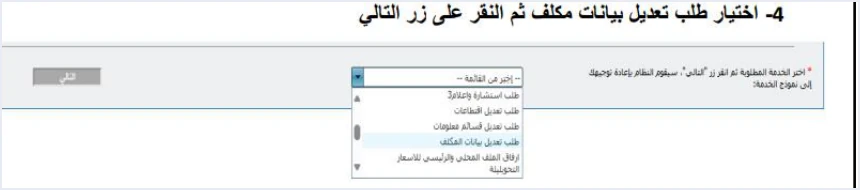
- Choose the taxpayer data modification request (طلب تعديل بيانات المكلف) from the dropdown list, then click Next (التالي). In the guide’s screenshot the list holds other request types, and some of them also begin with the words modification request (طلب تعديل). Make sure you pick this exact type.
- Write the note in the Taxpayer notes box (ملاحظات المكلف). The text the guide asks you to write is given in the next paragraph.
- Send the request.
For the note in step 5, the guide gives the exact wording below.
«ارجو التكرم بتحويل ملفي الى افراد لأتمكن من التسجيل في نظام الفوترة الوطني»
In English, the note asks ISTD to convert the taxpayer’s file to individuals so that the taxpayer can register in the National Invoicing System. ISTD publishes this guide in Arabic only; the English here is our rendering, and the Arabic text is the authority.
Copy the Arabic text exactly as it is. In one sentence it states what you are asking for (conversion to individuals) and why (joining the National Invoicing System). Do not mix this case with any other problem on your account in the same request. Each case in the guide has its own request type and its own note text.
How to track the request after sending it
After step 6, you track your request from the neighboring option in the same menu, Internal services (الخدمات الداخلية) and then Track sent internal requests (متابعة الطلبات الداخلية المرسلة). That is all the questions and answers guide says about tracking. It does not describe the request statuses shown on this screen. The guide sets no response time, and does not say whether ISTD sends a notice when the request is completed.
The practical approach, then, is to check the tracking screen from time to time. If you have waited a long time and nothing has changed, contact ISTD as described in the last section, and have the request details from the tracking screen with you.
How to check that the National Invoicing option now appears
The practical sign that the problem is solved is the symptom itself, which is the option appearing in the services bar. The guide describes no other way to check. You can test it in three steps.
- Log out of the e-services, then log in again with your tax number and password.
- Look for National Invoicing (الفوترة الوطني) in the services bar. If it appears, choose it.
- Check that the CAPTCHA screen appears, headed Electronic Invoicing System (نظام الفوترة الإلكتروني). The joining guide (p. 6) shows the taxpayer’s details on this screen as read-only, which are the taxpayer number, the taxpayer type, the trade name and the taxpayer’s directorate. Enter the CAPTCHA and move on to creating the account.
At this step the joining guide requires pop-ups to be allowed in the browser, so check that setting before you choose the option. If logging in to register then takes you back to the invoicing home page, that is a different case in the guide with a different cause, covered in the next section.
What the file conversion request does not fix
The questions and answers guide lists other cases that look similar to this one but have a different cause and a different fix. Knowing the difference saves you a request that will not solve your problem.
Scroll the table sideways to see the remaining columns
The case closest to ours is the second one in the table, because it happens after the option appears. Its cause is that there is no active income-source sequence, and its request type is opening a new income source and group (فتح مصدر دخل ومجموعة جديدة). The sequence itself is explained in our article JoFotara Income Source Sequence: Where to Find It. If the file conversion succeeds and you then hit this second case, it is a separate obstacle from the first, with its own request. The difference between the main user and the sub-user, which is behind the last two cases, is covered in detail in our article JoFotara Sub-User vs Main User: Roles and Permissions. The codes and messages that JoFotara returns once you are sending invoices are a different matter, collected in our article JoFotara Error Codes: Why an Invoice Is Rejected and How to Fix It.
When to contact ISTD
Contact ISTD in three situations. The first is when you need to know how the conversion affects your file before you submit the request, because the guide does not cover that. The second is when the request sits on the tracking screen for a long time without any change. The third is when the request is completed and the option is still missing after you log out and log in again.
ISTD’s guides give two written contact routes. The first is the e-services email address printed on the e-services login screen, according to the joining guide (p. 5), which is etax.inquiry@istd.gov.jo. It is an address for the e-services, which is the site where this problem occurs. The second is the invoicing technical support committee, which ISTD’s technical guide for integrating with the National Invoicing System through the API, version 1.5 (p. 104), refers you to in these words.
«لمزيد من الاستفسارات يمكن التواصل مع لجنة الدعم الفني لشؤون الفوترة في دائرة ضريبة الدخل والمبيعات على الرابط التالي: https://istd.gov.jo»
In English, the guide says that for further questions you can contact ISTD’s technical support committee for invoicing affairs at istd.gov.jo. ISTD publishes this guide in Arabic only; the English here is our rendering, and the Arabic text is the authority.
Before you get in touch, prepare what will keep the exchange short.
- The business’s tax number.
- The date you sent the request, and its details as they appear under Track sent internal requests (متابعة الطلبات الداخلية المرسلة).
- The request type you chose and the note text you wrote.
- A description of what you see in the services bar after logging in, with a screenshot if you can, without your password.
After the option appears: creating the account and choosing a path
Once the option appears, you are back on the normal joining path. You enter the CAPTCHA, then create the account with four fields, which are the tax number (filled in automatically), the username, the password and the password confirmation. The password must be at least eight characters long and combine letters, numbers and special symbols, with at least two letters, one of them a capital. Each step, with its screenshots, is in our article JoFotara Registration and the Registration Document.
After the account is created, you choose one of two paths. If you have no accounting software, you add a sub-user and issue your invoices on the portal. If you have accounting software, you choose device linking (ربط الأجهزة) from the home screen, and the system generates a Client ID and a Secret Key that you enter in your software. For a wider view of the system and how to connect your business to it, read our article Jordan’s National E-Invoicing System.
If you choose the linking path with Qoyod Cloud Accounting Software, integrated with the National Invoicing System, the Client ID and the Secret Key from the device linking screen are what it needs from you. The taxpayer needs no digital certificate or signature of their own to send invoices through Qoyod. Qoyod builds the invoice file in UBL 2.1 format with its unique identifier (UUID) and sends it to the National Invoicing System without any manual intervention. To be precise, Qoyod does not submit the file conversion request for you and does not create your account in the system, because both are steps on ISTD’s site in your own name. What Qoyod does starts once you are registered and choose the linking path.
E-invoicing and full accounting in one system
Qoyod is integrated with the National Invoicing System (JoFotara). You issue your invoice in Jordanian dinars from Qoyod, it is booked to your ledgers automatically and sent to the system, and once it is accepted it comes back with a QR code from the Income and Sales Tax Department.
Frequently asked questions
Why is the National Invoicing option missing from the e-services?
ISTD’s questions and answers guide gives the cause as the taxpayer’s file type being users (مستخدمين), and it sets the fix as a request to convert the file to individuals (أفراد).
Which request type do I choose from the Internal services menu?
You choose the taxpayer data modification request (طلب تعديل بيانات المكلف) from the dropdown list after Send an internal service request (ارسال طلب خدمة داخلية). Then you click Next (التالي) and write the note in the Taxpayer notes box (ملاحظات المكلف).
Do I submit the request on the JoFotara portal?
You submit it on ISTD’s e-services site through the Internal services menu (الخدمات الداخلية), not on the JoFotara portal, because you have not reached the portal yet.
How long does converting the file to individuals take?
ISTD’s questions and answers guide gives no processing time for the request. You track it under Track sent internal requests (متابعة الطلبات الداخلية المرسلة), and if the wait runs long you contact ISTD.
Does the conversion change anything else in my tax file?
The guide names no effect of the conversion other than letting you join the system. If you need a definite answer about your own file, ask ISTD before you submit the request.
The option appeared, but the system takes me back to its home page. Why?
The guide gives the cause of this case as the lack of an active income-source sequence. Its fix is a separate internal service request of the type opening a new income source and group (فتح مصدر دخل ومجموعة جديدة).
References
- Income and Sales Tax Department (ISTD), questions and answers guide for the National Invoicing System, 2026 (in Arabic).
- Income and Sales Tax Department (ISTD), procedures guide for joining the Jordanian National Electronic Invoicing System, 2026 edition (in Arabic).
- Income and Sales Tax Department (ISTD), technical guide for integrating with the National Invoicing System through the API, version 1.5 (in Arabic).




