




The Invalid Invoice Minification message appears when your accounting software sends an invoice to the National Invoicing System (JoFotara) and the invoice comes back rejected. The text of the message arrives in the EINV_MESSAGE field of the response. According to the technical guide of the Income and Sales Tax Department (ISTD), it means that the first tag in the XML file, which is the opening tag of the Invoice element, is written incorrectly or spread over more than one line, and the guide requires it to be on a single line.
The message is not about any value on the invoice. It has nothing to do with the totals, the tax rate or the buyer details. It concerns the shape of the first line of the file body. So the fix lies in the way your software writes this tag, not in the invoice data itself.
This article gives the text of the message as it appears in ISTD’s technical guide (version 1.5), sets out what the guide documents about this tag and what it leaves out, and then walks through the fix steps and the link between the message and the Base64 encoding the file goes through before it is sent.
What the Invalid Invoice Minification message means
The technical guide describes code 400 (Bad Request) as an error in the values sent inside the XML file, with the detail given in the EINV_MESSAGE field. One of the messages it lists under this code is Invalid Invoice Minification, and it explains it on p. 102 as follows.
«يدل بأن أول Tag موجود في ال XML مكتوب بشكل خاطئ أو مكتوب بأكثر من سطر ويجب أن يكون على سطر واحد بينهما مسافات».
In English, the guide says the message indicates that the first tag in the XML is written incorrectly or is written over more than one line, and it requires that tag to be on a single line with spaces between its parts. ISTD publishes this guide in Arabic only; the English here is our rendering, and the Arabic text is the authority.
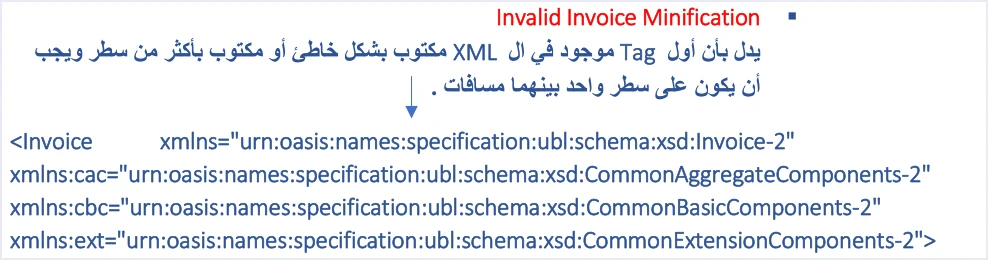
The sentence covers two cases. In the first, the tag is written incorrectly, and the guide does not detail what falls under that description. In the second, the tag is spread over more than one line, and for this case the guide gives the correct form, which is a single line with spaces separating its parts.
Below the explanation, on the same page, the guide prints the Invoice tag with its four namespaces spread over four lines. So do not copy the tag from the guide page in the shape it appears there. Write it in your file as one line, as the sentence above it requires.
The message is one of the rejection messages listed under code 400, and our article on JoFotara error codes places them in the overall picture of rejection codes. This article deals with this message alone.
Where the message appears in the response
JoFotara returns the result of its checks in the EINV_RESULTS element, which holds three arrays, INFO, WARNINGS and ERRORS. Each entry in them carries the fields type, status, EINV_CODE, EINV_CATEGORY and EINV_MESSAGE, and the text Invalid Invoice Minification comes in the last of these.
The guide does not give the EINV_CODE value or the EINV_CATEGORY value that accompanies this message. So rely on its text in EINV_MESSAGE when you search for it in your logs, and copy it exactly as it comes back to you.
If the invoice is rejected, its EINV_STATUS carries the value NOT_SUBMITTED, and the fields for the QR code, the unique identifier, the invoice number and the signed invoice come back as null. In its instructions, the guide requires judging the invoice by EINV_STATUS and not by the Response Status Code of the request alone.
What minification means in this message
In programming, the word minification means making a file smaller by removing extra spaces and line breaks from it. That is a general meaning we give to explain the word, not a definition from ISTD. The technical guide sets no general rules for minification. The only condition it documents under this message is that the opening tag of the Invoice element is on a single line.
In the first of its ten instructions, the guide adds a wider rule. It requires the invoice file to conform to the UBL 2.1 standard, and says that any defect in its structure leads to the invoice being rejected.

The table below sets out what the guide documents on this point and what it leaves unsaid, so that you do not build your fix on an unwritten rule.
The points the guide is silent on should not be read as either permission or prohibition. If your software needs a firm answer on one of them, ask ISTD technical support before you build on it. What the technical guide requires for minifying the file, and what it does not mention, is covered separately in our article on JoFotara XML minification.
What a correct Invoice tag looks like
On p. 10 the technical guide shows the start of the invoice file and asks for it as shown. The file opens with the declaration line that sets the UTF-8 encoding, then the opening tag of the Invoice element with its four namespaces, then the cbc:ProfileID element with the value reporting:1.0.
The guide prints the Invoice tag over four lines, one namespace to a line, and the same layout appears under the rule on p. 102. The block below writes the tag on one line, because the p. 102 rule requires one line. Reading the printed example as a single tag that wraps on the page is our reading, not a statement from ISTD.
<?xml version="1.0" encoding="UTF-8"?>
<Invoice xmlns="urn:oasis:names:specification:ubl:schema:xsd:Invoice-2" xmlns:cac="urn:oasis:names:specification:ubl:schema:xsd:CommonAggregateComponents-2" xmlns:cbc="urn:oasis:names:specification:ubl:schema:xsd:CommonBasicComponents-2" xmlns:ext="urn:oasis:names:specification:ubl:schema:xsd:CommonExtensionComponents-2">
<cbc:ProfileID>reporting:1.0</cbc:ProfileID>
The second line in the block above may wrap on your screen because of the narrow width, but in the file it is a single line that starts with <Invoice and ends with > after the last namespace. There is a space between each attribute and the next, as the guide’s sentence says.
The four namespaces are the ones that start with xmlns, xmlns:cac, xmlns:cbc and xmlns:ext, and their values are fixed descriptors that are copied without change. The explanation of this opening and its place in the structure of the whole file is in our article on UBL 2.1 in JoFotara, so we do not repeat it here.
Where a tag split over several lines comes from
The guide gives no causes for this message beyond what its sentence says. The points below are general notes from us to help you search, not rules from ISTD.
- Copying from the guide page. The tag on pp. 10 and 102 is shown over more than one line, and copying it as it appears carries the line breaks into your file.
- XML formatting tools. Some editors and libraries rearrange the file for readability and put each attribute of the tag on a line of its own.
- Building the tag in code in stages. If your software writes the namespaces one after another and adds a line break after each, the tag comes out spread over several lines.
- Manual edits to the file. Adding or removing an attribute in a text editor can leave a line break inside the tag without your noticing it.
As for the first case in the guide’s sentence, a tag written incorrectly, the guide lists no examples. The closest check is to compare the tag character by character with the start of the file on p. 10, from the element name to the quotation marks around each value.
Steps to fix Invalid Invoice Minification
Follow these steps in order. Each step rests on the text of the guide, except where we say it is a general note from us.
- Read the status and the message. Confirm that
EINV_STATUScarriesNOT_SUBMITTEDand that the text inEINV_MESSAGEis Invalid Invoice Minification. If the list holds other messages too, each one has its own fix. - Retrieve the XML file you sent. Start from the copy kept in your logs before encoding. The guide requires logging errors in detail internally, and keeping the file you sent is what makes this step possible.
- Open the file in a plain text editor. Look at the line that starts with
<Invoiceand make sure that the>closing the tag is on the same line. - Compare the tag with p. 10. Check the element name, the four namespaces and their values, and the quotation marks, and make sure there is a space between each attribute and the next.
- Fix the source, not only the file. This is a general note from us. If you fix the file by hand and leave the template or code that generates it unchanged, the message will come back with the next invoice.
- Encode the corrected file again. Encode all of it in Base64, from the declaration line to the closing tag, and put the result as the value of the
invoicekey in the request body. - Resend with the same number and identifier. The guide asks you to resend with the same
cbc:IDandcbc:UUIDvalues, without generating a new unique identifier. - Read the new status. If it comes back
SUBMITTED, store the invoice number, the unique identifier, the QR code and the status, as the guide requires. If another message comes back, look it up among the rejection messages in our article on JoFotara error codes.
Why the same identifier? Because the guide warns that generating a new identifier on every resend causes duplicate invoices. The detail is in our article on the unique identifier (UUID) in JoFotara.
How the message relates to Base64 encoding
Before it is sent, the XML file goes through Base64 encoding, and the result is placed in the JSON request body under the invoice key. That step is explained in our article on JoFotara Base64 encoding, and the request as a whole in our article on the JoFotara API request. The step connects to this message in three ways.
- Encoding does not change the content of the file. It changes how the file is written, so that it can travel as a single text value inside JSON. A line break inside the
Invoicetag stays in the file after encoding and reaches the system as it was. So encoding does not repair a split tag, and it does not break a sound one. - The check comes before encoding. A Base64 string cannot be read by eye, so it will not show you a line break in the wrong place. Check the XML file itself, then encode it.
- Encode exactly the file you checked. This is a general note from us, not a rule from ISTD. If the file passes through a tool that reformats it after your check, or you edit a line in it, what reaches the system is the copy you encoded, not the one you checked.
It follows that the Invalid Invoice Minification message tells you about the XML file as it was before encoding. If you want to confirm what you actually sent, decoding the string you put in the request body gives you back the same file, because Base64 encoding is reversible, and this too is a general note from us. That applies to the file you sent yourself, not to the signed invoice that ISTD returns, because the guide does not explain its structure once decoded.
Pre-submission checklist
Review these items at the start of the invoice file before it leaves your software.
- The file starts with the declaration line in
UTF-8encoding, as on p. 10. - The opening tag of the
Invoiceelement is on a single line, from<Invoiceto>. - The four namespaces are present with their values as given in the guide, with a space between each attribute and the next.
- The
cbc:ProfileIDelement carries the valuereporting:1.0. - No formatting tool runs on the file between the check and the encoding.
- What is encoded is the XML file alone, not the whole JSON text.
- The number
cbc:IDand the identifiercbc:UUIDare stored, so you can resend with them if the invoice is rejected.
In its second instruction, the technical guide recommends checking the totals, the taxes, the tax number, the buyer number and the mandatory fields before sending, to reduce code 400 errors. The Invoice tag is not named among those items, but its condition applies to every invoice, because every invoice file starts with it after the declaration line.
How Qoyod helps
When you issue your invoices from accounting software, you do not write the XML file by hand. Qoyod is integrated with the National Invoicing System (JoFotara), as set out on our National Invoicing System page. Qoyod builds the invoice file in UBL 2.1 format with its unique identifier (UUID) and sends it to the National Invoicing System without any manual intervention. Qoyod’s integration with the National Invoicing System works on this layer as follows.
- A check before sending. Qoyod checks each invoice at field level as it is created, covering the tax number, the document type and payment method, the General Sales Tax rate and whether the lines are complete, and alerts you to any error before the invoice is sent, to reduce rejections.
- Every invoice’s status in view. ISTD returns the invoice status and any error message, and Qoyod shows them in its status panel.
- Resending with the same identifier. The status panel lists invoices that were not sent and need to be resent, and when you resend one it keeps the same UUID.
The pre-send check is an alert, not a guarantee. It covers only the fields listed above, and acceptance of the invoice rests with the National Invoicing System alone.
Where to go next
- Other rejection messages. In our article on JoFotara error codes.
- The structure of the whole invoice file. In our article on UBL 2.1 in JoFotara.
- Steps to prepare the request body. In our article on JoFotara Base64 encoding.
- The full picture of the system. For a wider view of the system and how to connect your business to it, read our article Jordan’s National E-Invoicing System.
E-invoicing and full accounting in one system
Qoyod is integrated with the National Invoicing System (JoFotara). You issue your invoice in Jordanian dinars from Qoyod, it is booked to your ledgers automatically and sent to the system, and once it is accepted it comes back with a QR code from the Income and Sales Tax Department.
Frequently asked questions
What does the Invalid Invoice Minification message mean?
It means that the first tag in the XML file, the opening tag of the Invoice element, is written incorrectly or spread over more than one line. The technical guide requires it to be on a single line with spaces between its parts (p. 102).
Does the whole XML file have to be on one line?
The technical guide requires a single line for the opening tag of the Invoice element only. It does not say how line breaks or spaces between other elements are treated, so do not build on an unwritten rule, and ask ISTD technical support if you need a firm answer.
Does Base64 encoding repair a tag split over several lines?
It does not, because encoding changes how the file is written and not what it contains. A line break inside the tag is still there after encoding, so check the XML file before encoding it and then encode the same file you checked.
Should I generate a new unique identifier when I resend after the fix?
Do not generate a new identifier. The technical guide asks you to resend with the same cbc:ID number and the same cbc:UUID identifier, and then to read EINV_STATUS in the new response to learn the status of the invoice.
Should I copy the Invoice tag from the guide page as it appears?
Copy its values exactly, but write it in your file as one line. The guide page shows the tag over more than one line, and carrying it over in that shape puts line breaks inside it.
References
- Income and Sales Tax Department (ISTD), technical guide for integrating with the National Invoicing System through the API, version 1.5 (in Arabic), pp. 10, 96, 98, 100, 101, 102 and 104.
- ISTD’s National Invoicing System guides (in Arabic)




