




Can you combine the JoFotara portal and device linking, issuing some invoices on the portal of the National Invoicing System (JoFotara) and sending the rest from your accounting software? The Income and Sales Tax Department (ISTD) never asks the question in those words, but its guidance documents published in 2026 answer it. The joining guide presents the two methods as paths, and the taxpayer chooses one of them. The questions and answers guide says that clicking the device linking option (ربط الأجهزة) removes the Issue an invoice option (تنظيم فاتورة) from the sub-user’s account.
“The platform” is the name ISTD uses in its guides for the web portal where invoices are issued by hand. Linking means that your accounting software sends invoices to the National Invoicing System directly.
This article sets out the rule as it appears in the official texts, the one exception ISTD provides for, and the limits on going back to the portal after linking. It then puts all of this into a map of situations and a checklist. It does not discuss which of the two methods suits your business better. That is a question of fit, covered in our article National Invoicing Portal vs Accounting System, which also explains when you need an accounting system alongside the portal.
JoFotara portal and device linking: the answer in four points
- The two paths are alternatives. The joining guide places steps five and six under the heading about choosing the right path (اختيار المسار المناسب). Step five is issuing on the portal, and step six is device linking.
- Linking removes the portal’s issuing option. The questions and answers guide says that the reason a sub-user does not see Issue an invoice (تنظيم فاتورة) is that someone clicked the device linking option.
- Returns are the one exception. The portal lets you return invoices that were sent through it in all cases, whether or not linking has been done.
- Going back to the portal is a request, not a setting. Unlinking devices is a request submitted to ISTD, and ISTD limits it to a business that has no accounting system and linked by mistake.
So the official texts do not present issuing on the portal and sending from software as two routes that run side by side. The sections below take each point in turn, with its wording and its source.
What “choosing the right path” means in the joining guide
ISTD’s procedures guide for joining the Jordanian National Electronic Invoicing System, 2026 edition, sets out six steps. The first four are the same for every taxpayer. You go to ISTD’s website, log in to the e-services, move to the National Invoicing System, and create an account in the system.
Then comes a heading about choosing the right path (اختيار المسار المناسب), with two steps under it.
- Step five, issuing invoices through the National Electronic Invoicing System using the platform.
- Step six, the device linking path.
The words “choosing” and “path” define what these two steps are. They are two routes, and the taxpayer picks one according to its situation. They are not two stages to pass through in order. The numbers five and six are the order in which the guide presents them, not the order in which you carry them out.
Each path is run from its own account. Issuing on the portal happens from the sub-user account, whose home screen has only two tiles, Issue an invoice (تنظيم فاتورة) and View invoices (عرض الفواتير). Device linking happens from the main user’s account, whose home screen has four tiles, Add a sub-user (إضافة مستخدم فرعي), device linking (ربط الأجهزة), View invoices (عرض الفواتير) and Settings (إعدادات). From that screen the system generates the Client ID and Secret Key that your software uses to send invoices.
The legal framework is wider than this practical split. Article 4(a) of Regulation No. 34 of 2019 on Organizing and Controlling Invoicing Affairs reads as follows.
«تعتمد الفاتورة الالكترونية الصادرة عن برنامج الفوترة الوطني الالكتروني أو الصادرة عن برنامج تم ربطه ببرنامج الفوترة الوطني الالكتروني»
In English, Article 4(a) of Regulation No. 34 of 2019 recognizes the electronic invoice issued by the national electronic invoicing program or by a program that has been linked to it. No official English translation of this regulation was found; the English here is our rendering, and the Arabic text is the authority.
The text accepts both sources, and it does not address using them together. The practical rule on the two paths comes from ISTD’s guides, not from the wording of the article.
How device linking affects the portal, per the questions and answers guide
Question 9 in ISTD’s questions and answers guide for the National Invoicing System, 2026, asks why Issue an invoice (تنظيم فاتورة) does not appear when you log in as the sub-user. ISTD’s answer on the cause is that you clicked the device linking option. The fix comes next. ISTD introduces it as the steps to follow to bring the Issue an invoice option back, and those steps are a request submitted to ISTD.

This answer tells you three useful things before you link.
- The effect is tied to the option itself. The guide links the disappearance of Issue an invoice to clicking the device linking option. So do not open that option just to see what is inside it.
- The effect lands on a different account. The device linking option sits on the main user’s screen, and the option that disappears sits on the sub-user’s screen. The decision is made in one account, and its effect shows up in another.
- The fix is not in the taxpayer’s hands. The steps that bring the option back are a request to ISTD, as the section on going back to the portal explains.
The answer to question 9 gives no technical reason for this effect. It states the direct cause, which is clicking the option, and then the fix. So do not attribute to ISTD a technical explanation it did not write.
The 2024 user guide for the platform shows a confirmation message that appears before linking is completed. In English, the message says that the taxpayer will not be able to issue invoices using the platform if it links with the devices. That guide was prepared by a software vendor. It is not one of the four guidance documents listed on ISTD’s website, and the current interface may differ from it. The effect the message describes, however, is the one ISTD confirms in question 9.
Note that ISTD’s questions and answers guide gives a second cause for Issue an invoice not appearing, in question 10. If you look for the option while you are on the main user’s screen, you will not find it at all, because issuing on the portal only happens through a sub-user.
The one exception: returning invoices sent through the portal
Question 14 in the questions and answers guide concerns a business that issued invoices on the portal and then linked its software. It asks how to return an invoice sent using the National Invoicing System platform before linking with the invoicing system. ISTD answers that the invoicing system on the platform lets you return invoices that were sent through the platform in all cases, whether or not linking with the invoicing system has been done.
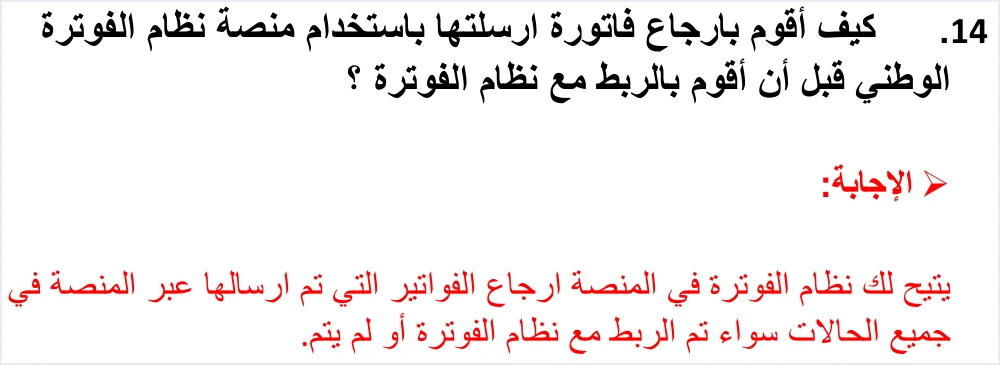
This is the only place in ISTD’s guides where the portal stays open as a route after linking. Its limits can be read from the wording of the answer itself.
- It covers invoices sent through the portal. These are the invoices a sub-user issued from Issue an invoice before linking.
- It still applies after linking. The words “in all cases” cover both situations, before linking and after it.
- It does not cover invoices from linked software. The question and the answer are about what was sent through the portal, so do not extend the rule to invoices your software sent.
An invoice sent by linked software is returned from that software, with a return invoice (credit note) built under the technical guide for linking. The return invoice carries the original invoice’s number, its unique identifier (UUID) and its total. Returns are on quantities only, and the buyer details on the return invoice must match those on the original invoice.
ISTD’s answer does not name the screen from which a portal invoice is returned after linking. If you cannot find the return route on your account after linking, ask ISTD before you try another route. The return steps on the portal, as the user guide presents them, are covered in our article Return an Invoice on the JoFotara Portal.
Why you cannot go back to the portal whenever you like
If unlinking were a setting the taxpayer could change on its own, moving between the two paths would be possible. ISTD, however, makes it a request submitted to ISTD, and it attaches a condition. Under the steps for question 9 there is a note with this wording.

«طلب فك ربط الأجهزة يكون فقط لمن ليس لديه نظام محاسبي ويكون قام بالربط عن طريق الخطأ اما من يمتلك نظام محاسبي يلزمه ربط نظامه مع نظام الفوترة.»
In English, ISTD says that a request to unlink devices is only for a business that has no accounting system and linked by mistake, and that a business that has an accounting system must link that system with the invoicing system. The English here is our rendering, and the Arabic text is the authority.
The request goes through ISTD’s e-services, under Internal services (الخدمات الداخلية) and then Send an internal service request (إرسال طلب خدمة داخلية), with the request type set to invoicing-system support request (طلب دعم فني لنظام الفوترة). In the notes, the taxpayer asks ISTD to unlink the devices, gives the reasons, and undertakes that it has no accounting system. ISTD decides on the request.
So going back to the portal is available in one case only, a business that linked by mistake and has no accounting system. For a business that has accounting software, ISTD’s published position in the same note is that a business that has an accounting system must link that system with the invoicing system. That sentence carries no date, no grace period and no penalty, so do not add any of those when you pass it on. How it reads alongside Article 4 of Regulation No. 34 of 2019 is explained in detail in our article Is Linking Accounting Software to JoFotara Mandatory?
A map of situations: where your business stands on the two paths
The table below brings together six situations, what the official texts say about each one, and the step you take.
Scroll the table sideways to see the remaining columns
A checklist before you click device linking
Linking removes the portal’s issuing option, and undoing it is not in your hands. So it is better to settle these questions before you click the option.
- Do you have accounting software that will actually send the invoices? If you have no software, your path is issuing on the portal through a sub-user, and the device linking option is not for you.
- Have you coordinated with your software provider? The joining guide directs the taxpayer to coordinate with the system’s programmer or the technical solutions provider it works with, to complete the technical requirements for linking.
- Are you on the main user’s account? The device linking option (ربط الأجهزة) appears on the main user’s screen, not on the sub-user’s screen.
- Have you told whoever issues invoices on the portal? The questions and answers guide says that Issue an invoice (تنظيم فاتورة) no longer appears for the sub-user once device linking is clicked. Agree with that person on the moment when issuing on the portal stops and sending from the software begins.
- Have you gathered the details of your earlier portal invoices? According to the 2024 user guide for the platform, the invoice to be returned is looked up by its invoice electronic number. Keep a clear record of the portal invoices you may need to return later.
- Do you have one income-source sequence or more? The Client ID and Secret Key are tied to one income-source sequence. If you have several sequences and want to link only some of them, ask ISTD about the effect before you click the option.
- Have you prepared a safe place for the linking credentials? ISTD’s joining guide tells you to keep the linking credentials in a safe place and not to share them with anyone.
Statements about combining the two methods that have no basis
You may read or hear statements about working with both paths at once. Here are five that have no basis in ISTD’s guides, so ask for their official source before you rely on them.
- “Issue some invoices on the portal and send the rest from the software.” The questions and answers guide says that clicking device linking removes Issue an invoice from the sub-user’s account.
- “Unlink from the settings when you need the portal.” Unlinking is a request to ISTD, limited to a business that has no accounting system and linked by mistake.
- “Return a software invoice through the portal.” ISTD’s answer on returns covers invoices sent through the portal only.
- “The warning message before linking is ISTD’s text.” The message appears in the 2024 user guide for the platform, prepared by a software vendor. ISTD states the effect in question 9.
- “You must link before a specific date.” ISTD’s note gives no date and no grace period for linking. Article 4(b) of Regulation No. 34 of 2019 refers linking to the timetable prepared for that purpose without naming a date, so ask for the official source of any date you hear.
For a wider view of the system and how to connect your business to it, read our article Jordan’s National E-Invoicing System.
How Qoyod helps once you choose the linking path
If linking is your path, Qoyod brings e-invoicing and full accounting together in one system. Qoyod is integrated with the National Invoicing System (JoFotara). This is what it does when you send your invoices from it.
- Qoyod builds the invoice file in UBL 2.1 format with its unique identifier (UUID) and sends it to the National Invoicing System without any manual intervention. The taxpayer needs no digital certificate or signature of their own to send invoices through Qoyod.
- Qoyod checks each invoice at field level as it is created, covering the tax number, the document type and payment method, the General Sales Tax rate and whether the lines are complete, and alerts you to any error before the invoice is sent, to reduce rejections.
- ISTD returns the invoice status and any error message, and Qoyod shows them in its status panel. The status panel lists invoices that were not sent and need to be resent, and when you resend one it keeps the same UUID.
- Once ISTD accepts the invoice it returns a QR code, and Qoyod shows that code on the invoice. Qoyod also books the invoice to your ledgers automatically.
To be precise, Qoyod does not create your account on the National Invoicing System, and it does not generate the Client ID and Secret Key. You complete both of those steps on ISTD’s portal in your own name. Invoices you issued on the portal before linking are returned through the portal, as ISTD’s answer provides.
E-invoicing and full accounting in one system
Qoyod is integrated with the National Invoicing System (JoFotara). You issue your invoice in Jordanian dinars from Qoyod, it is booked to your ledgers automatically and sent to the system, and once it is accepted it comes back with a QR code from the Income and Sales Tax Department.
Frequently asked questions
Can you combine the JoFotara portal and device linking?
ISTD’s guides present the two methods as alternative paths under the heading about choosing the right path. The questions and answers guide says that clicking the device linking option removes Issue an invoice (تنظيم فاتورة) from the sub-user’s account, so issuing on the portal is no longer available after linking. The one exception is returning invoices that were sent through the portal.
Why did Issue an invoice disappear after I linked my software?
Question 9 of the questions and answers guide gives the cause as clicking the device linking option. The guide gives no technical reason for it. If you never linked, first check that you are not on the main user’s screen, because Issue an invoice does not appear there.
Can I return an invoice I issued on the portal after I linked my software?
Yes, according to ISTD’s answer to question 14. It says that the invoicing system on the platform lets you return invoices sent through the platform in all cases, whether or not linking has been done. The answer does not name the screen used for the return after linking, so ask ISTD if you cannot find it.
Can I return through the portal an invoice my software sent?
ISTD’s answer is limited to invoices sent through the portal, so do not extend it to invoices from linked software. An invoice your software sent is returned from the software itself, with a return invoice that refers to the original invoice under the rules of the technical guide for linking.
How do I go back to issuing on the portal after linking?
You submit an internal service request of the invoicing-system support request type (طلب دعم فني لنظام الفوترة) through ISTD’s e-services, with an undertaking that you have no accounting system. ISTD limits this request to a business that has no accounting system and linked by mistake, and ISTD decides on it.
Is an invoice issued on the portal recognized in the same way as one from linked software?
Article 4(a) of Regulation No. 34 of 2019 recognizes the electronic invoice issued by the national electronic invoicing program or by a program linked to it. Both sources are accepted under the regulation, and the practical rule on choosing one of them comes from ISTD’s guides.
References
- Income and Sales Tax Department (ISTD), questions and answers guide for the National Invoicing System, 2026 (in Arabic), pp. 6 and 9.
- Income and Sales Tax Department (ISTD), procedures guide for joining the Jordanian National Electronic Invoicing System, 2026 edition (in Arabic), pp. 3, 9, 12 and 13.
- Income and Sales Tax Department (ISTD), technical guide for integrating with the National Invoicing System through the API, version 1.5 (in Arabic), return invoice section.
- Regulation No. 34 of 2019 on Organizing and Controlling Invoicing Affairs, as amended, consolidated text (in Arabic), Article 4.
- User guide for the National Invoicing System platform, 2024, prepared by a software vendor, not ISTD (secondary source; the current interface may differ from it) (in Arabic).
- ISTD’s National Invoicing System guides (in Arabic)




