




You log in to the National Invoicing System (JoFotara) for the first time, look for a way to issue an invoice, and cannot find one. The official questions and answers guide of the Income and Sales Tax Department (ISTD) explains why. You are logged in as the main user. A JoFotara sub-user is the account from which invoices are issued on the portal, and the main user is the account that creates and manages it.
In short, the main user is an administration account created at registration and tied to the tax number, and the sub-user is an issuing account that the main user creates and that is bound to one income-source sequence. The first adds users and generates the linking credentials. Only the second sees the Issue an invoice tile (تنظيم فاتورة).
This article explains what each account does, why a business sometimes needs more than one sub-user, where linking with accounting software sits between the two accounts, and three points of confusion that recur in support questions. The detailed steps for adding a sub-user are in our article Add a Sub-User in JoFotara: Step by Step, so this page stays with roles and permissions.
Two accounts on one tax number
JoFotara builds access to the portal on two levels. The first level is an account the taxpayer creates at registration. Its tax number is filled in automatically and cannot be edited. The second level is the accounts that the owner of the first account creates for the people who issue invoices.
ISTD’s procedures guide for joining the Jordanian National Electronic Invoicing System calls the first account the main user (المستخدم الرئيسي) and the second the sub-user (المستخدم الفرعي). The difference between them is one of function. The main user has no option to issue an invoice, and the sub-user has no administration tools.
Both accounts log in to the portal with the same three fields, the tax number, the username and the password. The tax number is the same for both, and the username and password decide which of the two accounts opens. That is why a taxpayer can enter the correct tax number with the other account’s username and password and land in an account they did not mean to open.
If you have not created your account yet, complete your JoFotara registration first, because the main user does not exist until registration is complete.
The main user: the administration account
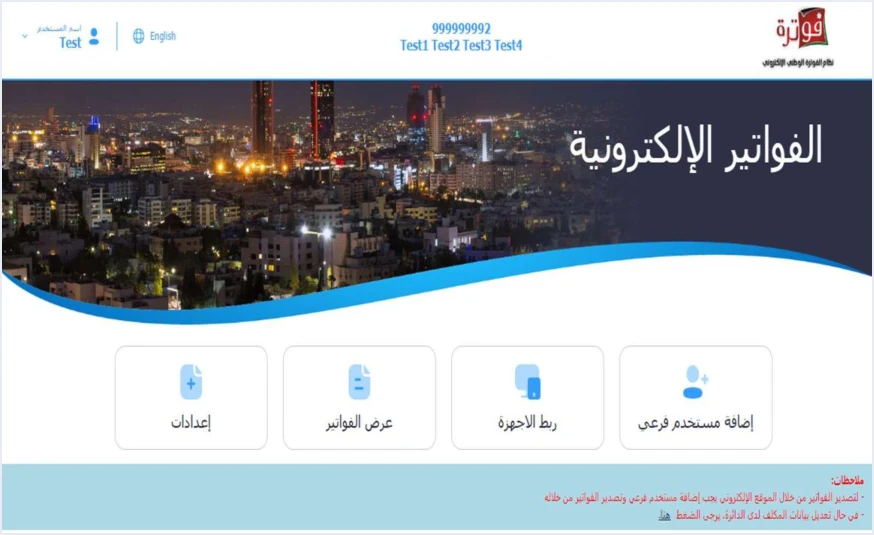
Once the account is created, the main user reaches a home screen with four tiles, as the joining guide shows them.
- Add a sub-user (إضافة مستخدم فرعي), to create issuing accounts and manage their status later.
- Device linking (ربط الاجهزة), to generate the Client ID and Secret Key that accounting software needs in order to link.
- View invoices (عرض الفواتير), to browse issued invoices.
- Settings (إعدادات). ISTD’s guides do not detail what it contains.
The 2024 user guide for the platform describes uploading the business logo from Settings for each income-source sequence. That guide was prepared by a software vendor, not by ISTD, and the current interface may differ from what it describes.
Under the four tiles sits a note. Rendered in English, it says that to issue invoices through the website you must add a sub-user and issue the invoices from it. The note uses the Arabic word for exporting (تصدير), but issuing the invoice is what it means. That one sentence sums up the whole idea. The Issue an invoice tile (تنظيم فاتورة) does not appear on the main user’s screen, and issuing from the portal goes through a sub-user.
The JoFotara sub-user: who creates it and what it is bound to
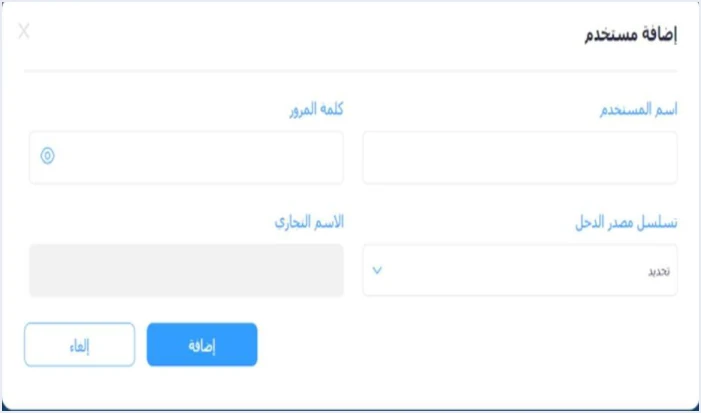
A sub-user is not created from a separate registration page. It is created inside the main user’s account, through the Add a sub-user tile. In the 2026 edition of the joining guide, the system first asks for a verification code (OTP) sent to the phone number, and only then opens the add form.
The form shows the income-source sequence, the username and the password, along with the trade name, which is filled in automatically and is read-only. After adding the sub-user, the taxpayer logs out of the main user and logs in as the sub-user to reach Issue an invoice.
The income-source sequence: the field that defines the account
The most important field on the form is the income-source sequence (تسلسل مصدر الدخل). Each sub-user is bound to one sequence, selected for it when it is created. The sequence itself is registered with ISTD. The taxpayer selects it from the list, and the system does not generate it.
A taxpayer with no active income-source sequence stops before this stage. ISTD’s questions and answers guide names the absence of an active sequence as the reason a taxpayer is sent back to the invoicing home page when trying to register. The fix is an internal service request to ISTD to open a new income source and group (فتح مصدر دخل ومجموعة جديدة).
Why a business creates more than one sub-user
Because each sub-user is bound to one income-source sequence, a taxpayer who has more than one sequence and issues invoices from the portal needs more than one sub-user. The 2024 user guide for the platform lists three cases for adding more than one sub-user.
- Several income-source sequences. One sub-user per sequence, if the taxpayer has more than one.
- Several branches. If the taxpayer’s business has more than one branch.
- Several people. If more than one person issues invoices.
These three examples come from the platform guide, not from ISTD’s guides, so treat them as described practice rather than a binding rule. Still, splitting the work across sub-users has a practical benefit that rests on what ISTD itself documents. The main user can suspend a sub-user and reactivate it from the User status column (حالة المستخدم).
If every employee who issues invoices has an account of their own, you can suspend the account of someone who leaves without touching anyone else’s, and no single password is shared among several people. This is an internal-control decision before it is a technical one.
Main user vs sub-user: the difference in a table
This table brings together what ISTD’s 2026 guides document about the two accounts.
Scroll the table sideways to see the remaining columns
Who sees which invoices
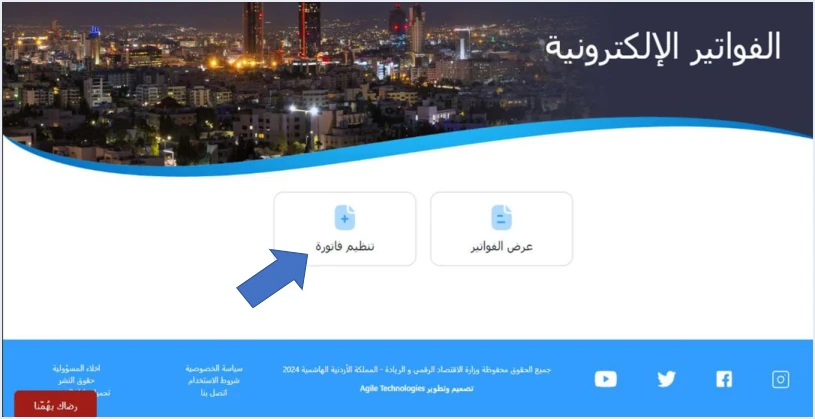
The View invoices tile appears on both accounts’ screens, but ISTD’s guides do not define the scope of what each account sees. The 2024 user guide for the platform covers this point. According to it, the main user’s account shows all invoices of the tax number, while a sub-user sees the invoices issued through it and cannot see those of other sub-users.
This describes the 2024 interface, and the current interface may differ from it. Check it on the portal before you rely on it to decide how permissions are assigned in your business.
Three common points of confusion and their official cause
ISTD’s questions and answers guide, issued by its technical support section, records cases that look like a system fault. In fact, each one follows directly from the way roles are split between the two accounts.
1. The Issue an invoice tile does not appear at all
The official cause is that you are on the main user’s page. The fix is to create a sub-user, log out, then log in as the sub-user. Nothing is wrong with the account. You simply opened the wrong one.
2. The sub-user has lost the Issue an invoice tile
The official cause is that someone clicked the device linking option (ربط الاجهزة). Linking is a path for a business that sends its invoices from accounting software, and once it is done the Issue an invoice option is no longer available on the portal.
The important point here is that undoing the link is not a setting you change yourself. It is a request you submit to ISTD through the internal services on the e-services website, as an invoicing-system support request (طلب دعم فني لنظام الفوترة), and ISTD makes the decision. In its questions and answers guide, ISTD states the condition in these words.
«طلب فك ربط الأجهزة يكون فقط لمن ليس لديه نظام محاسبي ويكون قام بالربط عن طريق الخطأ اما من يمتلك نظام محاسبي يلزمه ربط نظامه مع نظام الفوترة»
In English, ISTD says that a request to unlink devices is only for a business that has no accounting system and linked by mistake, and that a business that has an accounting system must link that system with the invoicing system. The English here is our rendering, and the Arabic text is the authority.
In the notes of the request, the applicant undertakes that it has no accounting system. The practical lesson is simpler than the fix. Do not click device linking unless you really intend to link.
3. A message asking you to contact the system administrator
The Arabic message (تم إيقاف الحساب الرجاء الاتصال بمسؤول النظام) says the account has been suspended and asks you to contact the system administrator. Its official cause is that the sub-user has been suspended. The fix that the questions and answers guide gives is for the main user to reactivate it, because the main user is the one who holds that permission. Other account errors that come up before an invoice is sent are covered in our article JoFotara Error Codes: Why an Invoice Is Rejected and How to Fix It.
Where linking with accounting software fits between the two accounts
After the account is created, the joining guide sets out two paths, and the taxpayer picks the one that suits the business.
- A business that has accounting software selects device linking from the main user’s screen. The system generates the Client ID and Secret Key, and the business then completes the technical requirements and sends invoices directly from its software.
- A business that has no accounting software presses Add a sub-user and issues its invoices from the portal as that sub-user.
The main user is therefore present on both paths, because it holds both options. The difference is that the portal path ends at a sub-user, while the linking path ends at accounting software that holds the linking credentials.
The income-source sequence is present on both paths as well. On the linking form, the taxpayer enters a username and selects the income-source sequence, and then the system generates the credentials. The linking credentials are bound to one sequence, just as a sub-user is. So do not assume the sequence is a field that belongs to the portal alone.
For invoices that were sent from the portal before linking, the questions and answers guide states that the platform lets you return them in all cases, whether or not linking has taken place. The details of linking from inside accounting software are in our article how to connect to JoFotara, step by step. For a wider view of the system and how to connect your business to it, read our article Jordan’s National E-Invoicing System.
How to arrange the two accounts in your business
The decision starts from one question that you answer before any click. Do you send your invoices from accounting software, or do you issue them by hand on the portal? If you are still weighing that choice, our article National Invoicing Portal in Jordan: When It Is Enough and When You Need an Accounting System looks at it in detail.
- Keep the main user’s credentials with the business owner or someone they authorize, because this is the account that adds and suspends users and generates the linking credentials.
- If you issue invoices from the portal, create a sub-user on the correct income-source sequence, then log in with it to issue the invoice.
- If you have accounting software, your route is device linking from the main user. Coordinate the technical requirements with your system’s programmer or your technical solutions provider, as ISTD’s joining guide directs.
- Do not try device linking just to see what it does, because clicking it hides Issue an invoice, and undoing it is a request that ISTD decides on its own conditions.
- Keep the linking credentials in a safe place and do not share them with anyone, as the joining guide instructs.
A business that chooses the linking path moves the work of issuing from the portal to its accounting software, so the invoice is issued in the software and sent to the system without being entered a second time. You can see how this works with Qoyod on the page Qoyod and the National Invoicing System.
E-invoicing and full accounting in one system
Qoyod is integrated with the National Invoicing System (JoFotara). You issue your invoice in Jordanian dinars from Qoyod, it is booked to your ledgers automatically and sent to the system, and once it is accepted it comes back with a QR code from the Income and Sales Tax Department.
Frequently asked questions
What is a JoFotara sub-user?
It is the account from which invoices are issued on the JoFotara portal. The main user creates it, it is bound to one income-source sequence selected when it is created, and its screen shows the Issue an invoice (تنظيم فاتورة) and View invoices (عرض الفواتير) tiles.
What is the difference between the main user and the sub-user?
The main user is created at registration and tied to the tax number, and it has the Add a sub-user, device linking, View invoices and Settings tiles. The sub-user issues and views invoices and has no administration tools.
Why doesn’t the Issue an invoice tile appear in my account?
If you are on the main user’s account, the tile never appears there, and the fix is to create a sub-user and log in with it. If you are on a sub-user and the tile has disappeared, the official cause is that someone clicked device linking, and undoing it is a support request that you submit to ISTD.
Can I create more than one sub-user?
The 2024 user guide for the platform describes adding a sub-user for each income-source sequence, or where there is more than one branch or more than one person issuing invoices. ISTD documents that each sub-user is bound to one income-source sequence and that the main user suspends and reactivates it.
Does the sub-user log in with the same tax number?
Yes. Both accounts log in with the tax number, the username and the password, and the tax number is the same for both. The username and password decide which of the two accounts opens.
Who can suspend and reactivate a sub-user?
Only the main user can. It changes the sub-user’s status from the User status column (حالة المستخدم) inside the Add a sub-user tile, and the sub-user then logs in again once it is reactivated.
References
- Income and Sales Tax Department (ISTD), procedures guide for joining the Jordanian National Electronic Invoicing System, 2026 edition (in Arabic).
- Income and Sales Tax Department (ISTD), procedures guide for issuing an invoice in the Jordanian National Electronic Invoicing System, 2026 edition (in Arabic).
- Income and Sales Tax Department (ISTD), questions and answers guide for the National Invoicing System, 2026 (in Arabic).
- User guide for the National Invoicing System platform (2024), prepared by a software vendor (secondary source), not ISTD; the current interface may differ from it (in Arabic).
- ISTD’s National Invoicing System guides (in Arabic)




