




The JoFotara invoice form fields are the fields a sub-user fills in on the portal after selecting the Issue an invoice tile (تنظيم فاتورة). They fall into four sections, invoice details, seller details, buyer details and goods or services details. Some are mandatory and marked with a red asterisk. Some are filled in automatically and cannot be changed. For others, the rule depends on the payment method.
This article explains each field as it appears on the New invoice form (فاتورة جديدة) in the procedures guide for issuing an invoice in the Jordanian National Electronic Invoicing System, 2026 edition, published by the Income and Sales Tax Department (ISTD). For each field it sets out what the guide says, and where ISTD’s guides are silent, so that you do not fill in the form on an assumption. The order of the steps from login to issue is a separate topic. This article stays on the screen itself, one field at a time.
JoFotara invoice form fields: how to read the form
The sub-user reaches the form from the Issue an invoice tile (تنظيم فاتورة) on their home screen, after choosing between a cash invoice (نقدي) and a receivable invoice (ذمم). The breadcrumb Back › New invoice (رجوع › فاتورة جديدة) appears at the top of the screen. The tile does not appear on the main user’s home screen, because only the sub-user can issue invoices on the portal of the National Invoicing System (JoFotara).
The guide states the first reading rule explicitly. Every field marked with an asterisk is mandatory. You fill in those fields on every invoice. For a field without an asterisk, take the rule from the text of the guide, not from how the field looks. The buyer name, for example, has no asterisk, yet it is required in specific cases.
The table below summarizes the four sections and the buttons that follow them, as the guide shows them on pages 6 and 8.
Scroll the table sideways to see the remaining columns
Each section and field is named here in English, followed by the exact Arabic label in parentheses as it appears on screen. The Arabic keeps ISTD’s own spelling, including «او» written without a hamza in the goods or services section title, because matching the label exactly makes the field easier to find on the form.
The invoice details section: type, date and currency
The first section on the form is Invoice details (بيانات الفاتورة). Its three fields set the frame for the whole invoice before you reach the buyer and the lines.

Invoice type
The invoice type field (نوع الفاتورة) is a dropdown whose default value is local invoice (فاتورة محلية). The guide lists six types, each with its own use case. They are the local invoice, the export invoice, the development zones or investment promotion invoice, the transit invoice, the foreign trade invoice and the invoice for an assignment inside the free zone. The local invoice is for a sale within the borders of the Hashemite Kingdom of Jordan.
For a local sale you do not need to change this field, because its default value fits. If the sale is an export, or the buyer is registered among development-zone taxpayers, choose the matching type before you go on. The conditions for each type are covered in our article Invoice Types in the National Invoicing System.
Invoice issue date
The invoice issue date field (تاريخ إصدار الفاتورة) carries an asterisk, so it is mandatory. A calendar icon next to it lets you pick the date. The procedures guide for issuing an invoice does not say how to fill it in beyond that.
The date you enter is governed by Regulation No. 34 of 2019 on Organizing and Controlling Invoicing Affairs, as amended. Article 3 of Regulation No. 34 of 2019 makes the time and date of the invoice the time and date on which the sale event occurs. Article 5(d) of the same regulation requires the invoice to be issued when that sale event occurs. The correct date in this field is therefore the date of the sale the invoice covers.
Currency type
The currency type field (نوع العملة) is also mandatory. Its default value is Jordanian dinar (JOD) (دينار أردني). The guide states that the currency type is selectable, as the invoice type is. If the invoice is in dinars, you do not need to change anything in this field.
If you choose another currency, keep in mind the buyer-name rule explained in the buyer section below. ISTD’s technical guide for integrating with the National Invoicing System through the API, version 1.5, puts the cash-invoice threshold for the buyer name at more than 10,000 dinars or its equivalent in foreign currencies.
The seller details section: fields filled in automatically
After the invoice details comes the Seller details section (بيانات البائع). It has six fields, name (الاسم), income-source sequence (تسلسل مصدر الدخل), tax number (الرقم الضريبي), country (الدولة), postal code (الرمز البريدي) and phone number (رقم الهاتف). These fields are filled in automatically from your account and cannot be edited on the form.

In the image above, the values of the income-source sequence and the phone number are blurred. The field names remain visible.
The most important field in this section is the income-source sequence. Each sub-user is bound to one income-source sequence, selected when the sub-user is created, and that sequence is what appears in the seller details of every invoice the sub-user issues. If your business has more than one sequence, check this field before you fill in the form, to make sure you are logged in as the right sub-user.
Because these fields are read-only, an error in them cannot be corrected from the form. The main user’s screen carries a note that reads, in English, “If the taxpayer’s details held by the department have changed, please click here” (في حال تعديل بيانات المكلف لدى الدائرة، يرجى الضغط هنا), as shown in the procedures guide for joining the Jordanian National Electronic Invoicing System, 2026 edition.
Buyer fields: name, identifier and contact details
The third section is Buyer details (بيانات المشتري). It has six fields, and none of them carries an asterisk. That does not make the whole section optional, because the guide sets two rules that apply to two of its fields.

Name
The buyer name field depends on the choice you made at the start, cash or receivable. The guide sets its rule as follows.
- Receivable invoice. On a receivable (credit-sale) invoice, the buyer’s name is always required, whatever the invoice value.
- Cash invoice. On a cash invoice, the buyer’s name is required if the invoice value is more than JOD 10,000.
On a cash invoice the threshold starts above JOD 10,000. Under the wording of the guide, an invoice of exactly JOD 10,000 is not covered by this condition. Separately, Article 5(b) of Regulation No. 34 of 2019 requires the buyer’s name to be stated clearly in a sale on credit, a sale by installments or a sale paid in stages.
Buyer additional-ID type and buyer number
A small information icon appears next to the buyer additional-ID type field (نوع المعرفات الإضافية للمشتري), and the guide does not show the tooltip text it opens. The 2024 user guide for the platform, prepared by a software vendor and not by ISTD, lists three options for this field, national number, tax number and personal number. The current interface may differ from it. The buyer number field (رقم المشتري) follows on the form.
Phone number, city and postal code
If you enter the buyer’s phone number, the guide requires digits only, with at least 9 digits and at most 14. Do not type spaces, symbols or a plus sign before the country code.
The city (المدينة) and postal code (الرمز البريدي) fields appear on the form with no specific rule in the procedures guide for issuing an invoice. The two rules the guide sets for this section are the name rule and the phone rule. The buyer data inside the invoice file that linked systems send is a different matter, described in the technical guide rather than on the portal screen.
Line fields: goods or services details
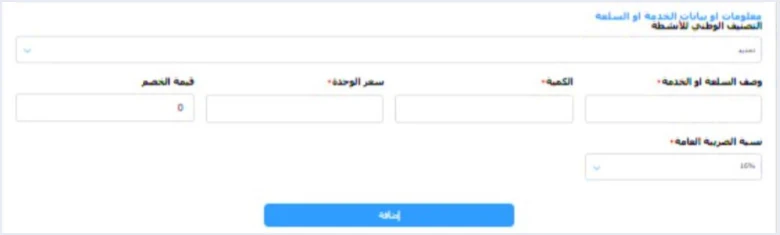
The last section holds the invoice lines. Its title on the form is Goods or services details (معلومات او بيانات الخدمة او السلعة). Here you enter each good or service on its own, then add it to the invoice before you move on to the next one.
National activity classification
The first field in the lines section is the national activity classification (التصنيف الوطني للأنشطة). It is a dropdown without an asterisk. This field needs a closer look, because ISTD’s guides say little about it.
- What we know. The field exists on the 2026 form, it is a dropdown, and it has no mandatory asterisk in the screenshot published in the guide.
- What ISTD’s guides do not explain. The list of values it offers, the classification those values come from, and whether it becomes mandatory in certain cases.
- What applies to linked systems. No element in version 1.5 of ISTD’s technical guide for integrating with the National Invoicing System through the API corresponds to this field. A business that sends its invoices from linked software does not send it.
If you need to know which value in this field fits your activity, ask ISTD rather than relying on an estimate from outside it.
Description of the good or service, quantity and unit price
These three fields carry an asterisk, so they are mandatory on every line.
- Description of the good or service (وصف السلعة او الخدمة). Text that states what was sold on this line.
- Quantity (الكمية). The number of units sold on the line.
- Unit price (سعر الوحدة). The price of one unit of the good or service.
Article 5(a) of Regulation No. 34 of 2019 lists, among the contents of an invoice, the type of the good or service, its quantity and value, and the total value.
Discount amount
The discount amount field (قيمة الخصم) has no asterisk, and its default value is 0. If the line carries no discount, leave it as it is. It is a line-level field, filled in with each good or service before you press Add. The form shows no field for a discount on the invoice total.
General Sales Tax rate
The General Sales Tax rate field (نسبة الضريبة العامة) is a dropdown with an asterisk, and the screenshot in the guide shows 16% in it. The rate you choose for each line is the rate the law sets for that good or service, not whatever the field shows by default. If the lines on one invoice are subject to different rates, choose the right rate for each line before you add it.
The Add button
After you fill in the line fields, press the Add button (إضافة) to insert the line into the invoice, then repeat the same steps for each further line. The button adds the current line only. It does not issue the invoice.
Notes, and the Issue and Exit buttons
Below the lines section the form shows a Notes box (ملاحظات) for free text, then two buttons, Issue (إصدار) and Exit (خروج).
- Notes. A free-text box without an asterisk. The guide sets no rule for its content.
- Issue. The button that issues the invoice once all the lines are added. The steps shown in the procedures guide for issuing an invoice end here.
- Exit. The button that leaves the form.
Review every field before you press Issue, because an invoice cannot be edited once issued. The alternative the system offers is a return invoice (credit note). ISTD’s questions and answers guide states that the platform lets you return invoices sent through it in all cases, whether or not the business has linked a system.
Fields marked with an asterisk and what the other rules require
The table below brings together every field that issuing the invoice depends on, whether the asterisk makes it mandatory or a rule in the guide does, so you can review them in one place. For the wider picture of what an e-invoice in Jordan must carry, see our article E-Invoicing Requirements in Jordan.
Fields you will not find on the 2026 form
You may come across explanations of the form based on the 2024 user guide for the platform. That guide was prepared by a software vendor and is not one of the four guides ISTD publishes. It shows two fields that do not appear on the 2026 form presented in ISTD’s guide.
- Seller invoice number (رقم فاتورة البائع). An optional field in the 2024 guide that does not appear on the 2026 form.
- Type (النوع). A field where you chose between a good and a service or service fee. It does not appear on the 2026 form.
If you read an explanation that asks you to fill in either of them, the reference is the 2026 form as ISTD’s guide presents it. What you see on your own screen has the final word, because the interface can change after any guide is published.
One more note on the scope of this article. The form shown in the 2026 guide is a sub-user form for a taxpayer registered for General Sales Tax. The fields of income invoices and special tax invoices on the portal are described only by the 2024 guide, so this article does not cover them.
If you issue from linked software, you do not see this screen
Everything above applies to a business that issues its invoices on the portal as a sub-user. A business that has linked its accounting software to the system through the device linking option (ربط الاجهزة) never goes through the New invoice form. ISTD’s questions and answers guide states that clicking device linking removes the Issue an invoice tile from the sub-user.
Linked software does not fill in the fields on the screen. It sends an invoice file with its own elements, which the technical guide describes. The screen and the file each have their own guide, so do not build one on the other.
For a wider view of the system and how to connect your business to it, read our article Jordan’s National E-Invoicing System. If you would rather issue invoices from your accounting software than fill them in by hand, the Qoyod and JoFotara page shows how that works with Qoyod.
E-invoicing and full accounting in one system
Qoyod is integrated with the National Invoicing System (JoFotara). You issue your invoice in Jordanian dinars from Qoyod, it is booked to your ledgers automatically and sent to the system, and once it is accepted it comes back with a QR code from the Income and Sales Tax Department.
Frequently asked questions
What are the JoFotara invoice form fields?
The fields fall into four sections, invoice details, seller details, buyer details and goods or services details. After the sections come a Notes box and the Issue and Exit buttons, as shown in ISTD’s procedures guide for issuing an invoice, 2026 edition.
Which fields are mandatory when issuing an invoice?
The guide states that every field marked with an asterisk is mandatory. Those fields are the invoice issue date, the currency type, the description of the good or service, the quantity, the unit price and the General Sales Tax rate. The buyer name has no asterisk but is required on every receivable invoice, and on a cash invoice whose value is more than JOD 10,000.
Can I edit the seller details on the form?
The seller details are filled in automatically from the taxpayer’s account and are read-only on the form. The main user’s screen carries a note, “If the taxpayer’s details held by the department have changed, please click here” (في حال تعديل بيانات المكلف لدى الدائرة، يرجى الضغط هنا).
What should I choose in the national activity classification field?
ISTD’s guides do not explain the values of this field, their source or when it is mandatory, and it has no asterisk on the 2026 form. If you need to know which value fits your activity, ask ISTD.
Does the Add button issue the invoice?
The Add button only adds the current line to the invoice. The invoice is issued with the Issue button once all the lines are added.
Why can’t I find a seller invoice number field?
That field appears in the 2024 user guide for the platform, but not on the 2026 form presented in ISTD’s guide. The reference is the current form as you see it on your screen.
References
- Income and Sales Tax Department (ISTD), procedures guide for issuing an invoice in the Jordanian National Electronic Invoicing System, 2026 edition (in Arabic), pp. 6 and 8.
- Income and Sales Tax Department (ISTD), procedures guide for joining the Jordanian National Electronic Invoicing System, 2026 edition (in Arabic).
- Income and Sales Tax Department (ISTD), questions and answers guide for the National Invoicing System, 2026 (in Arabic).
- Income and Sales Tax Department (ISTD), technical guide for integrating with the National Invoicing System through the API, version 1.5 (in Arabic).
- Regulation No. 34 of 2019 on Organizing and Controlling Invoicing Affairs, as amended, consolidated text (in Arabic), Articles 3 and 5.
- ISTD’s National Invoicing System guides (in Arabic)




