




You changed your phone number, but the verification code from the National Invoicing System (JoFotara) still arrives at the old one. This JoFotara verification code old number case is one that the Income and Sales Tax Department (ISTD) names directly in the questions and answers guide prepared by its technical support section. The official answer is a single sentence, but reading it closely keeps you away from steps that no source supports.
This article gives ISTD’s text as it appears in the guide. It then shows where the system asks for the verification code according to ISTD’s guides, and an option in the internal requests list that carries the verification code in its name. After that, it separates what the official answer says from what it does not say, tells this case apart from other messages that look like it, and sets out when to contact ISTD directly.
What ISTD says about the JoFotara verification code old number case
In ISTD’s questions and answers guide for the National Invoicing System (2026), question 12 deals with someone who changed their phone number and then found that the verification code still goes to the old number. ISTD’s answer appears on p. 7 of the guide, in the following words.
«عليك ادخال كلمة المرور بشكل خاطئ ليتم تحديث رقم هاتفك»
In English, the answer tells you to enter the password incorrectly so that your phone number is updated. ISTD publishes this guide in Arabic only; the English here is our rendering, and the Arabic text is the authority.
That is the full official text. The guide adds no further explanation and no numbered steps, unlike other questions in the same guide. The answers to questions 7, 8 and 9, for example, come with the steps of an internal service request and the exact note text to write. The answer to question 12 is this one sentence alone.
So we give the sentence here as it stands, and we do not add our own explanation of how it works. The answer is phrased as an instruction to the taxpayer, to enter the password incorrectly so that the phone number is updated. It does not explain how the update happens or where.
What the official answer leaves out
Before you act on the answer, it helps to know its limits. The guide does not cover the points below, and none of the other ISTD guides we hold covers them either.
- Which password it means. A taxpayer deals with more than one password. There is the password for ISTD’s e-services site, the password for the account created on the invoicing system, and the sub-user’s password. The answer does not say which one.
- On which screen to enter it. The answer does not name the screen where the taxpayer enters the password to update the number.
- Where the new number comes from. The guide does not say which record the system reads the phone number from, or where the new number is recorded first.
- How many attempts and how long. The guide gives no number of attempts and no period after which the new number appears.
If you need an answer on any of these points, that answer lies with ISTD, not with guesswork. The official contact channels that ISTD’s guides list are at the end of this article.
Where JoFotara asks for the verification code
It helps to know where the verification code appears in the official guides, so you can identify the step that failed for you. The clearest place is the step for adding a sub-user.
The taxpayer starts registration by creating an account, which makes them the main user. A home screen then appears with four options, Add a sub-user (إضافة مستخدم فرعي), device linking (ربط الاجهزة), View invoices (عرض الفواتير) and Settings (إعدادات). A business without accounting software issues its invoices from the portal through a sub-user, because the main user has no Issue an invoice tile (تنظيم فاتورة) on its screen.
According to ISTD’s procedures guide for joining the Jordanian National Electronic Invoicing System (2026 edition), adding a sub-user follows this order.
- The main user clicks Add a sub-user (إضافة مستخدم فرعي).
- The main user enters the verification code sent to their phone, then clicks Confirm (تأكيد).
- The main user selects the income-source sequence, types the username and password, and clicks Add (إضافة).
- The main user logs out, logs in as the sub-user, and chooses Issue an invoice (تنظيم فاتورة).
The guide’s instruction for step 2 tells you to enter the verification code that was sent to your phone number and then click Confirm (تأكيد). The image below shows the verification code window as it appears in the guide.
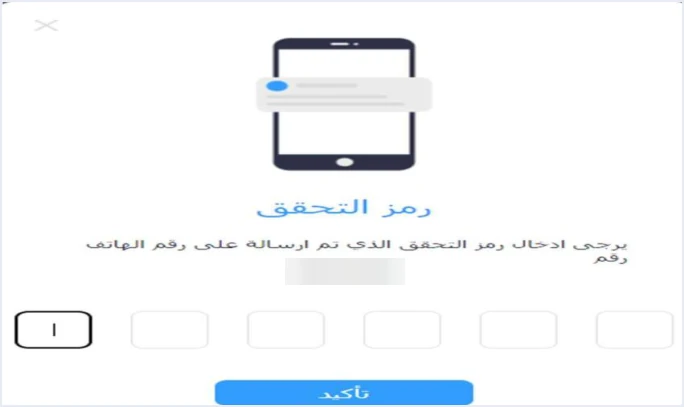
The window says that the code was sent to the phone number, and the number appears on the next line. We have blurred it in the image. Below that are boxes for entering the code and a Confirm button (تأكيد). If you reach this window, the line that shows the number is the first thing to read, because it tells you which number the code went to.
Two sources differ on this point. The 2024 user guide for the platform, prepared by a software vendor and not by ISTD, describes adding a sub-user with no verification code. ISTD’s 2026 guide starts the step with the verification code, and where the two differ, ISTD’s guide is the one to follow. The full steps, with screenshots, are in our article Add a Sub-User in JoFotara: Step by Step.
The option for adding a mobile number for the verification code in the internal requests list
ISTD handles several registration problems through internal requests submitted from its e-services site, not from the JoFotara portal. The route that the questions and answers guide explains for these requests runs as follows, and our article ISTD Internal Service Request: The Steps covers it in full.
- Log in to your account on the website with your tax number and password.
- Choose Internal services (الخدمات الداخلية).
- Choose Send an internal service request (ارسال طلب خدمة داخلية).
- Choose the request type from the dropdown list, then click Next (التالي).
- Write your note in the Taxpayer notes box (ملاحظات المكلف).
- Click Send the request (ارسال الطلب).
The guide explains this route in its answers to three specific questions. They are converting the taxpayer’s file type, adding an active income-source sequence, and unlinking devices, and for each one the guide sets a request type and a note text. In the screenshot where the guide shows the dropdown list for step 4, the list of requests includes an option for adding a mobile number for the verification code (اضافة رقم موبايل لرمز التحقق), among other items.
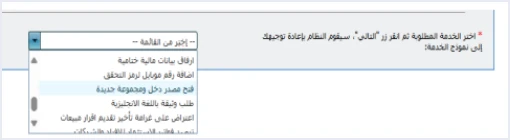
Above the list in the same screenshot is an instruction telling you to choose the required service and then click Next (التالي), after which the system takes you to the service form. The option for adding a mobile number for the verification code sits below attaching final financial statements (ارفاق بيانات مالية ختامية). Under it comes opening a new income source and group (فتح مصدر دخل ومجموعة جديدة), which is the highlighted item, because the screenshot is part of the steps for a different request that concerns the income-source sequence.
This is an observation from a screenshot, not an official answer. The guide does not offer this option as the fix for question 12. It gives no note text for it, and it does not explain what happens after you send it or who may submit it. ISTD’s answer to question 12 remains the sentence quoted above. If you think this option fits your case, ask ISTD about it before you rely on it.
If you do send any internal request, the guide shows a second item under Internal services (الخدمات الداخلية), next to Send an internal service request. It is Track sent internal requests (متابعة الطلبات الداخلية المرسلة), and you use it to follow the status of your request.
How to handle a verification code that goes to an old number, within what ISTD states
Here we put what the official sources allow into steps, without adding any action that ISTD does not mention.
- Make sure what you see is a verification code window. The window in the image above asks for a code sent to a phone. It is different from the on-screen verification code that you enter in the step for moving to the invoicing system, and from the other account messages covered in the next section.
- Read the number the window shows. That line tells you which number the code went to, so you know whether the problem really is an old number.
- Go back to ISTD’s text. Its official answer is the instruction to enter the password incorrectly so that your phone number is updated. It is a clear instruction, but the guide does not say which password, which screen or how many times. Clarify these details with ISTD before you apply it, and do not build your own steps on top of it.
- Ask ISTD before using the internal request. If you are thinking of the option for adding a mobile number for the verification code, keep in mind that the guide does not offer it as a fix, and check with ISTD whether it suits your case.
- Check the result the next time. The guide gives no way to confirm that the number has been updated. The practical sign available is to read the number that the verification code window shows the next time the system asks for the code. This is our own inference, not an official text.
Cases that look like this problem but are not
Some registration and login messages in JoFotara look alike on the surface, and ISTD’s guides give each one a different cause and fix. None of them is one of the invoice error codes covered in our article JoFotara Error Codes: Why an Invoice Is Rejected and How to Fix It.
- The on-screen verification code when moving to the system. In step 3 of registration you enter a code that appears on the screen, then press the button to move to the system. This is not a code sent to your phone. You will find this step in our article JoFotara Registration and the Registration Document.
- The message The account has been suspended, please contact the system administrator (تم إيقاف الحساب الرجاء الاتصال بمسؤول النظام). Its official cause is that the sub-user was suspended, and the fix is for the main user to reactivate it.
- The Client ID and the Secret Key. These are the linking credentials in the device linking path (ربط الأجهزة) for a business with accounting software. They have nothing to do with the verification code sent to your phone. Our article JoFotara Client ID and Secret Key: Device Linking Steps explains them.
- Trying to register takes you back to the invoicing home page. Its official cause is that there is no active income-source sequence, and the fix is an internal request of the type opening a new income source and group (فتح مصدر دخل ومجموعة جديدة).
If your question is about the difference between the two accounts in the first place, who adds whom and who issues the invoices, see our article JoFotara Sub-User vs Main User: Roles and Permissions.
When to contact ISTD
Because the official answer for this case is so short, contacting ISTD is the right step for every point its text does not cover. ISTD’s guides list the following channels.
- Internal requests. From the e-services site through Internal services (الخدمات الداخلية) and then Send an internal service request (ارسال طلب خدمة داخلية), and you follow them up from Track sent internal requests (متابعة الطلبات الداخلية المرسلة).
- The e-services email address. The login screen for the e-services shows the contact address etax.inquiry@istd.gov.jo, as the joining guide shows it.
- The technical support committee for invoicing affairs. On p. 104, ISTD’s technical guide for integrating with the National Invoicing System through the API, version 1.5, says that for further inquiries you can contact the technical support committee for invoicing affairs at ISTD, through ISTD’s website.
- The technical support tile on ISTD’s website. The Department services panel (خدمات الدائرة) on the website includes a tile titled Invoicing technical support (الدعم الفني الخاص بالفوترة), according to the procedures guide for issuing an invoice.
When you get in touch, describe the case as it is. Say that you changed your phone number and that the verification code still goes to the old number, and name the step at which the verification code window appeared. This ties your question directly to question 12 in ISTD’s guide.
Before you close this article
Go through these points in order. They sum up what the official sources say about this case.
- ISTD’s answer to question 12 is one sentence, an instruction to enter the password incorrectly so that your phone number is updated.
- The guide does not say which password, which screen or how many attempts.
- The verification code window shows the number the code was sent to, so read it first.
- The option for adding a mobile number for the verification code appears in the internal requests list, and the guide does not offer it as an official fix.
- Anything ISTD’s text does not cover is a question for its official channels.
If you issue your invoices from accounting software, your route in ISTD’s guides is the device linking option (ربط الأجهزة) on the main user’s screen. There you use the Client ID and the Secret Key inside your software and send invoices from it directly. For the full picture of the system, read our article Jordan’s National E-Invoicing System, and for how this works with Qoyod, see our National Invoicing System page.
E-invoicing and full accounting in one system
Qoyod is integrated with the National Invoicing System (JoFotara). You issue your invoice in Jordanian dinars from Qoyod, it is booked to your ledgers automatically and sent to the system, and once it is accepted it comes back with a QR code from the Income and Sales Tax Department.
Frequently asked questions
Why does the JoFotara verification code go to an old number?
ISTD answers this case in question 12 of its questions and answers guide with one sentence, an instruction to enter the password incorrectly so that your phone number is updated. The guide does not explain why the old number stays or how the update works.
Which password does ISTD mean in its answer?
The official answer does not say. It does not state whether it means the e-services password or the password for the account on the invoicing system, and it does not name the screen where you enter it. Clarify this point with ISTD directly.
Is the option for adding a mobile number for the verification code the official fix?
The option appears in the internal requests list, in a screenshot in the questions and answers guide, but the guide does not offer it as the answer to question 12. It gives no note text and no outcome for it, so ask ISTD about it before you rely on it.
When does JoFotara ask for the verification code sent to the phone?
The 2026 edition of the joining guide places the verification code at the start of adding a sub-user. After the main user clicks Add a sub-user (إضافة مستخدم فرعي), they enter the code sent to their phone and click Confirm (تأكيد), and then complete the user’s details.
Is the on-screen verification code in the step for moving to the system the same as the phone code?
The two codes are different in ISTD’s guides. The on-screen code is entered in step 3 of registration, before you move to the invoicing system. The verification code in this article is sent to your phone and entered in a separate window.
How do I contact ISTD about the verification code?
ISTD’s guides list several channels, including internal requests from the e-services site, the e-services email address etax.inquiry@istd.gov.jo, and the technical support committee for invoicing affairs through ISTD’s website. Describe your case and name the step at which the code appeared.
References
- Income and Sales Tax Department (ISTD), questions and answers guide for the National Invoicing System, 2026 (in Arabic), pp. 4, 5 and 7.
- Income and Sales Tax Department (ISTD), procedures guide for joining the Jordanian National Electronic Invoicing System, 2026 edition (in Arabic), pp. 5, 6, 9 and 11.
- Income and Sales Tax Department (ISTD), procedures guide for issuing an invoice in the Jordanian National Electronic Invoicing System, 2026 edition (in Arabic), p. 2.
- Income and Sales Tax Department (ISTD), technical guide for integrating with the National Invoicing System through the API, version 1.5 (in Arabic), p. 104.
- ISTD’s National Invoicing System guides (in Arabic)




