




The message Total General Amount is Not Correct appears when your accounting software sends an invoice to the National Invoicing System (JoFotara) and the invoice comes back rejected with code 400. It means the invoice totals do not match the calculation the system runs on the invoice lines.
The fix starts from the lines, not from the total. Recalculate each line with the formulas that the Income and Sales Tax Department (ISTD) sets in its technical guide, then add up the lines and compare the result with the totals fields. Before that, make sure the discount is spread across the lines and not applied to the invoice as a whole.
This article explains what the message means and sets out the line and totals formulas as they appear in version 1.5 of the technical guide. It then applies them to numeric examples from the same guide, and it ends with a checklist to run before sending.
What Total General Amount is Not Correct means
The technical guide describes code 400 (Bad Request) as an error in the values sent inside the XML file, with the detail written in the EINV_MESSAGE field of the response file. One of the messages it lists under this code is Total General Amount is Not Correct, and it explains it in these words.
«خطأ في العملية الحسابية لاحتساب المجموع النهائي للفاتورة (يمكن ان يكون الخطأ في أحد العمليات الحسابية الفرعية تؤدي الى خطأ في المجموع)».
In English, the guide calls it an error in the calculation of the invoice’s final total, and it adds that the error may sit in one of the sub-calculations that lead to a wrong total. ISTD publishes this guide in Arabic only; the English here is our rendering, and the Arabic text is the authority.
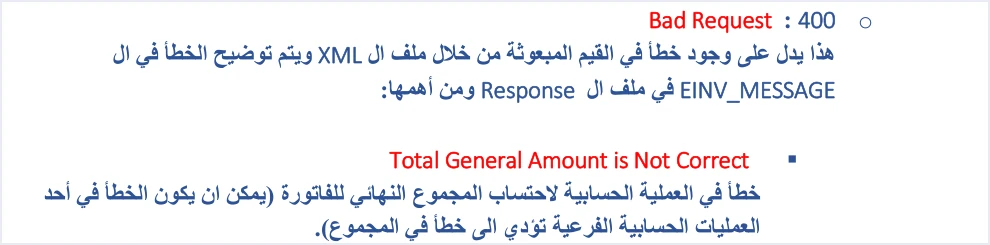
So the message does not name a specific line. The total may look right on your software’s screen while the error sits in a sub-calculation before it, such as a line’s tax or its amount after the discount.
How the message looks in the response file
On page 100, the guide shows an example response for an invoice rejected with this message. The invoice status field EINV_STATUS carries the value NOT_SUBMITTED, and the error comes inside the ERRORS array with three fields.
EINV_CODE, with the valuetotalGeneralTaxesAmount.EINV_CATEGORY, with the valueinvoice.EINV_MESSAGE, with the valueTotal General Amount is Not Correct.
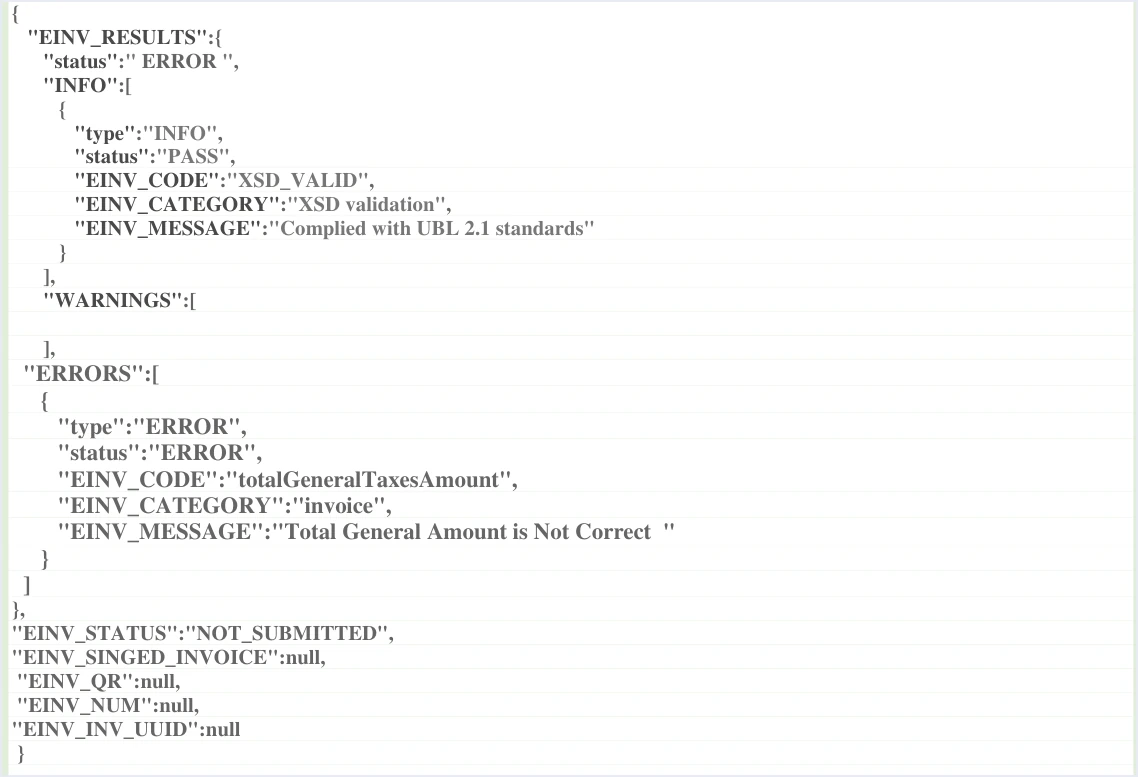
The same example shows that the file passed the structure check, because the INFO array carries the code XSD_VALID with the status PASS. The rejection is in the numbers, not in the structure of the file. With the rejection, the fields for the QR code, the invoice number, the invoice UUID and the signed invoice come back empty.
The guide explains the code totalGeneralTaxesAmount no further than the message that comes with it. Do not limit your check to the tax total because of the code’s name, since ISTD’s text allows the error to sit in any sub-calculation. For where this message sits among the other rejection codes (500, 403 and 504), see our article JoFotara Error Codes.
Three layers of calculation in the invoice file
The numbers in the invoice file are built in three layers, and each layer depends on the one before it.
- The line (
cac:InvoiceLine). Quantity, price, discount, tax and the line total. - Elements in the invoice header. The total of the discounts in
cac:AllowanceCharge, and the total general tax incac:TaxTotal. - The final totals (
cac:LegalMonetaryTotal). The total before the discount, the total discount and the final total.
The totals in the third layer are not independent numbers typed in by hand. They are the sum of what is in the lines. That is why the check starts from the line, moves up to the invoice header, and then to the totals.
Formulas for a single line
For each numeric field in the line, the guide sets a rule or a formula.
Scroll the table sideways to see the remaining columns
Three points behind these formulas deserve attention.
- Tax is calculated on the line amount after the discount. If your software calculates it on the price before the discount, the line tax and the line total change, and so does the final total.
- The unit price in the file is the price before tax. Everything in the line is calculated from it, so sending a tax-inclusive price in this field changes both the line amount and its tax.
- An income invoice carries no
TaxTotalblock at all. Its lines are quantity, price, discount and item name only.
Totals formulas in LegalMonetaryTotal
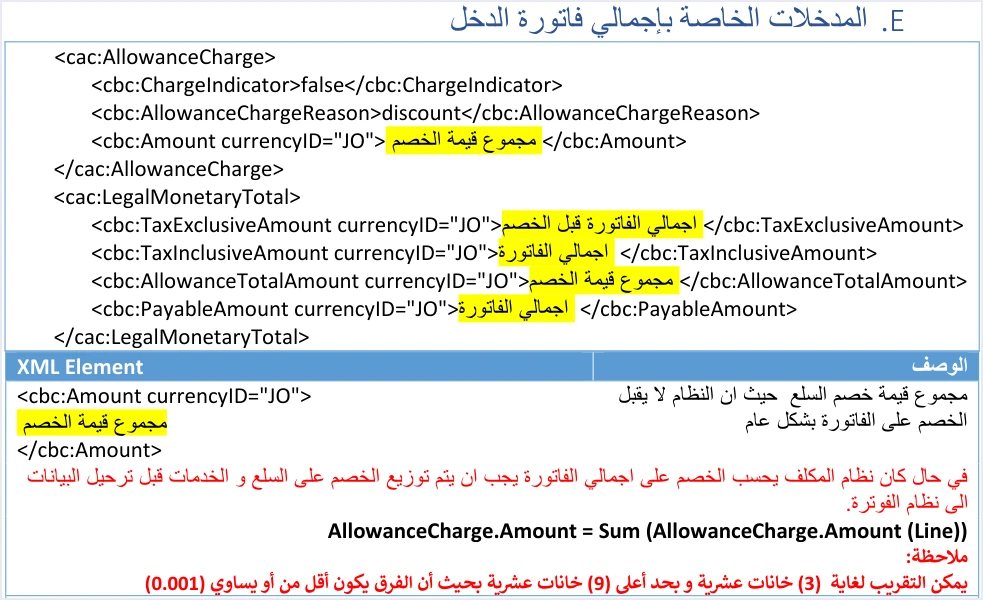
The cac:LegalMonetaryTotal element holds four fields, and the guide sets a formula for each.
Scroll the table sideways to see the remaining columns
Note that TaxInclusiveAmount and PayableAmount carry the same value, and both are the sum of the RoundingAmount fields in the lines. Any difference between the two, or between either of them and the sum of the lines, departs from the guide’s formula.
Two header elements the totals depend on
Besides the four fields, the invoice header carries two more elements calculated from the lines.
cac:AllowanceChargeat invoice level. It is sent withChargeIndicator = falseand the reasondiscount, and its valuecbc:Amountequals the sum of the line discounts. So the total discount appears twice in the file, here and inAllowanceTotalAmount, and both numbers equal the sum of the line discounts.cac:TaxTotal/cbc:TaxAmountat invoice level. The guide calls it the total general tax amount, and it equals the sum of the line taxes. It appears in General Sales Tax (GST) invoices and Special Sales Tax (SST) invoices, and not in an income invoice.
A numeric example from the guide: how the totals match
The clearest way to understand the formulas is to recalculate an example whose result you already know. The numbers below come from the technical guide’s own examples. We copied only the numbers, not the full XML files.
An income invoice with two lines (pp. 19 to 21)
These numbers appear in the totals fields as follows.
TaxExclusiveAmountequals 116.000, which is 66.000 + 50.000.AllowanceTotalAmountequals 7.000, which is 2.000 + 5.000. The same value sits inAllowanceChargein the invoice header.PayableAmountequals 109.000, which is 116.000 − 7.000, and it is also the sum of the two line amounts after the discount (64.000 + 45.000).
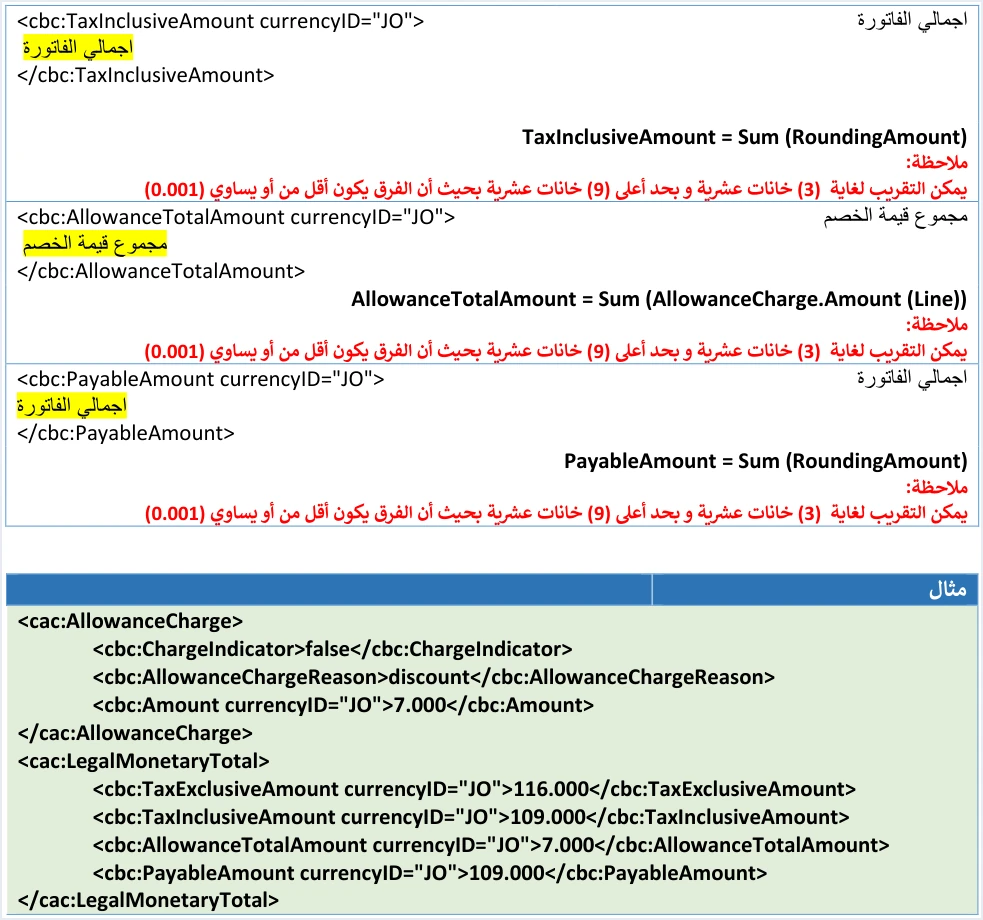
The check here is that two different calculations reach the same number. One subtracts the discount from the total before the discount, and the other adds up the line amounts after the discount. If the two calculations differ in your invoice, the fault is in one of the lines or in the discount.
A general sales tax invoice combining a taxable line and an exempt line (pp. 40, 43 and 44)
This example puts a line with category S and a line with category Z at 0% in one invoice.
Scroll the table sideways to see the remaining columns
The invoice totals in the example are TaxExclusiveAmount at 116.000, AllowanceTotalAmount at 2.000, TaxTotal at 4.480 and PayableAmount at 118.480.
The arithmetic can be checked two ways. The first is 116.000 − 2.000 + 4.480 = 118.480, and the second adds the two line totals, 68.480 + 50.000 = 118.480. If the two ways do not match in your invoice, look for the line that differs.
The 7% rate here is only the value used in the guide’s example. The rate that applies to your goods is set by the General Sales Tax Law, not by this example.
Invoice-level discount: why it is rejected and how to spread it
The guide states that the system does not accept a discount on the invoice as a whole, and it adds this rule.
«في حال كان نظام المكلف يحسب الخصم على اجمالي الفاتورة يجب ان يتم توزيع الخصم على السلع و الخدمات قبل ترحيل البيانات الى نظام الفوترة».
In English, the guide says that if the taxpayer’s system calculates the discount on the invoice total, the discount must be distributed across the goods and services before the data is sent to the invoicing system. ISTD publishes this guide in Arabic only; the English here is our rendering, and the Arabic text is the authority.
Three practical points follow from this.
- Every discount that reaches the file is a line discount, in
AllowanceChargeinside the line itself. - The sum of the line discounts is written in
AllowanceChargein the invoice header and inAllowanceTotalAmount, with the same value in both places. - The discount value is always positive, and the field accepts up to 9 decimal places.
The guide does not set a method of spreading. Choose one fixed method in your software, and make sure that after rounding the parts add up to the discount you gave the buyer. Keep in mind that spreading changes the tax of each line, because the tax is calculated on the line amount after its discount.
Rounding: three decimal places and a difference of no more than 0.001
The same note is repeated under every amount in the guide.
«يمكن التقريب لغاية (3) خانات عشرية و بحد أعلى (9) خانات عشرية بحيث أن الفرق يكون أقل من أو يساوي (0.001)».
In English, the guide allows rounding to 3 decimal places, with a maximum of 9 decimal places, provided the difference is less than or equal to 0.001. ISTD publishes this guide in Arabic only; the English here is our rendering, and the Arabic text is the authority.
So an amount may carry up to 9 decimal places and may be rounded to 3, as long as the resulting difference is no more than 0.001. The totals examples in the guide write amounts with three decimal places, such as 116.000 and 4.480.
We draw a practical rule from the formulas themselves. It is an inference, not text in the guide. The totals are defined as the sum of the line values, so calculate them from the same values you sent in the lines, with the same decimal places. If your software rounds each line and then calculates the total from the values before rounding, a small difference can build up between the total and its lines.
Special Sales Tax lines
In a Special Sales Tax invoice, the line calculation changes. The guide describes the special tax as a value entered without calculations, so it is an amount entered in the line, not a rate multiplied by the line amount.
- It is sent in its own
TaxSubtotalof typeOTH, without acbc:Percentelement, and it comes before the General Sales Tax block. - General Sales Tax is calculated on the line amount plus the special tax.
TaxAmountin the line carries the general tax only.- The line total
RoundingAmountequals the line amount plus the special tax and the general tax.
The guide’s example (pp. 69 to 71) is a line of 10 × 50 − 5 = 495.000, with a special tax of 10.000. The general tax is then (495 + 10) × 10% = 50.500, and the line total is 555.500.
TaxTotal at invoice level carries the general tax only. In the guide’s two-line example it equals 101.000, which is 2 × 50.500. The guide writes the total of this invoice in this form.
«اجمالي الفاتورة = (اجمالي الفاتورة قبل الخصم − مجموع قيمة الخصم + مجموع الضريبة الخاصة + مجموع قيمة الضريبة العامة)».
In English, the invoice total is the total before the discount, minus the total discount, plus the total special tax, plus the total general tax amount. ISTD publishes this guide in Arabic only; the English here is our rendering, and the Arabic text is the authority.
The example’s numbers are 1000.000 − 10.000 + 20.000 + 101.000 = 1111.000, which is also the sum of RoundingAmount in the two lines. If your software calculates the general tax on the line amount alone, or puts the special tax in TaxAmount, the line total no longer matches the formula.
Pre-submission checklist
In its guidelines, the guide recommends checking totals, taxes and mandatory fields before sending, to reduce 400 errors. This checklist puts the formulas above into ordered steps.
- The unit price in each line is before tax and greater than zero, and the quantity is greater than zero.
- Each line amount equals (quantity × unit price) − discount.
- Each line’s tax is calculated on its amount after the discount, plus the special tax if there is one.
- Each line total (
RoundingAmount) equals its amount plus its general tax, and the special tax if there is one. - There is no discount on the invoice as a whole. Every discount is spread across the lines, and its value is positive.
AllowanceChargein the invoice header equalsAllowanceTotalAmount, and both are the sum of the line discounts.TaxExclusiveAmountequals the sum of (quantity × unit price) before the discount.TaxInclusiveAmountequalsPayableAmount, and both are the sum ofRoundingAmountin the lines.TaxTotalin the header of a General Sales Tax or Special Sales Tax invoice equals the sum of the general tax in the lines, and it does not appear in an income invoice.- No amount exceeds 9 decimal places, no rounding difference is more than 0.001, and the totals are calculated from the same values that were sent.
Check the tax rate in each line as well. A rate that the API does not accept in the cbc:Percent field is listed in the guide among the causes of code 500, not among the code 400 messages.
After the fix: resend with the same number and UUID
An invoice rejected with this message was not accepted, so it has no QR code. Correct the numbers in your software, then send the invoice again. For resending, the guide recommends using the same invoice number and the same unique identifier (UUID), because generating a new identifier may duplicate the invoice.
Judge the result from the invoice status EINV_STATUS, not from the HTTP code alone. The guide also recommends logging errors in detail inside your system and showing the user a simplified message. Save the message exactly as it came back, because it is your reference if the rejection happens again.
How Qoyod helps
When you issue your invoice from accounting software, you do not write the XML file by hand. Qoyod builds the invoice file in UBL 2.1 format with its unique identifier (UUID) and sends it to the National Invoicing System without any manual intervention, through Qoyod’s integration with the National Invoicing System.
- Check before sending. Qoyod checks each invoice at field level as it is created, covering the tax number, the document type and payment method, the General Sales Tax rate and whether the lines are complete, and alerts you to any error before the invoice is sent, to reduce rejections.
- Every invoice’s status in view. ISTD returns the invoice status and any error message, and Qoyod shows them in its status panel.
- Resending with the same identifier. The status panel lists invoices that were not sent and need to be resent, and when you resend one it keeps the same UUID.
The pre-send check is an alert, not a guarantee. It covers the four checks listed above, and whether an invoice is accepted remains a decision for the National Invoicing System alone.
Where to go next
- The other rejection codes and messages. See our article JoFotara Error Codes.
- The full picture of the system. For a wider view of the system and how to connect your business to it, read our article Jordan’s National E-Invoicing System.
- The discount rules in detail. See our article JoFotara Invoice Discount.
- Taxable and exempt lines in one invoice. See our article JoFotara Taxable and Exempt Lines.
- The line elements one by one. See our article JoFotara InvoiceLine.
E-invoicing and full accounting in one system
Qoyod is integrated with the National Invoicing System (JoFotara). You issue your invoice in Jordanian dinars from Qoyod, it is booked to your ledgers automatically and sent to the system, and once it is accepted it comes back with a QR code from the Income and Sales Tax Department.
Frequently asked questions
What does Total General Amount is Not Correct mean?
It means the invoice totals do not match the calculation that the National Invoicing System runs on the invoice lines. The technical guide lists it among the code 400 errors and describes it as an error in calculating the final total, which may start in a sub-calculation.
Why is the invoice rejected when its total looks right in my software?
ISTD’s text allows the error to sit in a sub-calculation, such as a line tax calculated before the discount or a discount that was not spread. The total alone is not enough. You need to match each line to its formula, then match the totals to the sum of the lines.
Does JoFotara accept a discount on the invoice total?
The system rejects a discount on the invoice as a whole, as the technical guide states. If your software calculates a discount on the total, it has to spread it across the goods and services before sending, and the invoice header then carries only the sum of the line discounts.
How many decimal places do amounts in the invoice file accept?
The guide allows rounding to 3 decimal places, with a maximum of 9, provided the resulting difference is no more than 0.001. The totals examples in the guide write amounts with three decimal places.
Are TaxInclusiveAmount and PayableAmount the same value?
The two fields carry the same value in the guide’s formulas, since both are the sum of the RoundingAmount fields in the invoice lines. Any difference between them departs from the formula.
Do I generate a new UUID when I resend after the fix?
The guide recommends resending with the same invoice number and the same unique identifier. Generating a new identifier when you resend may lead to a duplicate invoice.
References
- Income and Sales Tax Department (ISTD), technical guide for integrating with the National Invoicing System through the API, version 1.5 (in Arabic), 2026.
- ISTD’s National Invoicing System guides (in Arabic)




