




You enter your tax number, username and password to log in to the National Invoicing System (JoFotara), and instead of your home screen you get a message that the account has been suspended and that you should contact the system administrator. You see no way to continue. A JoFotara account suspended message like this one has one cause and one fix in the questions and answers guide issued by the technical support section of the Income and Sales Tax Department (ISTD), and the fix does not require a request to ISTD.
In short, the guide traces the message to a suspended sub-user, and the fix is to reactivate that sub-user from the main user’s account in four steps, through the Add a sub-user tile (إضافة مستخدم فرعي) and then the User status switch (حالة المستخدم). A sub-user cannot reactivate itself. That permission belongs to the main user alone.
This article covers the text of the message and its official cause, what the guide leaves unsaid, the reactivation steps as ISTD sets them out, how to confirm the account works again, and the cases that look like this message but are not. For what each account does and how the two differ, read our article JoFotara Sub-User vs Main User: Roles and Permissions.
JoFotara account suspended: the message text and its official cause
The questions and answers guide for the National Invoicing System, 2026, prints the message as the taxpayer sees it on the login screen. In English, it reads “The account has been suspended, please contact the system administrator.” The guide then gives the cause in one sentence addressed to the taxpayer, and sets out the fix under a heading about the steps to activate a user who has been suspended. Here are the three lines as the guide prints them.
«تم إيقاف الحساب الرجاء الاتصال بمسؤول النظام»
«قمت بإيقاف المستخدم الفرعي»
«خطوات تفعيل المستخدم الذي تم إيقافه»
In English, the first line is the message itself, the second says that you suspended the sub-user, and the third is the heading of the fix, the steps to activate a user who has been suspended. ISTD publishes this guide in Arabic only; the English here is our rendering, and the Arabic text is the authority.
So the message concerns a sub-user (المستخدم الفرعي) account, which is the account from which invoices are issued on the portal. According to ISTD’s 2026 guides, the main user creates each sub-user, and each sub-user is bound to one income-source sequence that is selected for it when it is created.
The guide does not define the phrase system administrator (مسؤول النظام) in the message. Its fix, however, runs through the main user’s account only. The first practical step is therefore to reach whoever in your business holds the login details for that account. This is our reading of the official fix, not a definition issued by ISTD.
What the guide does not say about a suspended sub-user
The guide answers one question, which is how a suspended account returns to work. It leaves other questions open, and it helps to know them before you go looking for an explanation.
- Who suspended the account. The guide words the cause in the second person, as something the taxpayer did (قمت بإيقاف المستخدم الفرعي, you suspended the sub-user), and explains no further.
- Why it was suspended. The guide gives no reason for the suspension, and does not tie it to a number of login attempts or to a period without use.
- Whether the suspension is automatic. The guide does not say that the system suspends an account on its own, and does not rule it out either.
- How long the suspension lasts. The guide sets no period after which a suspension ends. In the guide, an account comes back by being reactivated.
So do not build on a guess, because nothing in ISTD’s guides will confirm it. What the guide does document is enough to fix the problem. The status of every sub-user is shown in the User status column (حالة المستخدم) inside the Add a sub-user tile, and the guide names two states for it, inactive (غير مفعل) and active (مفعل). The fix starts from that column.
Who can reactivate a suspended sub-user
In the guide, reactivation is something the main user does, and the sub-user has no route to it. The reason is clear from the two home screens shown in ISTD’s joining guide.
- The main user’s screen has four tiles, Add a sub-user (إضافة مستخدم فرعي), device linking (ربط الاجهزة), View invoices (عرض الفواتير) and Settings (إعدادات). The status of sub-users is managed from the first of these.
- The sub-user’s screen has only two tiles, Issue an invoice (تنظيم فاتورة) and View invoices (عرض الفواتير). It has no option for managing users.
Both accounts log in to the portal with the same three fields, the tax number, the username and the password. The tax number is the same for both, and the username and password decide which account opens. If you are the employee who issues invoices and you do not hold the main user’s details, the fix lies with the person in your business who does. That is the user created at registration with the system and tied to the tax number.
If you hold the main account yourself, the steps below are all you need, with no need to write to ISTD. In the guide, reactivation is a self-service action on the portal. It is not one of the internal service requests submitted through the e-services website.
Steps to reactivate a sub-user in JoFotara
The questions and answers guide gives the fix in four steps, with screenshots. Here are the steps as the guide sets them out, with what to watch for at each one.
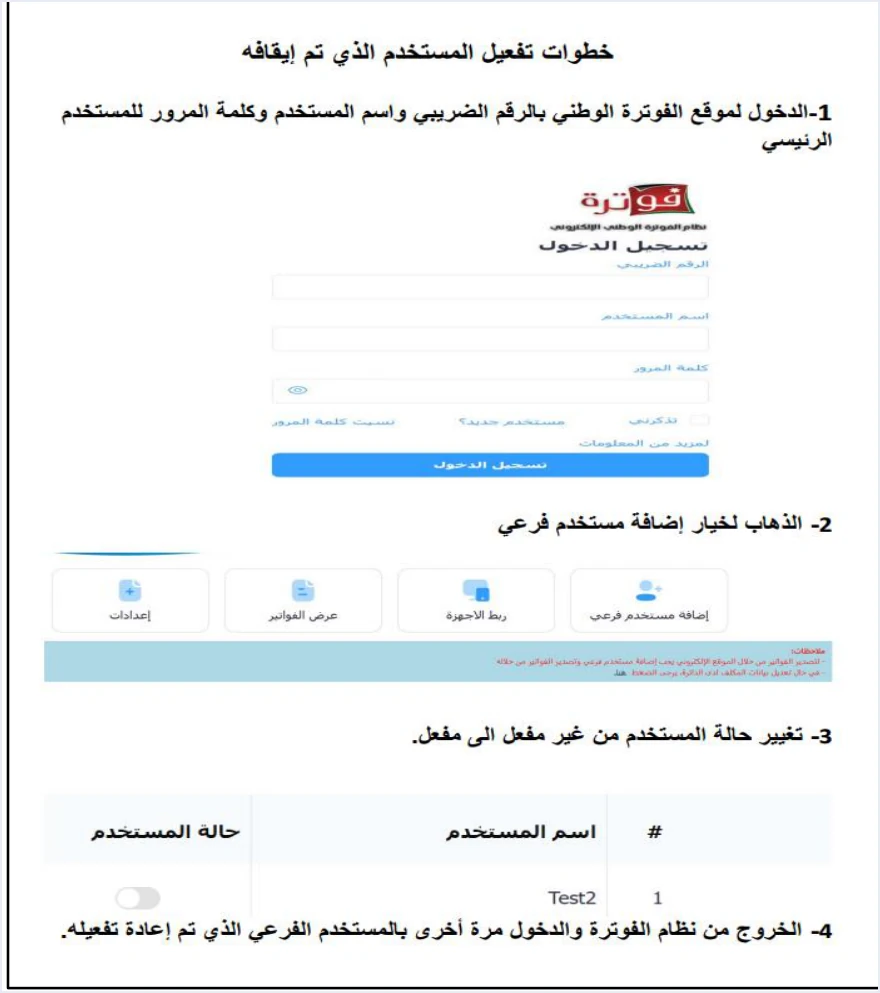
Step 1: Log in with the main user’s account
The guide’s text for this step tells you to log in to the National Invoicing System website with the tax number, username and password of the main user. The sub-user logs in with the same three fields, and the difference lies in the username and password. So type the main account’s details, not those of the suspended account.
You reach the login screen from the ISTD website, or directly from the portal address given in ISTD’s procedures guide for issuing an invoice, portal.jofotara.gov.jo.
Step 2: Go to the Add a sub-user tile
After you log in, the main user’s home screen appears with its four tiles. Click Add a sub-user (إضافة مستخدم فرعي). This is the same tile from which sub-users are created, and it also holds their list and the status of each one.
On this screen, watch the device linking tile (ربط الاجهزة) next to it. The questions and answers guide names a click on that tile as the reason Issue an invoice disappears from the sub-user, and undoing it is a request that ISTD decides, not a setting you change yourself. Do not click it while you are looking for the status switch.
You do not need to create a new user for this fix. Creating a sub-user is a separate task, with its steps in our article Add a Sub-User in JoFotara: Step by Step. What you need here is to bring an existing account back into use.
Step 3: Change the user status from inactive to active
The guide’s text for this step tells you to change the user’s status from inactive (غير مفعل) to active (مفعل). The guide’s screenshot shows a table with three columns, the row number, the username (اسم المستخدم) and the user status (حالة المستخدم). The status column holds a switch, which the screenshot shows set to inactive for the test user Test2.
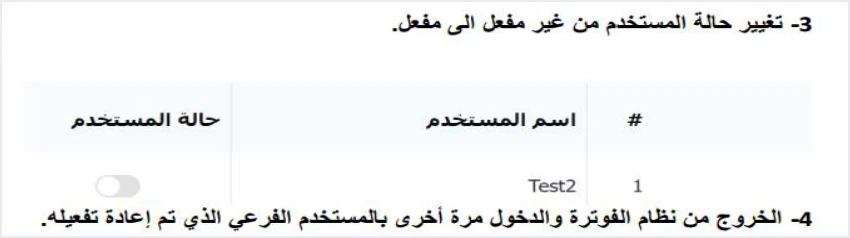
Pick the row by the username column, not by its position in the list. If you have more than one sub-user, ask the employee who saw the message which username they log in with, then change the status of that row only. Each sub-user is bound to one income-source sequence, and activating an account other than the one you meant does not bring the suspended account back.
The guide’s screenshot shows no save button and no confirmation message after the switch is changed. So do not judge the result from this screen. Rely on the fourth step to check it.
Step 4: Log out and log in again as the sub-user
The guide’s text for this step tells you to log out of the invoicing system and log in again with the sub-user that has been reactivated. Log out of the main user’s account, then log in from the same login screen with the tax number and the sub-user’s own username and password.
This step is part of the fix, not a formality. The main user has no Issue an invoice tile (تنظيم فاتورة), and issuing from the portal is done from the sub-user’s account. The fix is not complete until that account has actually logged in.
How to confirm that reactivation worked
After the fourth step, one look at the home screen tells you where you are. The table below sets out what you may see, what it means according to ISTD’s guides, and what to do next.
Scroll the table sideways to see the remaining columns
If the message appears again, check three things before you do anything else. Did you change the status of the right row in the username column? Does the switch now show active (مفعل)? And did you log out of the main user’s account and then log in with the details of that same sub-user?
When to contact ISTD
The questions and answers guide does not refer this message to ISTD, because the fix is in the main user’s hands. Two cases remain that the guide does not cover. The first is that the message persists after you follow the four steps as written. The second is that the main user’s account itself cannot be reached.
In these two cases, ISTD’s guides offer no self-service step. ISTD’s technical guide for integrating with the National Invoicing System through the API refers inquiries to ISTD’s technical support committee for invoicing affairs through the Income and Sales Tax Department website. Under the department’s services panel (خدمات الدائرة), the website shows a tile for invoicing technical support (الدعم الفني الخاص بالفوترة). When you get in touch, give the text of the message exactly as it appeared, the sub-user’s username, and which of the four steps you have already carried out.
Cases that look like the suspension message but are not
The questions and answers guide records other cases that a taxpayer may take for an account fault, each with a different cause and fix. These are the ones closest to the account suspension message in JoFotara, with the difference in one line.
- The Issue an invoice tile does not appear at all. There is no message here, and the official cause is that you are on the main user’s page. The fix is to log out and log in as the sub-user, or to create one if it does not exist.
- The sub-user logs in but cannot find Issue an invoice. The account works here, and the official cause is a click on device linking (ربط الاجهزة). The fix is an internal service request to ISTD of the type invoicing-system support request (طلب دعم فني لنظام الفوترة), which is open only to a business that has no accounting system.
- Trying to register sends you back to the invoicing home page. This is a registration problem, not a sub-user problem, and its official cause is the absence of an active income-source sequence. The details are in our article JoFotara Income Source Sequence: Where to Find It.
- The verification code goes to an old phone number. This is another case in the guide, and it concerns the phone number, not the status of the account.
- Error 403 when sending from accounting software. This is an HTTP response status code returned to the software linked through device linking, not a message on the portal screen. The error codes returned to linked software are covered in our article JoFotara Error Codes: Why an Invoice Is Rejected and How to Fix It.
How to organize the main user’s account in your business
Since reactivation rests with the main user alone, the details of that account are part of keeping invoicing running in your business. The points below are our own practical recommendations, not ISTD requirements.
- Know who holds the main user’s details. If the message appears to the employee who issues invoices, only the person who logs in with that account can fix it, so name that person in advance.
- Keep a list of your sub-users. Record each sub-user’s username, who logs in with it, and the income-source sequence it is bound to. That list shortens the third step when the table has more than one row.
- Review the User status column after any change. If an employee leaves or the person who issues invoices changes, open the table and make sure the status shown for each account is the one you intend.
The sub-user is the route for a business that issues its invoices by hand on the portal. A business that has accounting software takes a different route in the joining guide, the device linking tile (ربط الاجهزة) on the main user’s screen. The invoice is then issued in the software and sent to the system without being entered a second time on the portal. For a wider view of the system and how to connect your business to it, read our article Jordan’s National E-Invoicing System, or see how Qoyod works with JoFotara on our National Invoicing System page.
E-invoicing and full accounting in one system
Qoyod is integrated with the National Invoicing System (JoFotara). You issue your invoice in Jordanian dinars from Qoyod, it is booked to your ledgers automatically and sent to the system, and once it is accepted it comes back with a QR code from the Income and Sales Tax Department.
Frequently asked questions
What causes the account suspended message in JoFotara?
ISTD’s questions and answers guide gives one cause for this message, which it addresses to the taxpayer as having suspended the sub-user. The fix the guide gives is to reactivate that sub-user from the main user’s account.
Can a sub-user reactivate its own account?
No, reactivation is limited to the main user, because the main user holds the Add a sub-user tile where the User status column appears. The sub-user’s screen has only two tiles, Issue an invoice and View invoices.
Where is the user status switch?
It is in the main user’s account, inside the Add a sub-user tile, in the User status column next to each sub-user’s username. You change it from inactive to active on the row that carries the suspended username.
Do I need to submit a request to ISTD to reactivate a sub-user?
No request is needed, because the guide presents reactivation as a four-step action the main user takes on the portal, without an internal service request. Contacting ISTD remains an option if the message persists after the steps or if the main account cannot be reached.
Why was the sub-user suspended?
The guide does not say. It states only that the taxpayer suspended the sub-user, gives no reason for the suspension, and does not say that the system suspends an account automatically. What it documents is the fix, which is reactivation from the main user’s account.
How do I know that reactivation worked?
You know it worked when you log out of the main user, log in as the sub-user, and reach a screen with the Issue an invoice and View invoices tiles. If the message appears again, check that you changed the status of the right row and logged in with that row’s details.
References
- Income and Sales Tax Department (ISTD), questions and answers guide for the National Invoicing System, 2026 (in Arabic).
- Income and Sales Tax Department (ISTD), procedures guide for joining the Jordanian National Electronic Invoicing System, 2026 edition (in Arabic).
- Income and Sales Tax Department (ISTD), procedures guide for issuing an invoice in the Jordanian National Electronic Invoicing System, 2026 edition (in Arabic).
- Income and Sales Tax Department (ISTD), technical guide for integrating with the National Invoicing System through the API, version 1.5 (in Arabic).
- ISTD’s National Invoicing System guides (in Arabic)




