




To return an invoice on the JoFotara portal, the web portal of the National Invoicing System (JoFotara), the 2024 user guide lists ten steps, from logging in to the sub-user account (step 1) to the Issue button (إصدار, step 10), in which you pull up the original invoice by its electronic number, write the reason for the return and set the quantity returned on each line. This article is a practical walkthrough for someone sitting in front of the screen. It is the counterpart of our article on issuing an invoice on the JoFotara portal, which covers issuing itself.
A note on sources before any step. The procedures guide for issuing an invoice in the Jordanian National Electronic Invoicing System, 2026 edition, published by the Income and Sales Tax Department (ISTD), does not document the return screens. The steps below therefore come from the user guide for the National Invoicing System platform (2024), prepared by a software vendor, not ISTD. It is not one of the guides listed on ISTD’s website, and every screenshot from it in this article shows an illustrative interface that may differ from the current one.
Return an invoice on the JoFotara portal: where the steps come from
What is known about returns on the portal is spread across four sources, and each has its limits. Knowing those limits tells you how far you can rely on each step.
So the fact that returns exist on the portal comes from ISTD itself. In question 14 of its questions and answers guide, ISTD states that the platform lets you return invoices that were sent through it. What happens on the platform after accounting software is linked is a separate question, and this article does not go into it.
ISTD’s guides refer to the portal as the platform, and this article uses the two words to mean the same thing. Both mean the website you open at portal.jofotara.gov.jo to issue invoices without linked accounting software.
What to prepare before you start
The return screen will not wait while you look for a number or work out a quantity. Have these five items ready before you log in, because each one is asked for at a specific step.
The second item deserves a closer look. According to the 2024 user guide, a sub-user sees under View invoices only the invoices issued through that sub-user, and cannot see those of other sub-users. The main user sees every invoice under the tax number there. So if a colleague issued the original invoice from another sub-user account, you may not find its number in your list. Ask the main user for it. The guide does not say whether the invoice has to be returned by the sub-user who issued it, so do not assume either way.
The reason field is free text, and the technical guide makes a reason mandatory on every return invoice.
If you have already returned part of the same invoice, the quantity available to you now is what remains on each line after the earlier returns, not the full original quantity.
The ten steps on the portal, in order
The 2024 user guide opens the steps with a sentence that sets their scope. Users can return an invoice issued through the platform, and only such an invoice. The steps below follow the guide’s order, and each one comes with what is useful to know at that point.
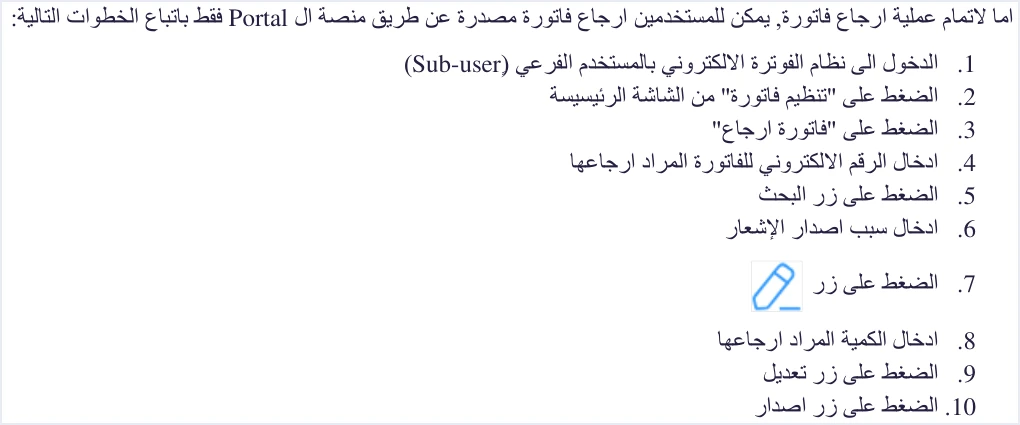
1. Log in with the sub-user account
The login screen is the same for both accounts, and its fields are the tax number, the username and the password. The username and password decide which account opens, so enter the sub-user’s details, not the main user’s. ISTD’s guides point the same way, because the main user’s screen has no Issue an invoice tile (تنظيم فاتورة). The difference between the two accounts is explained in our article on the JoFotara sub-user.
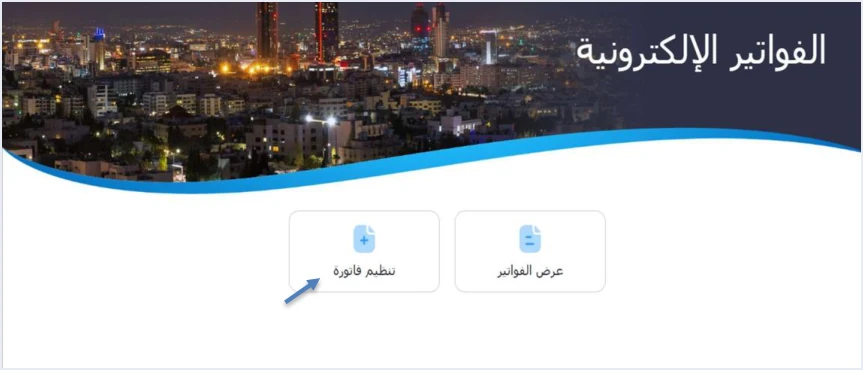
2. Press Issue an invoice (تنظيم فاتورة)
A return goes through the same tile you issue invoices from. In ISTD’s 2026 guide, the sub-user sees a screen with only two tiles, Issue an invoice (تنظيم فاتورة) and View invoices (عرض الفواتير).
3. Choose Return invoice (فاتورة إرجاع)
In the 2024 interface, Issue an invoice offers two options, New invoice (فاتورة جديدة) and Return invoice (فاتورة إرجاع). This is where the current interface may differ. ISTD’s 2026 guide goes straight from Issue an invoice to the choice between cash and receivable, and none of its pages shows a screen with Return invoice on it. ISTD’s guides therefore do not say where this option sits in the current interface. If you do not find it where the 2024 guide puts it, go to the section “When your screen differs from the steps” below. The cash and receivable choice, and the invoice types around it, are covered in our article Invoice Types in the National Invoicing System.
4. Enter the electronic number of the original invoice
This is the number you got ready from View invoices. The guide calls it the electronic number of the invoice to be returned (الرقم الإلكتروني للفاتورة المراد إرجاعها). So do not enter an internal number from your own books, or a number you wrote in the notes.
5. Press Search (البحث)
The search pulls up the original invoice and its lines. Before you go on, check the details on screen against the invoice you mean. One wrong digit in the number could pull up a different invoice, issued to a different buyer.
6. Enter the reason for issuing the note (سبب إصدار الإشعار)
Notice that the field calls the document a note. The technical guide treats the return invoice (type code 381) as a credit note, and it defines no debit note. In the 2024 guide’s order the reason comes before you choose the lines, so write it first and then move on to the quantities.
7. Press the pen icon next to the line
The pen icon opens the window for the line you want to return a quantity from. The ten steps do not cover an invoice with more than one line. Our closest reading is that you repeat steps 7 to 9 for every line you return a quantity from. This is our inference, not text in the guide, so check it on your own screen.
8. Enter the quantity to return (الكمية المراد إرجاعها)
This is the only open field in the window, and the next section covers it in detail. Enter the quantity that actually came back on this line, not the amount of money you want to refund to the buyer.
9. Press the button at the bottom of the window to confirm the quantity
In the 2024 interface this button is labeled Edit (تعديل), with a Cancel button (إلغاء) next to it. It works only inside the window. It fixes the quantity you entered for that line in the return invoice you are preparing, and it does not touch the original invoice. The issued invoice stays as it is, and the whole correction is made through the new document.
10. Press Issue (إصدار)
This button issues the return invoice as a separate document linked to the original invoice. In the 2024 interface you then find it under View invoices, where the list has a note type column (نوع الإشعار) and a summary card titled All notes issued (جميع الإشعارات الصادرة).
The Edit invoice product window (تحرير منتج الفاتورة): only the quantity is open
The pen icon in step 7 opens a window titled Edit invoice product (تحرير منتج الفاتورة). In the screenshot the 2024 guide shows, every field appears with its value from the original invoice. All of them are disabled and accept no input, except one.
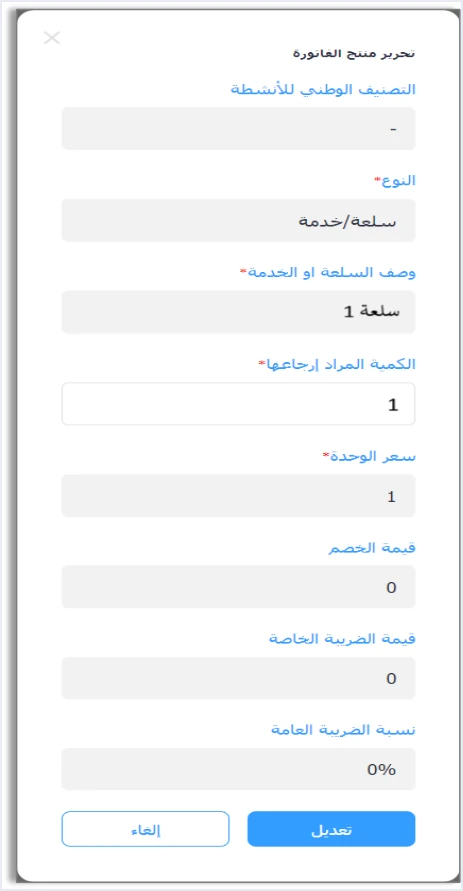
Limiting the window to the quantity is not a design choice of the portal alone. The technical guide for linked systems states that a return covers quantities only, and that the line number, the description and the unit price stay as they are on the original invoice. What the portal window shows is consistent with the technical guide’s rule.
This has a practical consequence. If your mistake is in the unit price, the tax rate or the line description, this window cannot reach it, because it carries the original values over unchanged. The alternative available for each kind of mistake is covered in our article Editing an Issued Invoice in Jordan’s National Invoicing System.
Worked example: returning three units from one line
Take a local invoice issued on the portal with one line of ten units, a unit price of JOD 2, no discount and a General Sales Tax (GST) rate of 16%. The buyer returned three units. At step 8 you enter a quantity of 3, and the other values carry over from the original invoice.
We chose a line with no discount on purpose. The technical guide has a rule for the discount on a partial return, but the portal window shows the discount amount as disabled, and the 2024 guide does not explain how the portal spreads it over the returned quantity. The figures in the table illustrate the calculation. They are not a copy of a screen, because the 2024 guide shows no totals screen for a return invoice.
After this return, seven units remain on the line. If the buyer returns more units later, you issue a new return invoice against the same original invoice, because the technical guide allows more than one partial return until the quantities run out.
What the return screen does not let you do
Knowing the limits of the screen saves you attempts that lead nowhere. Here they are, with the source of each.
- Change the price, discount, tax or description. The fields are disabled in the 2024 guide’s window, and the technical guide fixes the line values as they are on the original.
- Return more than the original quantity. The technical guide does not allow a return to exceed the quantity sold on the original invoice.
- Change the buyer. The technical guide requires the buyer details on the return invoice to match the buyer details on the original invoice.
- Return an invoice sent by linked software. The 2024 guide limits the portal steps to invoices issued through the platform only. An invoice sent from linked software is returned with a return invoice that the software sends, under the technical guide.
- Issue a debit note. The technical guide defines only two types, the new invoice and the return invoice. If the value on the original invoice was lower than it should have been, the guide defines no document that adds to it.
- Undo the return invoice after issuing it. A return invoice is an issued document like any other, and none of the guides describes a way to cancel it.
If you are on the other side of the transaction, the buyer who returned the goods, you do not go through these screens at all, because the seller is the one who issues the return invoice.
When your screen differs from the steps
The 2024 guide was written for an interface that may have changed since. In the screenshots in ISTD’s 2026 guides, the portal footer credits the design and development to a different firm from the one that prepared the 2024 guide. So do not be surprised by a different button name or a different order. What matters is not to carry on by guesswork with a document that the guides give no way to cancel.
- Check the account first. If Issue an invoice does not appear at all, one of the two causes given in ISTD’s questions and answers guide is that you are on the main user’s page. The fix, in the answer to question 10, is to log out and log in as the sub-user. The other cause relates to device linking (ربط الأجهزة), which this article does not cover.
- Look for the option under Issue an invoice. Return invoice is the label shown in the 2024 interface. If you see only cash and receivable, as in the 2026 guide, do not try to issue a new invoice with negative values in place of a return, because the system rejects negative quantities and prices on lines.
- Ask ISTD. The technical guide refers questions to ISTD’s technical support committee for invoicing affairs through its website, istd.gov.jo. On that site, the ISTD services panel (خدمات الدائرة) has an Invoicing technical support tile (الدعم الفني الخاص بالفوترة). In your question, give the electronic number of the original invoice, say that it was issued on the platform, and name the step where you stopped.
The warning in the second item has one more reason behind it. The technical guide makes a return a dedicated document that carries the reference of the original invoice and is limited to quantities, and a new invoice carries no such reference.
Final check before the Issue button
None of the guides describes a way to cancel a return invoice once you press the last button, so go through these points in order.
- Check the account. You are on the sub-user, and the original invoice was issued on the platform, not from linked software.
- Check the invoice you pulled up. The details that appeared after Search belong to the invoice you mean.
- Check the reason. The field is not empty, and the text describes what actually happened.
- Check the lines. You opened with the pen every line that had a quantity returned, and you did not open a line on which nothing came back.
- Check the quantities. Every quantity is greater than zero and does not exceed what is left on the line after any earlier return.
- Check the confirmation. You pressed the window’s button after every quantity, before moving on to Issue.
Returns in Qoyod for invoices you issue from it
Everything above concerns invoices issued on the portal, and those are returned on the portal. If you issue your invoices from Qoyod instead, note that Qoyod is integrated with the National Invoicing System (JoFotara). The return invoice (credit note) is one of the documents it issues, alongside the income invoice, the general sales tax invoice and the special tax invoice.
- An alert before sending. Qoyod checks each invoice at field level as it is created, covering the tax number, the document type and payment method, the General Sales Tax rate and whether the lines are complete, and alerts you to any error before the invoice is sent, to reduce rejections.
- The document’s status in front of you. ISTD returns the invoice status and any error message, and Qoyod shows them in its status panel.
The details of the integration are on our JoFotara page. For a wider view of the system and how to connect your business to it, read our article Jordan’s National E-Invoicing System. For an explanation of each field on the issuing form itself, see our article on the JoFotara invoice form fields.
E-invoicing and full accounting in one system
Qoyod is integrated with the National Invoicing System (JoFotara). You issue your invoice in Jordanian dinars from Qoyod, it is booked to your ledgers automatically and sent to the system, and once it is accepted it comes back with a QR code from the Income and Sales Tax Department.
Frequently asked questions
Which account do I use to return an invoice issued on the portal?
You return it from the sub-user account, because the first step in the 2024 user guide is to log in with it. In ISTD’s guides, the main user’s screen has no Issue an invoice tile (تنظيم فاتورة), and that tile is the route a return goes through.
Where do I find the electronic number of the original invoice?
You find it under View invoices (عرض الفواتير), a tile on both the sub-user’s and the main user’s screen. According to the 2024 guide, a sub-user sees only its own invoices, while the main user sees every invoice under the tax number.
Can I change the line price or the tax rate on a return invoice?
The Edit invoice product window (تحرير منتج الفاتورة) in the 2024 guide leaves only the quantity to return open, so you cannot. The technical guide states that a return covers quantities only and that the unit price stays as it is on the original invoice.
Do ISTD’s guides explain the return steps on the portal?
ISTD confirms in question 14 of its questions and answers guide that the platform lets you return invoices sent through it. The 2026 procedures guide for issuing an invoice shows no return screens, though, and the detailed steps come from the 2024 user guide.
Can I use the portal to return an invoice that my accounting software sent?
The 2024 guide limits the portal return steps to invoices issued through the platform. An invoice sent by linked software is returned by that software with a return invoice, under the rules of the technical guide for integration.
References
- Income and Sales Tax Department (ISTD), procedures guide for issuing an invoice in the Jordanian National Electronic Invoicing System, 2026 edition (in Arabic).
- Income and Sales Tax Department (ISTD), questions and answers guide for the National Invoicing System, 2026 (in Arabic), questions 10 and 14.
- Income and Sales Tax Department (ISTD), technical guide for integrating with the National Invoicing System through the API, version 1.5 (in Arabic), return invoice section.
- User guide for the National Invoicing System platform (2024), prepared by a software vendor (secondary source), not ISTD, and cited here for the return screens only (in Arabic), p. 14.
- ISTD’s National Invoicing System guides (in Arabic)




