




JoFotara taxable and exempt lines are the lines of a single general sales tax invoice in the National Invoicing System (JoFotara), where one line carries category S at a rate other than zero and another line carries category Z at a rate of 0. The technical guide published by the Income and Sales Tax Department (ISTD) gives this exact case as its example of a general sales tax invoice in version 1.5. One file holds a line described as an example of a taxable good and a line described as an example of a good exempt from tax.
This article follows that example element by element. It starts with the values the seller’s system needs for each line, then writes out the elements of the taxable line in the order they appear in the XML file, then shows what changes in the exempt line and what stays the same. After that it moves up to the invoice header to show where each total comes from and where the exempt line enters it. The three categories and the difference between Z and O are covered in our article JoFotara Tax Categories: S, Z and O Explained.
Every number here comes from the guide’s example on pages 40, 42, 43 and 44, and we added no line and no rate. The 7% rate is simply the value the guide chose for the example. The rate that applies to a given good or service is set by the General Sales Tax law, not by this example (see our article General Sales Tax in Jordan).
JoFotara taxable and exempt lines: how the invoice is built
The example rests on one rule. The tax category and the rate are written inside each line, not at invoice level. Every cac:InvoiceLine element carries its own cac:TaxTotal block, which holds the category in the cbc:ID field (UN/ECE 5305 scheme) and the rate in the cbc:Percent field. The file therefore has no field that describes the whole invoice as taxable or exempt. It describes each line on its own.
The header does not repeat the categories. It adds up what is in the lines. The main totals are the General Sales Tax total in cac:TaxTotal and the monetary totals in cac:LegalMonetaryTotal. The table below shows what is written at each level of the file.
Before the lines, the header sets the invoice type in the cbc:InvoiceTypeCode element. The technical guide codes each invoice type as a three-digit number placed in the name attribute of the invoice type element. The first digit is the trade type, 0 for a local invoice. The second is the payment method, and the third is the tax family, 2 for General Sales Tax. The first digit is the one that matters here. On page 42 the guide states a rule on the other types.
«في حال كان نوع الفاتورة تصدير أو مناطق تنموية أو ترانزيت أو تجارة خارجية أو تنازل داخل المنطقة الحرة يشترط أن تكون نسبة الضريبة 0% وتعبأ القيمة O لجميع السلع».
In English, the note says that if the invoice type is export, development zones, transit, foreign trade or assignment inside the free zone, the tax rate must be 0% and the value O must be entered for all goods. ISTD publishes this guide in Arabic only; the English here is our rendering, and the Arabic text is the authority.
These five types therefore carry no line with category S. Combining an S line with a Z line is a matter for the local invoice.
The values each line needs before you write the XML file
The seller’s system needs five values for each line before it can write the line’s elements. Three are numeric, namely the quantity, the unit price before tax and the discount. Two are tax values, namely the category and the rate. Every other amount on the line is calculated from these five. The values below are the example’s.
The constraints on these values are the same for both lines, because the guide sets them in the line table that is filled in for every line. The quantity is a whole or decimal number greater than 0, with up to nine decimal places. The discount takes positive values only, with up to nine decimal places. Under the unit price, the guide’s general sales tax invoice table states no constraint, while the same constraint appears under the unit price in the income invoice table. The unit of measure in the example is PCE, and the guide gives no list of other units. Each element and its constraint are covered in our article JoFotara InvoiceLine: Invoice Lines and Their Rules.
The first line with category S, element by element
The guide marks the start of the first goods or service line and labels it as an example of a taxable good. Its elements come in the file in the order of the table below, with the source of each value.
Scroll the table sideways to see the remaining columns
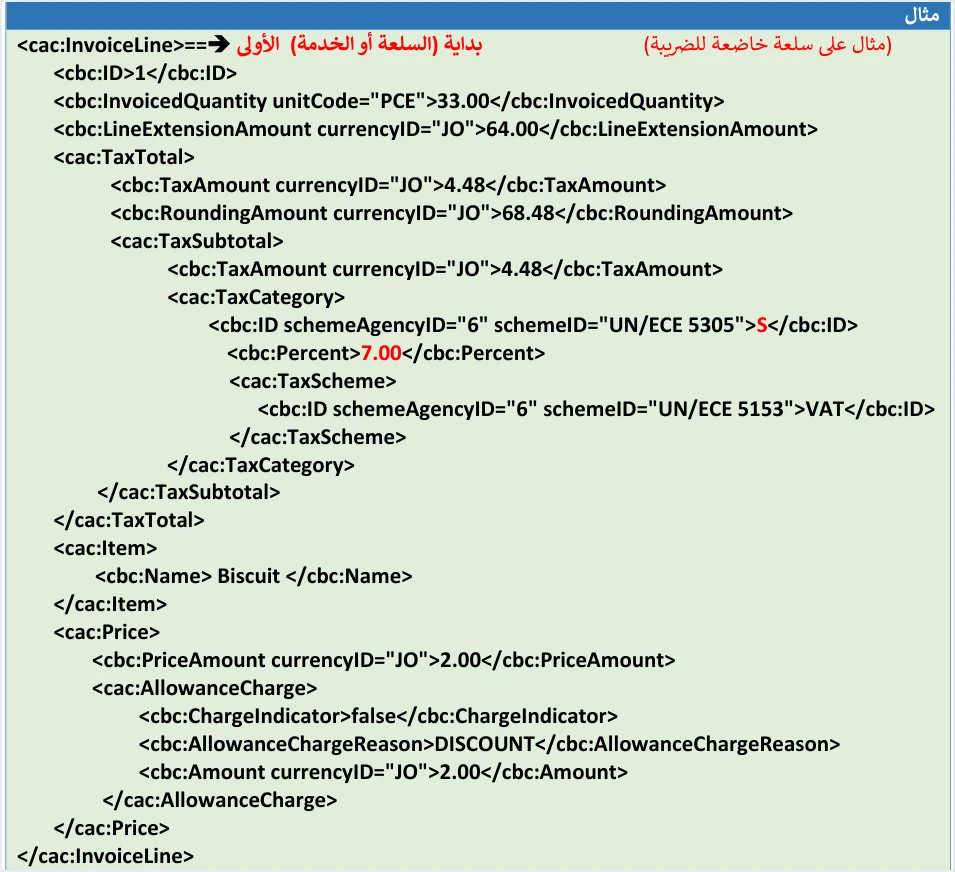
Three points stand out in this line. First, the tax amount is written twice, once in cac:TaxTotal and once in cac:TaxSubtotal, and the two values are equal in the example. Second, the cbc:TaxableAmount element does not appear in the template for the new general sales tax invoice, although it appears in the return and special tax templates, so the taxable amount is not written in a separate element here. Third, the discount is subtracted before the tax is calculated, so the rate is applied to the amount after discount, which is 64.00.
The second line with category Z and what changes in it
The guide marks the start of the second goods or service line and labels it as an example of a good exempt from tax. Its structure is the same as the first line, element for element, and only the values differ. The table below puts the two lines side by side.
Scroll the table sideways to see the remaining columns
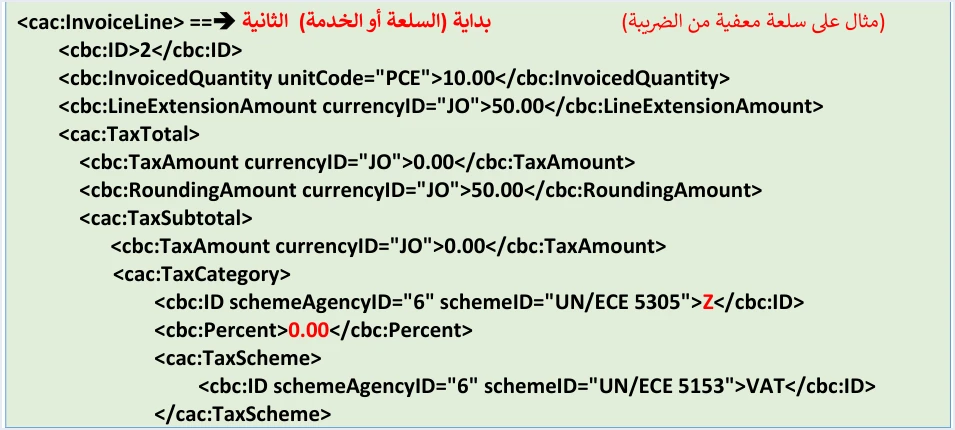
The key point is that this line keeps the whole cac:TaxTotal block, with zero values. An exempt line on a general sales tax invoice is not a line without a tax block in the structure of the file. It is a line whose tax is zero and whose category is Z. This differs from the income invoice, whose lines carry no TaxTotal block at all. The guide does not list this block among the optional fields in the shading of its templates, and the example itself keeps it in the exempt line. How to read that shading is covered in our article JoFotara Mandatory Fields: Reading the Technical Guide.
The discount on this line is 0.00 in the example, because the example keeps the discount block in the cac:Price element with a zero value. Its amount of 50.00 equals 10 × 5, and the discount total of 2.000 in the header is the first line’s discount alone. The scheme code VAT stays as it is on the exempt line, because what marks the exemption is category Z, not the scheme. A rate of 0 with category Z is accepted in the guide’s table. What the guide’s error message prohibits is a 0% rate that comes with category S, and the message for that case is General tax percentage must be zero.
The line formulas as the guide writes them
Under each amount in the line, the guide writes its formula. There are three formulas, and they apply to both lines without distinguishing between categories. The difference in the result comes from the rate alone.
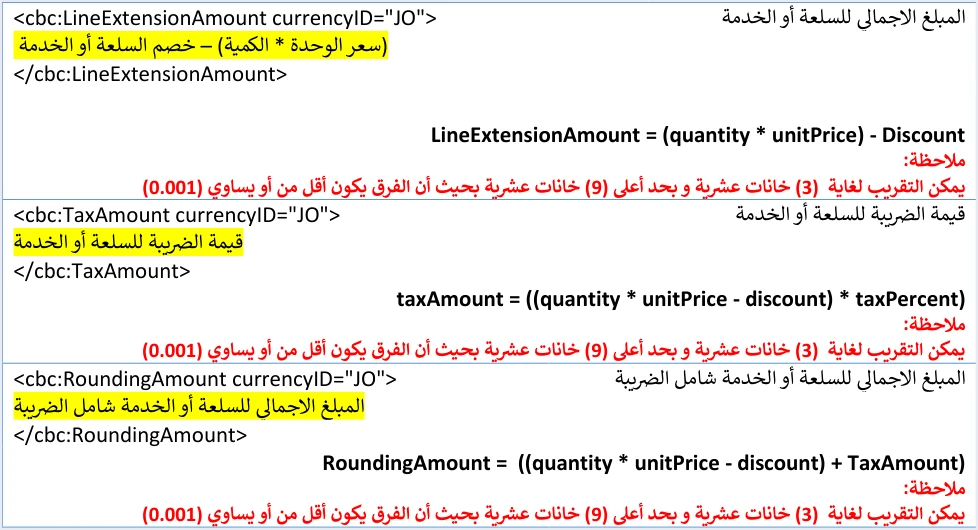
Under each formula the guide repeats the same rounding note.
«يمكن التقريب لغاية (3) خانات عشرية وبحد أعلى (9) خانات عشرية بحيث أن الفرق يكون أقل من أو يساوي (0.001)».
In English, the note says that rounding is allowed to 3 decimal places and up to 9, provided the difference is no more than 0.001. ISTD publishes this guide in Arabic only; the English here is our rendering, and the Arabic text is the authority.
The example writes line amounts with two decimal places, such as 4.48 and 68.48, and header totals with three, such as 4.480 and 118.480. The guide does not explain this difference, so we record it as it appears, without an interpretation.
The invoice header and where the exempt line enters it
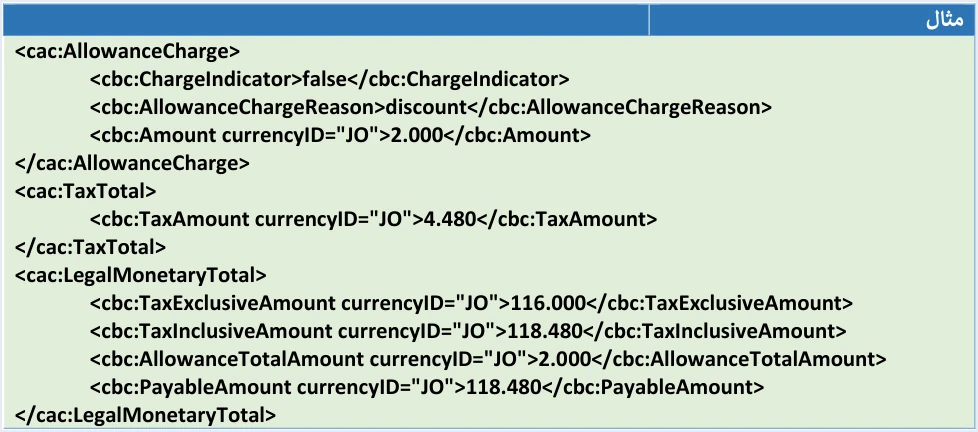
The guide writes the formulas for the invoice totals on page 39 and shows their example on page 40 in three blocks. The first is the invoice discount in cac:AllowanceCharge, the second is the tax total in cac:TaxTotal, and the third is the monetary totals in cac:LegalMonetaryTotal.
Scroll the table sideways to see the remaining columns
The table shows that the exempt line is missing from the tax total alone and present in every monetary total. Note also that TaxExclusiveAmount is calculated before the discount, so it is the sum of quantity × price on both lines before the first line’s discount is subtracted. And the cac:TaxTotal in the header carries a single value in the example, 4.480, with no breakdown by category. Categories S and Z do not appear in the header, and only their effect on the total does.
The guide requires the header discount in AllowanceCharge and in AllowanceTotalAmount to equal the sum of the line discounts. The system does not accept a separate invoice-level discount. The discount in the header is the sum of the line discounts, so a seller who discounts the invoice total spreads that discount across the lines before sending. The guide gives no method for that spreading. The tax formula on the line does show its effect on an invoice that combines the two categories. A discount that falls on an S line reduces the base of its tax, while a discount that falls on a Z line changes nothing, because the tax it applies to is zero.
Three checks on the totals of an invoice that combines both categories
Before sending an invoice with lines in two categories, run three short checks on its totals. All of them come from the guide’s formulas, and the numbers are from its example.
- The tax check. Add up the tax on the lines with category
S, then add theZlines at zero. In the example, 4.48 + 0.00 = 4.480, which is the value ofcac:TaxTotalin the header. If tax appears on aZline, the error is in its rate or its category. - The check on amounts before tax. Confirm that the
Zlines are insideTaxExclusiveAmount. In the example, 66 + 50 = 116.000. If the total comes to 66 alone, the exempt line has dropped out of it. - The payable amount check. Calculate it two ways. The first adds
RoundingAmountacross the lines, which is 68.48 + 50.00. The second is 116.000 − 2.000 + 4.480. Both give 118.480. This is an arithmetic cross-check, not a formula the guide states for this element.
If the totals do not match, the interface may return a message of the type Total General Amount is Not Correct. Fix the line or header value that does not match the formulas above, then send the invoice again.
Errors specific to combining taxable and exempt lines
Each of these errors is tied to having two categories in one invoice, with what the guide says about each.
Scroll the table sideways to see the remaining columns
Returning a line from an invoice that combines both categories
An accepted invoice is not edited. It is corrected with a return invoice (credit note). Under the guide, a return is on quantities only, and it cannot exceed the quantity sold on the original invoice. The guide requires the line number, name and unit price on the return invoice to be exactly as on the original invoice. That is why you need to keep the number of each line on the invoice that combines the two categories, because the return lines match the original lines by number.
The first line in the example carries a discount. If only part of its quantity is returned, the guide’s discount rule applies.
«اذا كان الارجاع لكامل كمية السلعة او الخدمة فيجب وضع الخصم (إن وجد) كاملا، أما اذا كان الارجاع لجزء من الكمية فيجب ان يكون الخصم (إن وجد) جزء من الخصم الكلي للسلعة او الخدمة حسب الكمية المرجعة».
In English, the rule says that if the whole quantity of the goods or service is returned, the discount (if any) must be entered in full, and if only part of the quantity is returned, the discount (if any) must be a part of the item’s total discount, according to the quantity returned. ISTD publishes this guide in Arabic only; the English here is our rendering, and the Arabic text is the authority. The guide gives no formula for that part.
Note that the guide’s example of a general return invoice (pp. 47, 55 and 56) does not match the original invoice explained here, because it turns the exempt Z line into category S. That example is not a reference for the category of an exempt line when it is returned, so do not copy it as it stands.
Pre-submission checklist
- The invoice type in
cbc:InvoiceTypeCodeis local, and its last digit is 2 for General Sales Tax. - Each line has its own
cbc:ID, different from the others and kept by you for use in a return. - Each taxable line carries category
Sand a rate, other than zero, from the values the interface accepts. - Each exempt line carries category
Zand a rate of 0, and each line taxed at a zero rate carriesO. - The exempt line keeps the
cac:TaxTotalblock with zero values, as in the example. LineExtensionAmounton each line equals quantity × price minus the line discount.- The header tax equals the sum of the line tax amounts, and the
Zlines add zero to it. TaxExclusiveAmountandPayableAmountinclude the exempt lines at their full values.- The header discount in
AllowanceChargeandAllowanceTotalAmountequals the sum of the line discounts. - The difference in each amount after rounding does not exceed 0.001.
How Qoyod handles an invoice with lines in different categories
When you issue the invoice from accounting software linked to the system, you do not write the elements of each line by hand in the XML file. Qoyod builds the invoice file in UBL 2.1 format with its unique identifier (UUID) and sends it to the National Invoicing System without any manual intervention. This is done through Qoyod’s integration with the National Invoicing System.
- Check before sending. Qoyod checks each invoice at field level as it is created, covering the tax number, the document type and payment method, the General Sales Tax rate and whether the lines are complete, and alerts you to any error before the invoice is sent, to reduce rejections.
- The status of each invoice in front of you. ISTD returns the invoice status and any error message, and Qoyod shows them in its status panel.
- Resending with the same identifier. The status panel lists invoices that were not sent and need to be resent, and when you resend one it keeps the same UUID.
The pre-send check is an alert, not a guarantee. It covers the fields listed above, and accepting the invoice remains a decision for the National Invoicing System alone. For a wider view of the system and how to connect your business to it, read our article Jordan’s National E-Invoicing System, or see how Qoyod works with the National Invoicing System.
E-invoicing and full accounting in one system
Qoyod is integrated with the National Invoicing System (JoFotara). You issue your invoice in Jordanian dinars from Qoyod, it is booked to your ledgers automatically and sent to the system, and once it is accepted it comes back with a QR code from the Income and Sales Tax Department.
Frequently asked questions
Does the technical guide accept an invoice with a taxable line and an exempt line?
The guide gives this exact case as its example of a general sales tax invoice. It combines a line with category S at a rate of 7 and a line with category Z at a rate of 0 in one invoice. The category and the rate are written for each line separately, not for the invoice as a whole.
Does the exempt line need a TaxTotal block?
The guide’s example keeps the TaxTotal block in the exempt line with zero values, so the tax amount is 0.00 and the total including tax is 50.00. The guide does not list this block among the optional fields in the shading of its templates.
How is the tax total in the header calculated on an invoice with both categories?
The tax total is the sum of the tax amounts of all the lines, so lines with category Z add zero. In the guide’s example the total is 4.480, which is the tax of the taxable line alone.
Does the exempt line enter TaxExclusiveAmount and PayableAmount?
The exempt line enters both totals at its full value. In the example TaxExclusiveAmount is 116.000 and includes 50 from the exempt line, and PayableAmount is 118.480 and includes 50.00 from it.
Can an export invoice combine an S line and a Z line?
An export invoice cannot carry an S line. The guide requires a 0% tax rate and the value O for all goods on export, development zones, transit, foreign trade and free-zone assignment invoices. Combining the two categories is a matter for the local invoice.
Is the 7% rate in the example the rate for a particular good?
The 7% rate is a value the guide chose for the example only. The rate that applies to a given good or service is set by the General Sales Tax law.
References
- Income and Sales Tax Department (ISTD), technical guide for integrating with the National Invoicing System through the API, version 1.5 (in Arabic), 2026, pp. 20, 39 to 44, 47 and 54 to 56.
- ISTD’s National Invoicing System guides (in Arabic)




