




If you reach the Create account screen (انشاء حساب) and the password you typed is not accepted, the first place to look is the JoFotara password requirements as the Income and Sales Tax Department (ISTD) sets them out in its 2026 procedures guide for joining the National Invoicing System (JoFotara). The guide gives four requirements and one valid example, and the form adds a second field in which you type the password again.
This article gives the requirements as ISTD words them and turns them into a check you can run on your password before you press the Create account button. It then explains the Repeat password field (إعادة كلمة المرور) and separates the different passwords a taxpayer meets in a single journey. The guide documents no specific message that appears when a password is not accepted, so we quote none here and keep to what ISTD states. For the wider set of JoFotara error messages and status codes, see our article JoFotara Error Codes.
JoFotara password requirements in the joining guide
Creating the account is step 4 of the six steps in the joining guide. The taxpayer first goes to the ISTD website, then logs in to e-services, then moves to the National Invoicing System after entering the CAPTCHA code. The Create account screen appears at that point. The full steps are in our article JoFotara Registration and the Registration Document.
ISTD presents the password requirements on page 8 of the guide as four cards. In English, they read as follows, with the Arabic text of each card in parentheses.
- At least 8 characters in total (8خانات على الأقل إجمالاً).
- At least two letters, one of them a capital (حرفان على الأقل: أحدهما كبير (Capital)).
- Numbers and letters together (أرقام وحروف معاً).
- Special symbols included (رموز خاصة مضمَّنة).
Below the cards is an example that ISTD labels a valid example of a password (مثال صحيح على كلمة المرور), and it is Pass@123. The guide shows the four cards together as the requirements for one password, and the valid example meets all of them. A password that meets three of the requirements and misses the fourth is not enough.
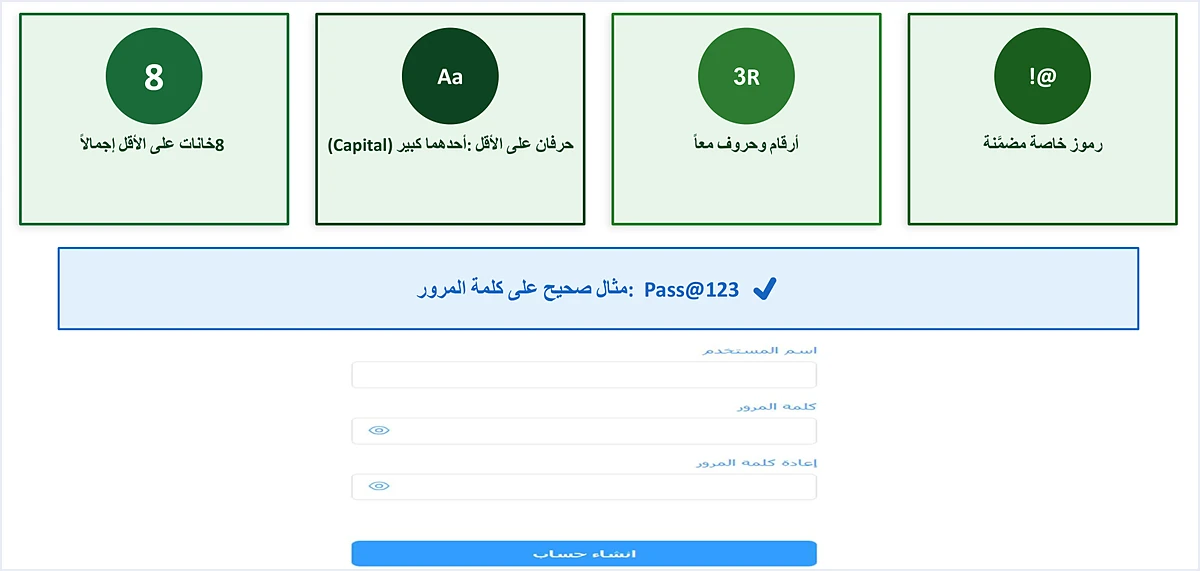
It helps to take the official example apart before you write your own password, because it shows how the requirements fit together in only eight characters.
- Number of characters.
Pass@123has eight characters, P, a, s, s, @, 1, 2 and 3, so it sits exactly at the minimum. - Letters. It has four letters, and the first one, P, is a capital. That meets the two-letter requirement together with the capital letter.
- Numbers with letters. The numbers 1, 2 and 3 appear in the same password as the letters.
- Special symbol. The @ symbol sits in the middle of the password, and it is the only special symbol shown in ISTD’s example.
The Create account form and its four fields
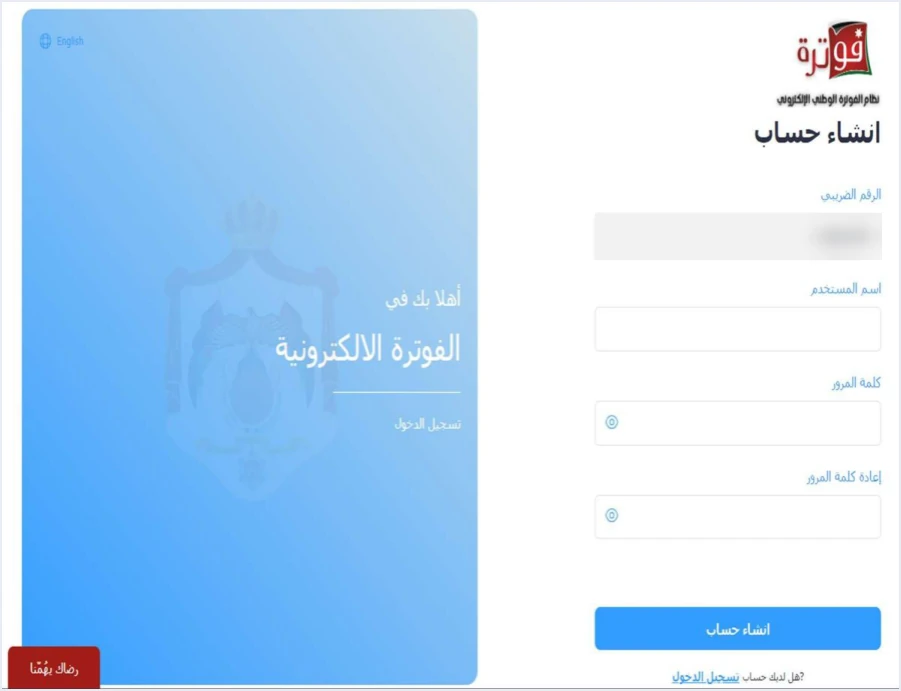
The account creation screen appears on page 7 of the joining guide under the heading Create account (انشاء حساب). It has four fields, in this order.
- Tax number (الرقم الضريبي), filled in automatically and read-only.
- Username (اسم المستخدم), which you choose.
- Password (كلمة المرور), the field the four requirements apply to.
- Repeat password (إعادة كلمة المرور), where you type the same password a second time.
Below the fields are the Create account button (انشاء حساب) and a link for anyone who already has an account. The guide’s screenshot also shows an eye-shaped icon next to the password field and the repeat field. The guide does not explain what this icon does.
Creating this account makes the taxpayer the main user linked to its tax number. The main user then sees a screen with four tiles, Add a sub-user (إضافة مستخدم فرعي), device linking (ربط الاجهزة), View invoices (عرض الفواتير) and Settings (إعدادات). We explain these options in our article JoFotara Home Screen. The password you choose here is therefore the key to the account from which the other accounts are managed.
Check your password before you press Create account
The guide does not document the rejection message, but it does give the requirements, and that is enough to check your password yourself before you press the button. The table below sets each requirement against an example that fails it and the way to fix it. The examples are ours, for illustration, and do not come from ISTD’s guide. Each one is built to break one requirement only and meet the rest, so do not use any of them as a real password.
The two-letter row and the capital-letter row are a single requirement on the guide’s card. We split them in the table because a password can meet one and fail the other. A@1234567 has a capital letter but only one letter in all, and pass@123 has four letters but no capital among them.
A practical way to check is to write your password on paper or keep it in mind, then run through five questions in order. Does it have eight or more characters in total? Does it have at least two letters? Is one of the letters a capital? Does it have numbers alongside the letters? Does it have a special symbol? If the answer to all five is yes, move on to the Repeat password field.
What the guide does not specify about the password
The four requirements are clear in what they say, but the guide is silent on details you may wonder about while you type your password. These are the points for which we find no text in the ISTD guides we hold.
- The list of special symbols. The guide does not say which symbols count as special symbols. The only one shown in its example is @.
- A maximum length. The guide gives a minimum of 8 characters and states no maximum.
- The script of the letters. The official example uses Latin letters, and the word Capital for the capital letter refers to Latin letters, because Arabic letters have no upper and lower case. The guide does not say whether Arabic letters are accepted in the password.
- Spaces. The guide does not say whether a space is allowed inside the password.
- What appears when a requirement is not met. The guide’s pages show no message for a password that fails the requirements, and they do not describe what happens on the screen after you press Create account with one.
Our suggestion here, and it is a suggestion from Qoyod, not an ISTD requirement, is to build your password on the pattern of the official example. That means Latin letters including a capital, numbers and the @ symbol, with no spaces. It is the only pattern ISTD describes as valid, and keeping to it spares you from testing what the text does not cover. We also suggest that you do not use the example Pass@123 itself as the password for your account, because it is printed in a public guide that anyone can read.
The Repeat password field: the same password a second time
The fourth field on the account creation form is called Repeat password (إعادة كلمة المرور). It is a confirmation field in which you type, character for character, the password you typed in the third field. If your password meets the four requirements but differs from what you typed in the repeat field, the problem lies in the match, not in the requirements. The guide does not say what appears on the screen in this case.
Here are some practical points we suggest when you fill in the two fields. They are our own notes, not ISTD text.
- Letter case. A capital P is not the same as a lowercase p, so type the capital letter in the same position in both fields.
- Keyboard language. If the keyboard language changes between the two fields, Latin letters turn into Arabic ones without you noticing. Check the language before you type in each field.
- Pasting and spaces. If you copy the password from somewhere else, a space at the start or end may come with it. The safer course is to type it by hand in both fields.
Different passwords in one journey
The ISTD guides take a taxpayer through more than one password, and mixing them up makes a problem look as if it sits where it does not. A taxpayer may think the new password was not accepted when the real cause is that they are typing another account’s password in the wrong place. The table below sums up the three passwords as they appear in the guides.
The first password comes before the invoicing system altogether, since you type it before you ever reach the Create account screen. If you get stuck at that stage, the problem is with your e-services account, not with the invoicing system’s password requirements. The contact address printed on the e-services login screen in the joining guide is etax.inquiry@istd.gov.jo. If you log in to e-services and do not find the National Invoicing option (الفوترة الوطني), the cause is a different one altogether and has nothing to do with the password requirements.
The second password is the one you create in step 4, and it is the only one the four requirements in the guide refer to. The guide does not say whether it may be the same as your e-services password.
The sub-user’s password is set by the main user
The main user does not have the Issue an invoice tile (تنظيم فاتورة) on their screen, so anyone who issues invoices on the invoicing portal needs a sub-user. Under the 2026 joining guide, the main user presses Add a sub-user (إضافة مستخدم فرعي), enters the verification code sent to their phone and presses Confirm (تأكيد). They then select the income-source sequence, type the username and password, and press Add (إضافة).
This means the sub-user’s password is not chosen by the employee who will issue the invoices. The main user sets it when adding the sub-user and then hands it over. The form differs from the account creation form in two ways worth knowing.
- The guide does not mention a Repeat password field. The joining guide lists the fields of the add form with no confirmation field, so the form as the guide shows it has no field that would catch a typing mistake. Type the password carefully and write it down before you press Add.
- The guide does not state the requirements at this point. The four requirements appear on the account creation page, and the guide does not say whether they apply to the sub-user’s password. Our suggestion is to apply them as a precaution, since you lose nothing if they turn out not to be required.
The full steps for adding a sub-user, with screenshots, are in our article Add a Sub-User in JoFotara. A business that issues its invoices from accounting software takes another route, the device linking option (ربط الاجهزة) on the home screen. There the system generates the Client ID and the Secret Key, so the taxpayer does not choose them, and the password requirements on the account creation page do not apply to them. We cover them in our article JoFotara Client ID and Secret Key.
After the account is created: where the password comes back
Once the account exists, the main user and the sub-user log in to the portal with the same three fields, the tax number, the username and the password. The username and password decide which of the two accounts opens, because the tax number is the same in both cases.
The guides mention the password in two more places after account creation, and the two come from sources of different standing.
A verification code that goes to an old number. Question 12 of ISTD’s questions and answers guide deals with a verification code that still arrives at the old number after the phone number is changed. ISTD answers with the following sentence.
«عليك ادخال كلمة المرور بشكل خاطئ ليتم تحديث رقم هاتفك»
In English, ISTD tells the taxpayer to enter the password incorrectly so that their phone number is updated. ISTD publishes this guide in Arabic only; the English here is our rendering, and the Arabic text is the authority. This is a different use of the password and has no bearing on its requirements.
Resetting the password. This route does not appear in ISTD’s 2026 guides. It appears in the 2024 user guide for the platform, which was prepared by a software vendor, not ISTD, and the current interface may differ from it. According to that guide, the user presses Forgot password (نسيت كلمة المرور) on the login screen and enters the tax number. A verification code is then sent to the phone number linked to the tax number (الى رقم الهاتف الخاص بالرقم الضريبي). The user types a new password and its confirmation and presses Reset password (أعد تعيين كلمة المرور). Check these steps on the portal itself before you rely on them.
When to contact ISTD
If your password meets the four requirements, matches the Repeat password field character for character and is still not accepted, you have gone past what the guide covers. We find no answer in the ISTD guides we hold for a password that meets the requirements and is not accepted, and in that case the answer lies with ISTD, not with guesswork.
ISTD’s guides name the following contact channels.
- The e-services email address etax.inquiry@istd.gov.jo, printed on the e-services login screen in the joining guide.
- The invoicing technical support committee, to which the technical guide for integrating through the API refers you through the ISTD website, istd.gov.jo.
- Internal requests on the e-services site, through Internal services (الخدمات الداخلية) and then Send an internal service request (ارسال طلب خدمة داخلية). This is the route ISTD sets out for several registration problems, and we walk through it in our article ISTD Internal Service Request.
When you get in touch, say that you are at the Create account step and that you have checked the four requirements and the match between the two fields. Our suggestion is never to send the password itself in any message. Describing what it is made of is enough, for example that it has nine characters including a capital letter, numbers and the @ symbol.
Checklist before you press Create account
Go through these points in order. They sum up what ISTD states about the password and what we suggest around it.
- The password has 8 or more characters in total, with symbols and numbers counted.
- It has at least two letters, one of them a capital.
- It has numbers alongside the letters.
- It has a special symbol, and @ is the one shown in ISTD’s example.
- The Repeat password field matches the third field character for character and in the same case.
- The password is not the e-services password you used in step 2, unless you mean it to be.
- The password is not the published example
Pass@123. This is our suggestion, not an ISTD requirement. - You have recorded the username and password somewhere safe, because the main account is the one from which the other accounts are managed.
If you plan to issue your invoices from accounting software, creating the account is only the start. You then choose device linking (ربط الاجهزة) on the main user’s screen and use the linking credentials inside your software. For the full picture of the system and how to connect your business to it, read our article Jordan’s National E-Invoicing System, or see how Qoyod works with JoFotara on our National Invoicing System page.
E-invoicing and full accounting in one system
Qoyod is integrated with the National Invoicing System (JoFotara). You issue your invoice in Jordanian dinars from Qoyod, it is booked to your ledgers automatically and sent to the system, and once it is accepted it comes back with a QR code from the Income and Sales Tax Department.
Frequently asked questions
What are the password requirements in the National Invoicing System?
The 2026 joining procedures guide sets four requirements. The password needs at least 8 characters in total, at least two letters with one of them a capital, numbers and letters together, and special symbols included. The guide gives Pass@123 as a valid example.
Do numbers and symbols count toward the eight characters?
They do, because the requirement is at least 8 characters in total. The count covers the whole password, its letters, numbers and symbols. The official example Pass@123 has eight characters, made up of four letters, one symbol and three numbers.
What is the Repeat password field for?
It confirms the password. You type in it the same password you typed in the password field. If the two fields differ, the problem lies in the match and not in the requirements, and the guide does not give the text of what appears on the screen in that case.
Is the e-services password the same as the invoicing system account password?
The two are used at different points in ISTD’s guides. You type the e-services password in step 2, before moving to the invoicing system. You create the invoicing system account password in step 4, and that is the password the four requirements refer to.
Do the requirements apply to the sub-user’s password?
The guide does not say, since the requirements appear only on the account creation page. The main user sets the sub-user’s password on the add form, and our suggestion is to apply the same requirements as a precaution.
What should I do if my password meets the requirements and is still not accepted?
Contact ISTD, because its guides do not cover this case. Tell ISTD that you are at the Create account step and that you have checked the requirements and the match between the two fields, and do not send the password itself.
References
- Income and Sales Tax Department (ISTD), procedures guide for joining the Jordanian National Electronic Invoicing System, 2026 edition (in Arabic), pp. 3, 5, 7, 8, 9 and 11.
- Income and Sales Tax Department (ISTD), questions and answers guide for the National Invoicing System, 2026 (in Arabic), pp. 4 and 7.
- Income and Sales Tax Department (ISTD), procedures guide for issuing an invoice in the Jordanian National Electronic Invoicing System, 2026 edition (in Arabic), p. 4.
- Income and Sales Tax Department (ISTD), technical guide for integrating with the National Invoicing System through the API, version 1.5 (in Arabic), p. 104.
- User guide for the National Invoicing System platform, 2024, prepared by a software vendor, not ISTD (secondary source; the current interface may differ from it) (in Arabic), pp. 6 and 7.
- ISTD’s National Invoicing System guides (in Arabic)




