




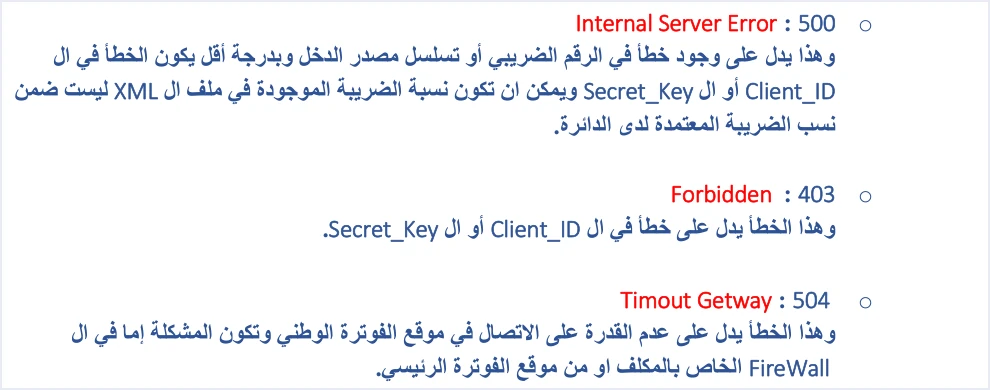
JoFotara error 403 appears when your accounting software sends an invoice and the response comes back with the code 403 Forbidden instead of a QR code. The technical guide published by the Income and Sales Tax Department (ISTD) gives this code one written cause, an error in the Client ID or the Secret Key.
So the fix does not start with the invoice lines or the amounts. It starts with the two values your software sends with every request. This article explains where the two values are sent, how to match them against the device linking (ربط الأجهزة) list, how to tell code 403 apart from codes 500 and 504, how to protect the two values, and when to contact ISTD technical support.
What JoFotara Error 403 Means
The technical guide for integrating with the National Invoicing System (JoFotara) through the API, version 1.5, lists on p. 101 the codes that appear most often in the Response Status Code field. It describes code 403 in one sentence.
«وهذا الخطأ يدل على خطأ في ال Client_ID أو ال Secret_Key».
In English, the guide says that this error indicates an error in the Client_ID or the Secret_Key. ISTD publishes this guide in Arabic only; the English here is our rendering, and the Arabic text is the authority.
That is all the guide says about the code. It gives no second cause, and it does not connect the code to the invoice lines, the amounts or the invoice type. The place to look is therefore fixed from the start. It is the pair of values by which the system recognizes your software.
The two values are generated in the taxpayer’s account on the National Invoicing System, from the device linking option on the main user’s home screen. The steps for creating them are in our article JoFotara Client ID and Secret Key: Device Linking Steps, so we do not repeat them here.
Where Your Software Sends the Client ID and Secret Key
The technical guide (p. 10) names three components of the request file. They are the Client ID, the Secret Key and the invoice in XML format. The code example in the same guide (p. 96), however, puts the first two outside the JSON file, in the request headers, together with a third header for the content type.
Client-Id, whose value is the Client ID.Secret-Key, whose value is the Secret Key.Content-Type: application/json, which sets the content type.
The request body carries the invoice alone, as XML in Base64 encoding under the name invoice. The request goes to https://backend.jofotara.gov.jo/core/invoices/. The full path from building the invoice to the returning response is covered in our article Jordan’s National E-Invoicing System. The headers themselves are covered in our article JoFotara API Endpoint and Request Headers.
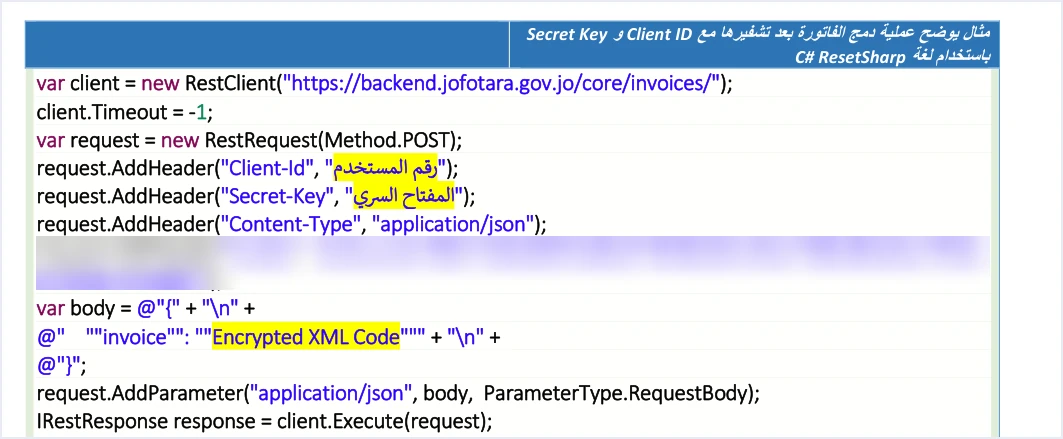
This is why you will not find the two values if you open the invoice’s XML file. Look for them in your software’s linking settings, or in the log of sent requests if your software keeps one.
Note also that the error text in the guide writes the two names with an underscore, as Client_ID and Secret_Key. The code example names them in the headers as Client-Id and Secret-Key. The example is the part that shows the shape of the request itself. It is still an illustrative example, so do not copy it into your software as it is. We have blurred one line of it that we do not recommend copying.
How to Match the Two Values Against the Device Linking List
The reference for checking what your software sends is the list of linked devices under the device linking option. The list shows each link in its own row, with the columns user (المستخدم), user status (حالة المستخدم), Client ID (رقم المستخدم), Secret Key (المفتاح السري) and income-source sequence (تسلسل مصدر الدخل). Each of the two values has a copy button next to it.
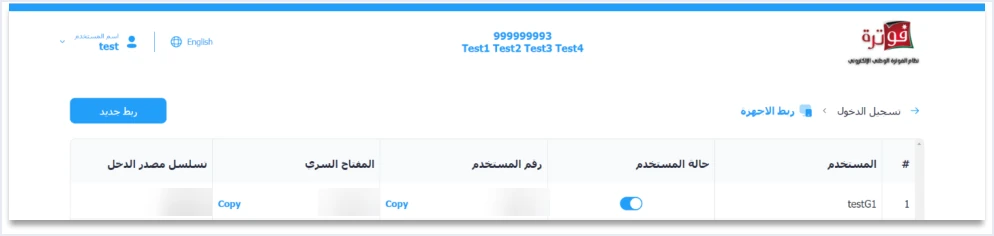
The matching takes four steps.
- Identify the row your software relies on. Each pair of values is tied to one income-source sequence. If your business has more than one link, start with the row whose sequence matches the sequence sent in your invoices.
- Compare the Client ID stored in your software with the one shown in that row, character by character.
- Compare the Secret Key the same way, and from the same row. The two values are generated together for each link. Take both from one row, and never combine a Client ID from one row with a Secret Key from another.
- If you find a difference, copy the value from the list with the copy button and put it in your software’s settings in place of the old value, then send the invoice again. Copying with the button spares you typing errors.
The list also has a user status column with an on and off toggle. The technical guide does not explain what the toggle does, and it does not list it among the causes of code 403. Do not build a conclusion on it, and do not change it on a link that works before you ask ISTD.
JoFotara Error 403 vs Error 500 and Error 504
The three codes sit next to each other on the same page of the technical guide (p. 101), and each one points to a different place to look.
Scroll the table sideways to see the remaining columns
One point in the table deserves attention. An error in the Client ID or the Secret Key does not show up as code 403 alone. The guide also lists it among the causes of code 500, but less often. If you receive code 500, start with the tax number and the income-source sequence, in the order the guide gives them. If you receive code 403, the guide narrows the cause to the two values.
The guide describes code 504 as a failure to connect to the system, not as an error in the request data. The place to look there is the connection itself, not the two values. A wider explanation of rejection codes and validation messages is in our article JoFotara Error Codes: Why an Invoice Is Rejected and How to Fix It.
What Happens to the Invoice After Error 403
The HTTP code tells you what happened to the request technically. The verdict on the invoice, according to the guide’s guidelines, is carried in the EINV_STATUS field. An invoice counts as accepted only when a QR code comes back for it in the EINV_QR field. If the response comes back with code 403 and no QR code, the invoice was not accepted.
Once the two values are corrected, send the invoice again with the same invoice number and the same unique identifier (UUID), and do not generate a new identifier. This is one of the ten guidelines in the technical guide (p. 104), and ISTD warns that generating a new identifier on resend may lead to duplicate invoices.
The guide also requires logging errors in detail inside your system and showing the user a simplified message. Keep the response that carried code 403 exactly as it arrived, because you will need it if you contact technical support. What to record is covered in our article JoFotara Logging: What to Store and Record.
Protecting the Client ID and Secret Key
The technical guide makes the confidentiality of the two values the taxpayer’s responsibility alone. The taxpayer bears full responsibility for any unauthorized use (p. 8). One of the ten guidelines in the guide (p. 104) is titled Security (الأمان), and it asks that the Client ID and Secret Key be protected and not stored exposed inside the code.
This rule matters even more while you deal with error 403, because diagnosis tempts people to pass the two values around. Three practical habits follow from it.
- Do not send the Secret Key in a message or an email. Naming the user shown in the user column is enough to identify the row in question.
- Blur both values in any screenshot you share when asking for help, as in the images above.
- Check what your software’s log keeps. If your software logs the requests it sends, make sure the log does not keep the Secret Key exposed.
If the Two Values Match and the Error Persists
Version 1.5 of the technical guide describes no procedure for regenerating the Client ID or the Secret Key, and no procedure for resetting them. If you have matched the two values against the list, corrected them and sent the invoice again, and code 403 still comes back, the reference is ISTD technical support. The guide (p. 104) names the contact point in this sentence.
«لمزيد من الاستفسارات يمكن التواصل مع لجنة الدعم الفني لشؤون الفوترة في دائرة ضريبة الدخل والمبيعات على الرابط التالي: https://istd.gov.jo».
In English, the guide says that for further questions you can contact the invoicing technical support committee at the Income and Sales Tax Department through istd.gov.jo. ISTD publishes this guide in Arabic only; the English here is our rendering, and the Arabic text is the authority.
Before you get in touch, prepare what will shorten the exchange.
- The invoice number, its unique identifier and the time it was sent.
- The full text of the response, as your software logged it.
- The user name in the link row your software relies on, without the Secret Key.
- Which of the four matching steps you have actually checked.
Error 403 When Qoyod Sends Your Invoices
If you use Qoyod’s integration with the National Invoicing System, the Client ID and Secret Key are what Qoyod Cloud Accounting Software needs from you, taken from the device linking screen on the National Invoicing System. Qoyod builds the invoice file in UBL 2.1 format with its unique identifier (UUID) and sends it to the National Invoicing System without any manual intervention.
If an invoice is rejected, ISTD returns the invoice status and any error message, and Qoyod shows them in its status panel. The status panel lists invoices that were not sent and need to be resent, and when you resend one it keeps the same UUID. You resend it once the cause is corrected.
To be precise about what is checked, Qoyod checks each invoice at field level as it is created, covering the tax number, the document type and payment method, the General Sales Tax rate and whether the lines are complete, and alerts you to any error before the invoice is sent, to reduce rejections. The Client ID and Secret Key are not among these fields, so correcting them still means matching them against the device linking list, as described above.
E-invoicing and full accounting in one system
Qoyod is integrated with the National Invoicing System (JoFotara). You issue your invoice in Jordanian dinars from Qoyod, it is booked to your ledgers automatically and sent to the system, and once it is accepted it comes back with a QR code from the Income and Sales Tax Department.
Frequently asked questions
What causes JoFotara error 403?
ISTD’s technical guide ties it to an error in the Client ID (Client_ID) or the Secret Key (Secret_Key), and it gives no other cause.
Where do I find the correct values to match against?
You find them in the list of linked devices under the device linking option in the main user’s account, and each of the two values has a copy button next to it.
Can a Secret Key error show up with a code other than 403?
The technical guide also lists an error in the Client ID or Secret Key among the causes of code 500, but less often than the tax number and the income-source sequence.
Should I regenerate the Secret Key when the error appears?
The technical guide describes no procedure for regenerating the two values. Match the stored values against the list first, and if the error persists, contact ISTD’s invoicing technical support committee.
What is the difference between error 403 and error 504?
Code 403 points to an error in the Client ID or the Secret Key. Code 504 points to a failure to connect to the National Invoicing System, caused either by the taxpayer’s firewall or by the system’s own site.
Do I generate a new unique identifier when I resend?
ISTD requires resending with the same number and the same unique identifier, because generating a new identifier may lead to a duplicate invoice.
References
- Income and Sales Tax Department (ISTD), technical guide for integrating with the National Invoicing System through the API, version 1.5 (in Arabic), pp. 8, 10, 96, 101 and 104.




