




When JoFotara redirects to home page every time you try to register, you are facing a case documented in the questions and answers guide that the Income and Sales Tax Department (ISTD) publishes for the National Invoicing System (JoFotara). The guide gives it one official cause, which is that your file at ISTD has no active income-source sequence. The fix it gives is not to keep trying. It is a request you send to ISTD from its e-services website.
This article looks at the case from the symptom side. It shows how to tell that this is your case and not a similar one, why the system requires an active sequence and not just any sequence, which request fixes it, how to confirm afterward that the problem is gone, and when to contact ISTD directly. Other JoFotara errors and codes are collected in our article JoFotara error codes.
What happens when JoFotara redirects to home page at registration
The questions and answers guide describes the problem in the taxpayer’s own words. The question is that trying to register takes the user back to the invoicing home page. In other words, you start the joining steps as you should, and then you find yourself back at the starting point without ever reaching account creation.
To see where the problem sits, recall the first four joining steps as ISTD’s joining procedures guide sets them out.
- Go to the ISTD website and choose Log in to e-services (الدخول للخدمات الإلكترونية).
- Log in to the e-services, then choose National Invoicing (الفوترة الوطني) from the services bar.
- Enter the verification code (CAPTCHA) on the Electronic Invoicing System screen (نظام الفوترة الإلكتروني), then press the button that moves you to the system.
- Create an account in the system with four fields, the tax number, the username, the password and the password confirmation.
The way the question is worded suggests that a person in this case reaches the National Invoicing option in the e-services and starts to log in, but never gets to the account creation form. This is our reading of the text, not a statement by ISTD. The questions and answers guide does not say at exactly which screen the return happens, and it quotes no error message that comes with it. So the sign to rely on is the symptom itself, a repeated return to the invoicing home page before you reach the Create an account form (إنشاء حساب). Each joining step is covered in detail in our article JoFotara Registration and the Registration Document.
The official cause: no active income-source sequence
The questions and answers guide answers this case with a single cause, which is that the taxpayer has no income-source sequence. The guide pins down the meaning in the title of the procedure it offers as the fix, the steps to request adding an active income-source sequence (خطوات طلب إضافة تسلسل مصدر دخل فعال). The note text the guide suggests also asks for an active sequence. So the obstacle is the absence of an active sequence, not the absence of a sequence as such.
The income-source sequence is a value recorded by ISTD in the taxpayer’s file. In JoFotara it appears in a list you select from, and the system does not generate it. The full explanation, from what it is to where it appears on the screens and in the invoice file, is in our article JoFotara Income Source Sequence.
The word active has two practical consequences.
- Your file can have a sequence and you can still see this case. The guide’s condition is that the sequence is active, so do not rule this cause out just because you know your business has a registered sequence.
- You cannot judge the state of your sequence yourself from the guides. None of the three ISTD guides this article draws on explains what makes a sequence inactive, and none mentions a screen that shows the taxpayer the state of their sequences before registration. ISTD holds the answer, which is why the fix goes through a request that ISTD decides.
Why the whole joining process depends on the sequence
The questions and answers guide does not explain why the problem takes the form of a return to the home page in particular. But the places where the sequence appears in the other guides show that it is a condition on the whole account, not on one path only.
- In the portal issuing path. The main user selects the income-source sequence from a list in the Add a sub-user form (إضافة مستخدم فرعي). Each sub-user is bound to the sequence selected when it was created, and the sequence then appears in the Seller details (بيانات البائع) of every invoice that sub-user issues.
- In the device linking path. The main user enters a username and selects the income-source sequence, and the system then generates the Client ID and the Secret Key tied to that sequence.
- In the invoice file. The technical guide makes the sequence a mandatory field in every invoice sent through the API.
The questions and answers guide does not tie this case to either path. It happens before you choose between issuing on the portal and linking your accounting software, because it stops you from creating the account at all. So if you plan to link accounting software, do not assume the problem does not concern you.
How to tell this case apart from similar ones
The questions and answers guide brings together several cases that look to the taxpayer like a login or registration fault. Each has a different cause and a different request. Mixing them up means sending a request that does not fix your problem. The table below sums up what the guide says for each case.
Scroll the table sideways to see the remaining columns
The practical difference between the first two cases, as we read the wording of the two questions, is where you get stuck. If the National Invoicing option does not appear in the e-services, the problem is your file type. If the option appears and you are then taken back to the invoicing home page, you are in the case this article covers. The last three cases happen after the account is created, so if you have already created it, this is not your problem. The third and fourth cases are explained in our article JoFotara Sub-User vs Main User.
The joining guide names one more condition in the second step, which is that pop-ups must be enabled in the browser. The guide does not link this condition to the return to the home page, so it is not the official cause. It is still a separate requirement for joining, so check it before you send any request and keep the two issues apart.
The fix: the opening a new income source and group request
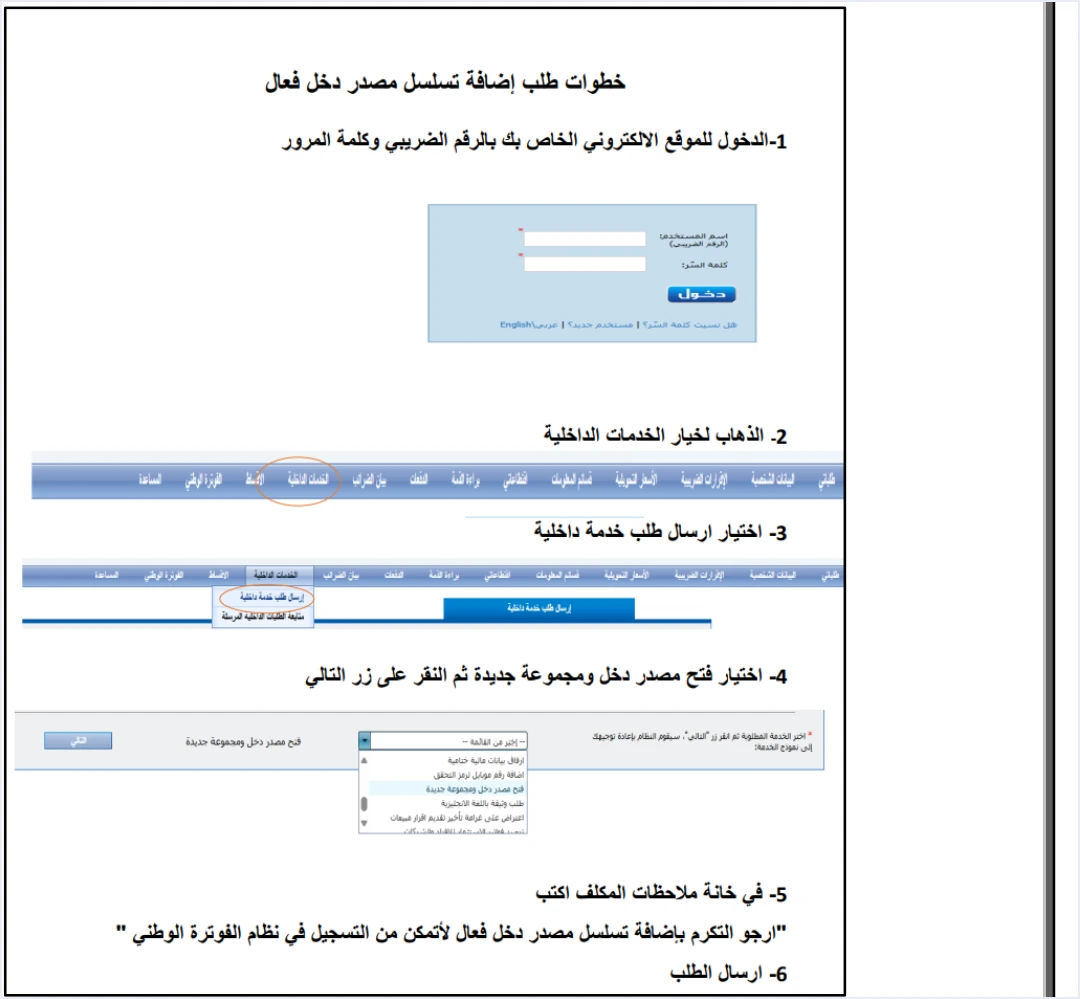
Adding an active sequence is not a setting you change in JoFotara, because you have not reached your account there yet. It is an internal service request sent to ISTD from the e-services website, the site you log in to with your tax number and password. In its Internal services section (الخدمات الداخلية) you choose Send an internal service request (ارسال طلب خدمة داخلية), then pick the request type from the dropdown list.
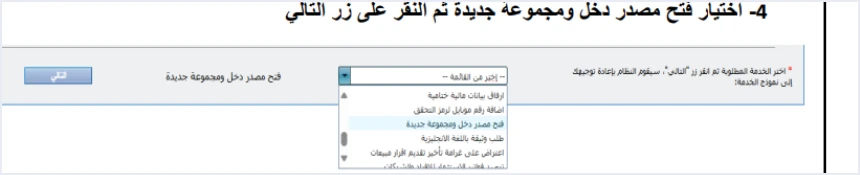
The request type the guide names for this case is opening a new income source and group (فتح مصدر دخل ومجموعة جديدة). After you press Next (التالي), you write your note in the Taxpayer notes box (ملاحظات المكلف) and send the request. The six steps are numbered as the guide gives them in the section on adding a sequence in our article JoFotara Income Source Sequence, and the same mechanism is explained alongside other requests in our article Add a Sub-User in JoFotara.
What to prepare before you send the request
- Your login details for the e-services website. These are the tax number and the password for that site, not the details of a JoFotara account, because that account has not been created yet.
- The note text. The guide suggests a ready-made text, given in the next section.
- Confirmation that this is your case. The National Invoicing option appears for you, and the return happens before the Create an account form. If the option does not appear at all, the right request is the taxpayer data modification request (طلب تعديل بيانات المكلف), not this one.
What to write in the Taxpayer notes box
The questions and answers guide suggests this note text.
«ارجو التكرم بإضافة تسلسل مصدر دخل فعال لأتمكن من التسجيل في نظام الفوترة الوطني»
In English, the suggested note asks ISTD to kindly add an active income-source sequence so that the taxpayer can register in the National Invoicing System. ISTD publishes this guide in Arabic only; the English here is our rendering, and the Arabic text is the authority.
Two parts of this text deserve attention. The first is the word active (فعال), which matches the official cause of the case, because the request does not ask for any sequence but for an active one. The second is the purpose stated at the end, being able to register, so ISTD reads the request in the context of the registration case specifically.
That is why this text is written for this case alone. If your need is different, for example you are already registered and want an additional sequence for another activity, the guide does not say that the same text or the same request type fits it. Ask ISTD which request fits before you send anything.
After you send the request: how to confirm the problem is solved
The decision on the request is ISTD’s, and the guide sets no response time. You track its status from the Track sent internal requests option (متابعة الطلبات الداخلية المرسلة), in the same Internal services section you sent it from.
The guide does not describe what happens once the request is accepted. The logical next step, which is our suggestion and not a statement in the guide, is to repeat the joining steps from the beginning once the status of your request changes. These signs confirm that the obstacle is gone, and all of them come from ISTD’s guides.
- You reach the Create an account form (إنشاء حساب). Your tax number is filled in automatically and is read-only, followed by the username, the password and the password confirmation.
- The main user’s home screen appears. It has four tiles, Add a sub-user (إضافة مستخدم فرعي), device linking (ربط الاجهزة), View invoices (عرض الفواتير) and Settings (إعدادات). Each tile is explained in our article JoFotara Home Screen.
- The sequence appears in the list when you need it. When you add a sub-user or link devices, you find the income-source sequence in the dropdown list, ready to select.
Watch the password rules when you create the account, because they are another condition in the fourth step. The guide requires at least eight characters, combining letters, numbers and special symbols, with at least two letters, one of them a capital. Its example is Pass@123.
When to contact ISTD directly
The internal request is the fix the guide gives, but some situations are not covered by the text of its answer, and ISTD itself is the reference for them.
- Your request was rejected, or it stayed unanswered and Track sent internal requests shows nothing that explains its status.
- The return to the home page continued after the request was accepted, since the guide gives no other cause for this case.
- What you need is a sequence for an additional activity, not a registration case, as explained above.
ISTD publishes several channels in its guides. The e-services login screen shows the inquiries email address etax.inquiry@istd.gov.jo, and the Departmental services panel (خدمات الدائرة) on its website includes an Invoicing technical support option (الدعم الفني الخاص بالفوترة). The technical guide ends by referring readers to ISTD’s technical support committee for invoicing affairs through the ISTD website at istd.gov.jo.
After the account is created: where the sequence comes back to you
Solving this case does not end your dealings with the income-source sequence, because the value ISTD added goes with you through every later step. If you will issue on the portal, you select it when you create each sub-user. If you will link your accounting software, you select it before the Client ID and the Secret Key are generated, and your software then sends it in every invoice.
Version 1.5 of the technical guide (p. 101) lists an error in the tax number or the income-source sequence among the causes of code 500 when sending through the API. Less often, it says, the error is in the Client ID or the Secret Key, and it adds the possibility that the tax rate in the invoice file is not one of the rates ISTD accepts. This is a later stage, separate from the registration case.
Quick checklist
- Does the National Invoicing option appear in the e-services? If it does not, your case is the file type, not the sequence.
- Are you taken back to the invoicing home page before the Create an account form? If so, this is your case.
- Are pop-ups enabled in your browser? This is a separate condition in the joining guide, so check it first.
- Did you send the opening a new income source and group request with the suggested text? Send it from the e-services website, not from the JoFotara portal.
- Did you track the request? Use Track sent internal requests, then repeat the joining steps after its status changes.
- Did you reach the home screen with its four tiles? If you did, the obstacle is gone.
How Qoyod helps once you are past this stage
Registration and the sequence request are steps you take yourself on ISTD’s websites, with your own tax number and password. What starts after them is the daily work on invoices. If you choose to link accounting software, this is where Qoyod comes in. Qoyod is integrated with the National Invoicing System (JoFotara). Qoyod checks each invoice at field level as it is created, covering the tax number, the document type and payment method, the General Sales Tax rate and whether the lines are complete, and alerts you to any error before the invoice is sent, to reduce rejections. ISTD returns the invoice status and any error message, and Qoyod shows them in its status panel.
For a wider view of the system and how to connect your business to it, read our article Jordan’s National E-Invoicing System.
E-invoicing and full accounting in one system
Qoyod is integrated with the National Invoicing System (JoFotara). You issue your invoice in Jordanian dinars from Qoyod, it is booked to your ledgers automatically and sent to the system, and once it is accepted it comes back with a QR code from the Income and Sales Tax Department.
Frequently asked questions
Why does trying to register take me back to the invoicing home page?
The questions and answers guide published by the Income and Sales Tax Department gives one official cause for this case, which is that the taxpayer’s file has no active income-source sequence.
Which request fixes this problem?
It is fixed by an internal service request of the type opening a new income source and group (فتح مصدر دخل ومجموعة جديدة). You send it from the Internal services section of the e-services website, with the note the guide suggests.
I have a registered income-source sequence. Can this case still happen?
Yes, because the guide requires the sequence to be active, so having a sequence does not rule this cause out. The guide does not explain what makes a sequence inactive, so ISTD is the reference on the state of your sequences.
Do I send the request from the JoFotara portal?
No, you do not send it from the portal, because your account there has not been created yet. You send it from ISTD’s e-services website with your tax number and password, and you track it from Track sent internal requests (متابعة الطلبات الداخلية المرسلة).
How long does ISTD take to respond?
The guide sets no response time, and the decision is ISTD’s. Track the request’s status from the Internal services section, and contact ISTD if the wait goes on with no explanation.
How is this case different from the National Invoicing option not appearing?
The two cases differ in where you get stuck and in the cause. If the option does not appear in the e-services, the cause is the file type users (مستخدمين) and the request is the taxpayer data modification request. If it appears and you are then taken back to the home page, the cause is the absence of an active sequence.
References
- Income and Sales Tax Department (ISTD), questions and answers guide for the National Invoicing System, 2026 (in Arabic).
- Income and Sales Tax Department (ISTD), procedures guide for joining the Jordanian National Electronic Invoicing System, 2026 edition (in Arabic).
- Income and Sales Tax Department (ISTD), technical guide for integrating with the National Invoicing System through the API, version 1.5 (in Arabic).




