




A JoFotara validation checklist is the set of checks your accounting software runs on an invoice file before it sends the invoice to the National Invoicing System (JoFotara), so that it catches the error the Income and Sales Tax Department (ISTD) would otherwise reject the invoice for. It is the second of the ten guidelines in ISTD’s technical guide for linked systems, and the goal the guide states for it is to reduce 400 errors.
The short answer is that the guide publishes no ready-made checklist, but it does document the rules such a checklist rests on, spread across its field tables, its total formulas and its error messages. This article gathers those rules into one checklist, ordered by the parts of the invoice. For each check it gives the rule as the guide states it and the error that matches it, and it points to the article that explains the rule in detail. It is written for anyone who builds or reviews the link between an accounting or ERP system and JoFotara.

What guideline 2 asks for before you submit to JoFotara
The guideline appears in the guidelines table on page 104 of the technical guide (version 1.5) under the title “Validate before sending” (التحقق قبل الإرسال). This is its description in the guide.
«التأكد من صحة البيانات قبل الإرسال مثل: المجاميع، الضرائب، رقم المكلف، رقم المشتري، والحقول الإلزامية لتقليل أخطاء 400».
In English, the guide asks the system to confirm that the data is correct before sending, for example the totals, the taxes, the taxpayer number, the buyer number and the mandatory fields, in order to reduce 400 errors. ISTD publishes this guide in Arabic only; the English here is our rendering, and the Arabic text is the authority.
Three points in this text shape how the checklist is built.
- The examples are not a closed list. The guide’s wording means that totals, taxes, the two numbers and the mandatory fields are examples of what to check. The remaining rules are spread across the guide’s tables and error messages, and the checklist below collects them.
- The goal is to reduce the 400 code. The guide ties the guideline to this code, which comes back when the values in the XML file contain a wrong value, with the detail in the
EINV_MESSAGEfield. Our error codes hub covers how to read the codes the system returns. - Guideline 2 completes guideline 1. The first guideline asks the file to follow the UBL 2.1 standard in its structure, and the second moves on to the correctness of the values inside that structure. That is why the checklist starts with structure and then moves to values. Our article on UBL 2.1 covers the structure.
Our article JoFotara Guidelines for Linked Systems: All Ten Explained shows where this guideline sits among the others. Here we go through what your system actually checks, one check at a time.
What your system can check and what it cannot
Before you write any check, it helps to separate three kinds of conditions, because each kind belongs in a different place in pre-submission validation.
Conditions the file alone decides
Your system can judge these completely, without asking anyone. They include the opening tag being on one line, each line number being unique, the postal code being no longer than 5 characters, the totals matching the lines, and the tax category agreeing with its rate. They make up the largest part of the checklist, and checking them locally stops a wrong invoice from reaching the system at all.
Conditions that depend on data held by ISTD
Some values are correct only against ISTD’s records, not against the file. The guide says that code 500 comes back when there is an error in the tax number or the income-source sequence, and that the message This user is not authorized to submit this type of invoice appears when the taxpayer sends an invoice type that does not match their tax number or their income-source sequence. For a development zones invoice, the buyer must be registered in the development zones and hold a valid exemption letter entered on the financial system.
Here your system can confirm that the field is not empty and that its value matches what you saved in the link settings about your registration. But it cannot see ISTD’s records, so it cannot confirm, for example, that the buyer is registered in the development zones. For these conditions, the outcome stays in the system’s response.
Errors unrelated to the invoice values
The guide lists code 403 for an error in the Client ID or the Secret Key, and code 504 for the inability to reach the system because of the taxpayer’s firewall or the ISTD site. Checking the invoice file reveals neither, because the fault lies in the linking data or in the connection, not in the file.
The guide’s shading: how to know what must be filled in
The guideline mentions “the mandatory fields” without listing them, and the guide’s reference for them is the shading of its tables. On page 12 the guide explains the color key that repeats in every invoice template.
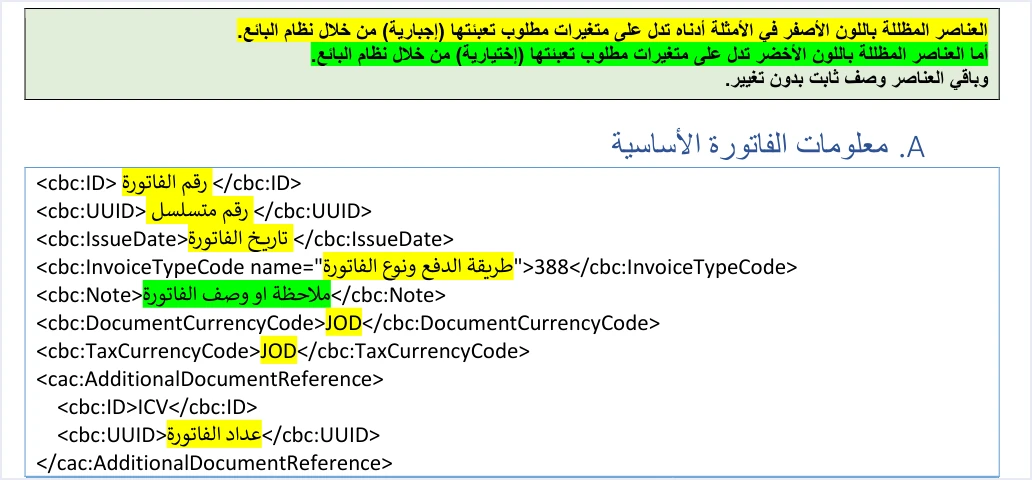
Elements shaded yellow are variables that the seller’s system must fill in, elements shaded green are optional variables, and everything else is fixed description that is copied unchanged. Across all the templates there are five green elements, which are the note cbc:Note, the buyer number value, the postal code, the governorate code and the phone. Every other variable is mandatory.
The guide also adds conditions that change the status of some fields by invoice type. The buyer name becomes mandatory on a receivable invoice and on a cash invoice above the stated limit, and the buyer’s tax number becomes mandatory on a development zones invoice. So it is not enough for your system to check the yellow fields. It has to read the invoice type first and then apply that type’s conditions. Our article JoFotara Mandatory and Optional Fields explains the shading and what changes by invoice type.
JoFotara validation checklist before you submit
The tables below follow the parts of the invoice file, from structure to totals. Each row is a rule documented in version 1.5 of the technical guide. Where the guide gives no error message for a rule, we say so instead of guessing the message.
1. Structure and invoice identity
Scroll the table sideways to see the remaining columns
This part has one more requirement that you test by behavior rather than by rule. Store the invoice number and its unique identifier before sending, so that if you need to resend the invoice you resend it with the same two values.
2. Seller and buyer
Scroll the table sideways to see the remaining columns
3. Lines and taxes
Scroll the table sideways to see the remaining columns
The list of rates that the guide gives on page 42 is 0, 1, 2, 3, 4, 5, 7, 8, 10 and 16. It is the list of values the API accepts in this field, not a table of General Sales Tax rates set by law, so do not use it to infer that a given rate exists. Note that the return invoice pages give the list without the zero.
4. Totals
The message Total General Amount is Not Correct is the first message the guide lists for code 400, and checking the totals locally is the clearest application of guideline 2. The table summarizes the formulas as the guide states them.
Scroll the table sideways to see the remaining columns
The system does not accept a separate invoice-level discount. The discount in the header is the sum of the line discounts, so a seller who discounts the invoice total spreads that discount across the lines before sending.
5. Return invoices
A return invoice has additional conditions that your system checks before sending, and all of them are documented in the guide.
- It carries a
cac:BillingReferenceblock with the original invoice’s number, its unique identifier (UUID) and its total. - The return reason is mandatory. It is written as free text in
cbc:InstructionNoteinsidecac:PaymentMeans. Our article on the return reason covers it. - Returns are on quantities only. A return cannot exceed the quantity sold on the original invoice, and more than one partial return is allowed against the same invoice until its quantities are used up.
- The line number, name and unit price are as on the original invoice.
- The guide requires the buyer details on the return invoice to match those on the original sales invoice it is linked to.
- If the return covers part of the quantity, the discount is the part of the item’s total discount that corresponds to the returned quantity.
- The invoice type code in the
nameattribute is the code of the original invoice itself, and the value is 381.
The error messages the checklist targets
On pages 101 and 102 the guide lists the main messages for code 400, introduced with the words “among the most important”, which means the list is not complete. Each message matches one or more rows in the tables above, which makes the messages a good reference for testing the checks in your own system.
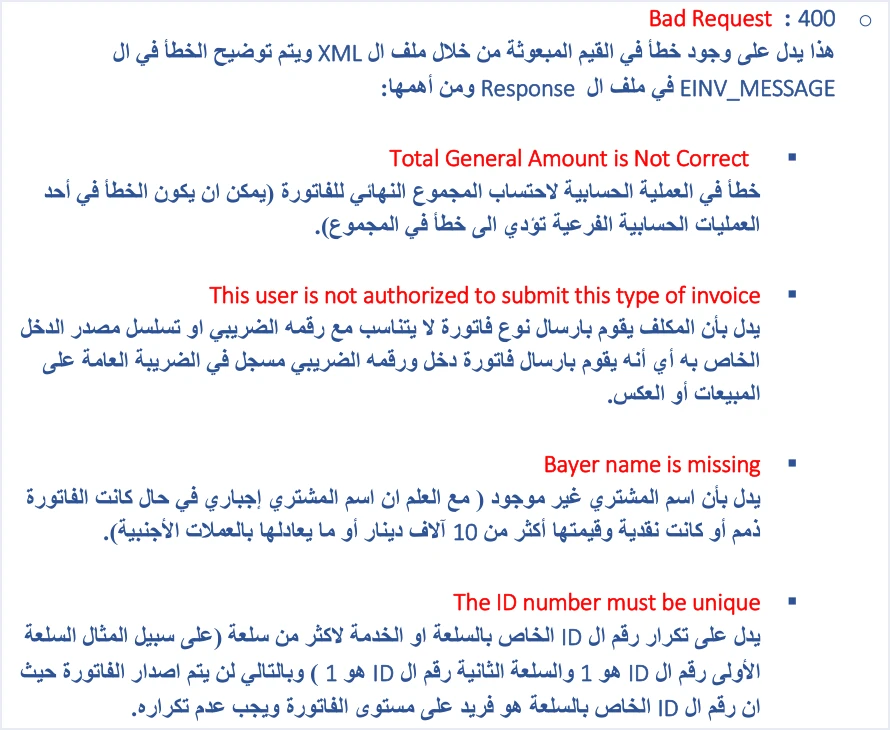
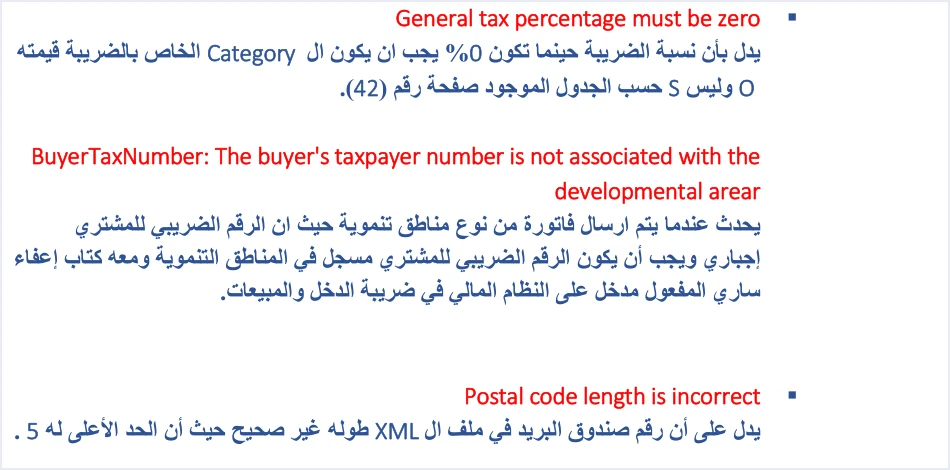
You can use these messages in two ways. The first is to confirm that every message has a matching check in your system. The second is to write your internal validation messages in language an accountant understands, because guideline 6 in the guide asks you to log errors in detail internally and show the user a simplified message. Note that the guide spells some messages inexactly, such as Bayer name is missing, so search responses for the text as it arrives.
What the guide does not document, so do not build a check on it
Pre-submission validation is only as useful as its rules are close to the system’s rules. A rule that a developer invents may reject a valid invoice or pass a wrong one. Version 1.5 of the guide leaves several points without a rule, so do not make them a condition in your system before you confirm them.
- Other buyer address fields. The guide gives only the postal code and the governorate code from the buyer’s address.
- Accepted values of the
currencyIDattribute. The guide’s examples use the valueJOon every amount, and the guide does not say whether other values are accepted. - Unit of measure codes. Only
PCEappears in the lines of new invoices, and the guide gives no list of codes and no rule for them. - Exchange rate. The guide has no element for an exchange rate and no rule for conversion to the dinar.
Do not copy the guide’s XML examples as they are to test your rules, because some of them contain unique identifiers in an invalid format or repeated quotation marks. Separate articles in our Developer Center cover those examples and the testing of invoice submission.
Where the check sits in the submission flow
The guide does not say when the check runs inside your system or in what order. The order below is our suggestion, built from the logic of the guidelines themselves.
- Check the invoice when it is created, before it is built into an XML file, so the accountant can correct the value while working on it.
- Check the file after it is built and before it is Base64-encoded, to confirm the structure, the opening tag and the totals as they will actually arrive.
- Store the invoice number and its unique identifier before sending.
- Send the invoice, then judge it from the value of
EINV_STATUSin the response file, not from the HTTP code alone, as guideline 4 asks. - If an error comes back despite the check, read
EINV_MESSAGE, add the missing rule to your list, and resend with the same number and the same unique identifier.
After acceptance, the QR code comes back in EINV_QR, and the guide requires it to be shown on the seller’s invoice. The invoice counts as received and approved only when this code is present.
How Qoyod helps
If you issue your invoices from Qoyod, Qoyod’s integration with the National Invoicing System works on this part as follows.
- A check before sending. Qoyod checks each invoice at field level as it is created, covering the tax number, the document type and payment method, the General Sales Tax rate and whether the lines are complete, and alerts you to any error before the invoice is sent, to reduce rejections. The pre-send check is an alert, not a guarantee. The final judgment stays with ISTD.
- Every invoice’s status in view. ISTD returns the invoice status and any error message, and Qoyod shows them in its status panel.
- Resending with the same identifier. The status panel lists invoices that were not sent and need to be resent, and when you resend one it keeps the same UUID.
Where to go next
- All the guidelines. Our article JoFotara Guidelines for Linked Systems: All Ten Explained explains all ten.
- Reading a rejection. Our error codes hub covers how to read the codes the system returns.
For a wider view of the system and how to connect your business to it, read our article Jordan’s National E-Invoicing System.
E-invoicing and full accounting in one system
Qoyod is integrated with the National Invoicing System (JoFotara). You issue your invoice in Jordanian dinars from Qoyod, it is booked to your ledgers automatically and sent to the system, and once it is accepted it comes back with a QR code from the Income and Sales Tax Department.
Frequently asked questions
What does validation before sending to JoFotara mean?
It means guideline 2 of ISTD’s technical guide, which asks your system to confirm that the invoice data is correct before it is sent, for example the totals, the taxes, the taxpayer number, the buyer number and the mandatory fields. The goal the guide states is to reduce 400 errors.
Does pre-submission validation guarantee that the invoice is accepted?
No. Pre-submission validation reduces rejections but does not guarantee acceptance. Some conditions depend on data held by ISTD that your system cannot see, such as your registration, the income-source sequence and the buyer’s registration in the development zones, and the final judgment stays with the value of EINV_STATUS in the response file.
Does the guide publish a complete list of validation rules?
No. Guideline 2 gives examples introduced with the word “for example”, and the guide has no single list of all the checks. This article therefore collects the rules documented in the guide’s tables and error messages, and it adds no rule that the guide does not state.
How do I know which fields are mandatory in the invoice file?
You read them from the shading of the tables in version 1.5 of the technical guide. Yellow marks mandatory variables, green marks optional variables, and the remaining elements are fixed description that is copied as it is.
What should I do if an invoice is rejected despite the check?
Read the EINV_MESSAGE message in the response file as it is, fix the value it points to, and resend with the same number and the same unique identifier, without generating a new identifier.
Does Qoyod check the invoice before sending it?
Qoyod checks each invoice at field level as it is created, covering the tax number, the document type and payment method, the General Sales Tax rate and whether the lines are complete, and alerts you to any error before the invoice is sent, to reduce rejections. The pre-send check is an alert, not a guarantee.
References
- Income and Sales Tax Department (ISTD), technical guide for integrating with the National Invoicing System through the API, version 1.5 (in Arabic), pp. 10, 12, 13, 42, 69, 101, 102 and 104.




