




JoFotara seller details sit in a single block of the invoice XML file of the National Invoicing System (JoFotara). The block is called cac:AccountingSupplierParty, and it carries four pieces of information set out in the technical guide issued by the Income and Sales Tax Department (ISTD). They are the country code JO, the seller’s tax number in the cbc:CompanyID element, the tax-scheme code VAT, and the seller’s name in the cbc:RegistrationName element, exactly as it is registered with ISTD. A business that issues its invoices directly on the JoFotara portal writes none of this. On the portal, the seller section of the invoice form appears pre-filled and read-only.
This article goes through each element of the block, what your system writes into it and what it copies unchanged. It then shows where these details meet the legislation and the rejection messages, and closes with a short checklist to run before you send. Whether each field in the whole file is mandatory or optional is covered in a separate article in this series, and buyer details have their own article in the same series.
The article is written for the developer who links accounting software to JoFotara, and for the accountant who reviews invoice files and wants to know where the business’s own details in them come from.
JoFotara seller details inside the XML file
Version 1.5 of ISTD’s technical guide for integrating with the National Invoicing System through the API shows the template for this block on page 15, under the heading Seller (taxpayer) details (البيانات الخاصة بالبائع (المكلف)). The taxpayer in this context is the business that issues and sends the invoice, so its details are the seller details in the file.
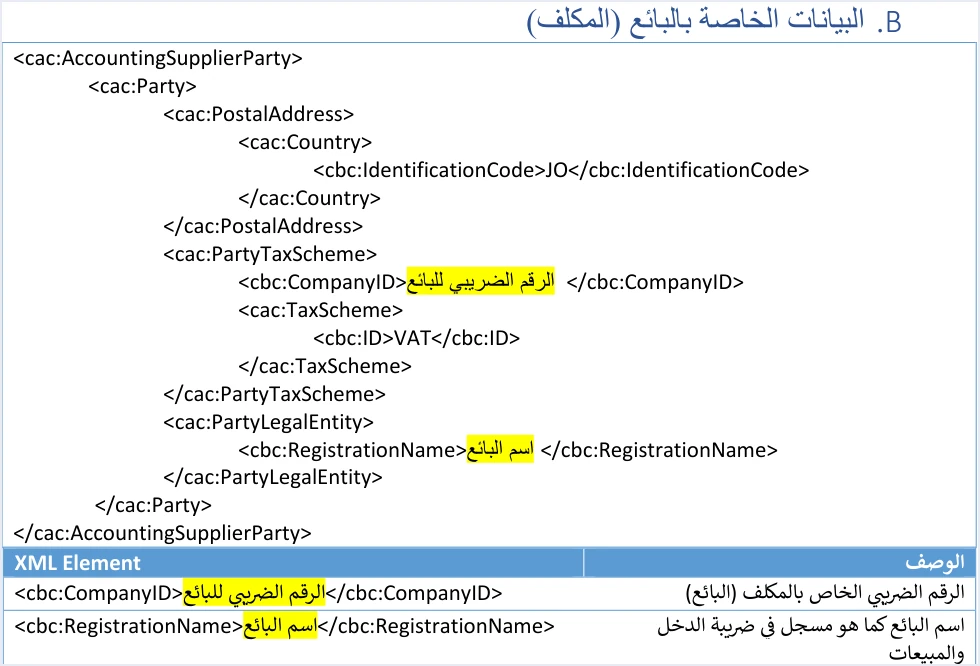
The template is read with the color key that the guide repeats above every one of its templates. An element shaded yellow is a mandatory variable that the seller’s system fills in. An element shaded green is an optional variable. Anything with no shading is a fixed description, copied without change. The seller block has two elements shaded yellow and no green element at all. Each template has five green elements, one in the header and the other four in the buyer block.
Scroll the table sideways to see the remaining columns
In practice, your system writes only two values into the seller block, the tax number and the name, and copies the rest of the block literally. Both values stay the same for a given business. So an error in either of them does not affect one invoice. It repeats in every invoice the system builds until the source the value is taken from is corrected.
The seller’s tax number in the CompanyID element
The guide describes the content of the cbc:CompanyID element as the tax number of the taxpayer (the seller), which is the business’s number with ISTD. The tax number is also the first field on the JoFotara login screen, alongside the username and the password.
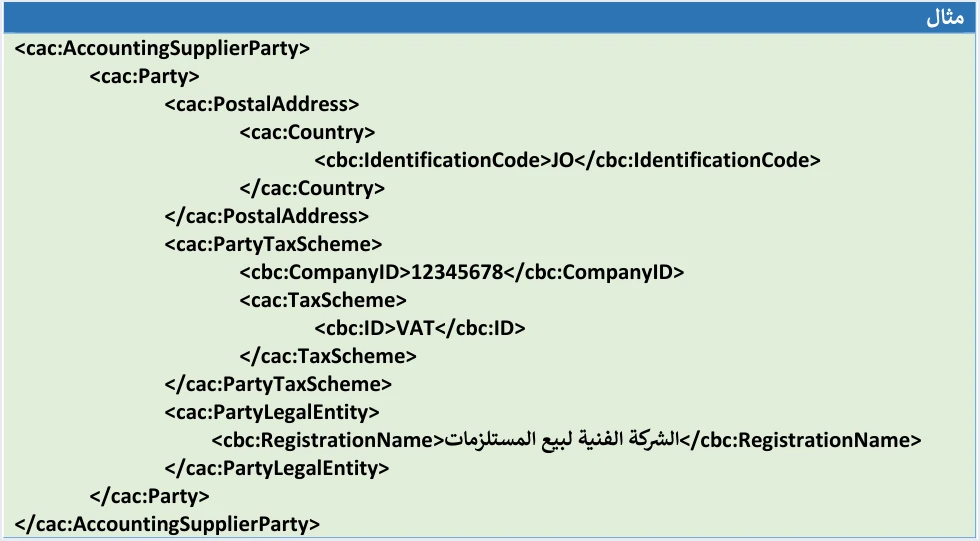
The guide’s example fills the element with the number 12345678 and a fictitious company name. These are illustrative values that show the shape of the block. Do not copy the example into your file. Put your own business’s number and name in it.
This element deserves particular care, because the guide links the tax number to more than one rejection message. In its explanation of code 500, the guide says the following.
«خطأ في الرقم الضريبي أو تسلسل مصدر الدخل وبدرجة أقل يكون الخطأ في ال Client_ID أو ال Secret_Key ويمكن ان تكون نسبة الضريبة الموجودة في ملف ال XML ليست ضمن نسب الضريبة المعتمدة لدى الدائرة»
In English, the guide gives the cause as an error in the tax number or the income-source sequence, less often an error in the Client_ID or the Secret_Key, and possibly a tax rate in the XML file that is not among the rates ISTD has approved. The English here is our rendering, and the Arabic text is the authority.
Among the code 400 messages is This user is not authorized to submit this type of invoice. The guide explains it as the taxpayer sending an invoice type that does not match their tax number or their income-source sequence, for example an income invoice sent by a taxpayer registered for General Sales Tax (GST), or the reverse. Both codes and their causes are set out in our article JoFotara Error Codes.
The guide closes with ten guidelines, and one of them is titled Pre-send validation (التحقق قبل الإرسال). It asks you to review the totals, the taxes, the taxpayer number, the buyer number and the mandatory fields before the invoice is sent, to reduce code 400 errors. If you want to confirm that your tax number is registered in the system at all, ISTD offers a National Invoicing System registration check that searches by tax number.
A registered business also holds an official document that carries its number, the registration document in the National Electronic Invoicing System (وثيقة تسجيل في نظام الفوترة الوطني الالكتروني). It has three fields, the date, the company or establishment name, and the tax number. Its text states that the business with the tax number shown on it is registered in the National Electronic Invoicing System. So it proves registration only. It is not a license and not an accreditation. How to get it is explained in our article JoFotara Registration and the Registration Document.
The VAT tax-scheme code: a literal value, not a tax name
Under the seller’s tax number comes a tax scheme whose identifier is VAT. This value is not shaded in the template. It is a fixed description, copied as it is, and the seller’s system may not change it, translate it or replace it with anything else.
In the invoice file, VAT is only the fixed tax-scheme code of the UBL template; the tax itself is Jordan’s General Sales Tax (GST). The abbreviation is a literal code that the guide prints into the file structure, and it is not the name of the tax Jordan levies. Jordan’s tax on the sale of goods and services is General Sales Tax, at a general rate of 16%, and alongside it sits the Special Sales Tax (SST) on particular goods. So do not read the code in the file as a name for the tax, and do not write the name of the Jordanian tax in its place.
The same code appears again in the invoice lines. In the line-level tax structure of general sales tax invoices, the tax scheme also carries the value VAT, next to the tax category, which a separate article in this series explains. The rule is the same in both places. The value is copied and never edited.
The guide treats everything unshaded as a fixed description, used without change (بدون تغيير). Its first guideline requires compliance with the UBL 2.1 standard and states that any flaw in the file structure leads to the invoice being rejected. The safest approach to literal values is therefore to carry them over from the template exactly as they are.
The seller’s name in RegistrationName, as registered with ISTD
The guide describes the content of the cbc:RegistrationName element as the seller’s name as registered with ISTD. The reference point is the name in ISTD’s records. It is not a shortened form of that name, and not a trading name the business uses in its advertising or on its shopfront.
This requirement meets the legislation. Article 5(a) of Regulation No. 34 of 2019 on Organizing and Controlling Invoicing Affairs, as amended (Regulation 34/2019), lists the details an invoice must contain. They include the seller’s full name and address, and the seller’s tax number if the seller is registered for sales tax, or national number if not. Article 10 of Regulation 34/2019 places responsibility for the invoice matching the actual facts on the seller and the buyer alike.
The legislation, however, speaks about the invoice in principle, while the technical guide sets what is sent in the file. The seller block in the template carries nothing of the address except the country code. The guide does not explain how the seller’s address named in Article 5(a) of Regulation 34/2019 is met in the file. Do not build a conclusion of your own on this gap, and ask ISTD technical support about it if you need an answer.
Seller details are also among the data shown when an invoice is verified. When the QR code is scanned with the Sanad app through its digital document verification option (التحقق من المستندات الرقمية) and the document is valid, the app shows the basic invoice data held inside the code. That data is the invoice total, the invoice number, the total tax on the invoice and the invoice date, followed by the seller’s tax number and the seller’s name.
Seller details on the JoFotara portal
A business that issues its invoices on the portal does not deal with an XML file. The New invoice (فاتورة جديدة) form has a section titled Seller details (بيانات البائع) that appears pre-filled and read-only, and the user types nothing into it.

According to the 2026 edition of the procedures guide for issuing an invoice, this section has six fields, the name, the income-source sequence, the tax number, the country, the postal code and the phone number. The invoice is issued from the account of a JoFotara sub-user. The main user creates the sub-users, and invoices are created only from their accounts. The full steps of the form are in our article Issue an Invoice on the JoFotara Portal, and every section of the form is described in our article JoFotara Invoice Form Fields Explained.
Note that the portal section shows three fields that do not appear in the seller block of the XML template, the income-source sequence, the postal code and the phone number. The income-source sequence has its own block in the file, covered in the next section. For the postal code and the phone number, the technical guide gives no element in the seller block. Neither guide says how portal data is carried into the file. So do not assume a link between portal fields and file elements because their names look alike.
The portal guide does not document how to change the seller details if they show a value that does not match your business’s details. The body the technical guide refers inquiries to is ISTD’s technical support committee for invoicing affairs, through ISTD’s website.
A neighboring block that is not part of seller details
The income-source sequence does not sit inside the seller block. It sits in a separate block, cac:SellerSupplierParty, where the cbc:ID element carries it in every invoice sent through the API. The taxpayer selects the sequence when creating the linking credentials from the device linking option (ربط الأجهزة), and each pair of Client ID and Secret Key is bound to one sequence, as our article JoFotara Client ID and Secret Key explains. The field and its errors are covered in detail in a separate article on the income-source sequence in this series.
Pre-submission checklist for seller details
The list below gathers the points above into checks you can run on any invoice file before sending it, or on the settings of the system that builds the files.
- Country code. The value
JOis carried over from the template unchanged. - Tax number. The
cbc:CompanyIDelement holds the tax number of the selling business itself, not the buyer’s number and not the number in the guide’s example. - Tax-scheme code. The value
VATis carried over literally, untranslated, and the name of the Jordanian tax is not put in its place. - Seller name. The
cbc:RegistrationNameelement holds the business’s name as registered with ISTD, not a shortened name. - Invoice type. The third digit of the invoice type code follows the business’s registration with ISTD. The guide’s examples of a mismatch are an income invoice sent by a taxpayer registered for General Sales Tax, or the reverse.
- Income-source sequence. The value in its separate block is correct, bearing in mind that the linking credentials are bound to one sequence.
If an invoice is rejected and you want to know whether the seller details played a part, the table below brings together the messages the guide links to the tax number or to the elements next to it.
Scroll the table sideways to see the remaining columns
How to read the detailed rejection messages in the message field of the system’s response is covered in our article JoFotara Error Codes.
How Qoyod handles seller details
When the invoice is issued from accounting software linked to the system, you do not write the seller block by hand. Qoyod builds the invoice file in UBL 2.1 format with its unique identifier (UUID) and sends it to the National Invoicing System without any manual intervention. This runs through Qoyod’s integration with the National Invoicing System.
- Qoyod checks each invoice at field level as it is created, covering the tax number, the document type and payment method, the General Sales Tax rate and whether the lines are complete, and alerts you to any error before the invoice is sent, to reduce rejections.
- ISTD returns the invoice status and any error message, and Qoyod shows them in its status panel.
- The status panel lists invoices that were not sent and need to be resent, and when you resend one it keeps the same UUID.
The pre-send check is an alert, not a guarantee. Whether an invoice is accepted is decided by the National Invoicing System alone. For a wider view of the system and how to connect your business to it, read our article Jordan’s National E-Invoicing System.
E-invoicing and full accounting in one system
Qoyod is integrated with the National Invoicing System (JoFotara). You issue your invoice in Jordanian dinars from Qoyod, it is booked to your ledgers automatically and sent to the system, and once it is accepted it comes back with a QR code from the Income and Sales Tax Department.
Frequently asked questions
What are the seller details in a JoFotara invoice?
The seller details in the invoice file are four elements in the cac:AccountingSupplierParty block. They are the country code JO, the seller’s tax number, the tax-scheme code (a fixed UBL value, shown in the body above), and the seller’s name as registered with ISTD. Only the tax number and the name are mandatory variables, and the rest is fixed description.
Do I write General Sales Tax in place of the tax-scheme code in the seller block?
The tax-scheme code stays as it is, because it is an unshaded fixed description in the guide’s template. It is a literal code in the file structure. The Jordanian tax is called General Sales Tax, and its name is not written in this position.
Which name goes in the seller name element?
The seller’s name goes in exactly as it is registered with ISTD, following the technical guide’s description of this element. Do not use a shortened or trading name that differs from the name in ISTD’s records.
Do I fill in seller details when issuing an invoice on the portal?
The Seller details section of the invoice form on the portal appears pre-filled and read-only. It holds the name, the income-source sequence, the tax number, the country, the postal code and the phone number.
Is the income-source sequence part of the seller details in the file?
The income-source sequence sits in a separate block, cac:SellerSupplierParty, not inside the seller block. The taxpayer selects it when creating the linking credentials, and each pair of Client ID and Secret Key is bound to one sequence.
How is the seller’s tax number related to error 500?
The technical guide puts an error in the tax number or the income-source sequence first among the causes of code 500 that it lists. It then names, less often, the Client ID and the Secret Key, and a tax rate outside the accepted values. That is why the check starts with the number in the seller block.
References
- Income and Sales Tax Department (ISTD), technical guide for integrating with the National Invoicing System through the API, version 1.5 (in Arabic), 2026.
- Income and Sales Tax Department (ISTD), procedures guide for issuing an invoice in the Jordanian National Electronic Invoicing System, 2026 edition (in Arabic).
- Regulation No. 34 of 2019 on Organizing and Controlling Invoicing Affairs, as amended, consolidated text 2023 (in Arabic).
- Income and Sales Tax Department (ISTD), National Invoicing System registration check service.




