




JoFotara error 500 appears when your accounting software sends an invoice to the National Invoicing System (JoFotara) and the reply comes back with the code 500 Internal Server Error instead of a QR code. The name suggests a fault on the server of the Income and Sales Tax Department (ISTD). The technical guide that ISTD publishes traces it instead to data that the taxpayer sends.
The short answer is this. Start with the tax number and the income-source sequence, then the Client ID and Secret Key, then the tax rate on each line. That is ISTD’s own order, and the first step sits at the head of its list of causes.
This article explains each of these causes, how to check it in the invoice file and in your account, how to resend without duplicating the invoice, and when to contact ISTD technical support. The other codes (400, 403 and 504) are covered separately, and we point to them where they come up.
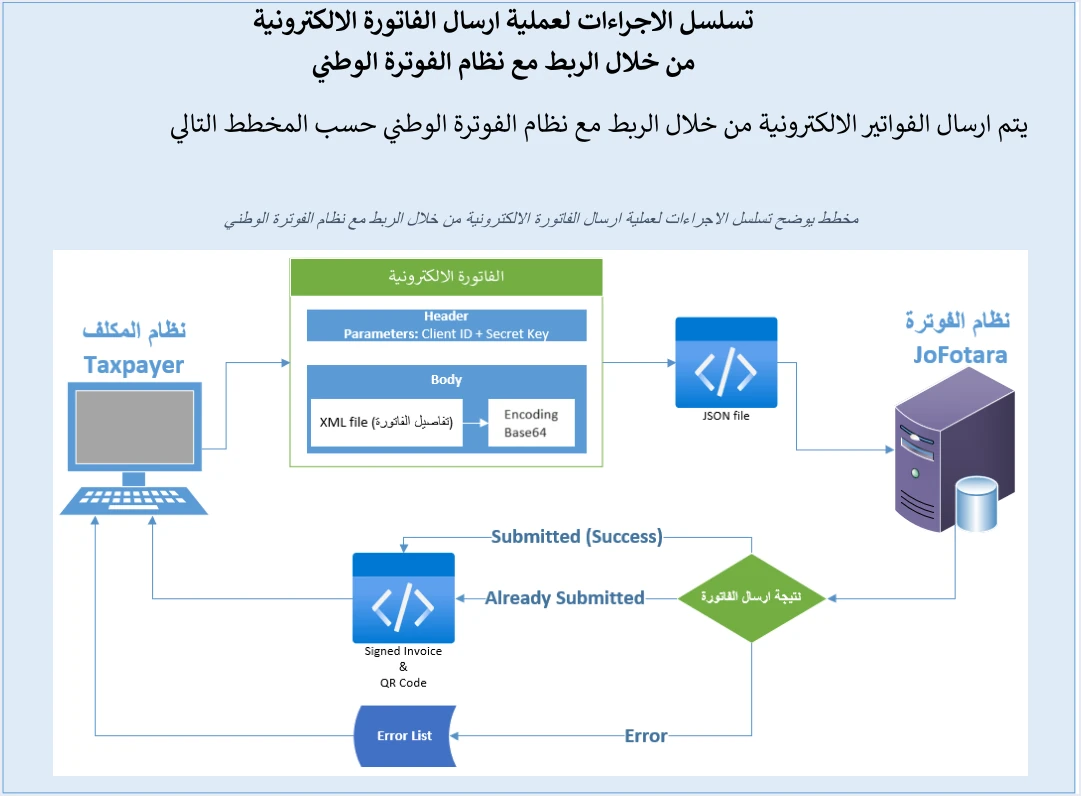
What JoFotara error 500 means
Every submission follows one path, which the technical guide draws as a diagram. Your software builds the invoice file in XML, applies Base64 encoding to it inside a JSON file, and sends it to the system with the Client ID and Secret Key in the request header. Either the invoice is accepted and a QR code comes back for it, or a list of errors comes back.
Code 500 is one of the outcomes of that path. The technical guide (version 1.5, p. 101) describes its causes in these words.
«خطأ في الرقم الضريبي أو تسلسل مصدر الدخل وبدرجة أقل يكون الخطأ في ال Client_ID أو ال Secret_Key ويمكن ان تكون نسبة الضريبة الموجودة في ملف ال XML ليست ضمن نسب الضريبة المعتمدة لدى الدائرة»
In English, the guide says the error lies in the tax number or the income-source sequence, less often in the Client ID or the Secret Key, and that the tax rate in the XML file may not be one of the tax rates adopted by ISTD. ISTD publishes this guide in Arabic only; the English here is our rendering, and the Arabic text is the authority.
The text contains three groups of causes, in an order worth keeping when you check.
- The tax number or the income-source sequence. The first cause in ISTD’s order.
- The Client ID or the Secret Key. A cause that ISTD says occurs less often. The guide’s own entry for code 403 is an error in these two values.
- A tax rate outside the accepted list. A value in the rate field that the system does not accept.
The guide names no cause outside these three groups, so do not spend time looking for another one before you have worked through them.
To tell the neighboring codes apart quickly, one line each is enough. Code 400 means an error in the values of the XML file, and its cause arrives in writing in the EINV_MESSAGE field. Code 403 means a wrong Client ID or Secret Key. Code 504 means the system could not be reached at all. Each of these codes is explained in full in our article JoFotara Error Codes: Why an Invoice Is Rejected and How to Fix It.
Before you check: is every invoice rejected, or only one?
This question saves half the work. Its answer comes from the structure of the file itself, not from ISTD’s text.
The seller’s tax number and the income-source sequence do not change from one invoice to the next, and both are sent with every invoice. The Client ID and Secret Key are sent with every request as well. If the error is in any of them, every invoice you send is rejected with the same code.
The tax rate, on the other hand, changes from line to line and from item to item. If most of your invoices go through and one particular invoice fails, start with the line rates on that invoice. If everything has been rejected since a certain moment, look for what changed in the linking settings or the business details at that moment.
Check 1: the tax number
The seller’s tax number travels in every invoice as part of the seller details, in the cac:AccountingSupplierParty element, and specifically in the cbc:CompanyID field. The guide’s text does not say which tax number it means. Start with the seller’s number, because it is sent in every invoice together with the income-source sequence, then move to the buyer’s number if your invoice carries one.
Checklist
- Match the number you send against your number at ISTD. The tax number is one of the login fields of the National Invoicing System itself, so compare the number you log in with against the number your software writes into the invoice file.
- Check the number in the actual invoice file, not on the settings screen. What appears in the software settings may not be what reached the file, especially after a data migration or a change to the business.
- If you manage more than one business, make sure the invoice went out with the number of the business that owns the credentials used for the submission.
- Review the buyer’s number if you send it. The buyer’s number is sent with the identifier type
TN, accepts digits only, and becomes mandatory on a development zone invoice.
Check 2: the income-source sequence
The income-source sequence is a mandatory field in every invoice sent through the API. It is sent in the cbc:ID inside cac:SellerSupplierParty. The taxpayer selects it when creating the linking credentials under the device linking option (ربط الأجهزة), and the system then generates the Client ID and Secret Key tied to it.
This point is the key to the diagnosis. Each pair of credentials is tied to one income-source sequence. So the reference you compare the sent sequence against is the sequence shown next to the credentials your software uses.
Checklist
- Open the list of linked devices under the device linking option (ربط الأجهزة). According to the screenshots in the technical guide, each Client ID is shown with the income-source sequence tied to it.
- Compare that sequence with the value sent in the invoice file, character by character.
- If your business has more than one income source, make sure each invoice goes out with the sequence of the source its credentials are linked to, not the sequence of another source.
- Make sure the business has an active income-source sequence in the first place. ISTD’s questions and answers guide gives the lack of an active sequence as a reason registration cannot go ahead, and the fix it gives is an internal service request to open a new income source and group (فتح مصدر دخل ومجموعة جديدة).
Note that a conflict between the sequence and the invoice type has a different message, under code 400, which is This user is not authorized to submit this type of invoice. If you receive that message, you are dealing with a 400 and not a 500, and the place to fix it is the type of invoice you sent.
Check 3: the Client ID and Secret Key
The guide places this cause in the less often group. Its entry for code 403 is an error in these same two values, which may explain that order. This is our reading of the text, not a statement by ISTD. So do not start here, but do not skip it if the first two checks end without a result.
Your software sends both values in the request header, not inside the invoice file, under the names Client-Id and Secret-Key. The checklist here is short.
- Match both values against the list of linked devices. Each of them has a copy button next to it in that list.
- Make sure the ID and the key come from the same row. Mixing a Client ID from one link with a Secret Key from another gives an invalid pair, even if each value is correct on its own.
- Make sure the sequence tied to this pair is the sequence sent in the invoice. This is the same point as Check 2, seen from the other side.
- Keep both values in a protected place. The guide requires that they are not stored in the open in your code, and makes the taxpayer alone responsible for any unauthorized use.
How to obtain these two values from the device linking option is explained in our article JoFotara Client ID and Secret Key: Device Linking Steps, and how to enter them in your software in our article JoFotara Integration: How to Connect Jordan’s National E-Invoicing System, Step by Step.
Check 4: a tax rate outside the accepted list
This is the only cause that lives inside the invoice lines. Each line of a general sales tax invoice carries its tax rate in the cbc:Percent field, and that field has a closed list of values.
The values the API accepts in this field, as the technical guide lists them for new sales invoices (p. 42), are 0, 1, 2, 3, 4, 5, 7, 8, 10 and 16.
This is a technical validation list that the interface accepts at submission, and it is not the table of General Sales Tax (GST) rates in Jordan. The question of which rate applies to your goods is answered by the General Sales Tax Law, not by this list. A value appearing in it does not mean that a rate of that size is charged on any product.
Checklist
- Check the rate on every line of the rejected invoice, not only the first line. One line outside the list is enough to reject the whole invoice.
- Make sure the rate is taken from the item setup and not calculated. If your software derives the rate by dividing the tax amount by the taxable amount, rounding may produce a fractional value that matches nothing in the list.
- Do not put the Special Sales Tax (SST) in the rate field. The guide describes the special tax as a value entered without any calculation. It is sent as an amount in a separate block with no rate field, before the general tax block.
- Review return invoices carefully. On the return invoice pages (pp. 54 and 82), the guide’s description of the rate lists 1, 2, 3, 4, 5, 7, 8, 10 and 16 without zero, while the category table on the same pages still gives 0 for categories Z and O. The guide does not explain the difference.
If you issue an income invoice because your business is not registered for sales tax, this cause does not apply to you. The lines of an income invoice carry no tax block and no rate field, which leaves the tax number, the income-source sequence and the credentials.
How to read the system’s reply after error 500
The HTTP Response Status Code tells you what happened to the request technically. The verdict on the invoice itself is carried by the EINV_STATUS field. The invoice counts as accepted only if its QR code comes back in the EINV_QR field, and the guide requires that code to be shown on the seller’s invoice.
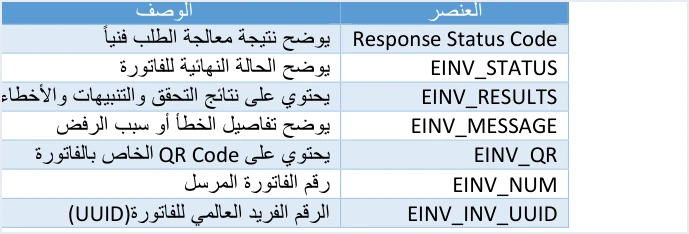
So the practical rule after error 500 is simple. The invoice was not accepted, and you should not record it in your books as issued through the system until a code comes back for it. The three EINV_STATUS states and the other reply fields are explained in our article on JoFotara error codes.
The guide’s guidelines also require you to log errors in detail inside your own system and show the user a simplified message. The detailed error log is what you will need if you reach the stage of contacting technical support.
Resending after the fix: the same number and the same identifier
Once you have fixed the cause, resend the invoice with the same invoice number and the same unique identifier (UUID). This is one of the ten guidelines in the technical guide. When a submission fails, resend with the same two values, and do not generate a new identifier.
The reason is that the system identifies an invoice by the number and the identifier together, not by the number alone. The UUID is generated by the taxpayer’s software, not by the system, and ISTD warns that failing to keep the identifier and generating another one can lead to duplicate invoices on resend.
This rule also protects you when you do not know what happened to the first attempt. If the invoice had in fact been accepted and you resend it with the same number and identifier, the system returns the ALREADY_SUBMITTED status with the original QR code, and does not create a second invoice.
To be able to do this, keep four values for each invoice, which the guide requires you to store. They are the number, the UUID, the QR code and the status. The guide adds keeping a full record of submissions, replies and resends.
When to contact ISTD technical support
Contact technical support when you have finished all four checks without finding a fault and the same code persists. The technical guide names the contact point in these words.
«لمزيد من الاستفسارات يمكن التواصل مع لجنة الدعم الفني لشؤون الفوترة في دائرة ضريبة الدخل والمبيعات على الرابط التالي: https://istd.gov.jo»
In English, the guide says that for further questions you can contact the technical support committee for invoicing affairs at ISTD through the ISTD website. ISTD publishes this guide in Arabic only; the English here is our rendering, and the Arabic text is the authority.
Before you get in touch, prepare what will shorten the exchange.
- The invoice number, its UUID and the time of submission.
- The reply code and any message that came back with it, from the detailed error log.
- The tax number and the income-source sequence sent in the file.
- Which of the four checks you have already run, so the exchange does not start from zero.
Do not send the Secret Key in any message. The guide makes keeping it confidential your responsibility alone.
How Qoyod helps
Most causes of error 500 are data that is set once and then repeated in every invoice. This is where it helps to have your accounting software build the file for you. Qoyod’s integration with the National Invoicing System works on this layer as follows.
- A check before sending. Qoyod checks each invoice at field level as it is created, covering the tax number, the document type and payment method, the General Sales Tax rate and whether the lines are complete, and alerts you to any error before the invoice is sent, to reduce rejections.
- Every invoice’s status in view. ISTD returns the invoice status and any error message, and Qoyod shows them in its status panel.
- Resending with the same identifier. The status panel lists invoices that were not sent and need to be resent, and when you resend one it keeps the same UUID.
The pre-send check is an alert, not a guarantee. It covers the four fields named above, and acceptance of the invoice rests with the National Invoicing System alone.
Where to go next
- The other rejection codes. 400, 403, 504 and the validation messages, in our article JoFotara Error Codes: Why an Invoice Is Rejected and How to Fix It.
- Every field of the reply. What each element of the response file carries, in our article JoFotara API Response: The EINV Elements.
- Building the request. The XML file and the JSON body you send, in our article JoFotara API Request: Building the XML-to-JSON Body.
- What to log. The values to store for each submission, in our article JoFotara Logging: What to Store and Record.
- The full picture of the system. How it works and how to connect your business to it, in our article Jordan’s National E-Invoicing System: How It Works and How to Connect Your Business.
- After the invoice is accepted. Why it cannot be changed and what to do instead, in our article Editing an Issued Invoice in Jordan’s National Invoicing System.
E-invoicing and full accounting in one system
Qoyod is integrated with the National Invoicing System (JoFotara). You issue your invoice in Jordanian dinars from Qoyod, it is booked to your ledgers automatically and sent to the system, and once it is accepted it comes back with a QR code from the Income and Sales Tax Department.
Frequently asked questions
What causes JoFotara error 500?
ISTD’s technical guide gives three causes. The first is an error in the tax number or the income-source sequence. Less often, the error is in the Client ID or the Secret Key. The guide adds that a tax rate in the XML file may not be one of the values the system accepts.
Does error 500 mean ISTD’s server is down?
The name of the code suggests so, but the technical guide traces it to data in the request you sent and lists no server fault among its causes. When the system itself cannot be reached, the code is 504.
What is the difference between error 500 and error 403?
Code 403 concerns the Client ID and the Secret Key. For code 500, ISTD lists the tax number or the income-source sequence first, then, less often, the credentials, and adds that a tax rate may be outside the accepted list.
Is the list of accepted rates the list of General Sales Tax rates in Jordan?
No, it is not. The list (0, 1, 2, 3, 4, 5, 7, 8, 10 and 16) is the set of values the API accepts in the rate field. The rate that applies to your goods is set by the General Sales Tax Law.
Should I generate a new UUID when I resend?
No, you should not. ISTD’s technical guide requires resending with the same invoice number and the same UUID, because generating a new identifier on resend can lead to a duplicate invoice.
When should I contact ISTD technical support?
Contact it when you have checked every cause without a result and the code persists. The technical guide refers you to the technical support committee for invoicing affairs at ISTD through its website, istd.gov.jo.
References
- Income and Sales Tax Department (ISTD), technical guide for integrating with the National Invoicing System through the API, version 1.5 (in Arabic), pp. 7, 8, 9, 42, 54, 68, 82, 96, 97, 101 and 104.
- Income and Sales Tax Department (ISTD), questions and answers guide for the National Invoicing System, 2026 (in Arabic), p. 5.




