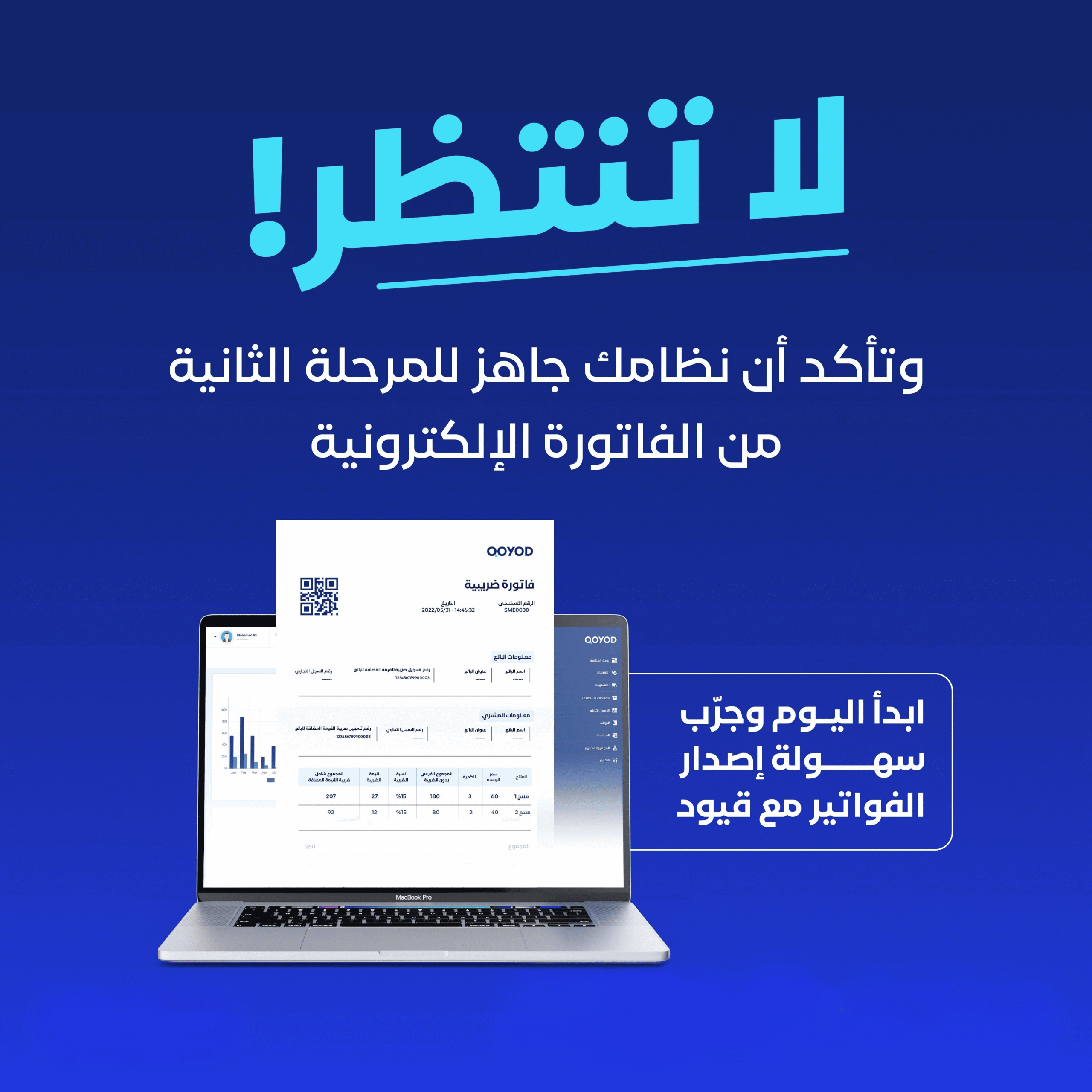
An accountant at a trading company in Amman created the company account on the national e-invoicing portal, pulled the registration certificate, then went back to the accounting software and found invoices still coming out exactly as before: no QR code, and no trace at the tax department. Registration really was finished. The JoFotara integration had not started. They are two separate procedures, and confusing them is what delays Jordanian businesses more than anything else.
Registration gives you an account. Integration gives your accounting software permission to send your invoices to the Income and Sales Tax Department (ISTD) the moment they are issued, and to receive back the QR code that makes an invoice a valid tax document. This guide covers both ends: what you do on the portal, and what you do afterwards inside Qoyod, along with the real rejection reasons and what each one means.
What integration actually means, and why registering is not enough
Since 1 April 2025, anyone selling goods or providing services in Jordan must issue invoices through the national e-invoicing system or through a system connected to it, whether the sale is to a business, a consumer or a government entity. An invoice issued outside that path is not treated as a tax document: the buyer loses the input-tax deduction, and the expense is not recognised for income tax.
ISTD offers two paths, not one. The first is for taxpayers with no accounting software: create a sub-user on the portal and key each invoice in by hand from the «تنظيم فاتورة» (Organise Invoice) option. The second is for taxpayers who do have accounting software: use the «ربط الأجهزة» (Device Linking) service to generate credentials, then send invoices straight from that software.
Both paths are fully compliant. The difference is not legal, it is operational. A business issuing ten invoices a month will not feel the load. A business issuing three hundred will discover it is entering the same data twice, once on the portal and once in its books. That is the point where integration stops being a technical option and becomes an operating decision.
One detail in ISTD’s own wording is worth noting. It asks the taxpayer to coordinate with «the system programmer or the technical solutions provider they use» to complete the technical requirements. That means the provider you already work with, because no official published list of ISTD-accredited providers exists. Any vendor marketing itself as officially accredited is claiming something with no source behind it. What a system genuinely needs to be is integrated with the national e-invoicing system, and that is something you can verify in practice.
Before integrating: the three credentials and where they come from
Integration does not start in your accounting software. It starts in your account on the government portal, where three values are generated. Those three are the only things any software needs in order to speak to the system on your behalf.
Five items without which the integration will not complete
The first three are issued by the government portal, not by your accounting software. The last two must match your tax file character for character. Any missing or mistyped item stops the very first invoice you send.
- An active account on the national e-invoicing portal
- The Client ID generated from «ربط الأجهزة» (Device Linking)
- The Secret Key issued alongside it
- The income-source sequence assigned to your activity
- Your tax number, matching your ISTD file exactly
How to generate the Client ID and Secret Key
Sign in to the e-services section of the ISTD website and pick «الفوترة الوطني» (National Invoicing) from the services bar. A practical warning straight from the joining manual: pop-ups must be enabled in your browser, otherwise you will never reach the system at all. Enter the CAPTCHA, then move through to the system, where your tax number is pulled in automatically and you choose a username and password.
The password has specific rules: at least eight characters, combining letters, numbers and special symbols, with at least two letters one of which is a capital. ISTD’s own example of an acceptable password is Pass@123.
Once the account exists you land on the main screen. Choose «ربط الأجهزة» (Device Linking), then «ربط جديد» (New Link), enter a username and select the income-source sequence for your activity. The system then generates the Client ID and the Secret Key. Those two values, plus the income-source sequence, are everything you will enter into Qoyod.
The technical manual places confidentiality of these two keys entirely on the taxpayer, along with responsibility for any unauthorised use. Treat them the way you treat bank signing authority: never send them in a chat, never store them in a shared file.
The mistake that stops most attempts
Device Linking and Add Sub-User are alternatives, not steps in a sequence. Someone who clicks Device Linking while intending to issue manually loses the «تنظيم فاتورة» option on the sub-user, and that is the single most reported problem in ISTD’s official FAQ. The reverse is also true: someone who creates a sub-user while intending to integrate will find no credentials to enter into their software.
Three further cases the same FAQ answers, worth knowing before you open a support ticket:
- The National Invoicing option does not appear in e-services. The taxpayer file type is «مستخدمين» (Users); the fix is a request to convert it to «أفراد» (Individuals).
- Logging in for registration bounces you back to the main page. There is no income-source sequence on the file; the fix is to add one.
- The message «the account has been stopped». The sub-user is disabled, and the main user re-enables it from the Add Sub-User option.
If you want to confirm you are ready before you begin, the JoFotara readiness check walks the same points in a couple of minutes.
How to complete the JoFotara integration inside Qoyod
With the three values in hand, the remaining work inside Qoyod is short: four clicks and three fields. The path as it appears in the system:
The JoFotara integration path in five steps
1. Settings, then Electronic Integration
From the side menu of your account choose «Settings», then «Electronic Integration». The «My integration apps» page opens, and it is empty on a new account unless you have set up an integration before.
2. The Integration Services tab
Lower on the page you will find the «Integration Services» tab, and inside it the «National E-Invoicing System» group. Expand it to reveal the service card.
3. The JoFotara card and the Start Integration button
The card is described as the integration with Jordan’s national e-invoicing system, covering income and sales tax, meaning it serves both the income invoice and the general sales tax invoice. Press «Start Integration» to move to the credentials screen.
4. Entering and saving the credentials
The screen asks for three fields: Client ID, Secret Key, and the income-source sequence, and reminds you that the sequence is the one assigned to you by the Income and Sales Tax Department. Copy the values from the portal rather than typing them, because a single missing character in the sequence surfaces later as a submission error rather than an input error.
Save your own copy of the Secret Key somewhere protected before you press save: Qoyod stores it securely and never displays it again. That is sound security practice, but it does mean losing it requires creating a new link on the portal. Then press «Save Credentials».
One prerequisite sits above all of the above: you need an active account on the Jordanian e-invoicing portal. All three values come from there.
What happens after saving: the invoice journey to ISTD
From this point the behaviour of your invoices changes, not just their appearance. When you issue an invoice from Qoyod, the software builds a UBL 2.1 document and sends it to the national e-invoicing system carrying the Client ID and Secret Key in the request headers. The system validates structure and values, then responds with the invoice status and, if accepted, the QR code.
Three points along that path correct widespread assumptions:
- No digital signature is required from your side. Version 1.5 of the technical manual asks the taxpayer for no digital certificate and no electronic signature on the invoice. ISTD returns the signed copy itself.
- The QR code comes from ISTD, not from the software. It arrives in the approval response, and printing it on the copy you hand the buyer is a condition of the invoice being accepted.
- Judge the invoice by its status, not by the technical response code. SUBMITTED means accepted. ALREADY_SUBMITTED means you sent the same invoice again and the original QR is returned, which is the documented way to recover a code you failed to store. NOT_SUBMITTED means rejected.
Because ISTD identifies an invoice by its ID and UUID together, a resend must reuse the same UUID. Minting a fresh one on every attempt creates duplicate invoices at ISTD, and the manual warns about this explicitly. Integrated software handles it for you, but knowing the rule explains why an invoice shows up twice when someone submits with an improvised script.
There is a second difference here. The invoice does not only travel to ISTD, it also lands in your ledger at the same time. Anyone who keeps the two tools separate is still doing the bookkeeping a second time after every invoice, and keeping source documents in two places.
Software integration versus manual issuing: what really changes
Since both paths are accepted, the question is not which one is legal but which one your volume can carry. The table compares operational impact, not compliance.
Volume is only one of the signals, and the point where manual entry stops paying for itself is where you decide whether you need a system at all.
Manual issuing versus software integration in daily operation
| What changes | Manual issuing on the portal | Integrated with Qoyod |
|---|---|---|
| Time per invoice | Typed twice You key every invoice into the portal or the app, issue it, then re-enter it in your books. |
Issued once You issue from Qoyod once, and the invoice reaches ISTD and lands in your ledger in the same moment. |
| Numbering and counter | Yours to track You watch the sequence yourself, and any duplicate comes back as an error saying the ID must be unique. |
Handled The software manages the invoice number, the UUID and the invoice counter, and reuses the same UUID on a resend. |
| The QR code | Copy and paste You collect it from the portal and stay responsible for printing it on the copy you hand the buyer. |
On the template The code comes back from ISTD after approval and prints straight onto the Jordanian invoice template. |
| Returns and corrections | Two steps You issue a credit note on the portal, then record it manually so the customer balance does not drift. |
Tied to the original The credit note references the original invoice and its quantities, and updates the customer balance and stock with it. |
| Audit trail | Scattered Invoice data sits on the portal, the books sit in a separate file, and reconciling them is a monthly job. |
One record The invoice, its status, its QR and its UUID are stored next to the journal entry, in the same place. |
The practical rule: if your monthly invoice count makes manual entry a job in its own right, integration buys back real time. If your invoices are few and predictable, a sub-user is enough for now. The wider criteria for choosing a system are covered in our guide to e-invoicing requirements in Jordan, and the mechanics of the system itself in how Jordan’s national e-invoicing system works.
Why your first invoice gets rejected after integrating
Most cases of «the integration is not working» are not about the integration at all. They are about a value inside the invoice, or a credential copied wrong. The technical manual sorts rejection messages into four groups:
Four errors that explain most failed submissions
| Code | Cause | What to do |
|---|---|---|
| 500 | A wrong tax number or income-source sequence, sometimes wrong credentials, or a tax rate outside the approved list. | Check the income-source sequence and the tax number character by character, then check the tax rate on the invoice lines. |
| 403 | The Client ID or the Secret Key is wrong. | Re-copy the values from Device Linking. If the Secret Key is lost, create a new link instead. |
| 504 | JoFotara cannot be reached, because of your firewall or an outage on the ISTD side. | Resend without minting a new UUID, and check the network rules on your internet gateway. |
| 400 | Value errors inside the invoice itself, with the detail carried in the response message. | Read the message text: a total that does not add up, a missing buyer name, a duplicate invoice ID, or an invoice type your registration does not cover. |
The fourth group is the one you will actually meet most often, and each message deserves a literal reading:
- Total general amount is not correct. The totals do not match the sum of the lines and tax.
- This user is not authorized to submit this type of invoice. You sent an income invoice while registered for sales tax, or the other way round.
- Buyer name is missing. The buyer name is mandatory on every receivable invoice, and on a cash invoice once its value exceeds JOD 10,000.
- The ID number must be unique. A duplicated sequence, usually caused by an earlier manual submission using the same number.
- General tax percentage must be zero. The invoice type forces a zero rate, as with export, development-zone, transit and foreign-trade invoices.
One point specific to corrections: a submitted invoice cannot be edited. The only route the system recognises is a credit note in the form of a return invoice. It works on quantities, it may not exceed the quantity on the original invoice, and it requires a written reason. A debit note does not exist in the system specification at all, so do not build an internal correction procedure around one.
How to confirm the integration produced a valid invoice
Once your first accepted invoice is out, verifying its code is done through the Sanad app, from the «verify digital documents» option. The technical manual uses the word «only», which means a general-purpose QR reader is not evidence of anything here.
A scan returns one of two outcomes. Either «the document is valid», and the basic invoice data carried inside the code is displayed: the total invoice value, the invoice number, the total tax, the invoice date, the seller tax number and the seller name. Or «an error occurred», meaning the code is not linked to the national e-invoicing system or was generated incorrectly.
Verification works in the other direction too. Before you accept a supplier invoice and deduct its tax, you can confirm the supplier is compliant. The full walkthrough is in our guide to verifying an e-invoice with the Sanad app.
The unit of identity throughout is the tax number on the tax invoice: it is what ties the invoice to your file at ISTD, and any mismatch between it and what you entered during integration surfaces immediately as a submission error. How that file is assessed overall is covered in our guide to income tax in Jordan.
What your system must store for every invoice
ISTD lists ten operating instructions for any integration, and four of them are about storage specifically: keep the invoice number, the UUID, the QR code, and the invoice status. Those four are what let you prove an old invoice was submitted, or recover its code later.
The rest describe sound working habits: validate totals, taxes and numbers before sending rather than after, resend on a dropped connection without minting a new UUID, log response errors in full internally while showing the user a simplified message, and keep a complete record of every submission, response and resend.
A question that comes up here: is there a government test environment to try before going live? Nothing of the kind appears in the official manual at version 1.5, so do not build your migration plan around a promised ISTD sandbox. Practical testing means one small real invoice whose response you watch.
How Qoyod helps you with the JoFotara integration
Qoyod is integrated with the national e-invoicing system, and setting it up is the one-time exercise described above. What distinguishes integrating from inside a full accounting system is what happens afterwards:
- Integration setup on a single screen. Settings, then Electronic Integration, then the JoFotara card. Three fields and one save, with the Secret Key stored securely.
- Only the document types the system recognises. Income invoice, general sales tax invoice, special tax invoice, and the return invoice in the form of a credit note. Nothing outside the specification.
- A Jordanian tax engine. General Sales Tax at 16% with the reduced, zero-rated and exempt cases, and the tax labelled in the system as «General Sales Tax» rather than anything else.
- A Jordanian invoice template in dinars. Carrying the tax number and the mandatory fields in Arabic and English, with the ISTD-returned QR code printed on it.
- Returns tied to the original invoice. A credit note on quantities with a written reason, updating the customer balance and stock along with it, so no parallel correction lives outside the books.
- Full accounting in the same place. The invoice generates its journal entry, collections show up on the customer account, and bank reconciliation and financial reports run on the same data, on cloud accounting foundations.
- Permissions and an activity trail. Separating whoever enters an invoice from whoever approves it, with a documented record of every change, which turns compliance from one employee’s habit into a procedure of its own.
- Excel import when you migrate. Templates for invoices, journal entries, opening balances, the chart of accounts, customers, suppliers and products, with invoice templates taking up to 5,000 rows and a per-row error report.
- An API and integration tooling. To connect your online store or your existing system to Qoyod through the API or Zapier, so your sales reach the national e-invoicing system without a second round of data entry.
- A mobile app and a native Arabic interface. Follow invoices and reports from your phone, with Arabic accounting logic rather than a translation layer over a foreign interface.
More than 25,000 businesses run on Qoyod in a market operating under a comparable e-invoicing mandate, so the experience it brings to Jordan is operational rather than theoretical. Integration details and field references live on the national e-invoicing system (JoFotara) page.
Frequently asked questions
What is the difference between registering for the national e-invoicing system and integrating with it?
Registration creates an account on the portal and gives you a registration certificate. Integration gives your accounting software permission to send invoices on your behalf, using credentials you generate from the Device Linking service. You can be registered but not integrated, in which case you issue invoices manually from the portal through a sub-user.
What data do I need to complete the integration with Qoyod?
Three values only: the Client ID, the Secret Key, and the income-source sequence. All three are issued from your account on the national e-invoicing portal through the Device Linking option, and none of them is generated by the accounting software.
Where do I find the integration screen inside Qoyod?
From the side menu: Settings, then «Electronic Integration», then the «Integration Services» tab, then the «National E-Invoicing System» group, then the «Start Integration» button on the JoFotara card.
I lost the Secret Key after saving it. What now?
The Secret Key is stored securely and never displayed again, so it cannot be retrieved from the software. The fix is to return to Device Linking on the portal and create a new link, which generates a fresh Client ID and Secret Key to replace the old pair.
Do I need a digital signature or an electronic certificate to integrate?
No. Version 1.5 of the technical integration manual asks the taxpayer for no digital signature and no certificate, and authentication runs on the Client ID and Secret Key. ISTD returns the signed copy of the invoice itself.
Who generates the QR code on the invoice?
ISTD generates it and returns it in the approval response, and the accounting software prints it on the invoice. The code is not generated locally, and a receipt without a printed code is not treated as a tax document.
Is there a government test environment for trying the integration?
No test environment appears in the official manual at version 1.5. Practical testing means submitting one small real invoice and watching its status in the response, while storing its number, UUID and code.
Why does the system return a 500 when my credentials are correct?
The most common causes are a wrong tax number or income-source sequence, sometimes a tax rate outside the approved list, and less often wrong keys. Start by checking the sequence and the tax number character by character before you suspect the credentials.
Can I edit an invoice after submitting it through the integration?
No. A submitted invoice cannot be edited. Corrections are made with a return invoice acting as a credit note, on quantities, with a written reason, and never exceeding the quantity on the original invoice.
Can I return an invoice I issued from the portal before completing the integration?
Yes. The official FAQ states that the platform allows returning invoices submitted through it in all cases, whether or not the integration was completed.
The takeaway
Integration is a short procedure wrapped in a long preparation. The long part sits on the government portal: the right file type, an existing income-source sequence, Device Linking rather than Add Sub-User, and three values copied precisely. The short part sits inside Qoyod: Settings, Electronic Integration, the JoFotara card, save credentials.
What comes after integration is what deserves the attention: read the invoice status rather than the technical response code, store the number, UUID, code and status for every submission, correct with a credit note rather than a replacement invoice, and verify codes through the Sanad app.
One last thing worth settling: if your invoices are issued at a counter rather than from an accounting screen, the integration decision starts one step earlier, at the till itself, and the criteria that separate a workable choice from a costly one are set out in point of sale software in Jordan.