




This article explains how to link a customer to one or more locations in Qoyod, and how that link shapes the customers list and the business documents according to each user’s location permissions.
What this feature does, and when to use it
A business running out of more than one location needs each branch to know its own customers, which is what multi branch visibility in Qoyod’s accounting software is built on. Linking a customer to locations lets you organise customers across branches, filter their lists by location, and limit what appears in documents to the customers belonging to locations the user can access. Use it when you need to:
- Distribute customers across branches in a multi location business, once you have assigned separate inventory per location.
- Limit the customer list on a branch invoice to that branch’s customers.
- Sort an existing customer list onto locations, using the unassigned option to find those not yet linked.
- Analyse sales and purchases by location through accounting dimensions.
- Keep a record of who linked a customer to a location and when, through the user operations report.
See the release announcement for what was added.
Where to find it in Qoyod
Linking works both ways, so either path gets you the same result:
Sales › Customers › Edit customer › Locations
Products & Costs › Locations › Location details › Customers
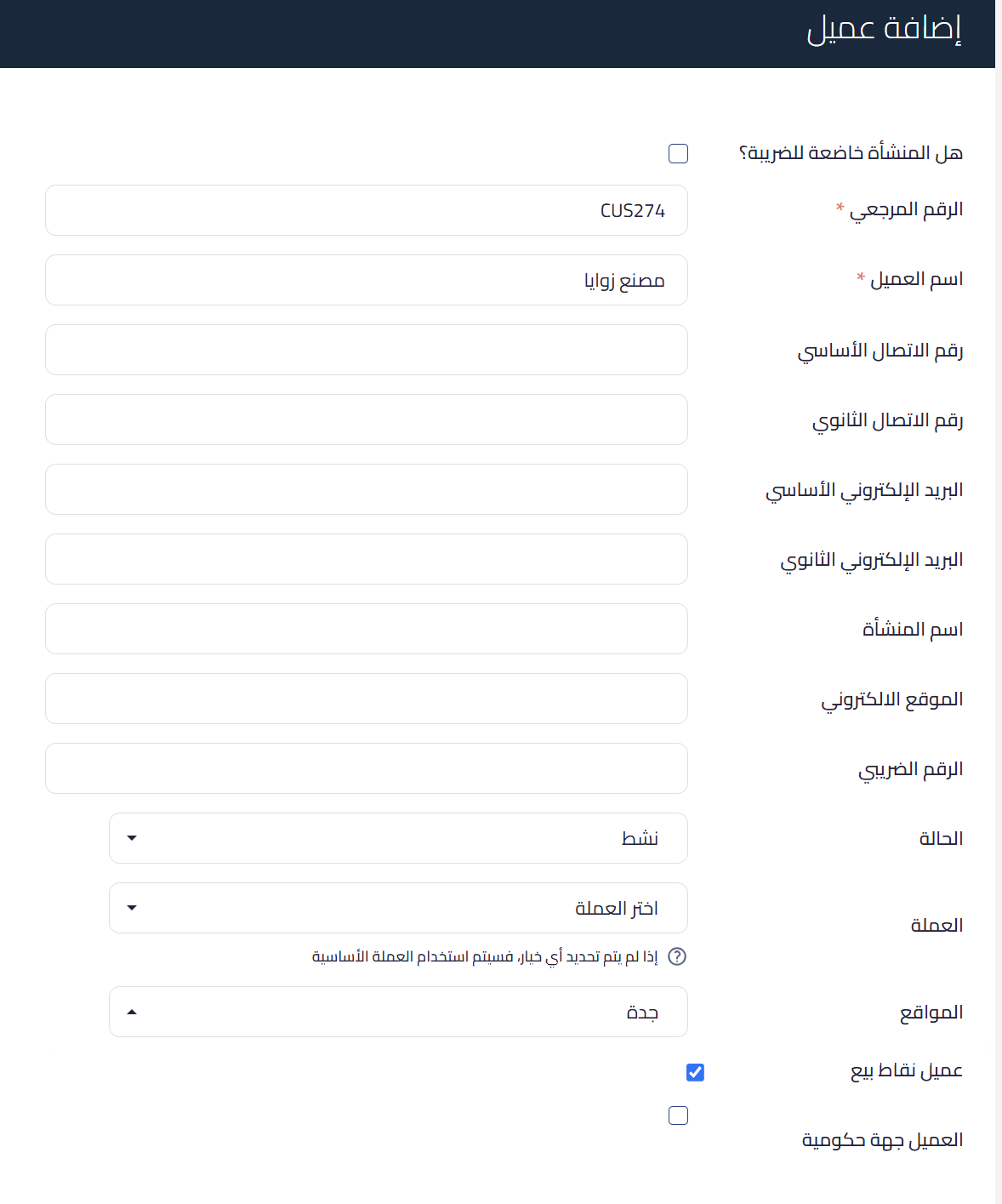
Linking a customer to a location from the customer page
- Go to Sales, then Customers.
- Search for the customer, then click Edit next to them, or click Add customer if you are creating them now.
- In the Locations field, select the location or locations the customer belongs to.
- Click Save.
After saving, the linked locations appear on the customer’s details page.
 View full size
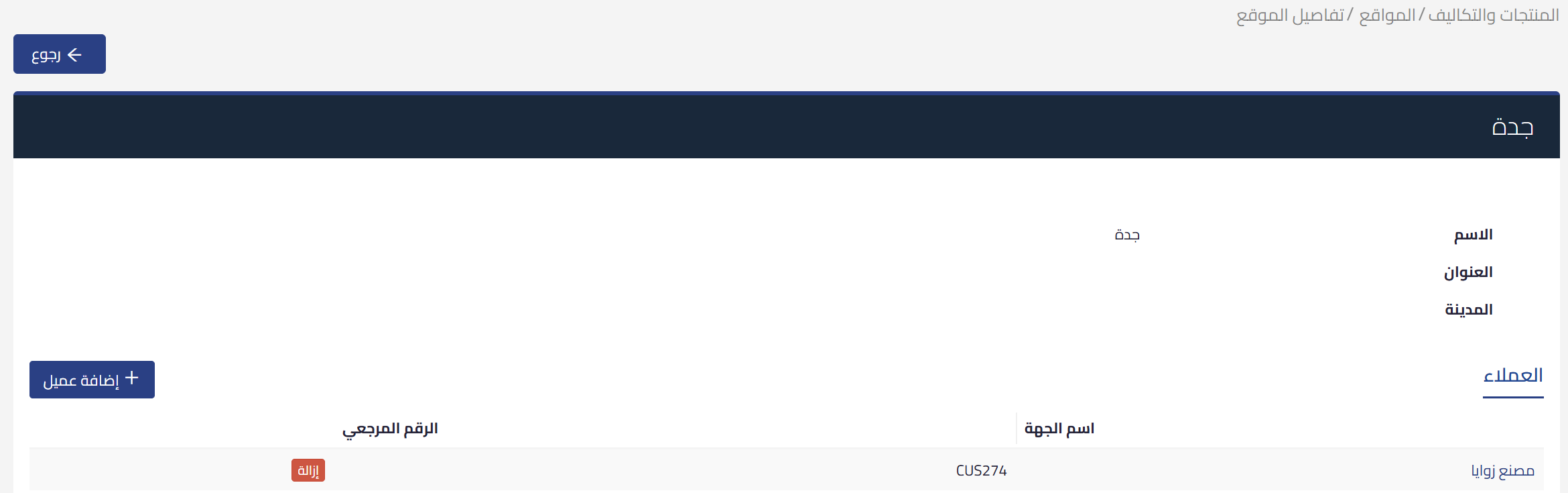
Linking customers from the location page
- Go to Products & Costs, then Locations.
- Open the location’s details, then select the Customers tab.
- Click Add customer, and search for the customer by name or reference number.
- Click Save.
Linking a customer to a location from this page adds that location to their existing list, so there is no need to repeat the link from the customer page. To unlink, click Remove next to the customer in the Customers tab.
 View full size
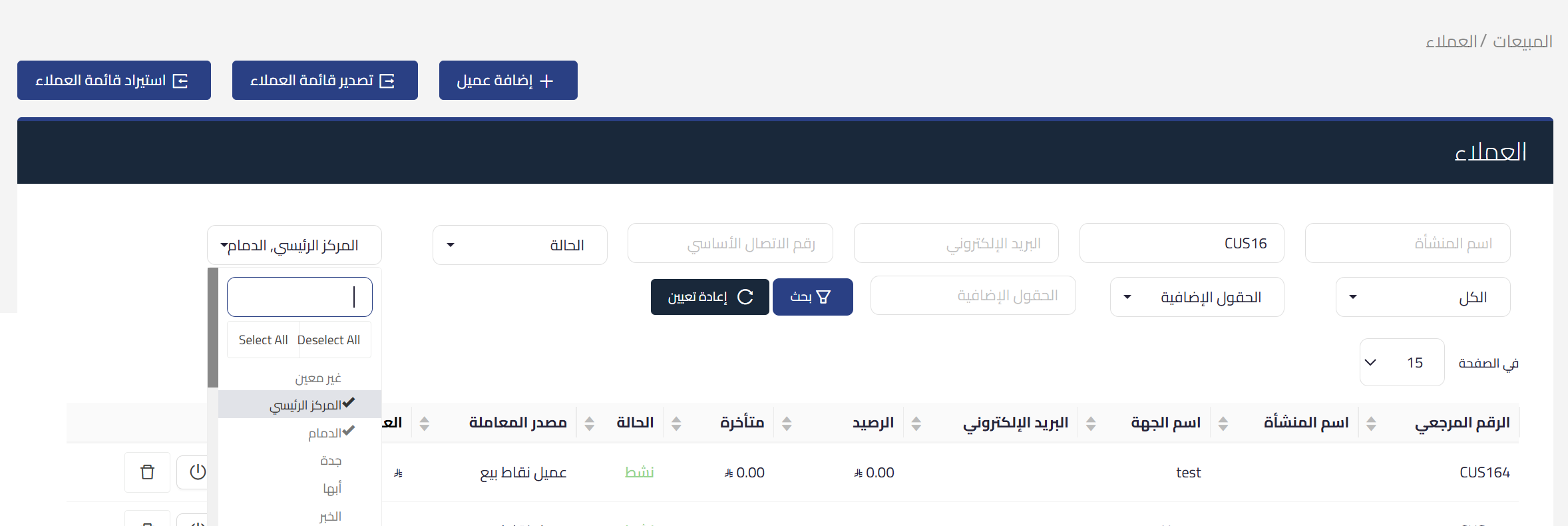
Filtering customers by location
- Go to Sales, then Customers.
- Open the location list in the filter bar.
- Select one or more locations, or choose the unassigned option to show customers not linked to any location.
- Click Search.
To clear your selection and start over, click Reset. To pull a statement filtered by branch, see extracting a customer or supplier statement for a specific location.
 View full size
How the link affects business documents
When creating a sales invoice, credit note, quote, or sales debit note, and when duplicating any of them, the customer list shows the customers linked to a location you can access.
- Customers not linked to any location stay visible to all users, so nobody disappears from the list simply because they have not been linked yet.
- If you select a customer and then change the document location to one that customer is not linked to, the customer field resets automatically, so you can pick a customer that suits the new location.
Fields
- Locations (optional): on the customer form. Sets the locations the customer belongs to, and accepts more than one.
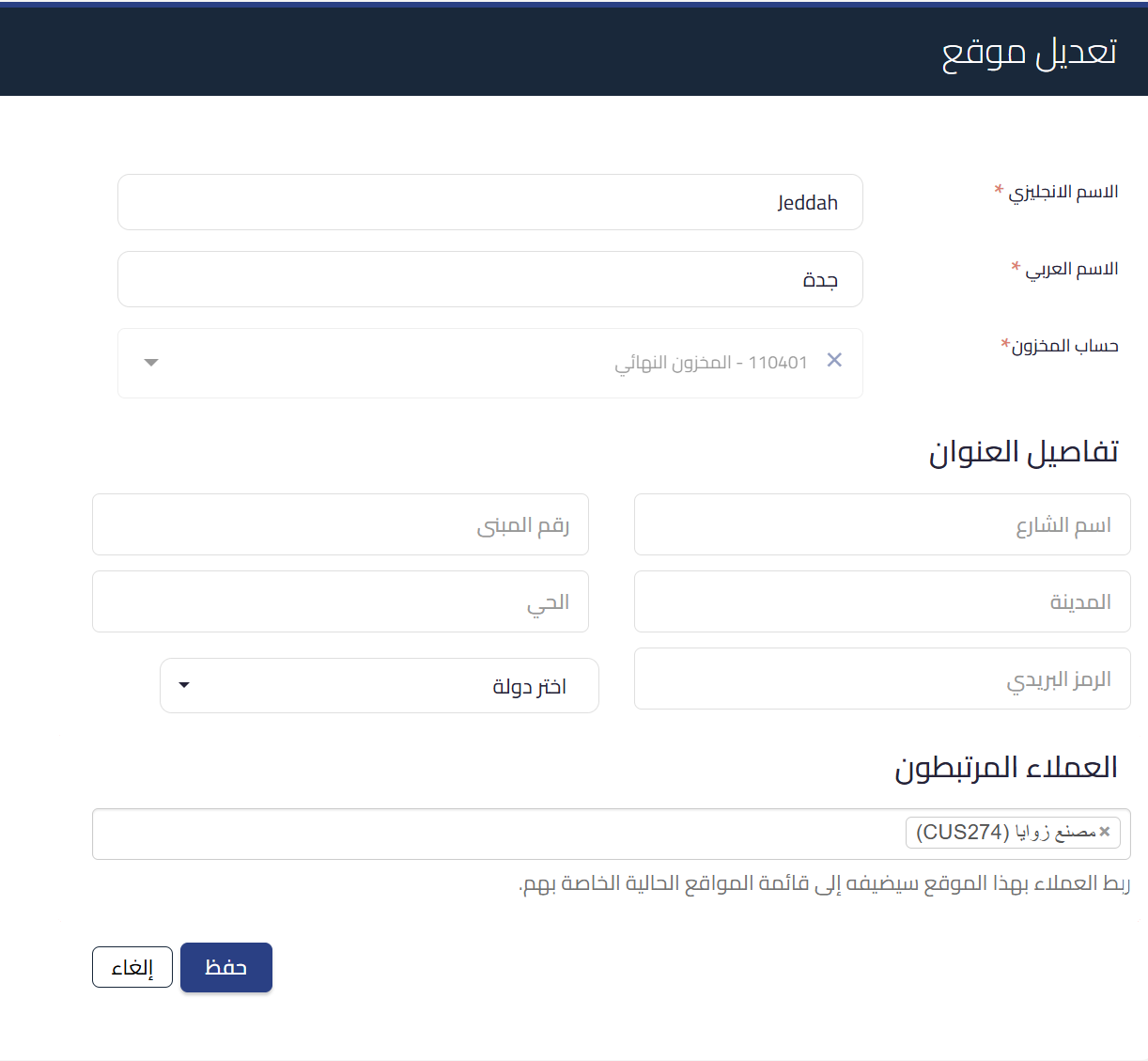
- Linked customers (optional): on the edit location page. Sets the customers belonging to this location, and accepts more than one.
 View full size
Permissions
When adding a location to a customer, you only see the locations you have access to. Every link and unlink is recorded in the user operations report, showing who made the change and when. Note that deleting a location requires it to have no linked transactions, and you can review product quantities per branch before redistributing.
Who this is for
- Multi branch businesses: that want each branch to see its own customers.
- Sales teams: working at a single branch who do not need the full customer accounts list.
- System administrators: who manage location permissions and need a record of every change.
Frequently asked questions
Can a customer be linked to more than one location?
Yes. The Locations field accepts one location or several, and every linked location appears on the customer’s details page.
Why does a certain customer not appear when I create an invoice?
Check that the customer is linked to a location you can access, and that the document location is the right one. Customers not linked to any location appear for all users.
Why did the customer field clear after I changed the document location?
Because the customer you selected is not linked to the new location, so the field resets automatically for you to pick a customer that suits it.
How do I find customers not linked to any location?
On the Customers page, open the location filter and choose the unassigned option, and the list will show customers not linked to any location.
Can I unlink from either side?
Yes. Remove the location from the Locations field on the customer page, or click Remove next to the customer in the Customers tab on the location page.
Is the person who linked the customer recorded?
Yes. Every link and unlink is recorded in the user operations report with the name of who made the change and when.



