




This article explains how to run the customer / supplier statement report in Qoyod: a single statement that brings together every transaction tied to one contact, whether you deal with them as a customer, as a supplier, or as both.
What this report is, and when to use it
Many businesses deal with the same contact in two roles: they buy from them and sell to them. This report combines both roles into one statement showing the net movement and the closing balance, instead of pulling two separate statements and reconciling them by hand. Use it when you need to:
- Reconcile the account of a contact that both buys from you and sells to you.
- Review receivables, payments, sales, purchases, and credit notes for a single contact.
- Produce a statement filtered to a specific project, location, or product.
- Share a statement with the other party or your accountant, with its filter criteria documented.
See the release announcement and the advanced analysis release announcement for what was added.
Where to find it in Qoyod
The report sits under financial reports in Qoyod accounting software, where it appears as Customer/Vendor Statement.
Reports › Financial Reports › Customer/Vendor Statement
Before you start: link the supplier to the customer
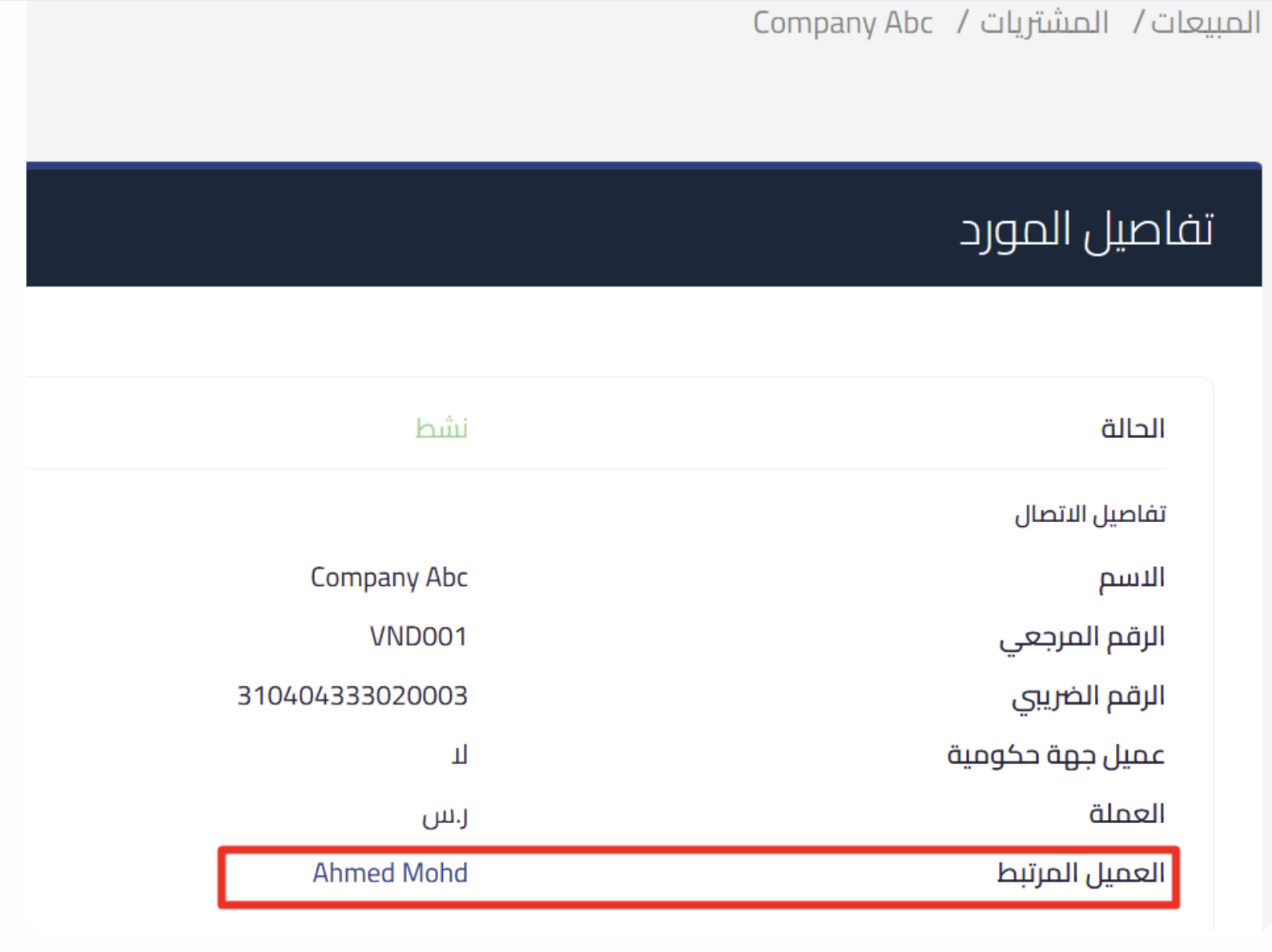
For the report to combine both roles, Qoyod needs to know that the supplier and the customer are the same contact. Go to Purchases › Suppliers, click Edit next to the supplier, turn on the link with customer option, search for the customer by name or reference number, and save. Once saved, the contact appears in both roles as customer + supplier, and the linked customer is shown on the supplier details page. Until the two are linked, Qoyod does not treat the contact as a dual-role contact.
 View full size
Steps to run the report
- Go to Reports from the side menu, then choose Customer/Vendor Statement under financial reports.
- Select the period you need.
- Choose the contact whose statement you want.
- Select the contact type: customers only, suppliers only, or Both for contacts with a dual role.
- Set the filter options if you need them, then click Filter.
To clear your selections and start again, click Reset.
 View full size
Reading the results
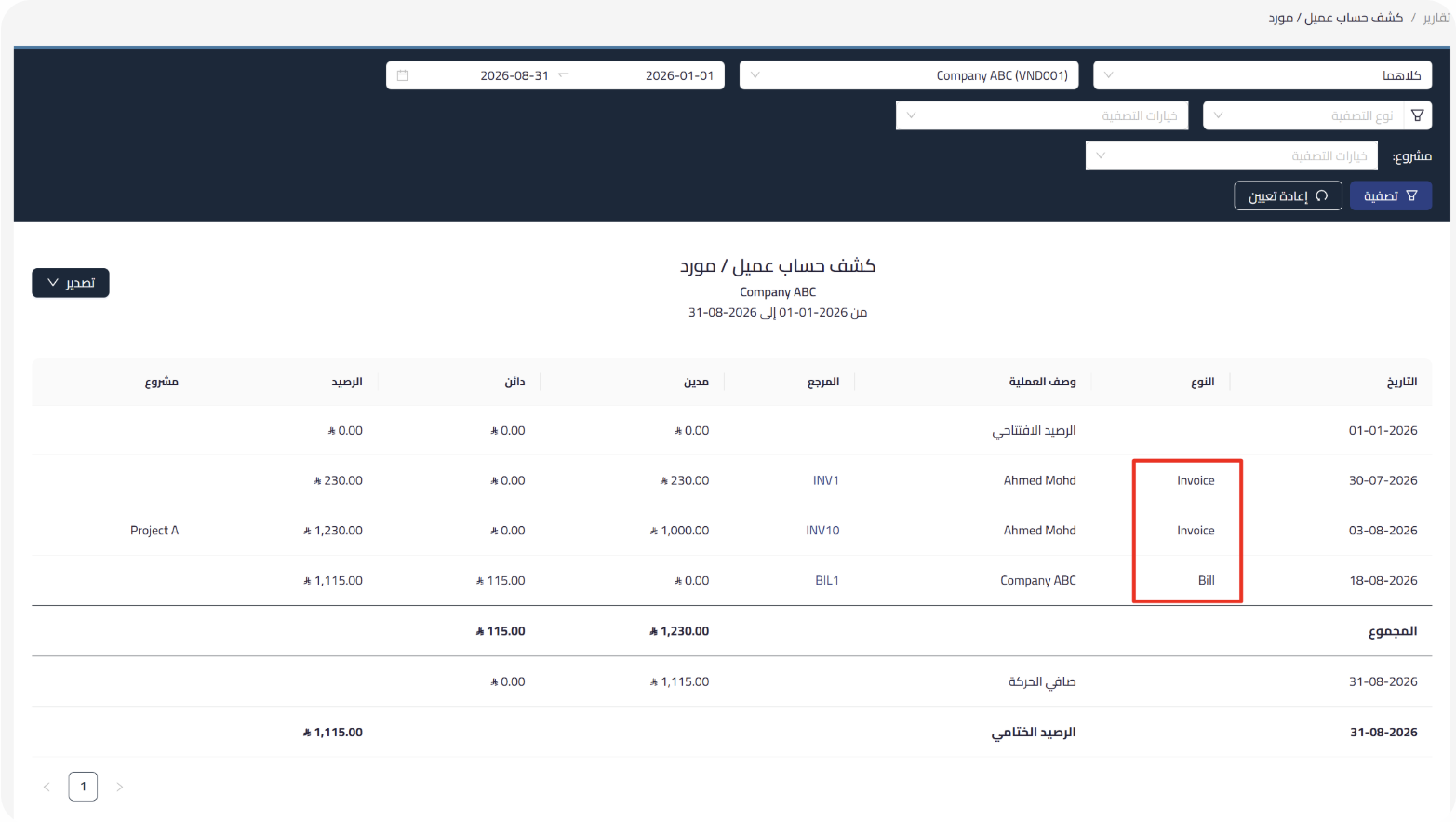
For each transaction the table shows the Date, Type, Transaction, Reference, Debit and Project columns, along with the credit and balance columns when the statement is not filtered to one side. It reads from top to bottom as follows:
- Opening balance: the contact’s balance at the start of the selected period.
- Transaction rows: sales invoices, bills, notes, and every other movement.
- Total: total debit and total credit for the period.
- Net movement: the difference between the two sides over the period.
- Closing balance: the contact’s balance at the end of the period.
Filter options
Narrow the results from the Filter type and Filter query fields: by project, product, location, or fixed assets, along with the custom fields. The documents available for filtering differ by role:
- Customers: invoices, quotes, and credit notes.
- Suppliers: bills, purchase orders, simplified invoices, and debit notes.
These filters carry over automatically to the exported file, and the filter criteria used appear at the top of the report, so whoever receives the file knows the basis it was produced on.
Advanced analysis: filtering by transaction type
The advanced analysis option in the filter bar at the top of the report filters the statement by transaction type. The filter has three values:
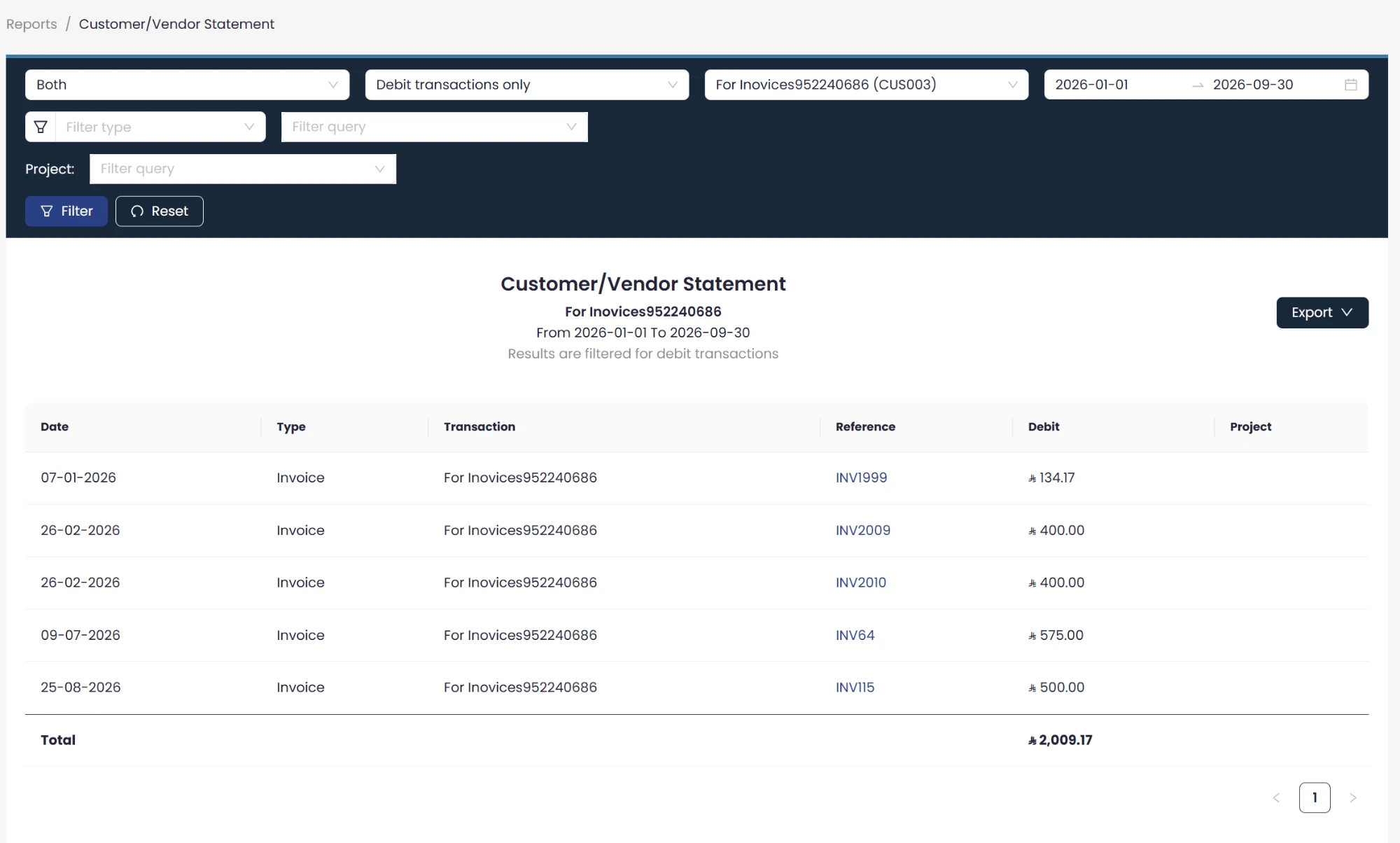
- Debit transactions only: the statement is limited to the debit movement.
- Credit transactions only: the statement is limited to the credit movement.
- All transactions: the full statement, with no filtering.
When you choose debit transactions only or credit transactions only, Qoyod hides the unused column, and hides the opening balance, closing balance and net movement rows as well, leaving you the movement you asked for with the Total row beneath it. When you choose debit transactions only, the report header carries the line Results are filtered for debit transactions.
 View full size
Exporting the report
- Click Export at the top of the report.
- Choose the format: Excel for processing and analysis, or PDF for sharing or archiving.
- Check the filter criteria shown at the top of the file before you share it.
The advanced analysis filter is reflected automatically in the exported file, in both the PDF and Excel formats.
The report supports progressive data loading, so performance stays smooth with large volumes of transactions.
Permissions required
Access to the report is granted automatically to every user who already has access to the existing statement of account report. When you create new permission roles, access to this report can be enabled independently of the standard statement of account.
Who this report is for
- Businesses with dual relationships: those dealing with the same contact as both a customer and a supplier.
- Finance teams: those reconciling customer and supplier accounts on a regular cycle.
- Multi-project and multi-branch businesses: those needing a statement filtered to a given project or location.
Frequently asked questions
How does this differ from the standard statement of account?
The standard statement of account shows the movement of a single accounting account. This report combines the customer and supplier roles of the same contact into one statement, and shows the net movement and closing balance between you.
Why are purchase transactions missing from the statement?
Check that the supplier is linked to the customer through the link with customer option when editing the supplier under Purchases, and that you selected Both as the contact type.
Do the filter criteria appear in the exported file?
Yes. They appear at the top of the report in both the Excel and PDF versions, so whoever receives the file knows the basis it was produced on.
Which export formats are available?
Excel and PDF. Choose Excel for processing and analysis, and PDF for sharing or archiving.
Does the report need a special permission?
No new permission is needed if you already have access to the statement of account report. When you create a new permission role, access to this report can be enabled independently.
Why do the opening and closing balances disappear when I filter by transaction type?
Because those rows express both sides together. When you choose debit transactions only or credit transactions only, Qoyod hides the unused column along with the opening balance, closing balance and net movement rows, to show more focused data. Choose all transactions to see the full statement again.



