




Deferred income and expense templates help you distribute revenue or expenses over future periods instead of recording them all at once. They are used through manual accounting entries in Qoyod.
Example:
-
If a customer pays you an annual subscription of 12,000 SAR.
-
You don’t record it all as revenue in a single month.
-
You divide it into 1,000 SAR for each month.
-
The system performs this distribution automatically through “Deferred Templates”.
Benefits
-
Clearer financial reports because revenues and expenses appear in the correct period.
-
Reduces manual errors.
-
Saves time instead of manually creating monthly distribution entries.
How to Apply It
-
Go to Accounting > Deferred Templates.
-
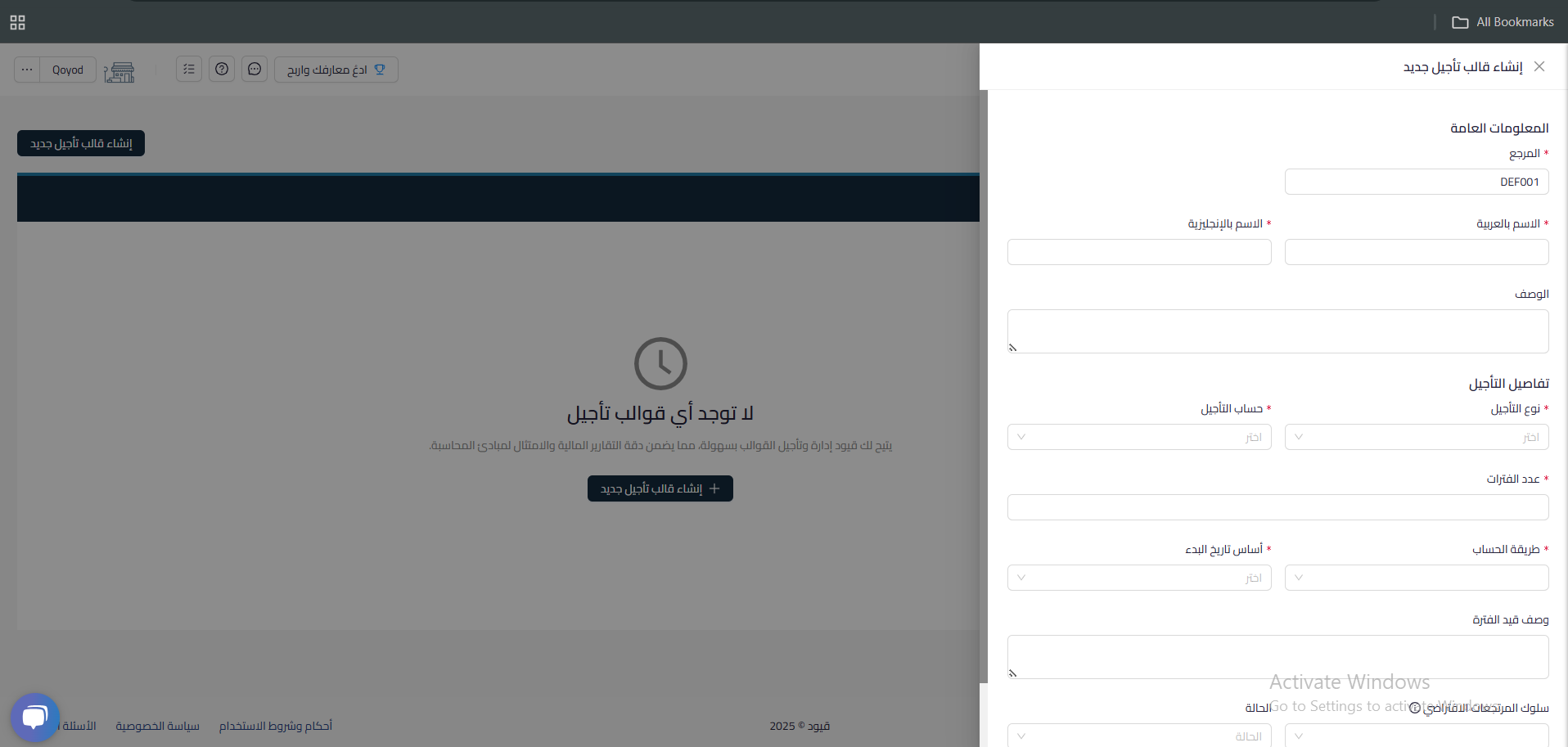
Click Create New Deferred Template.
-
Set the following:
-
Template name in Arabic and English
-
Description (if available)
-
Type of deferral (Revenue (Sales) or Expense (Purchases)).
-
Deferral account (e.g., “Prepaid Expenses”)
-
Number of periods (e.g., 12 months).
-
Calculation method.
-
Start method basis (determines when the template starts the distribution process)
-
Period entry description (if available).
-
Default return behavior “Choose the behavior when returning a deferred item. Returning the item will result in canceling all future deferred templates”
-
Status “Active/Inactive” Choose the behavior when returning a deferred item. Returning the item will result in canceling all future deferred templates.
-
-
Save the template.

-
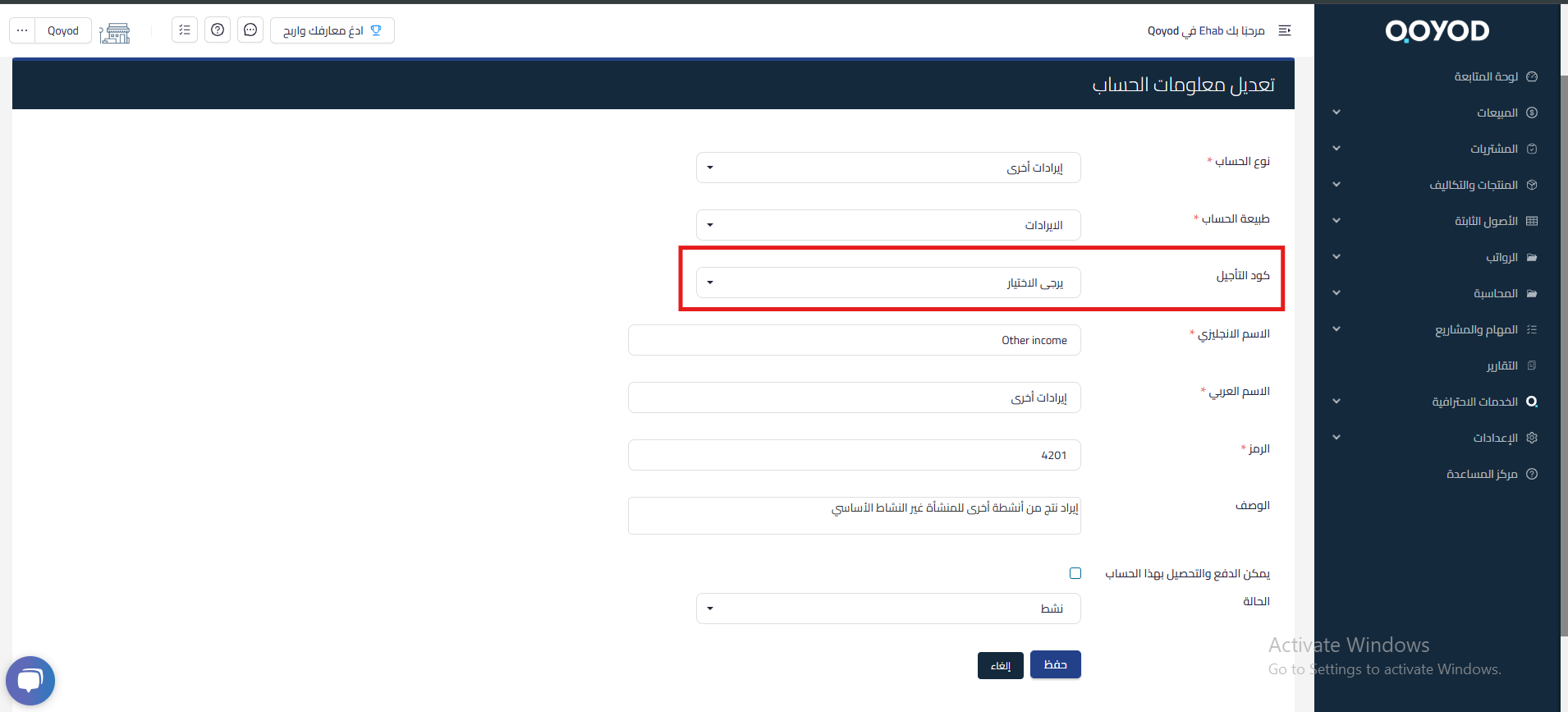
Link the expense or revenue account to the template by going to Accounting, then Chart of Accounts, and selecting the Other Revenue account for example, then clicking Edit next to it and selecting the template in the Deferral Code field and save.

-
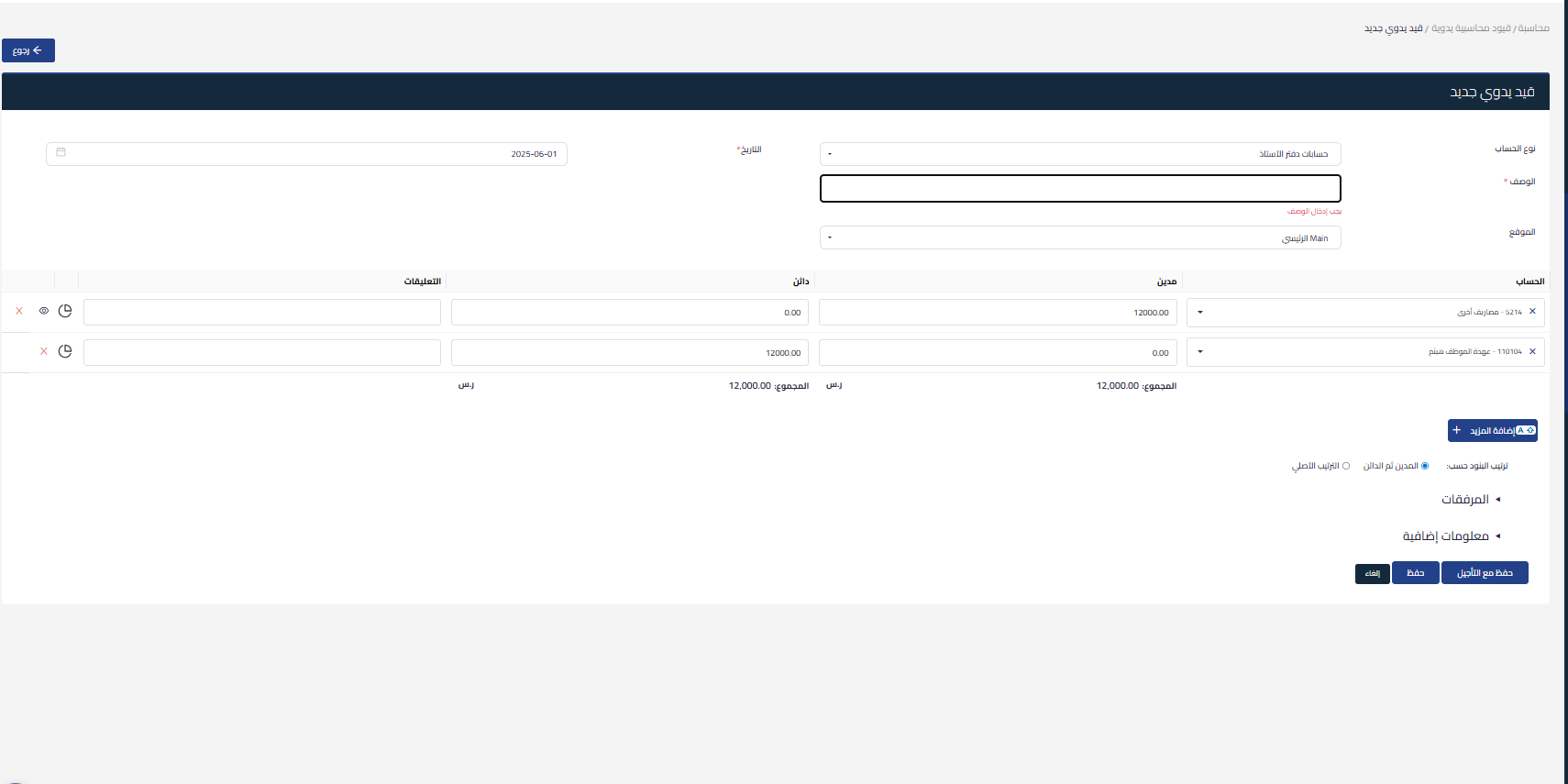
Create the manual entry and select the account linked to the template such as: (from Cash account, to Other Revenue account) and then click “Save with Deferral” where the system will load the entire entry to the Prepaid Revenue account and then distribute the entry according to the periods on the Other Revenue account and create the entries automatically. You can preview the distribution method before saving the entry by clicking the “View” icon next to the account in the entry lines.

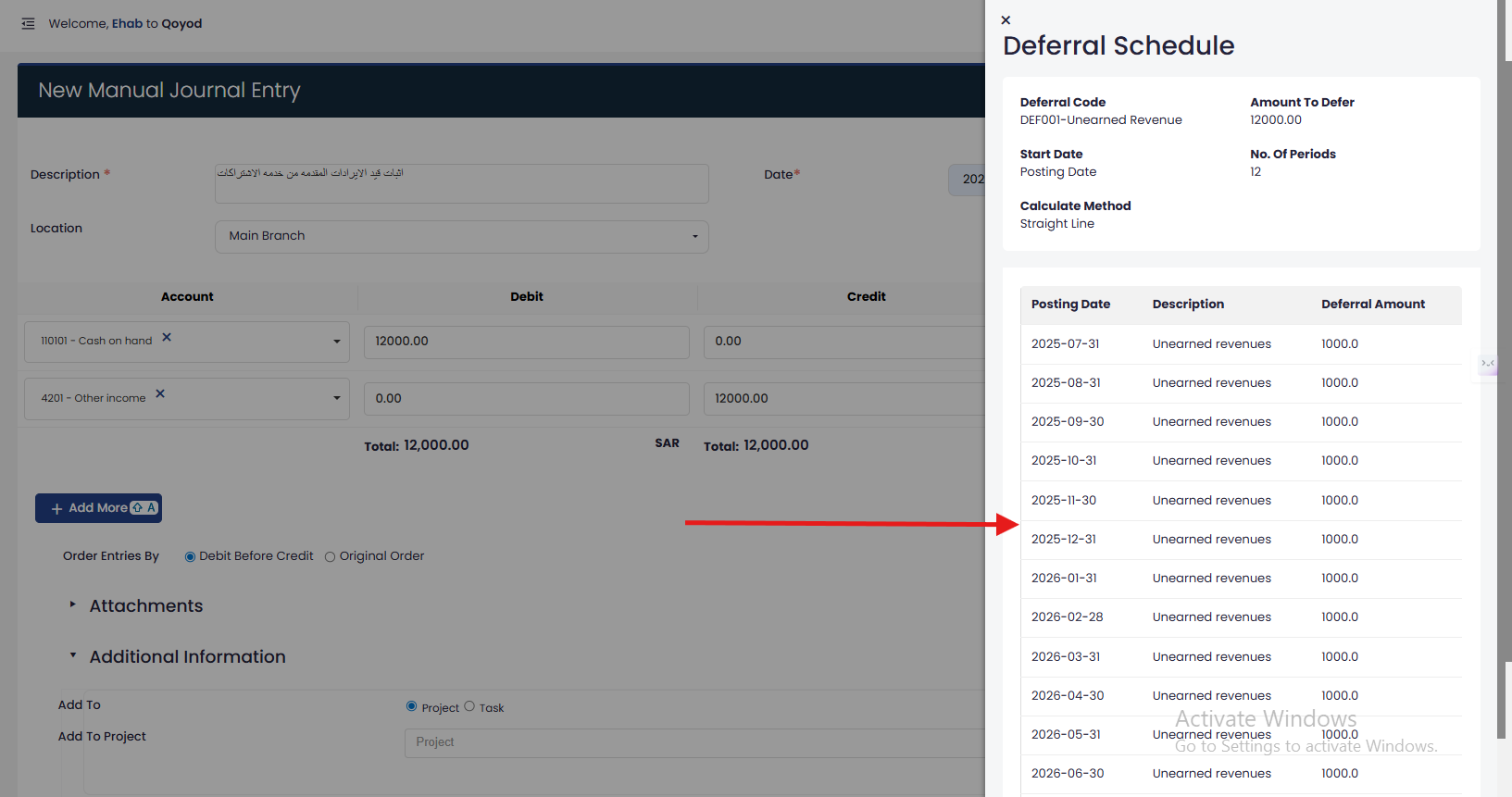
7. Click “Save with Deferral” to save and approve the entry.
Options after saving a deferred template:
After saving a deferred template, the following options will appear in the deferred templates:
-
View
2. Activate or Deactivate
You cannot permanently delete a deferred template, only deactivate it.



