




This article explains how to add additional fields to a sales debit note in Qoyod: how to define them in general settings, where they appear on the note, and when you can edit them after approval.
What additional fields are, and why you would use them
Additional fields are fields your organization defines itself, to capture data the default form does not cover: a branch, a cost reference, or any internal reference you need in your reports. They were already available on sales invoices, quotes, and credit notes, and are now available on sales debit notes in exactly the same way.
All of these fields are optional. Filling them in or editing them affects neither the journal entries, nor the note status, nor its submission to ZATCA.
Where to find it in Qoyod
Settings › General Settings › Additional Fields
Permissions required
Defining additional fields and choosing which modules they appear on is a general administrator task. Filling the fields in on the note itself is available to anyone who can create or edit sales debit notes.
Defining an additional field for debit notes
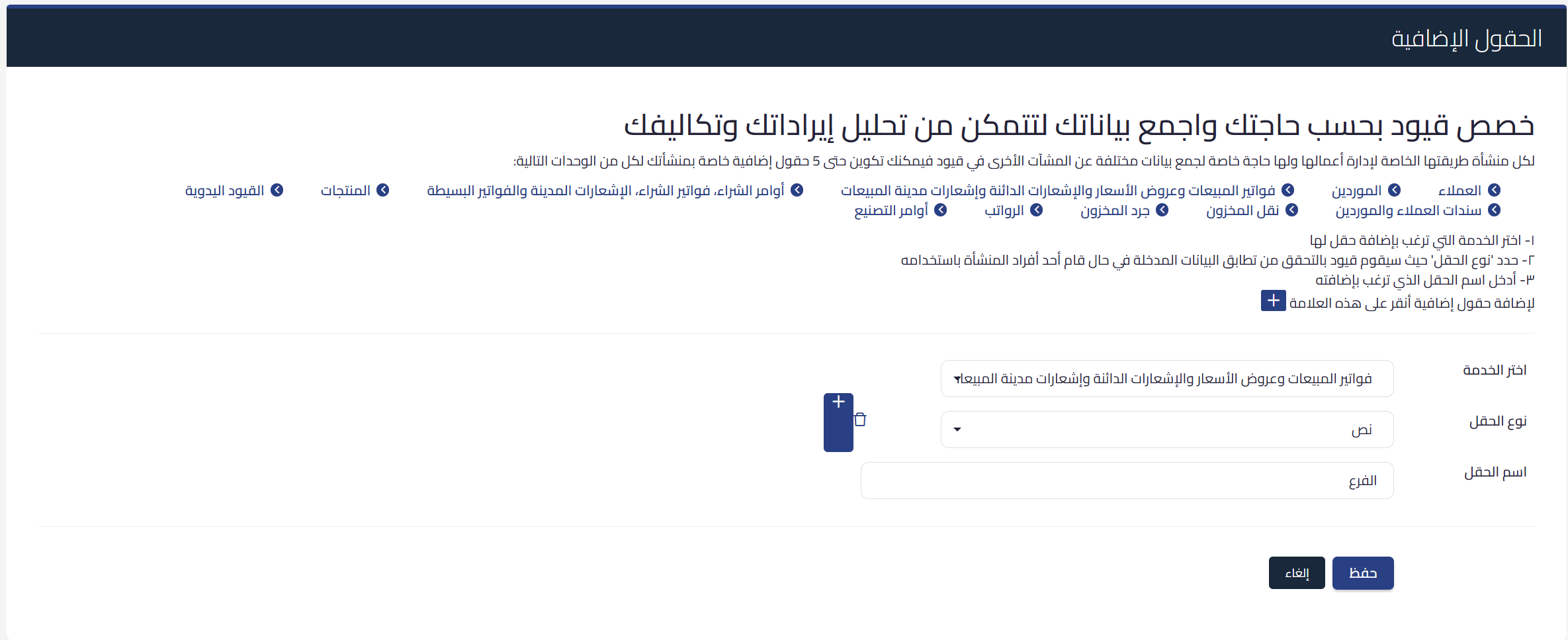
- Open General Settings, then Additional Fields.
- Under select the service, choose sales invoices, quotes, credit notes and sales debit notes.
- Set the field type, so Qoyod validates the entered data on use.
- Enter the field name as you want it to appear on the note.
- Click + to add another field, up to five fields per module.
- Click Save.
 View full size
Filling the fields in on a note
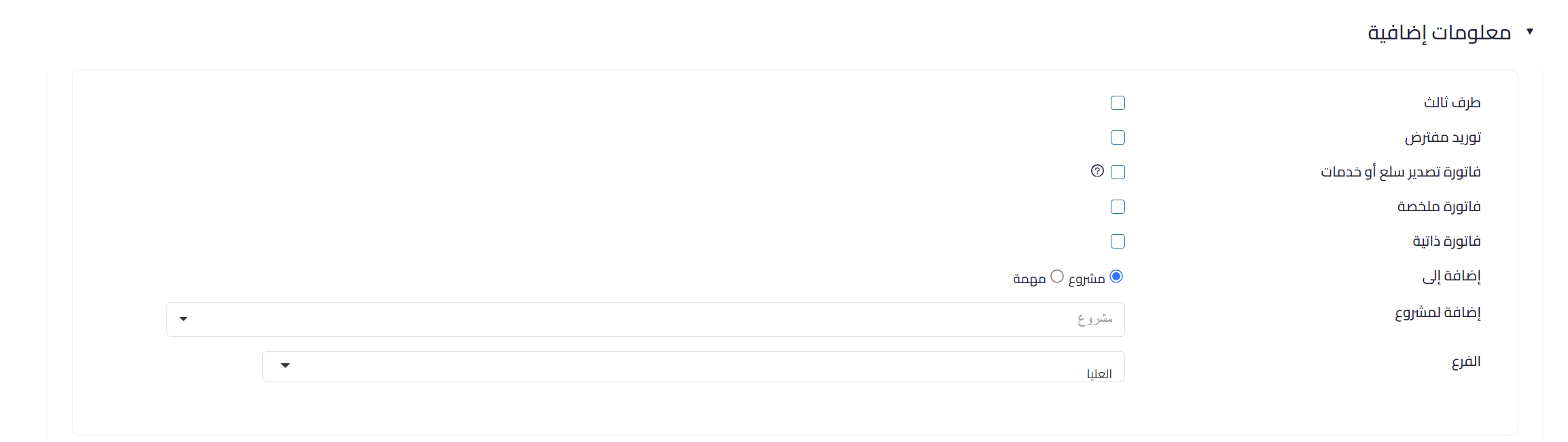
Once saved, an “additional information” section appears in two places: on the sales debit note creation form, and on the note’s details page after it is issued. Fill in the fields you need and leave the rest empty.
 View full size
Editing the fields after the note is approved
Additional fields stay editable even after the note is approved, regardless of its status: unused, partially used, or used. This is the same behavior already in place for sales invoices and credit notes.
Important: this exception covers additional fields only. The approved note’s lines and amounts remain read-only after approval, and correcting them means issuing a credit note.
Frequently asked questions
How many additional fields can I define?
Up to five fields for each of the modules listed on the additional fields screen.
Do additional fields affect the journal entries or the tax?
No. The fields are entirely optional, and filling them in or editing them carries no accounting effect, no change to the note status, and no change to its submission to ZATCA.
Why can’t I see the “additional information” section on the note?
Because your organization has not yet defined any additional field for the service that covers sales debit notes. Define the fields in general settings, then reopen the note form.
Can I edit an additional field on a fully used note?
Yes. The note status does not block editing additional fields, whether it is unused, partially used, or used.



