




This article explains how to return a simple invoice in Qoyod with a debit note linked to it, from the new tab or from the invoice page itself, what the system copies automatically, and how to settle the note value with the supplier once it is approved.
What is this, and when do you use it?
A simple invoice debit note is the document you use to return a simple invoice, in full or in part, in the same established way already used with purchase invoices in Qoyod’s accounting software. It carries the original invoice’s data and reflects the effect of the return on the supplier balance and on the journal entries as soon as it is approved. Use it in these cases:
- Returning purchases or expenses recorded on a simple invoice, fully or partially.
- Recording the return of one or more lines from a simple invoice on a separate document linked to it, instead of deleting the invoice and recreating it.
- Showing the effect of the return on the supplier balance and on debit notes in your reports.
- Settling the returned value with the supplier, either by allocating it to a future simple invoice for the same supplier or by receiving the funds.
See the release announcement for what was added.
Before you start
- The note is linked to one specific simple invoice, so pick the original invoice first, whether you start from the new tab or from the invoice page.
- The view and create permissions on these notes are granted automatically to every user who holds the read and create permissions on simple invoices. The approve and delete permissions are separate. See managing user permissions.
- The note’s effect on the supplier balance and on the journal entries appears after you approve it, not while it is a draft.
The path in Qoyod
Purchases › Simple invoices › Simple invoice debit notes
Steps
Method one: from the simple invoice debit notes tab
- Open Purchases from the side menu, then open the simple invoices section.
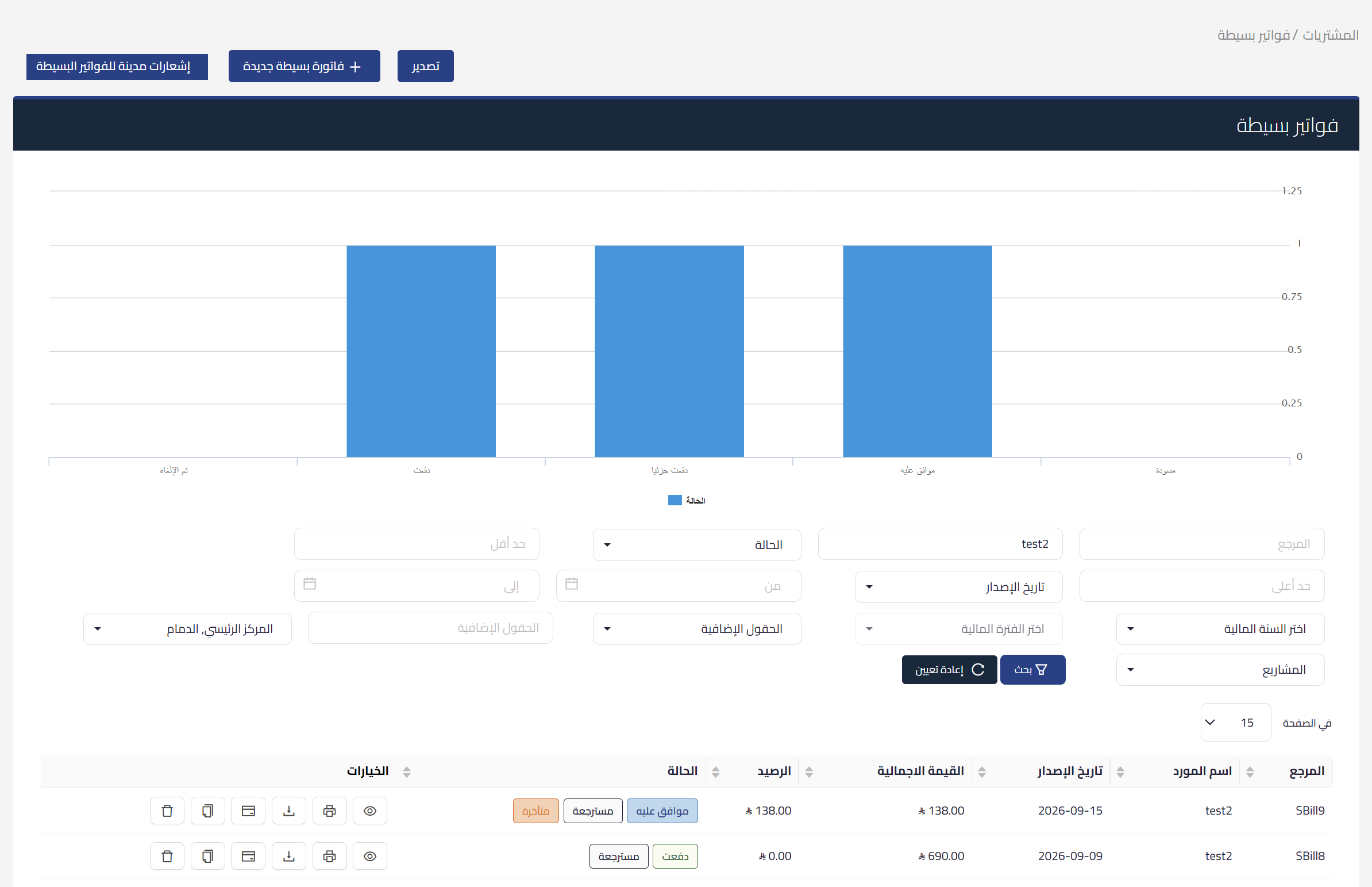
- Press the simple invoice debit notes tab at the top of the page.
- Create a new note, and the create simple invoice debit note form opens.
- Choose the original simple invoice, and the system copies its details into the note.
- Review the lines and edit whatever you need, matching what was actually returned.
- Press save and approve to approve the note straight away if you hold the approve permission, or save as draft to finish it later.
 View full size
Method two: from the simple invoice page
- Open the simple invoice you need from the simple invoices list.
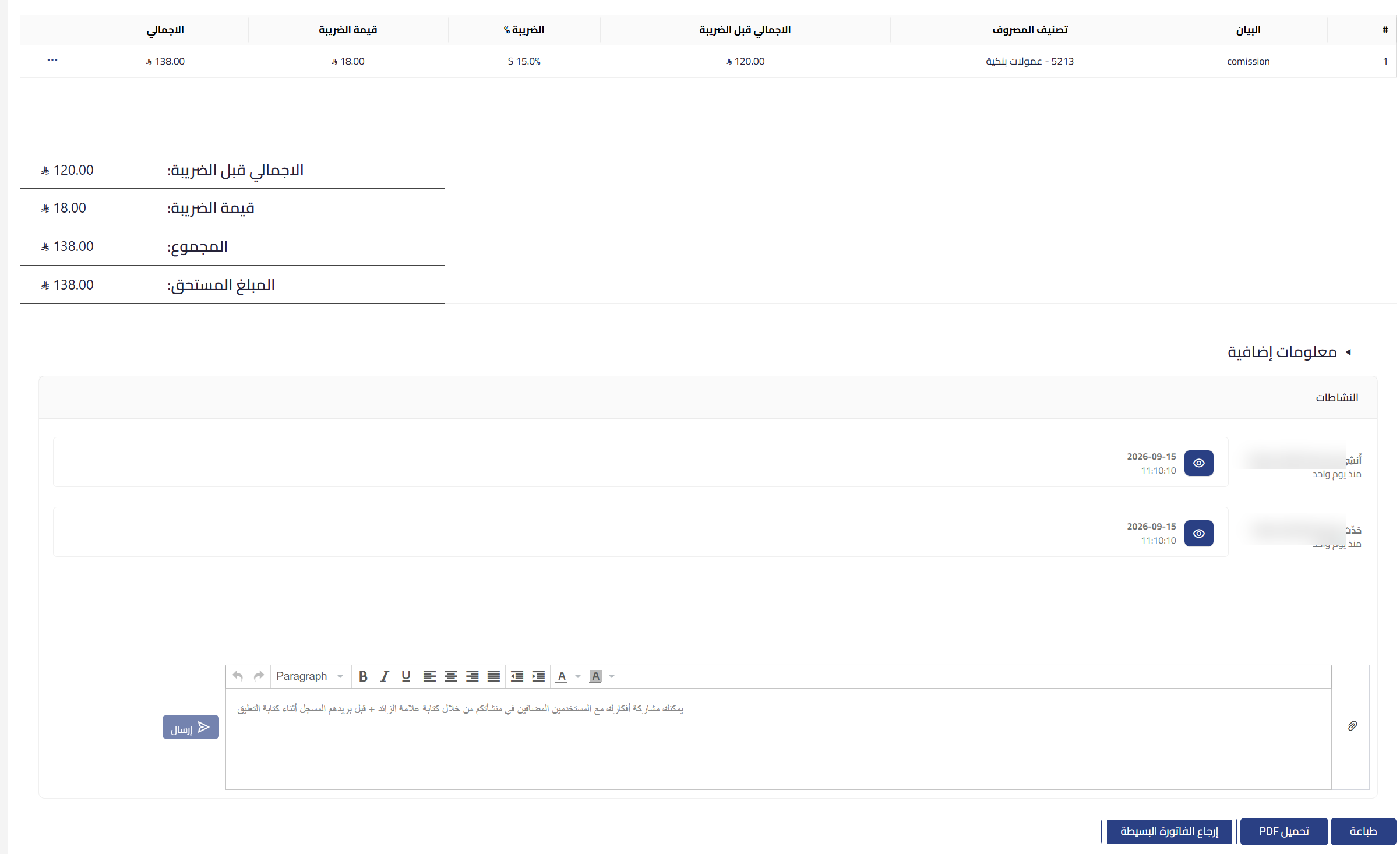
- Press return simple invoice in the action row at the bottom of the page, beside download PDF and print.
- The creation form opens already loaded with that invoice’s data, so you go straight to reviewing the lines.
- Edit what you need, then save the note as a draft, or save and approve it if you hold the approve permission.
 View full size
What the system copies automatically
When you choose the original invoice, the system copies its full detail into the new note, so you do not re-enter any of it by hand:
- Expense categories and amounts at the line level.
- The value-added tax rate and its amount.
- The location linked to the invoice.
- The projects, dimensions and additional fields tied to each line.
All of these fields stay editable before you save, so you can issue a note for the full invoice value or for part of it.
 View full size
Fields
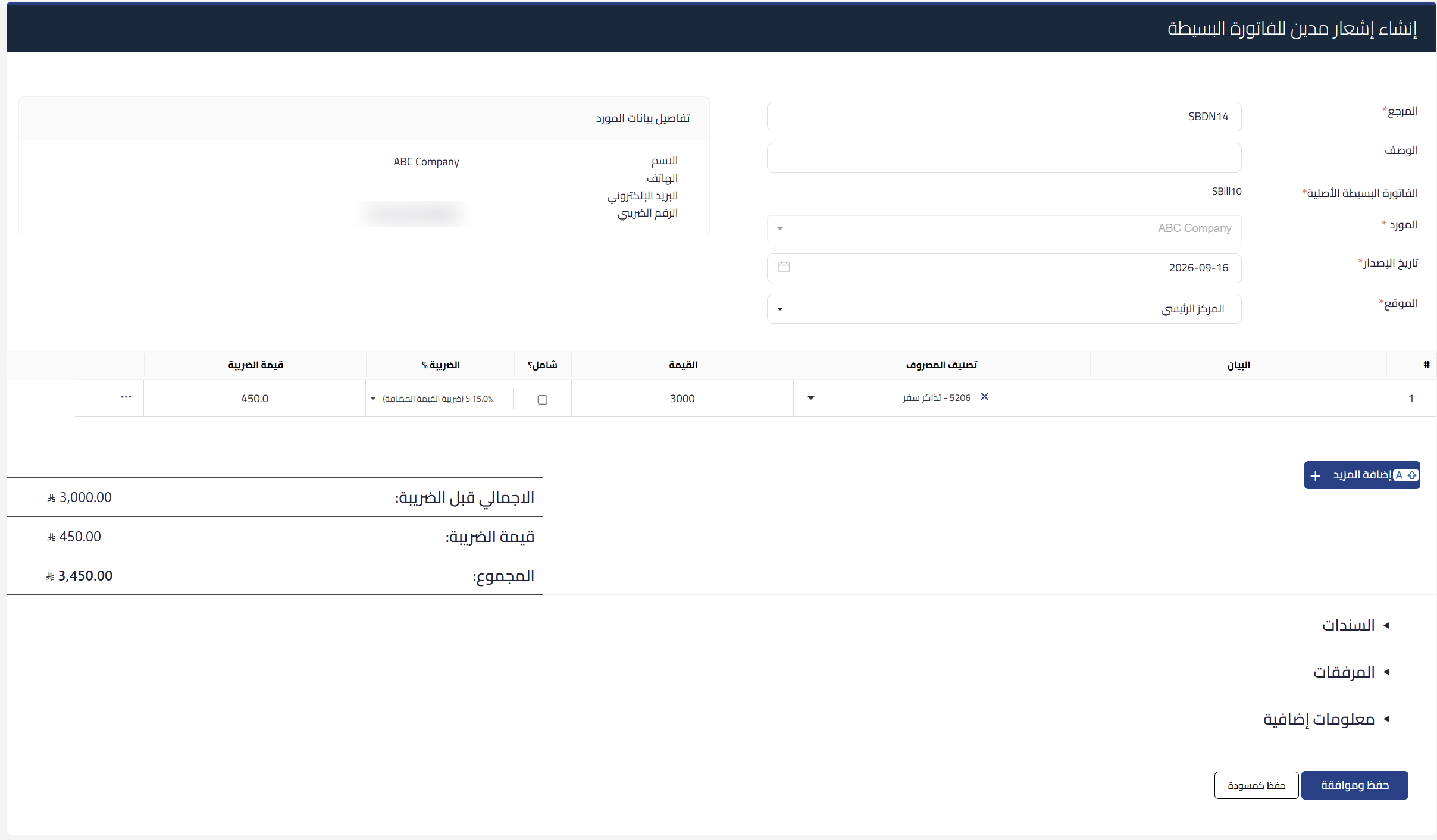
- Reference (required): the note number in Qoyod, filled in automatically.
- Description (optional): the reason for the return, or any note you want to appear on the document.
- Original simple invoice (required): the invoice the note is issued against.
- Supplier (required): the party you returned to, carried over from the original invoice.
- Issue date (required): the date of the note.
- Location (required): the location tied to the transaction.
- Supplier details: a card showing the supplier name, phone, email and tax number.
The line table shows these columns:
- Item: the description of the returned line.
- Expense category: the expense category carried over from the original invoice.
- Amount: the value of the line.
- Inclusive?: whether the amount already includes tax.
- Tax % and tax amount: the tax rate on the line and its value.
Below the table you see the total before tax, the tax amount and the total. Under the form are collapsible sections for vouchers, attachments and additional information.
Special cases
The invoice was returned before
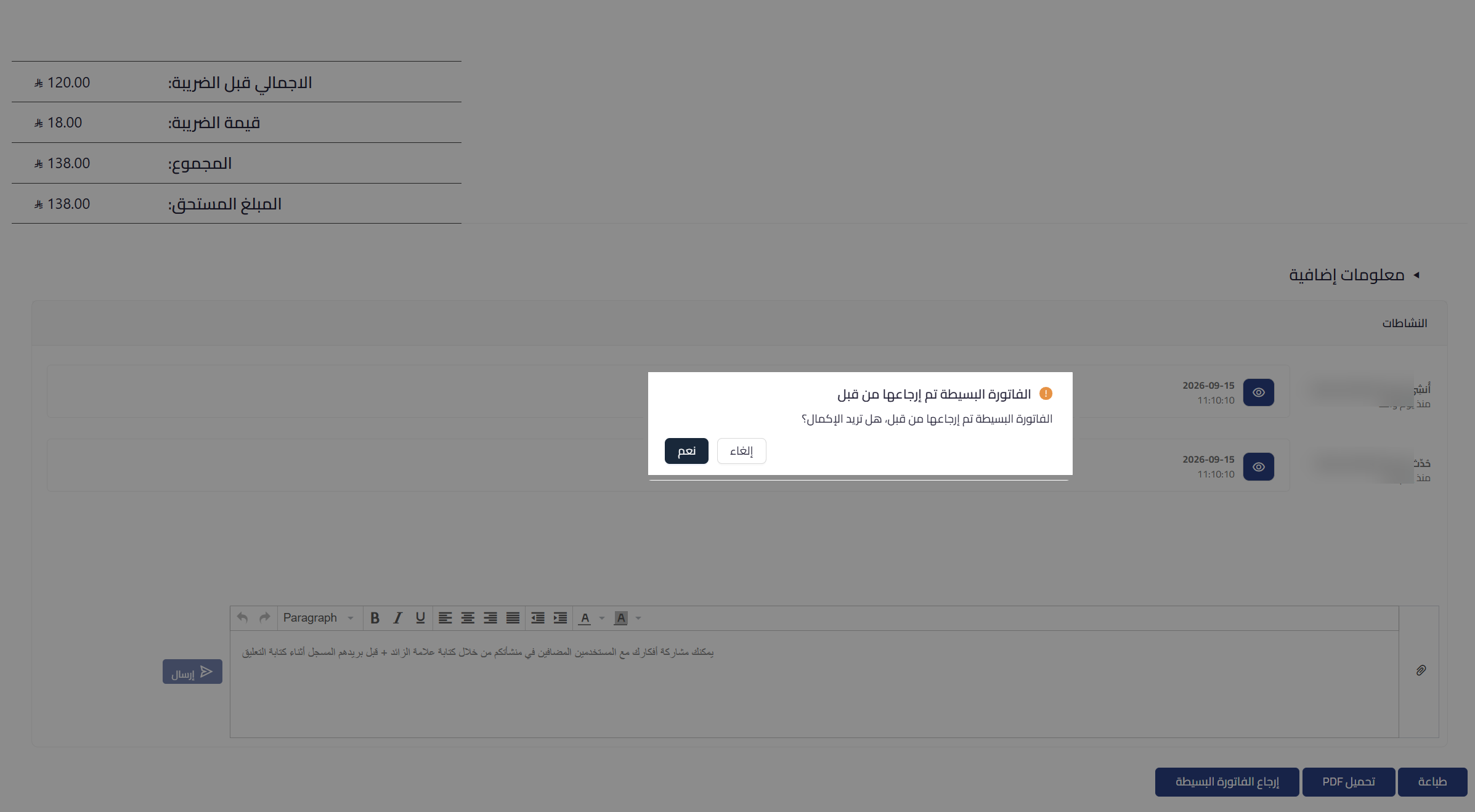
If the simple invoice has already been returned, a warning appears telling you the simple invoice has been returned before and asking whether you want to continue. Press yes if the second return is intentional, or cancel to step back.
 View full size
Telling returned invoices apart in the list
The simple invoices list shows a returned marker next to the invoice status, so at a glance you know which invoices have been returned and which have not, without opening each one.
Settling the note value
Once the note is approved you settle its value in one of three ways, depending on what you agreed with the supplier: allocate it to a future simple invoice for the same supplier, receive the funds, or split the value between both methods.
Printing the note
This type of note has a custom print design that presents the simple invoice data in the form that suits it. To format the simple invoice documents themselves, see the new designer for simple invoice formatting.
Where the note’s effect appears
- Supplier balance: affected as soon as the note is approved.
- Journal entries: the note value is reflected on them after approval.
- Supplier page: the note appears there in detail. To review a supplier’s documents in one place, see the customer / supplier statement report.
- Financial and tax reports: among them the account statement, the debit notes tax report and the supplier payables summary.
If the movement does not appear on the supplier as you expect, see why the simple invoice does not appear when viewing the supplier.
Notes
- A note saved as a draft affects neither the supplier balance nor the journal entries until you approve it.
- The notes are fully available through the API, in the same established way as simple invoices and the existing notes. See creating and managing simple bills via API.
- To record expenses on simple invoices and issue disbursement vouchers against them, see documenting expenses through simple invoices.
- This document belongs to the purchases side. On the sales side a debit note increases the amount due from a customer rather than returning a sales invoice; reducing a sales invoice or refunding a customer is done with a credit note. See how to issue a sales debit note in Qoyod.
Frequently asked questions
Where do I create a debit note for a simple invoice?
From the simple invoice debit notes tab at the top of the simple invoices section, or from the return simple invoice button on the invoice view page itself.
Do I re-enter the invoice lines by hand?
No. When you choose the original invoice the system copies the expense categories, the amounts, the tax rate and its value, the location, and the projects, dimensions and additional fields for each line.
Can I edit the copied data?
Yes. All of those fields stay editable before you save, so you return the full invoice or part of it.
What happens if the invoice was returned before?
A warning appears telling you the simple invoice has been returned before and asking whether you want to continue, so you press yes to proceed or cancel to step back.
How do I know which invoices were returned?
From the returned marker shown next to the invoice status in the simple invoices list.
How do I settle the note value after approval?
By allocating it to a future simple invoice for the same supplier, by receiving the funds, or by splitting the value between both methods.
Who can create and approve these notes?
View and create or edit are granted automatically to every user who holds the read and create permissions on simple invoices. Approve and delete are two independent permissions granted separately.



