




This article explains how to run the Receipts Report in Qoyod, a unified report that shows customer receipts and vendor receipts in one place, and how to search it, filter its results and export them to Excel.
What is this report, and when do you need it?
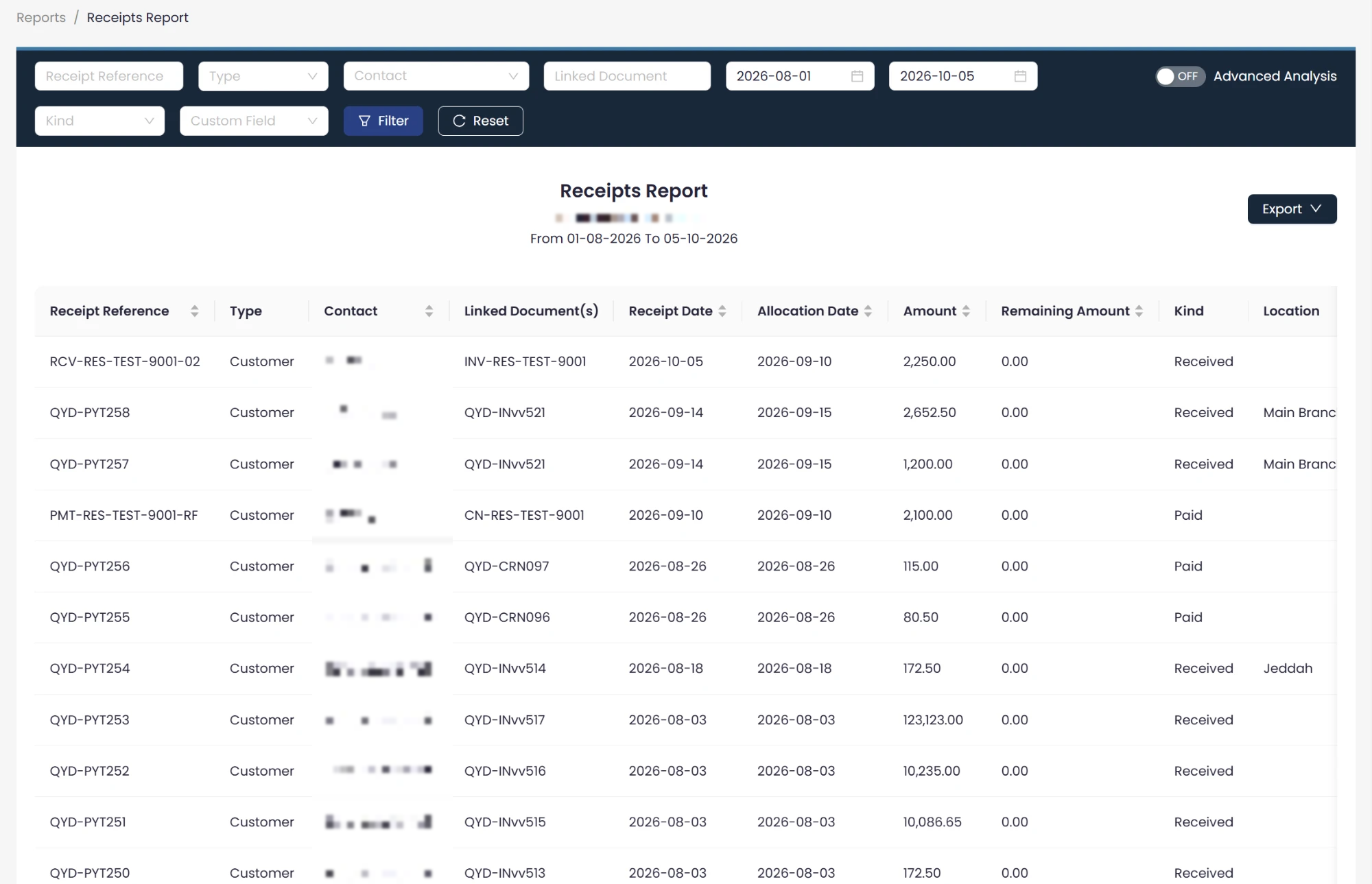
The Receipts Report brings every Customer Receipt and Vendor Receipt together in one report, so you can trace any receipt in one place. For each receipt it shows:
- Receipt Reference: the receipt number.
- Type: customer or vendor.
- Contact: the customer or vendor the receipt belongs to.
- Linked Document(s): the invoice or invoices linked to the receipt.
- Receipt Date and Allocation Date.
- Amount and Remaining Amount: the receipt total, and how much of it remains unallocated.
- Kind: received or paid.
- Location and Project: the linked project, if any.
- Created By: the user who created the receipt.
See the release announcement to learn what was added recently.
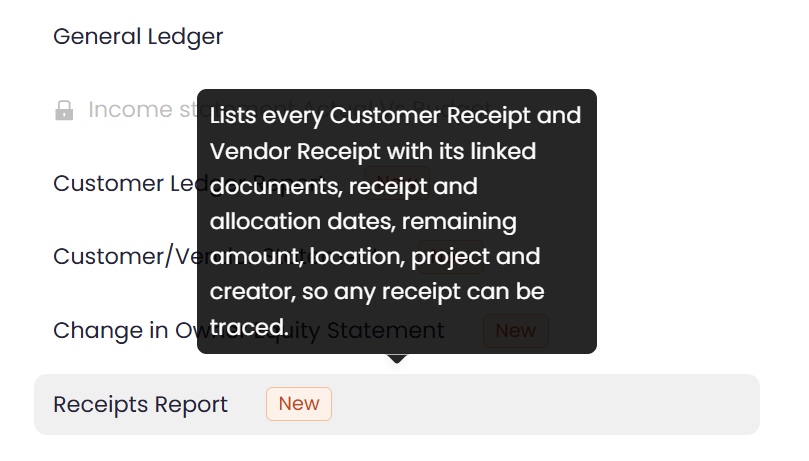
Where to find it in Qoyod
Reports › Financial Reports › Receipts Report
 View full size
Steps
- Open Reports, then Financial Reports, then choose Receipts Report.
- Set the period in the two date fields at the top of the page.
- Choose a kind (received or paid) or a type (customer or vendor) to narrow the results, or enter a receipt reference or linked document, or select a contact.
- Press Filter to show the results.
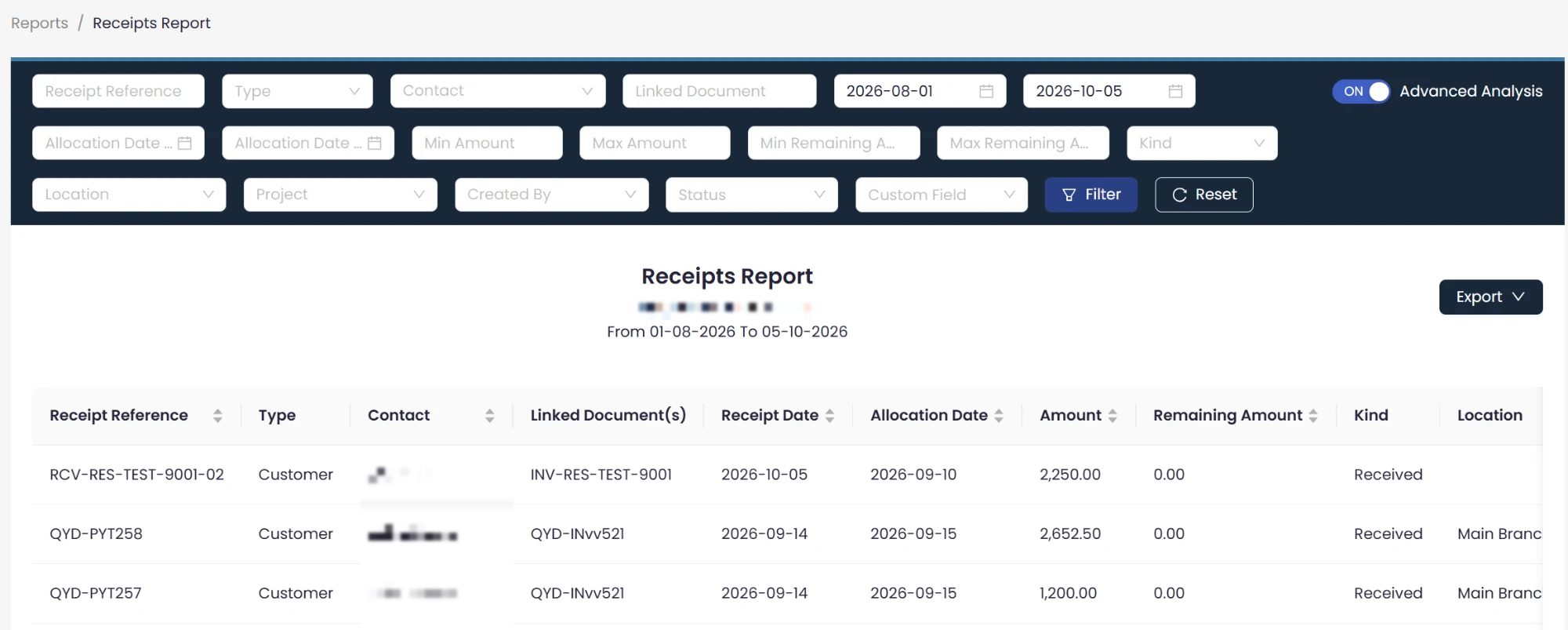
- To show more filters, turn on Advanced Analysis, set them, then press Filter.
- To export the results, press Export and choose Excel.
 View full size
To clear the filters and start again, press Reset.
Search and filtering
You can search directly by receipt reference, contact, linked document, date or kind. To filter by amount, remaining amount, location, project and creator, turn on Advanced Analysis.
 View full size
Notes
- The report shows data according to the permissions set in the system, so each user sees only the receipts they are allowed to see.
- You can export the report results to an Excel file.
- The report covers customer and vendor receipts.
Frequently asked questions
Where do I find the Receipts Report in Qoyod?
Open Reports, then Financial Reports, and choose Receipts Report.
What does the Receipts Report show?
It shows every Customer Receipt and Vendor Receipt in one report. For each receipt it shows the reference, the linked documents, the date, the amount and the remaining unallocated amount, the location, the linked project if any, and the creator.
How do I search for a specific receipt?
Enter the receipt reference or the linked document, or select the contact, in the fields at the top of the page and press Filter. To filter by amount, remaining amount, location, project and creator, turn on Advanced Analysis.
Can I export the report?
Yes. You can export the report results to an Excel file using the Export button.
Does every user see all receipts in the report?
No. The report shows data according to the permissions set in the system, so each user sees only what they are allowed to see.
What does Remaining Amount mean?
It is the part of the receipt total that has not been allocated yet.




