




This article explains how to assign the sales representative responsible for a customer in Qoyod, from the customer page or from the user page, how to filter the customers list by representative, and what the assignment changes in documents and reports.
What this feature does, and when to use it
Assigning a sales representative links a customer to one or more of your organisation’s users in Qoyod’s accounting software, so customer follow-up is organised and responsibility is distributed clearly across the team. Use it when you need to:
- Split the customer portfolio across the sales team, and redistribute it as the team changes.
- Reach all of a given representative’s customers at once from the customers list.
- Show a customer list that matches the representative’s responsibility when creating documents and running customer reports.
- Keep a record of who assigned or removed a representative and when, through the user operations report.
See the release announcement for what was added.
Before you start
- Assigning or removing a representative is available to users who hold the edit permission on customers.
- Location permission is the basis for access to customers. Assigning a representative adds organisation on top of it and does not override it. See managing user permissions in Qoyod.
- The picker in the representative field lists only the users who have access to the customer’s location. If the user you want is missing, check how customers are linked to locations and the location permissions granted to that user.
Where to find it in Qoyod
There are two entry points, and both give the same result:
Sales › Customers › Edit Customer › Sales Representative
Settings › Users › User Details › Assigned Customers
Assigning a representative from the customer page
- Go to Sales, then Customers.
- Search for the customer and click Edit next to them, or click New Customer if you are creating them now.
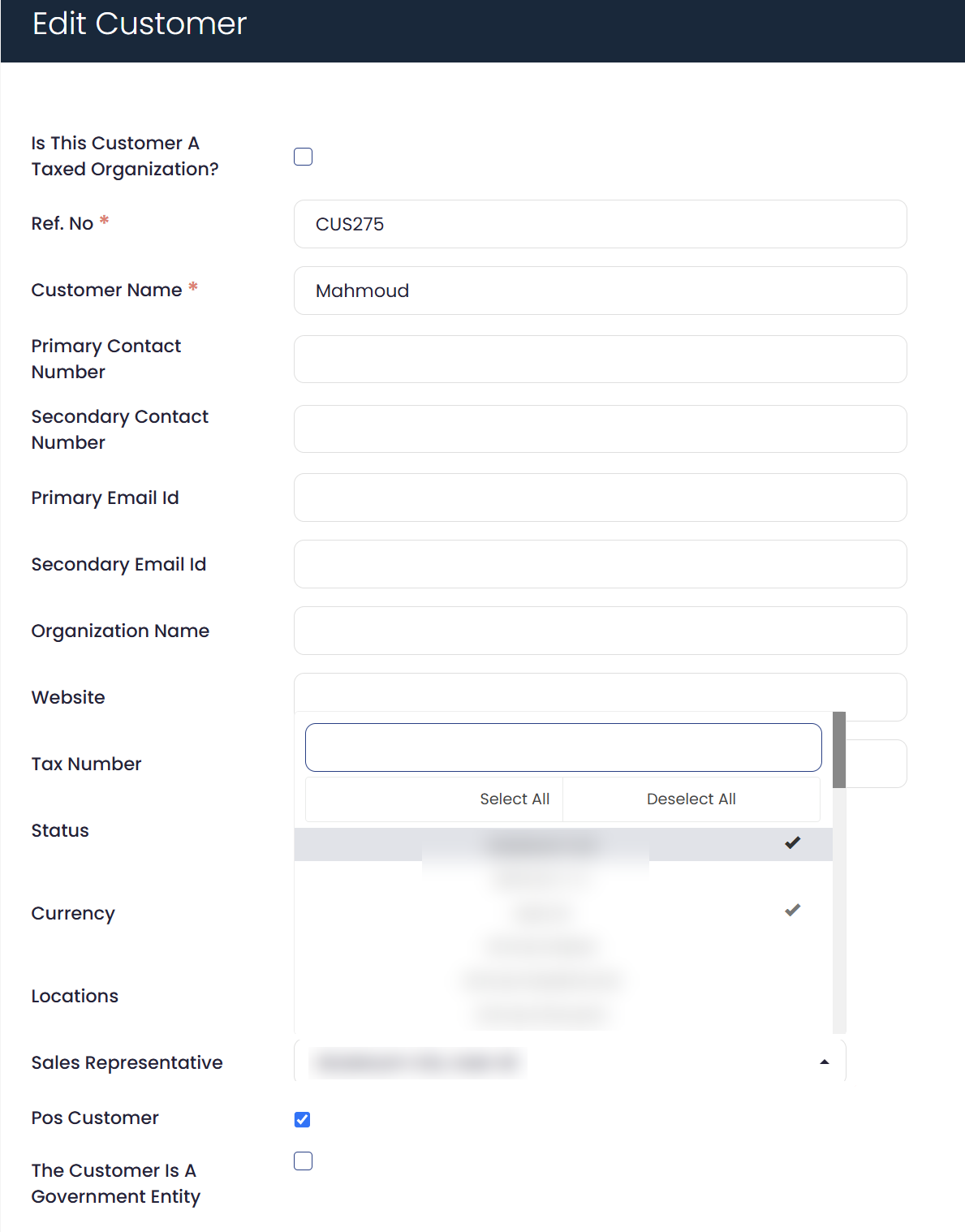
- Open the Sales Representative field, which sits between Locations and Pos Customer.
- Select one or more representatives from the list. Use the search box to find a user quickly, or use Select All and Deselect All at the top of the list.
- Click Save.
Once closed, the field shows the selected users separated by commas, and a tick appears beside each selected user inside the list. To remove a representative, open the field, deselect them and save.
 View full size
Managing a representative’s customers from the user page
This is the faster path when you hand a whole customer portfolio to a representative, since you do not open each customer record one by one.
- Go to Settings, then Users.
- Open the page of the user you need.
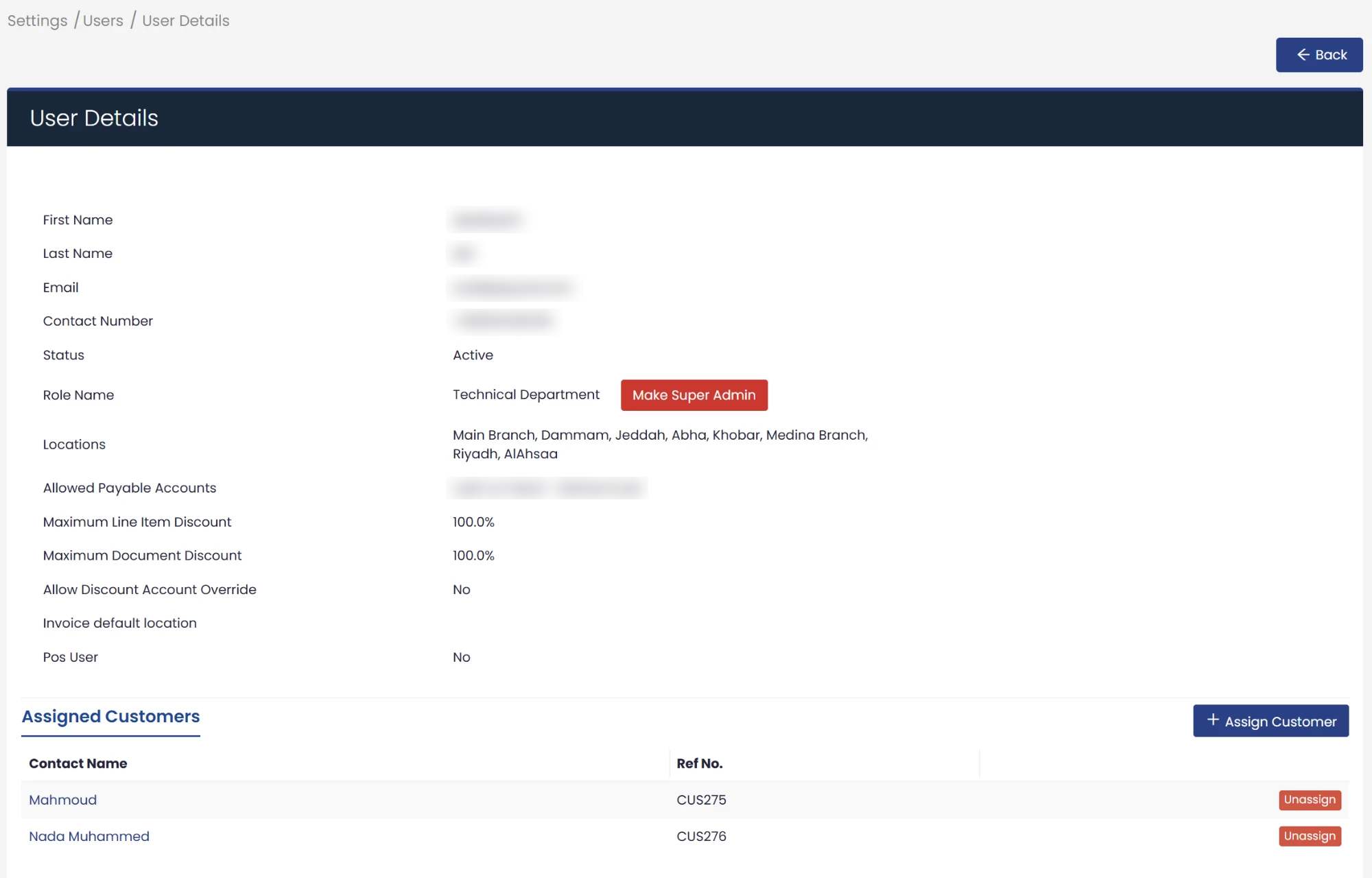
- Scroll to the Assigned Customers table below the user’s own details.
- Click Assign Customer to assign customers to them, or click Unassign next to a customer they are no longer responsible for.
The table lists the customers assigned to that user in two columns: Contact Name and Ref. No.
 View full size
Filtering customers by representative
- Go to Sales, then Customers.
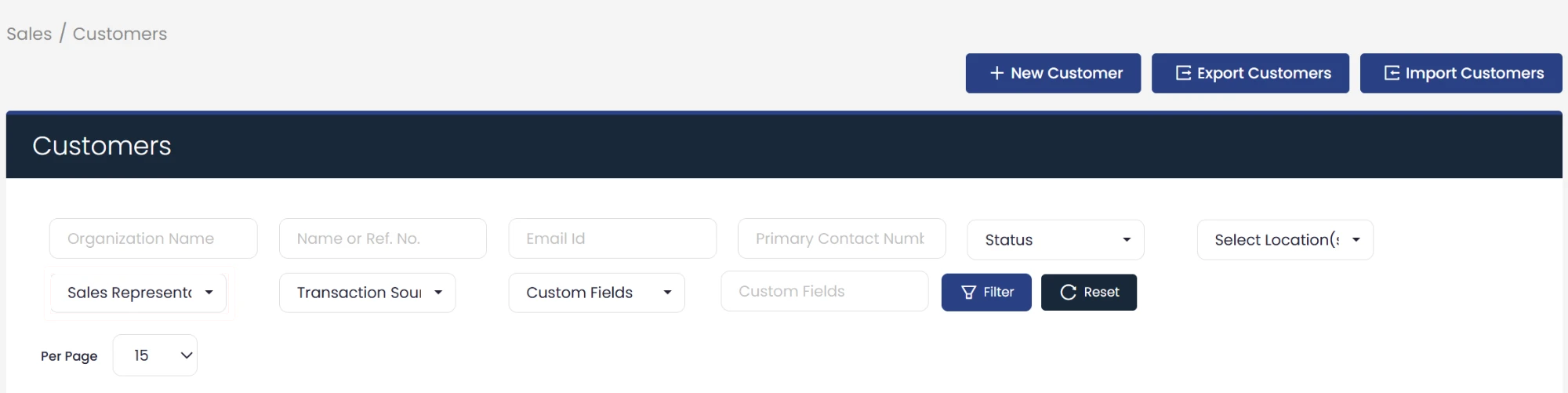
- Open the Sales Representative filter in the filter bar.
- Select the representative you need.
- Click Filter to show all of their customers.
 View full size
Fields
- Sales Representative (optional): on the customer form, between Locations and Pos Customer. A multi-select field that accepts one or more representatives from your organisation’s users, and lists only the users who have access to the customer’s location.
- Assigned Customers: a table on the User Details page showing the customers assigned to that user, where you add or remove them directly.
- Contact Name: the first column of the Assigned Customers table, carrying the customer’s name.
- Ref. No.: the second column of the table, carrying the customer’s reference number.
How the assignment affects documents and reports
When creating an invoice, a credit note or a quote, the representative is shown the customers assigned to them within the locations available to them. The same applies to customer reports, among them the customer/vendor statement, the receivable customers report and the customer debt ageing, when viewed by customer. It does not apply to financial reports such as the income statement and the balance sheet, so accountants always read them in full.
- Customers not assigned to any representative stay available under the usual location permissions, so nobody disappears from the list simply because they have not been assigned yet.
Special cases
An alert when permissions conflict
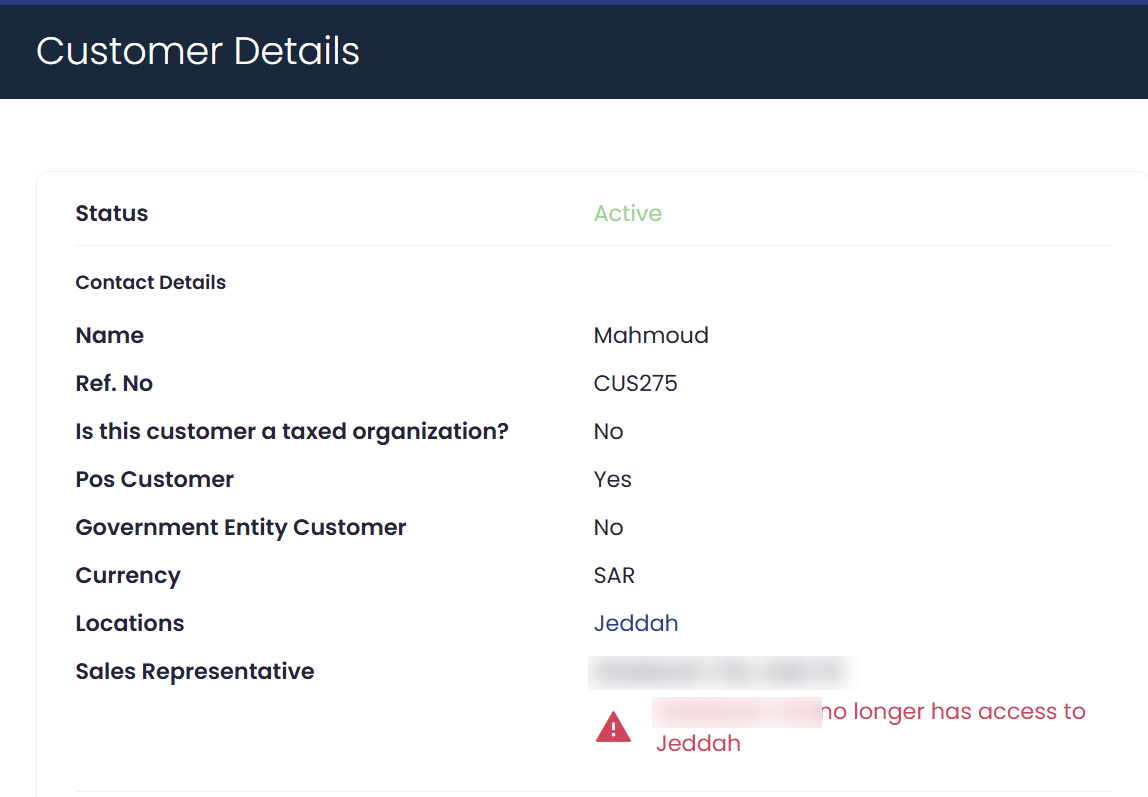
A representative’s permissions may change, or a customer’s location may change, and the representative loses access to that customer. When that happens, an alert appears beneath the representative field on the edit page, and beside the representative row on the customer’s own page, so the mismatch is visible without opening the edit form. Open the field and update the assignment, or review the location permissions granted to that user.
 View full size
Assigning more than one representative to a customer
The field is a multi-select, so you pick one or more representatives to suit how your team is organised, and remove any assignment at any time.
Tracking changes
Assigning and removing a representative are recorded in the user operations report, which shows who made the change and when, along with the previous value and the new one.
Notes
- The assignment adds organisation on top of location permissions and does not override them. It does not grant a representative access to a customer in a location they do not have permission on. To control who sees which customer, use customer locations and location permissions.
- If you want to record extra follow-up data about representatives, the custom field method still works and complements this field. See adding a custom field to link clients with their sales representatives.
- To compare representatives’ sales and profit in the income statement, see tracking sales and profits per sales representative.
Frequently asked questions
Where do I assign a sales representative to a customer?
From the Sales Representative field on the Edit Customer page, or from the Assigned Customers table on the User Details page. Both paths give the same result.
Can I assign more than one representative to a single customer?
Yes. The field is a multi-select and accepts one or more representatives, and you can remove any of them at any time.
Why is a particular user missing from the representative list?
Because the list shows only the users who have access to the customer’s location. Check the location permissions granted to that user.
Who can assign or remove a representative?
Users who hold the edit permission on customers.
Does the assignment stop a representative from seeing the other customers?
Location permission is the basis for access to customers, and assigning a representative adds organisation on top of it without overriding it. Customers not assigned to any representative stay available under the usual location permissions.
Which reports show the effect of the assignment?
Customer reports when viewed by customer, among them the customer/vendor statement, the receivable customers report and the customer debt ageing. Financial reports such as the income statement and the balance sheet are not affected, so accountants always read them in full.
How do I know who changed an assignment and when?
From the user operations report, which records assignments and removals with the name of whoever made the change, the time, and the previous and new values.




