




This article explains how to add a printer in the Qoyod POS app on Android, whether it connects by network, Bluetooth or a USB cable, and what to do when a printer shows as offline.
What is this, and when do you need it?
The Qoyod POS app lets you use the printer you already own, with no forced purchase. You need this procedure when:
- You want to connect a new printer to your Android POS device.
- You want to connect an Epson or Sunmi Cloud Printer with a USB cable.
- You see the Printer is offline alert and want to know the cause and the fix.
See the release announcement for the details of the update.
Before you start
- The feature is available in the POS app on Android only, under Settings > Printers.
- Printer settings are available to users who can open Settings.
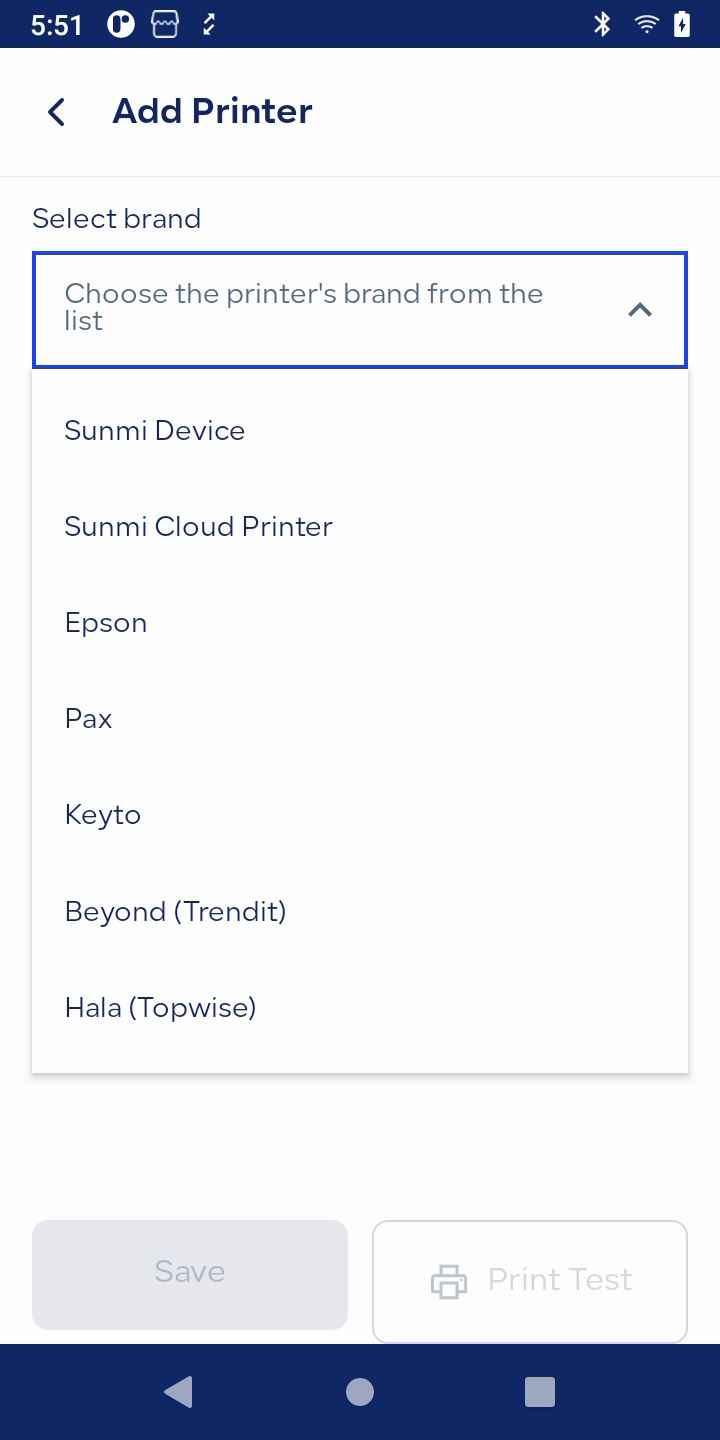
- Available brands: Sunmi Device (built-in), Sunmi Cloud Printer, Epson, Pax (Geidea), Keyto, Beyond (Trendit) and Hala (Topwise).
- USB is available for Epson and Sunmi Cloud Printer only, and may not work on every device.
 View full size
Steps
Add a printer
- Prepare the printer for its connection type. For network, put the device and the printer on the same network. For Bluetooth, pair the printer first in Android settings. For USB, connect the printer with the cable.
- Go to Settings > Printers > Add.
- Open Select brand and choose your printer’s brand, then choose the model from Select model.
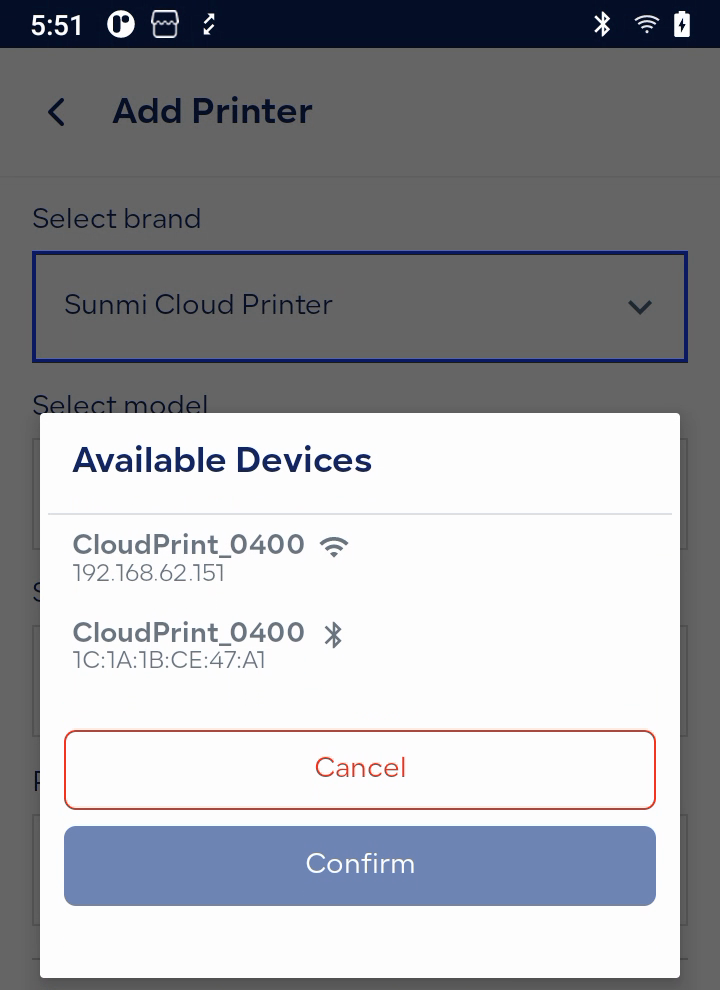
- The app searches for printers over network, Bluetooth and USB in one search, with a hint for each type on what to check. Pick your printer from the results.
- For a USB printer, allow access when the device asks for USB permission.
- Open Select paper size and choose 58 mm or 80 mm.
- Run a test print, then save.
 View full size
The built-in printer
Only one built-in printer can be added per device. On Hala devices the built-in printer is added and connected automatically.
Fields
- Select brand: the printer’s brand from the available list.
- Select model: the model of the printer the app found.
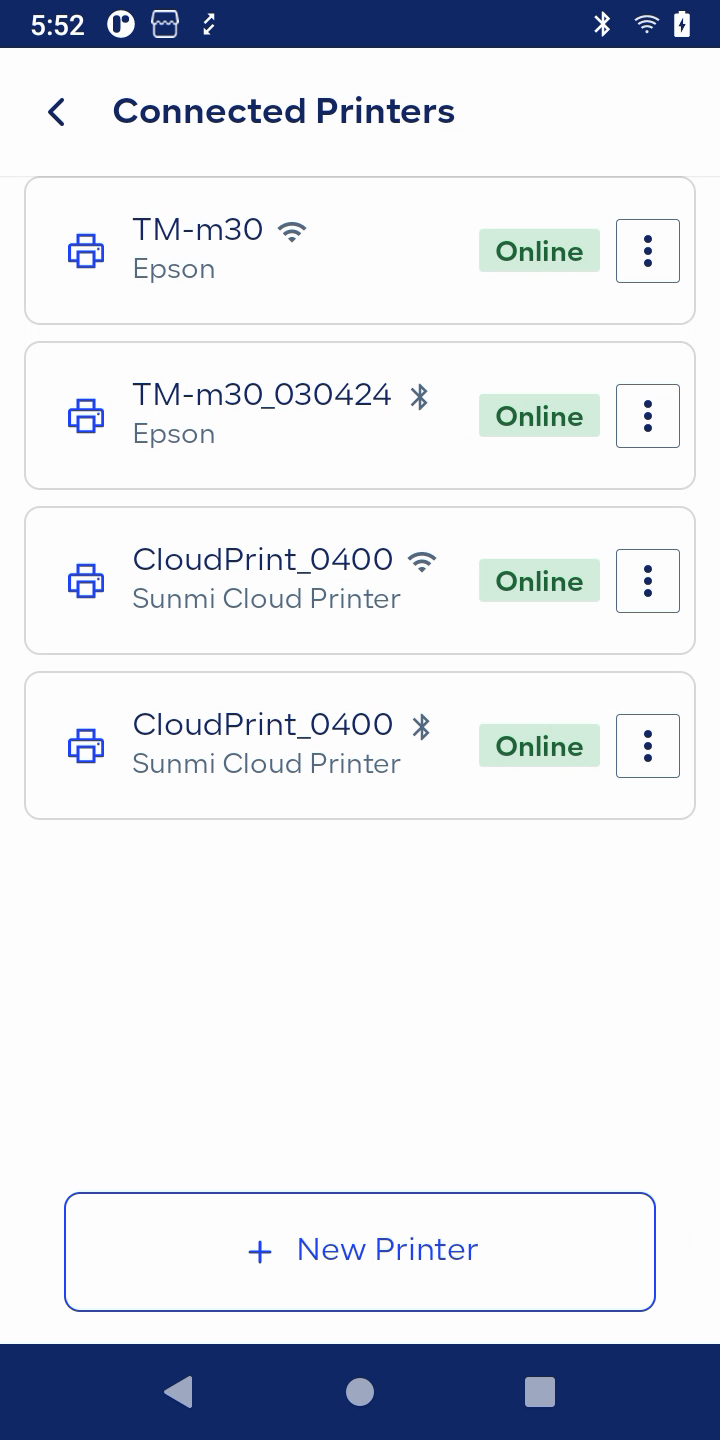
- Network connection / Bluetooth connection / USB: the connection type the printer appeared with in the search results.
- Select paper size: 58 mm or 80 mm for each printer.
 View full size
Special cases
The printer shows offline while you add it
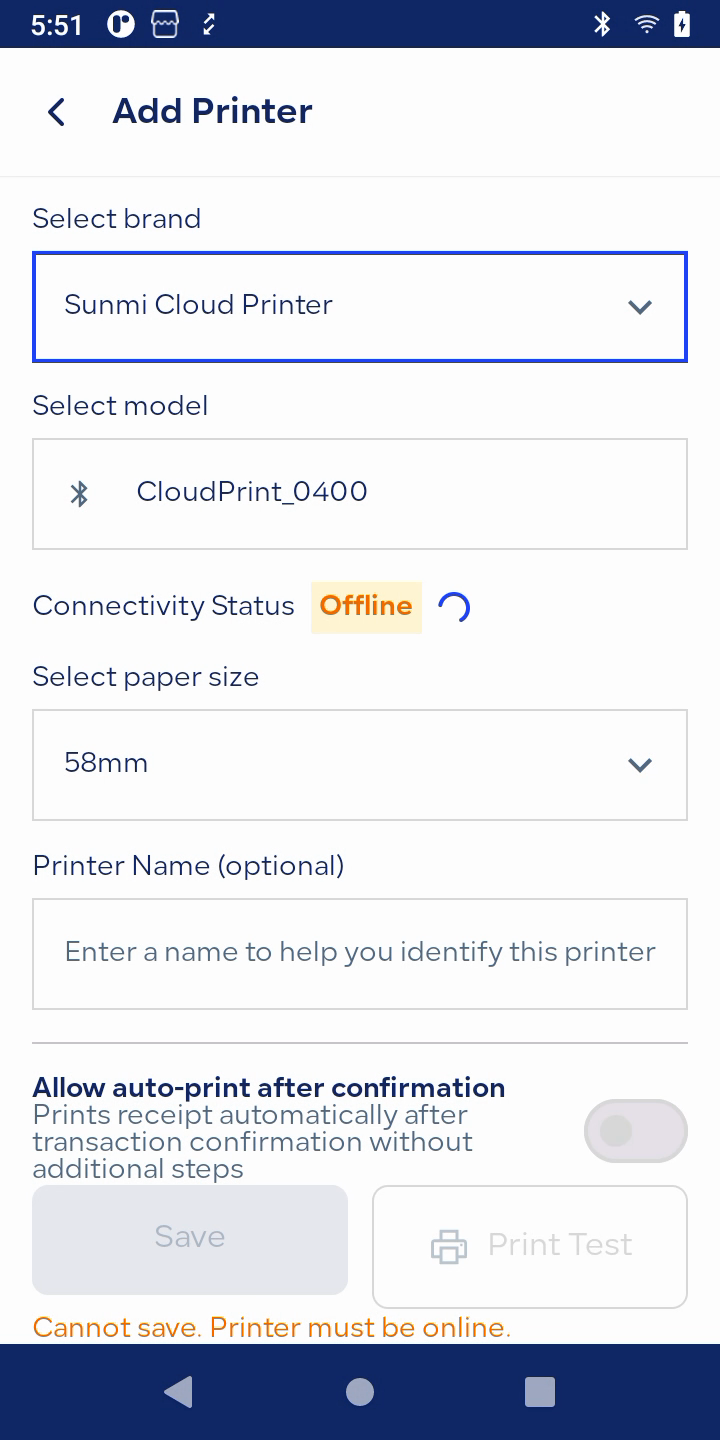
A printer cannot be saved while it is offline, and a message at the bottom of the screen says so. Check what fits the connection type: the device and the printer are on the same network, the printer is paired in Android settings, or the USB cable is connected. Then wait until the status changes to online and try again.
 View full size
You see the Printer is offline alert while selling
The app keeps checking printer connections while it is open. If a printer is offline, the cart shows Printer is offline with a Printer settings shortcut to reach the printer settings. The same alert appears when printing an invoice, credit note, report or session report.
The USB cable was unplugged
The printer is marked offline, and the cashier sees «The USB printer was disconnected. Check the cable.» When the cable is plugged back in, the printer returns to online.
Notes
- Do not assume every USB printer will work. Only Epson and Sunmi Cloud Printer are supported over USB.
- To set up and download the app and connect supported printers, read Set Up the Qoyod POS App and Its Printer.
- If the problem continues, read why your printer will not connect to the POS device and how to fix it.
Frequently asked questions
Do all USB printers work with POS?
No. USB is available for Epson and Sunmi Cloud Printer only, and may not work on every device.
Why can I not save the printer?
A printer cannot be saved while it is offline. Check the connection type, wait until the status changes to online, and try again.
Which printer brands are available?
Sunmi Device (built-in), Sunmi Cloud Printer, Epson, Pax (Geidea), Keyto, Beyond (Trendit) and Hala (Topwise).
How many built-in printers can I add?
Only one built-in printer per device. On Hala devices the built-in printer is added and connected automatically.
What happens if the USB cable is unplugged?
The printer is marked offline, and the cashier sees «The USB printer was disconnected. Check the cable.» When the cable is plugged back in, the printer returns to online.
Is this feature available in every version of POS?
These updates are in the POS app on Android only, under Settings > Printers, and are available to users who can open Settings.




