


When you open a sales invoice converted from a quote, the quote number shows in the quote reference row (مرجع عرض السعر) of the invoice details. To print that number on the invoice, add the quote reference field to the print template in the invoice designer.
Path in Qoyod
Sales › Sales invoices › invoice details (تفاصيل الفاتورة)
Settings › General Settings › Sales Invoice Settings
Steps
See which quote an invoice came from
- From the menu, open Sales, then the sales invoices list (فواتير المبيعات).
- Open a sales invoice that was converted from a quote.
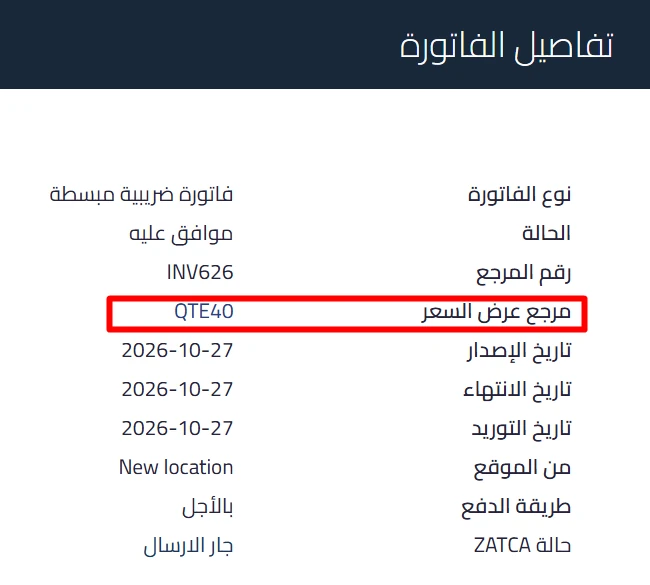
- In the invoice details section (تفاصيل الفاتورة), the quote reference row (مرجع عرض السعر) shows the quote number, for example QTE40, after the reference number.
 View full size
Print the quote number on the invoice
- From the menu, open Settings.
- Choose General Settings.
- From the options at the top, choose Sales Invoice Settings.
- Scroll to the bottom of the page. If you see “Try the New Designer”, you are using the default designer, and you can click it to switch on the new designer. If you are using the new designer, you see the open designer option (فتح المصمم): click it.
In the new designer
- Place the cursor where you want the quote number to appear.
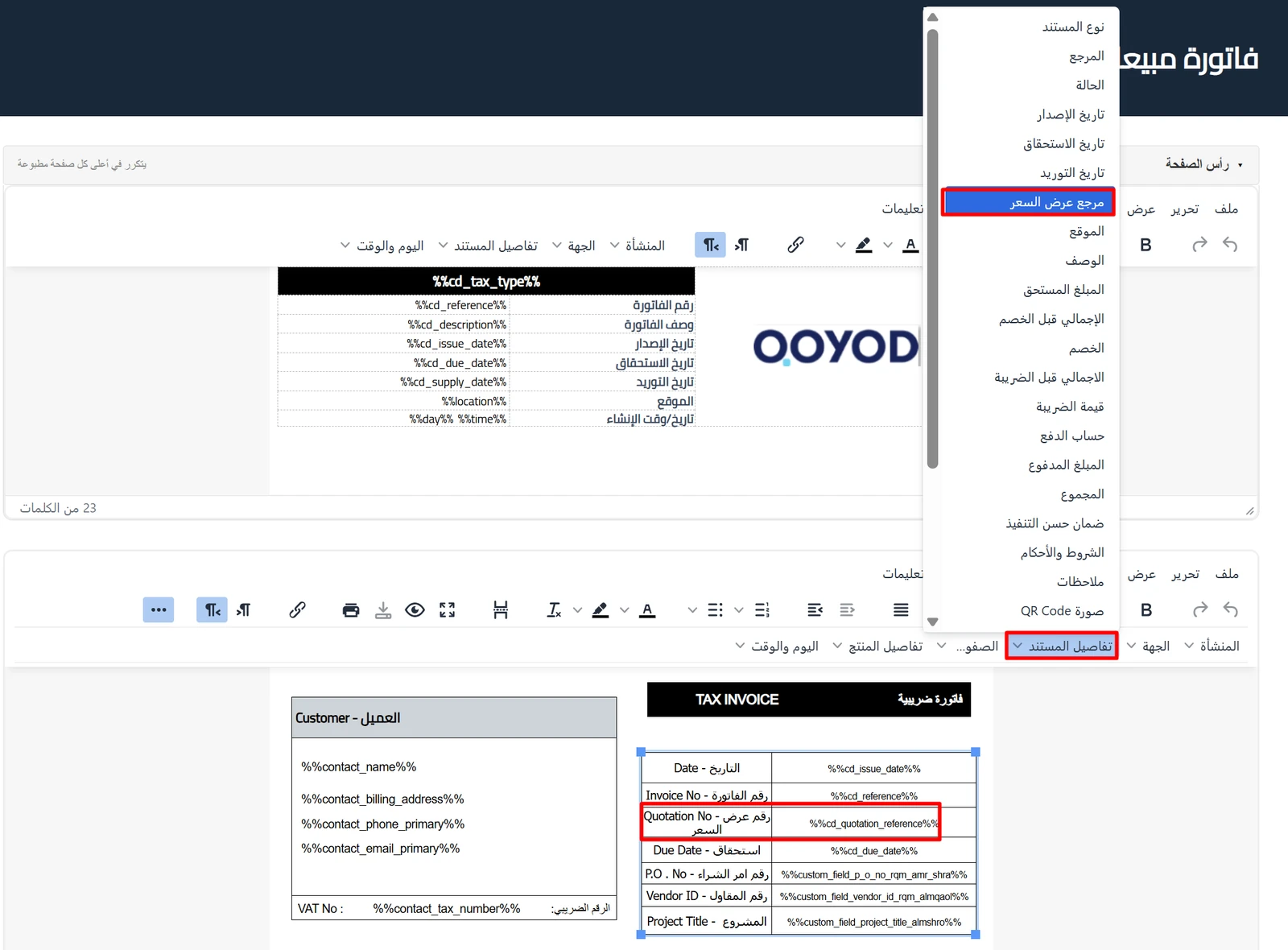
- Click the ( … ) button next to the toolbar, then the document details menu (تفاصيل المستند), then the quote reference field (مرجع عرض السعر).
- Click save.
In the default designer
- Untick the use default format option (استخدام التنسيق الافتراضي).
- In the page header area (رأس الصفحة), place the cursor where you want the number.
- From the toolbar, click the document details menu (تفاصيل المستند), then the quote reference field (مرجع عرض السعر).
- Click save at the bottom of the page.
 View full size
After you save, the quote number prints on invoices converted from quotes. You can type a label of your own next to the field, such as “Quotation No” in the screenshot.
Fields
- Quote reference in the invoice details: the number of the quote the invoice was converted from. Qoyod generates it automatically when the quote is created, so you do not enter it.
- Quote reference in the print designer: a field under the document details menu (تفاصيل المستند) in both the default and the new designer. Its placeholder is
%%cd_quotation_reference%%, for anyone who edits the template by hand.
Notes
- Quotes are available on the Professional and Advanced plans, so the quote reference appears on invoices converted from quotes on those plans.
- To print the quote number on the invoice, add the field to the print template with the steps above.
- To convert a quote to an invoice, see How to Convert Price Quotes to Invoices in Qoyod. To create a quote and design its layout, see How to Create, Design, and Convert Quotes to Invoices in Qoyod.
- The details of this update are in the release note: quote reference on the sales invoice.