




This article shows how to choose a customer’s locations and the sales representatives responsible for them by editing the customer while you create a sales invoice or a quotation in Qoyod, without going to the customers page.
What is this feature, and when do you use it?
When you create a sales invoice or a quotation, the document screen shows an Edit customer details link once you pick the customer. It opens a side panel over the document where you change the customer’s locations and sales representatives. Use it when:
- You notice mid-document that the customer is not linked to the right location.
- You want to assign a sales representative to a customer who has none, or change the one responsible for them.
- You want to fix the customer’s details without saving the document, opening the customers page and coming back.
See the release announcement for what is new.
Before you start
- Changes you save from this panel apply to the customer everywhere in Qoyod, not only to the document you are creating.
- Assigning or removing a sales representative is available to users with edit permission on customers.
Path in Qoyod
There are two ways in, depending on the document you are creating:
Sales › Invoices › New Invoice › Edit customer details
sales › quotations › new quotation › Edit customer details
Steps
- Open the create sales invoice or create quotation screen from one of the paths above.
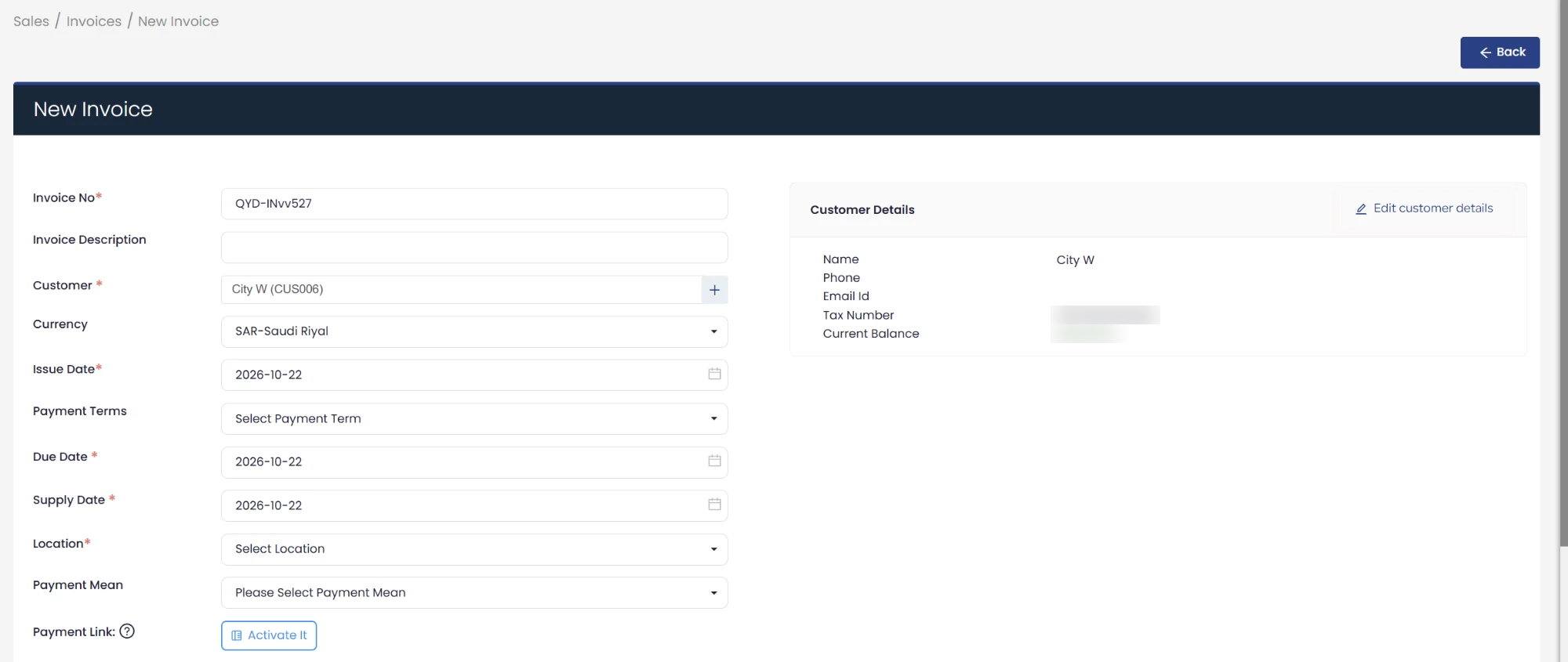
- Pick the customer in the Customer field. The Customer Details card appears.
- Click Edit customer details at the top of the card to open the Edit Customer Details panel.
 View full size
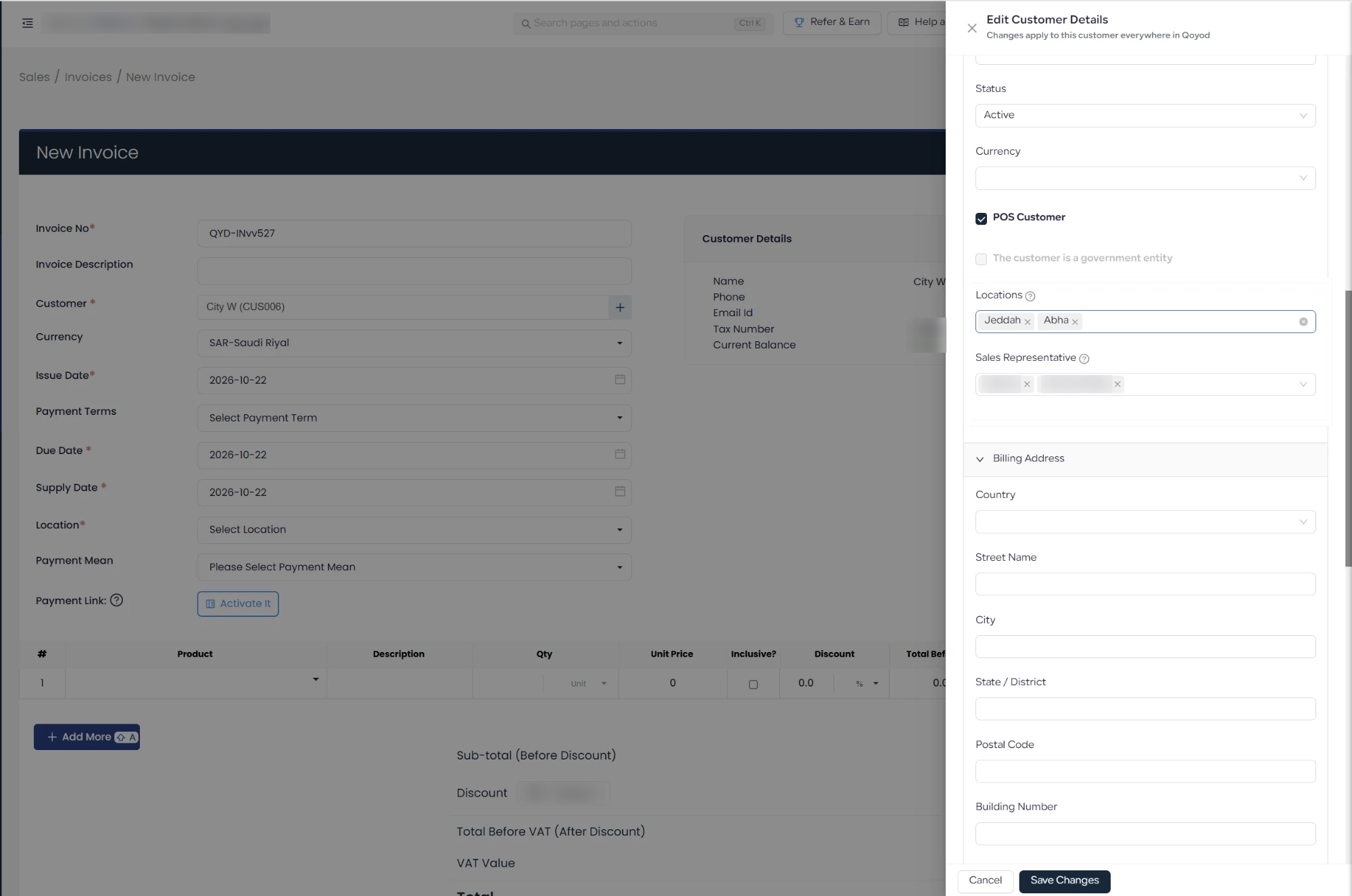
- In the Locations field, choose one or more locations, or remove a location with the remove mark next to it.
- In the Sales Representative field, choose one or more representatives, or remove one with the remove mark next to their name.
- Click Save Changes, then finish creating the document. To leave without saving, click Cancel.
 View full size
Fields
- Locations: a multi-select field that sets the locations the customer is linked to. Each selected location shows a remove mark next to it.
- Sales Representative: a multi-select field that takes one or more of your organization’s users, and lists only users who have access to the customer’s location.
- Other customer details: the panel also shows the tax number, status and currency, the POS Customer and government entity options, and the Billing Address section.
Notes
- Location permission is the basis for access to customers, and assigning a representative adds organization on top of it without overriding it. See How to Link Customers to Locations in Qoyod.
- If the user you want is missing from the representatives list, check the location permissions granted to them.
- To manage a representative’s customers from the user page or filter customers by representative, see How to Assign a Sales Representative to a Customer in Qoyod.
Frequently asked questions
Does the change apply only to the document I am creating?
No. Changes apply to this customer everywhere in Qoyod, so the locations and representatives you choose are saved on the customer itself.
Which documents offer this?
Creating a sales invoice and creating a quotation.
Can I choose more than one location or representative?
Yes. Both fields are multi-select, and you remove any choice with the remove mark next to it.
Why is a particular user missing from the representatives list?
The list shows only users who have access to the customer’s location. Check the location permissions granted to that user.
Who can assign or remove a representative?
Users with edit permission on customers.



