




You send an invoice, and it gets lost between a manual send and follow-ups that eat your time, so the money arrives late. Accountants measure collection time with Days Sales Outstanding (DSO): the average number of days it takes a business to collect payment after a sale. The AR Command Center is a paid Qoyod add-on for managing your customers’ overdue invoices: you follow your receivables in one place, and each customer gets a Customer Portal where they see their invoices and pay them.
This guide covers the whole add-on: activation, settings, inviting your customers, what your customer does in the portal, and following up on what they send you. The screenshots show the Arabic interface. Where an on-screen label is quoted, the Arabic text on screen is given in brackets.
In this guide
- What the AR Command Center is, and who benefits from it
- Activating the center and starting the free trial
- Setting up the portal
- Inviting your customers to the portal and following up
- Why the Customer Portal matters to your customers
- How your customer uses the portal
- Key questions answered
What the AR Command Center is, and who benefits from it
Two parties benefit from the add-on, and each has its own part:
- Your business, through the AR Command Center: if you issue invoices to customers and follow up on payment, the center, inside Qoyod under Sales, shows you who received an invoice, who is late paying and when reminders go out. It is also where you follow your customers’ disputes and comments, and the count of their unread messages.
- Your business’s customers, through the Customer Portal: a page for each customer, opened from a link, where they see their approved invoices, outstanding and overdue balance, credit notes and account statement, and can pay, dispute an invoice and message you.
The add-on has its own 14-day free trial, and you do not need a credit card to start it. This trial is separate from the Qoyod free trial and has its own end date. The portal works in Arabic and English.
Path in Qoyod
Sales › AR Command Center
Once active, the center has five tabs: Overview (نظرة عامة), Customers (العملاء), Disputes (الاعتراضات), Comments (التعليقات) and Settings (الإعدادات).
Activating the center and starting the free trial
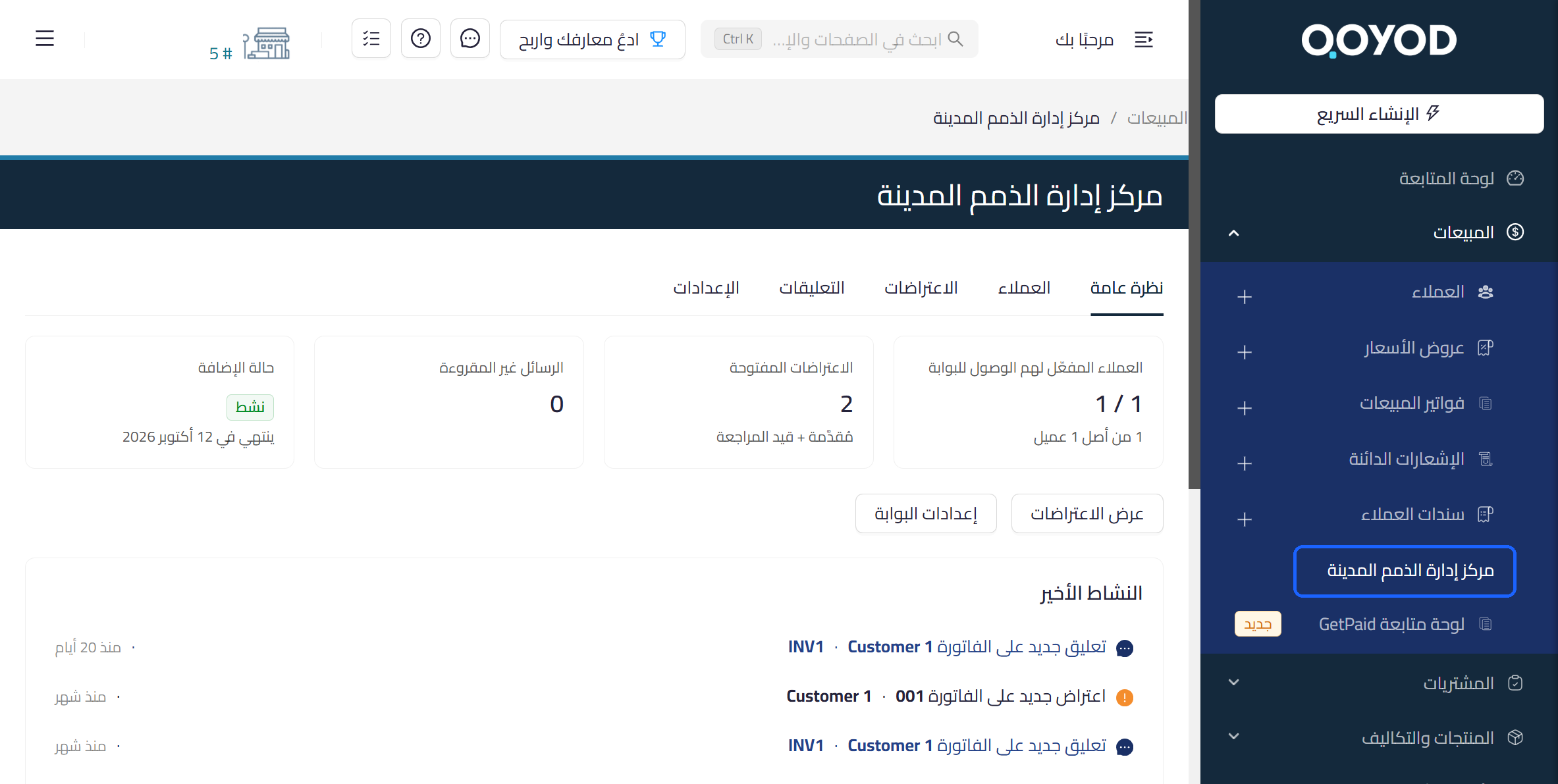
- In the sidebar, open Sales (المبيعات), then choose AR Command Center (مركز إدارة الذمم المدينة).
 View full size
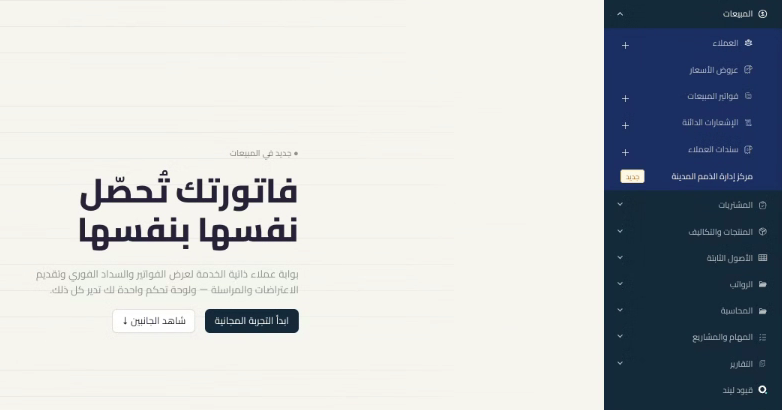
- Before activation, you see the add-on’s introduction page. Review the Start today card (ابدأ اليوم) at the bottom: it shows a 14-day trial period, no credit card required, and no fee for cancelling during the trial.
- Click Start free trial (ابدأ التجربة المجانية).
 View full size
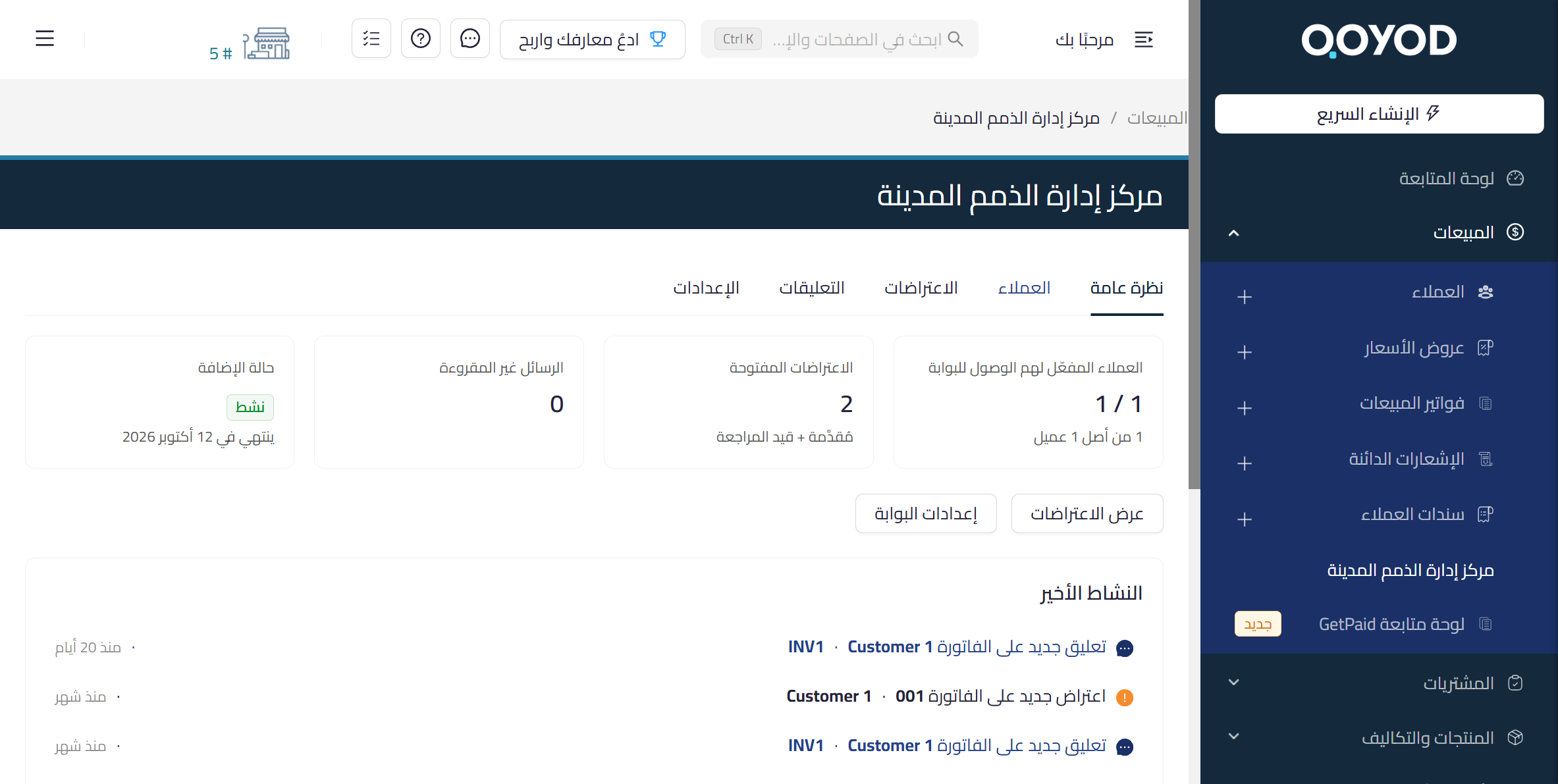
- Once active, open the Overview tab. It gives a quick summary of your activity and your customers’ activity.
 View full size
What the Overview tab shows:
- Customers with portal access (العملاء المفعل لهم الوصول للبوابة): how many customers have portal access, for example 1 of 1.
- Open disputes (الاعتراضات المفتوحة): disputes that are submitted or under review.
- Unread messages (الرسائل غير المقروءة): customer messages you have not read yet.
- Add-on status (حالة الإضافة): the add-on’s status, for example Active (نشط), and its end date.
- Recent activity (النشاط الأخير): the latest events, such as a new comment or a new dispute on an invoice, with the invoice number and the customer.
- View disputes and Portal settings (عرض الاعتراضات، إعدادات البوابة): two buttons that take you to the disputes and to the portal settings.
Keeping an eye on the trial
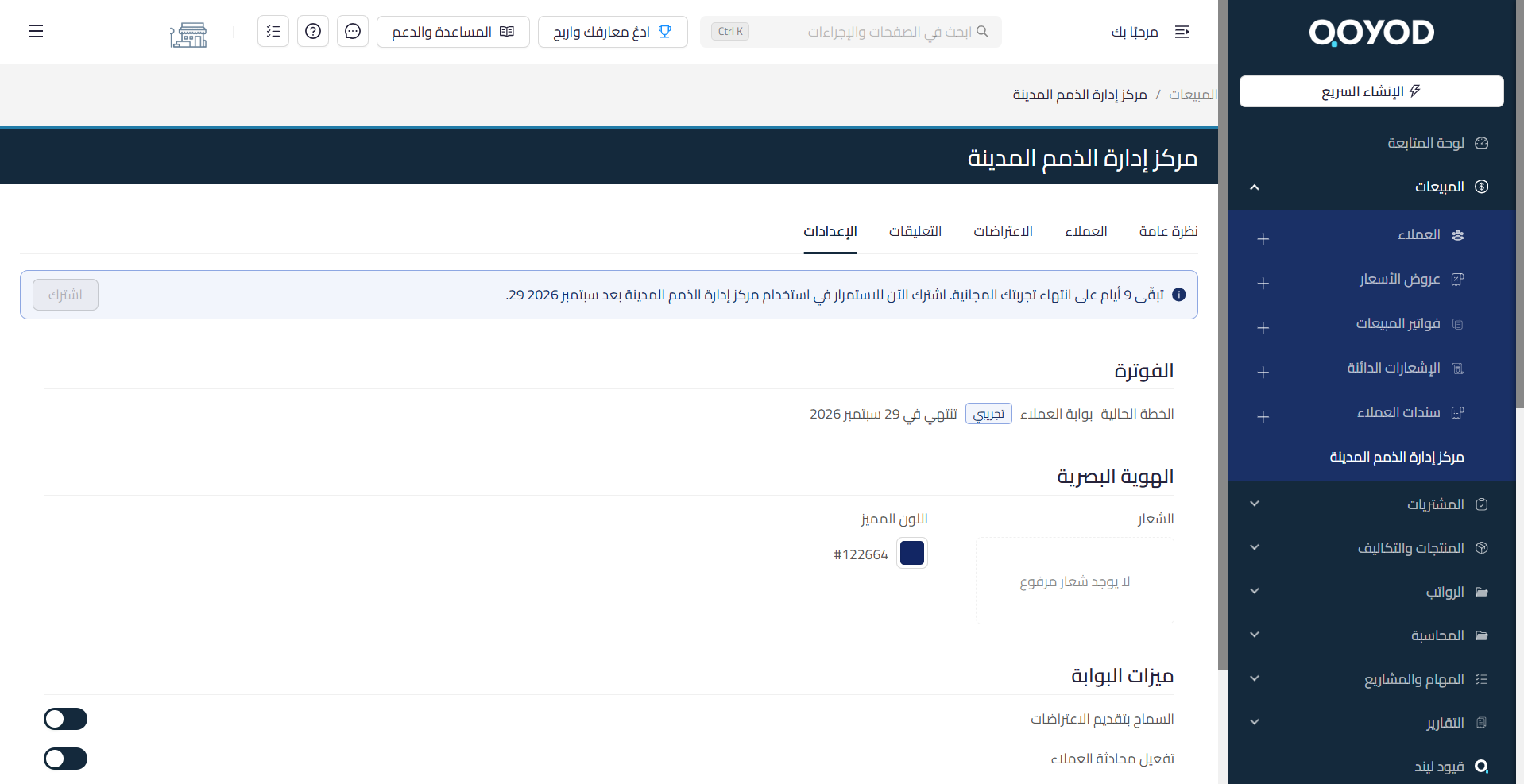
Open Settings and look at the Billing section (الفوترة). It shows the current plan, Customer Portal (بوابة العملاء), with a Trial badge (تجريبي) and the trial’s end date. Before the trial ends, a banner at the top of the page shows the days left and invites you to subscribe to keep using the center.
Setting up the portal
From the Settings tab (الإعدادات), or the Portal settings button (إعدادات البوابة) on Overview, you control how the portal looks and what it offers. Set it up before you invite your customers.
Sales › AR Command Center › Settings
- In Brand identity (الهوية البصرية), upload your Logo (الشعار) and pick your brand’s Accent colour (اللون المميز) from the colour swatch. Until you upload a logo, the section reads No logo uploaded (لا يوجد شعار مرفوع).
 View full size
- In Portal features (ميزات البوابة), switch on what you want your customers to have and switch off the rest:
- Allow disputes (السماح بتقديم الاعتراضات): lets your customers dispute invoices.
- Enable customer chat (تفعيل محادثة العملاء): lets your customers message you from the portal.
- Enable invoice comments (تفعيل التعليقات على الفواتير): lets your customers comment on any invoice.
- Show statement download (إظهار تحميل كشف الحساب): lets your customers download their account statement.
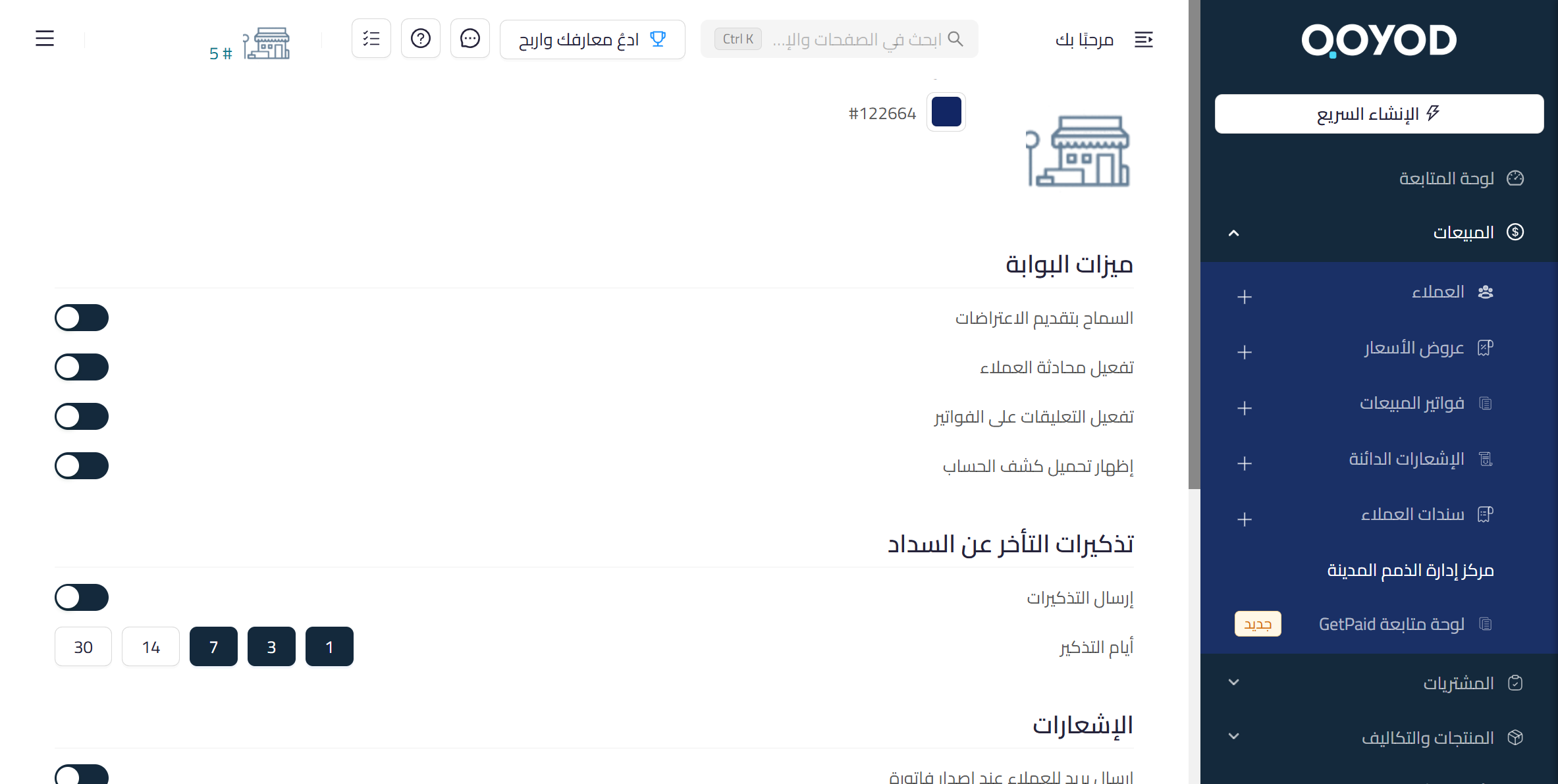 View full size
- In Late-payment reminders (تذكيرات التأخر عن السداد), switch on Send reminders (إرسال التذكيرات), then pick from Reminder days (أيام التذكير). The options are 1, 3, 7, 14 and 30.
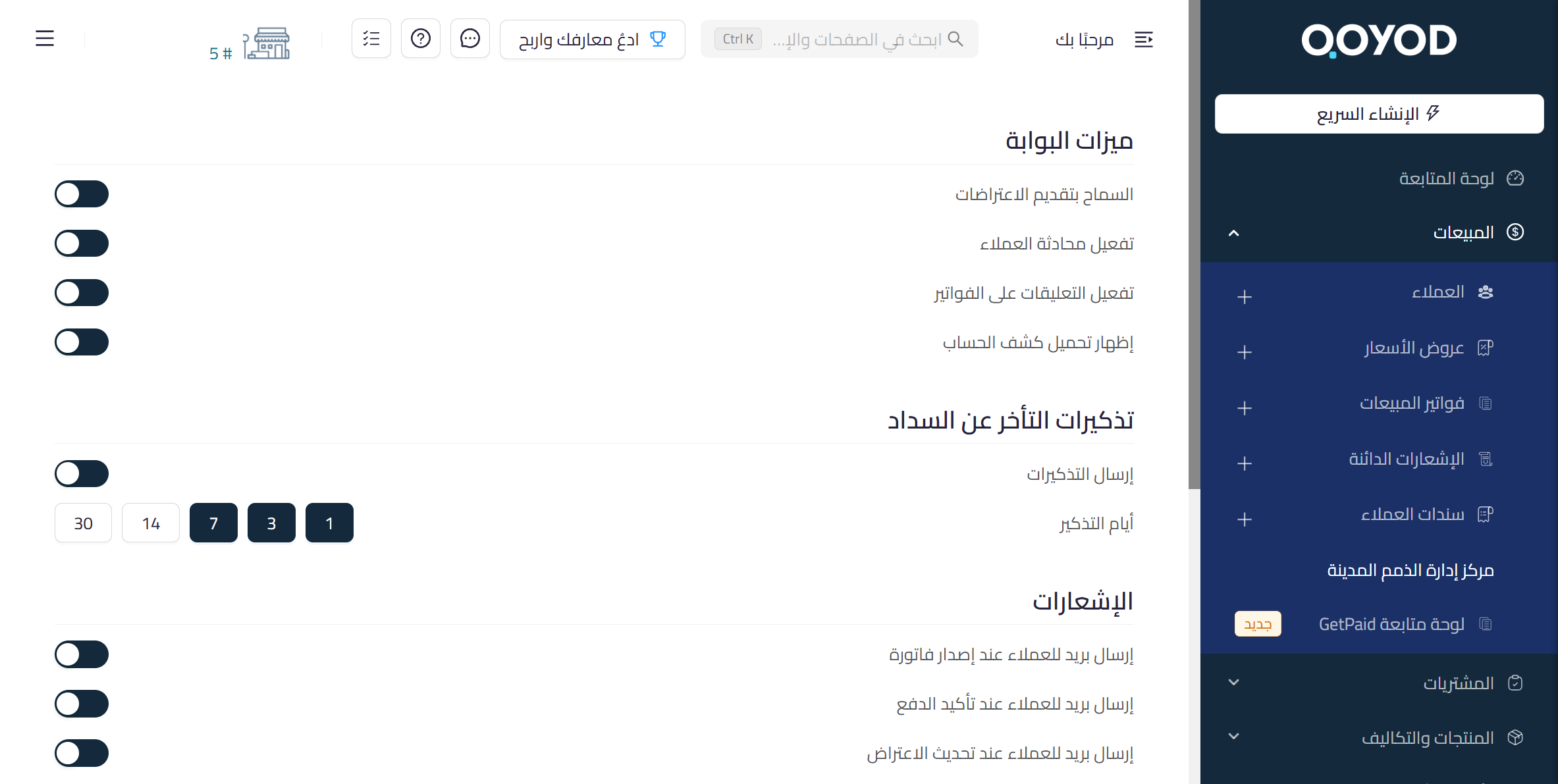 View full size
- In Notifications (الإشعارات), switch on the emails you want your customers to receive: when an invoice is issued (إرسال بريد للعملاء عند إصدار فاتورة), when a payment is confirmed (عند تأكيد الدفع), when a dispute is updated (عند تحديث الاعتراض), when a credit note is issued (عند إصدار إشعار دائن), and when a comment is added to an invoice (إرسال بريد عند إضافة تعليق على الفاتورة).
- Under Notification recipients (مستلمو الإشعارات), add the team members who should receive notifications, with Add user (إضافة مستخدم).
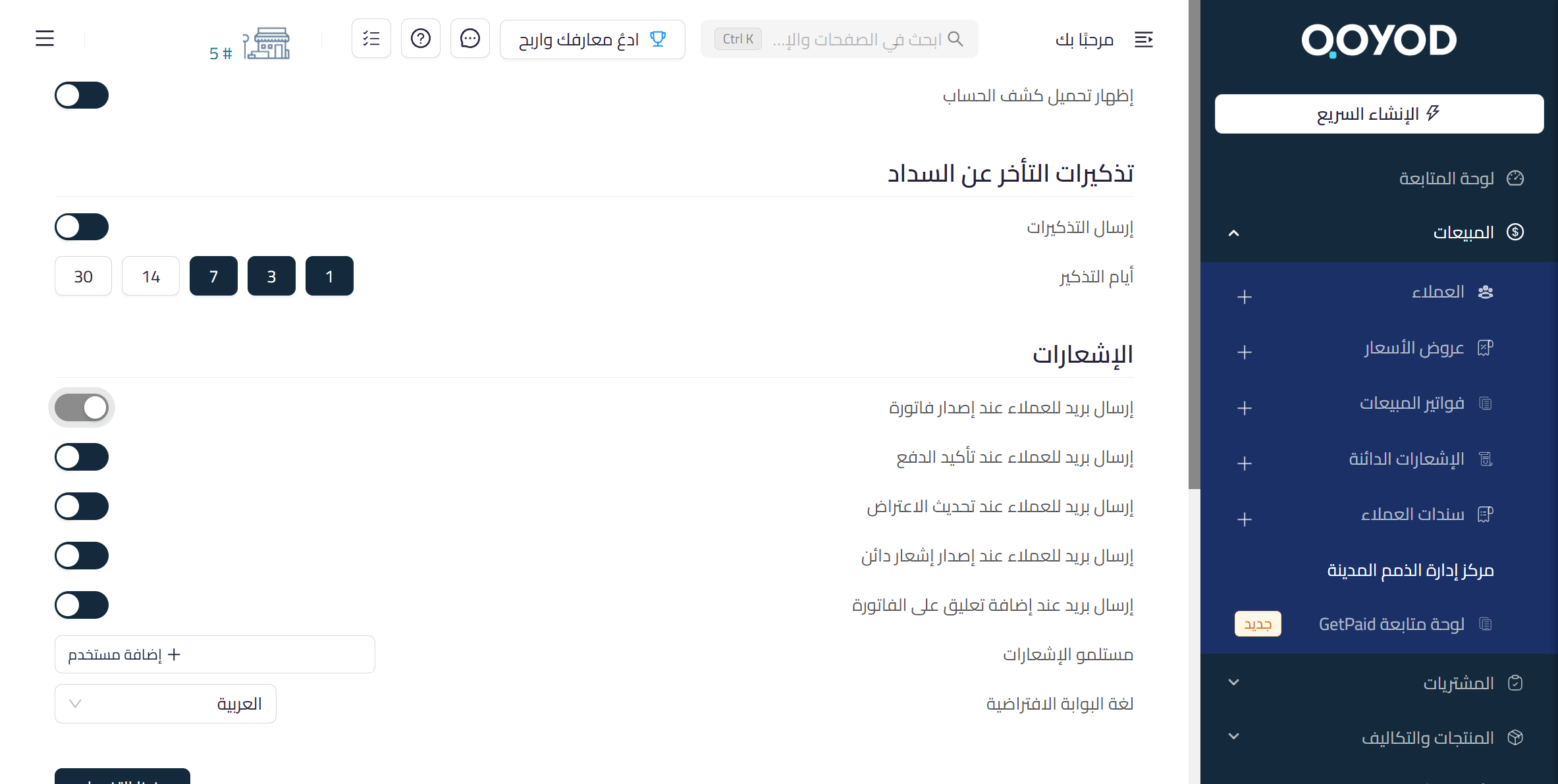 View full size
- Choose the Default portal language (لغة البوابة الافتراضية): Arabic or English. The portal supports Arabic right to left, and your customer can switch the language from the language switch at the top of the portal.
- When you have finished choosing your settings, click Save changes (حفظ التغييرات) at the bottom of the page.
Inviting your customers to the portal and following up
Sales › AR Command Center › Customers
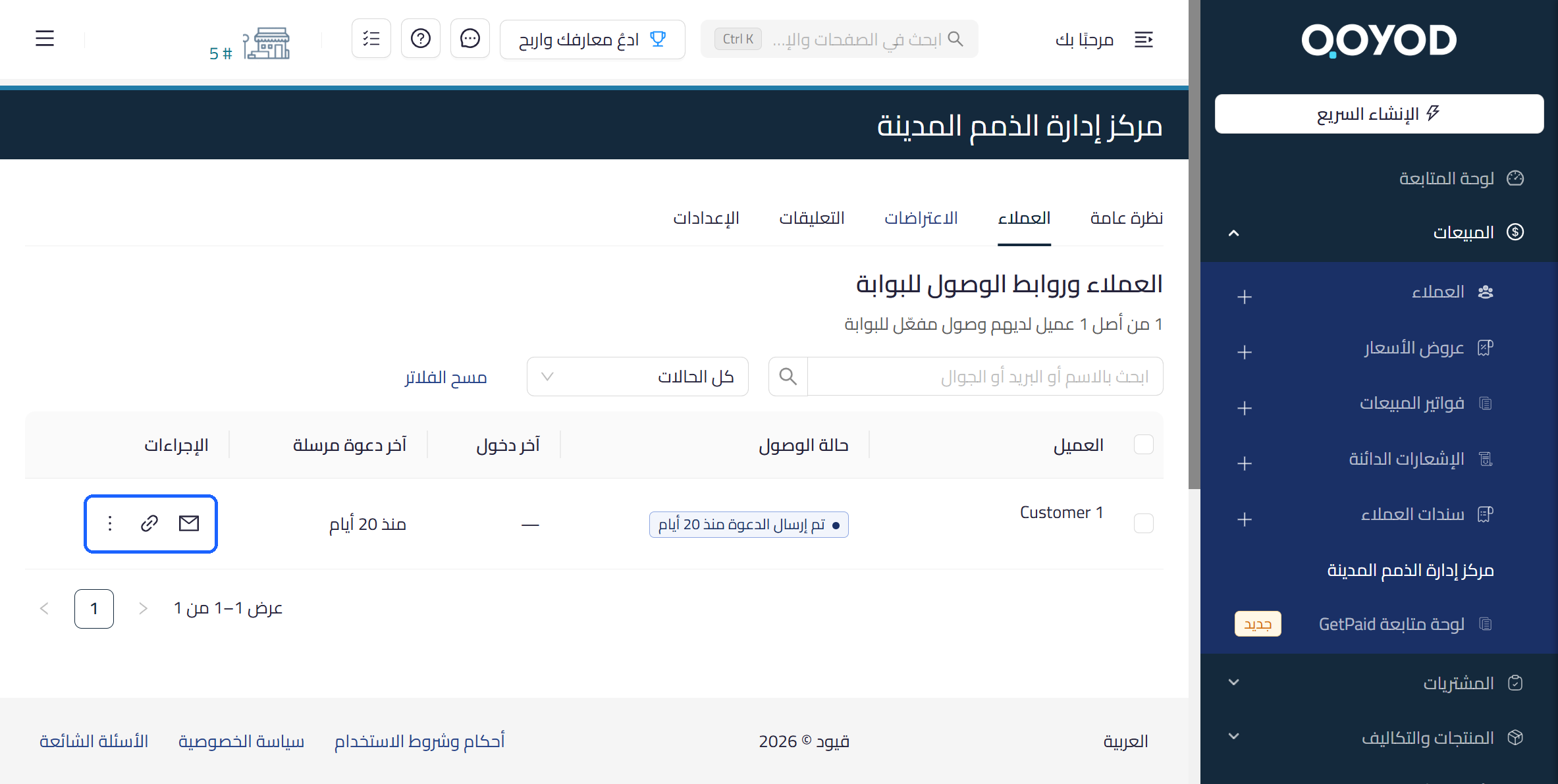
- Open the Customers tab (العملاء). The page is headed Customers and portal access links (العملاء وروابط الوصول للبوابة), with a count underneath of how many customers have portal access, for example 1 of 1.
- Find the customer with the search box, which searches by name, email or mobile number (ابحث بالاسم أو البريد أو الجوال), or filter the list by status with All statuses (كل الحالات). To clear the search and filter, click Clear filters (مسح الفلاتر).
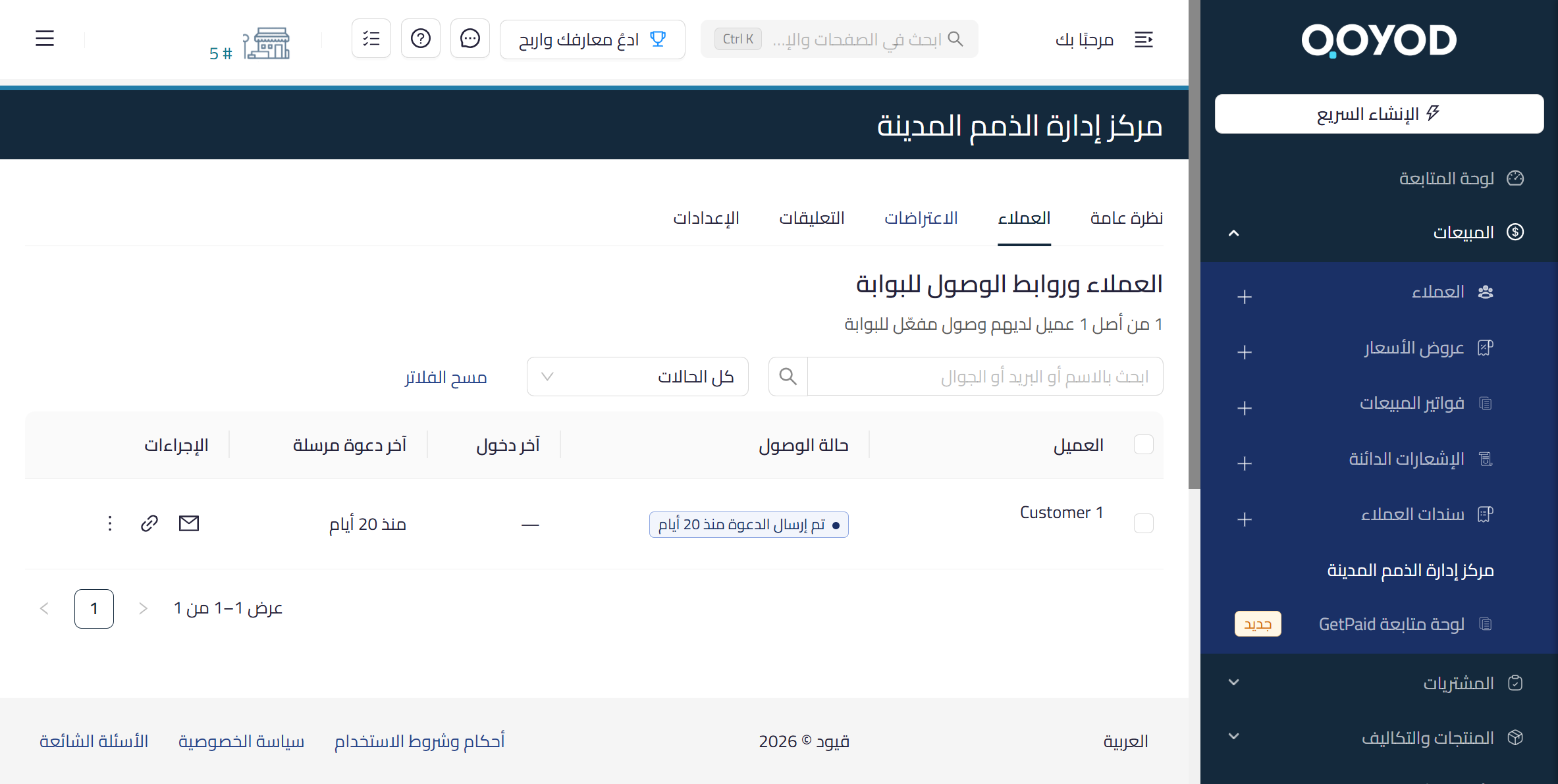 View full size
- In the customer’s row, use the Actions column (الإجراءات) to send the invitation to their portal.
- After you send it, the customer’s access status changes to show that the invitation was sent and how long ago (تم إرسال الدعوة منذ …).
 View full size
Columns in the customers table:
- Customer (العميل): the customer’s name.
- Access status (حالة الوصول): where the customer’s portal invitation stands, for example sent and how long ago.
- Last login (آخر دخول): the last time the customer entered their portal.
- Last invitation sent (آخر دعوة مرسلة): the last invitation you sent them.
- Actions (الإجراءات): where you send the customer the invitation to their portal.
Following disputes, comments and messages
What your customers send from the portal reaches you inside the center, and each kind has its own place:
- Dispute: a formal objection to a specific invoice, raised by your customer from the invoice page in their portal, with a type and a status. It appears in the Disputes tab.
- Comment: a note your customer writes under one invoice. It appears in the Comments tab.
- Message: a general conversation, not tied to an invoice. The number of unread messages shows on the Unread messages card on Overview.
- On the Overview tab, check the Open disputes and Unread messages cards and the Recent activity list, where new events appear, such as a new dispute or a new comment on an invoice.
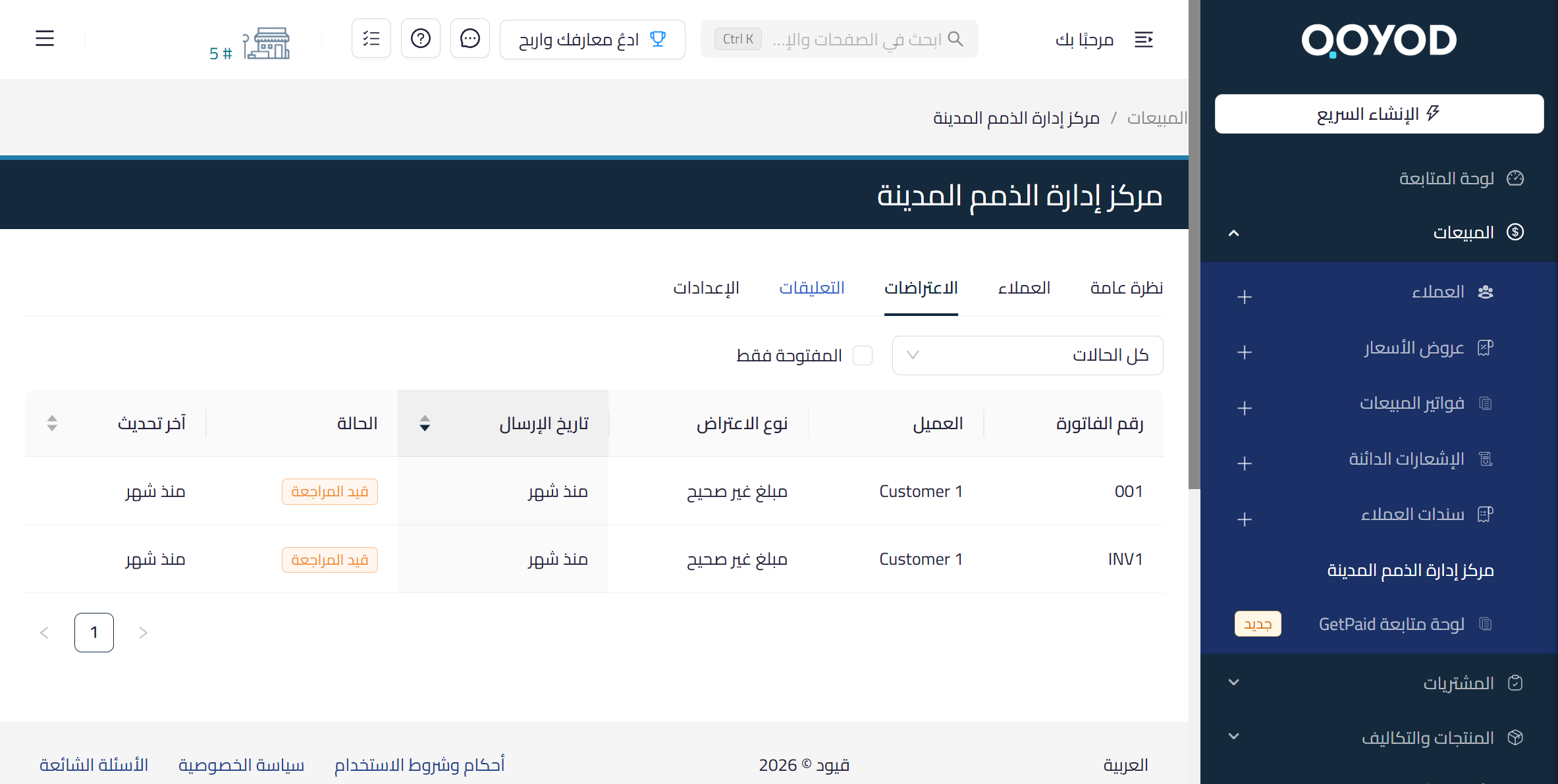
- Click View disputes (عرض الاعتراضات), or open the Disputes tab (الاعتراضات) directly. It lists every dispute your customers have raised on your invoices.
- Filter by status with All statuses (كل الحالات), or tick Open only (المفتوحة فقط) to list open disputes alone.
 View full size
Columns in the Disputes tab:
- Invoice number (رقم الفاتورة): the invoice your customer disputed.
- Customer (العميل): the customer who raised the dispute.
- Dispute type (نوع الاعتراض): the reason, for example incorrect amount (مبلغ غير صحيح).
- Date sent (تاريخ الإرسال): when the dispute was raised.
- Status (الحالة): where the dispute stands, for example under review (قيد المراجعة).
- Last updated (آخر تحديث): the date of the latest change to the dispute.
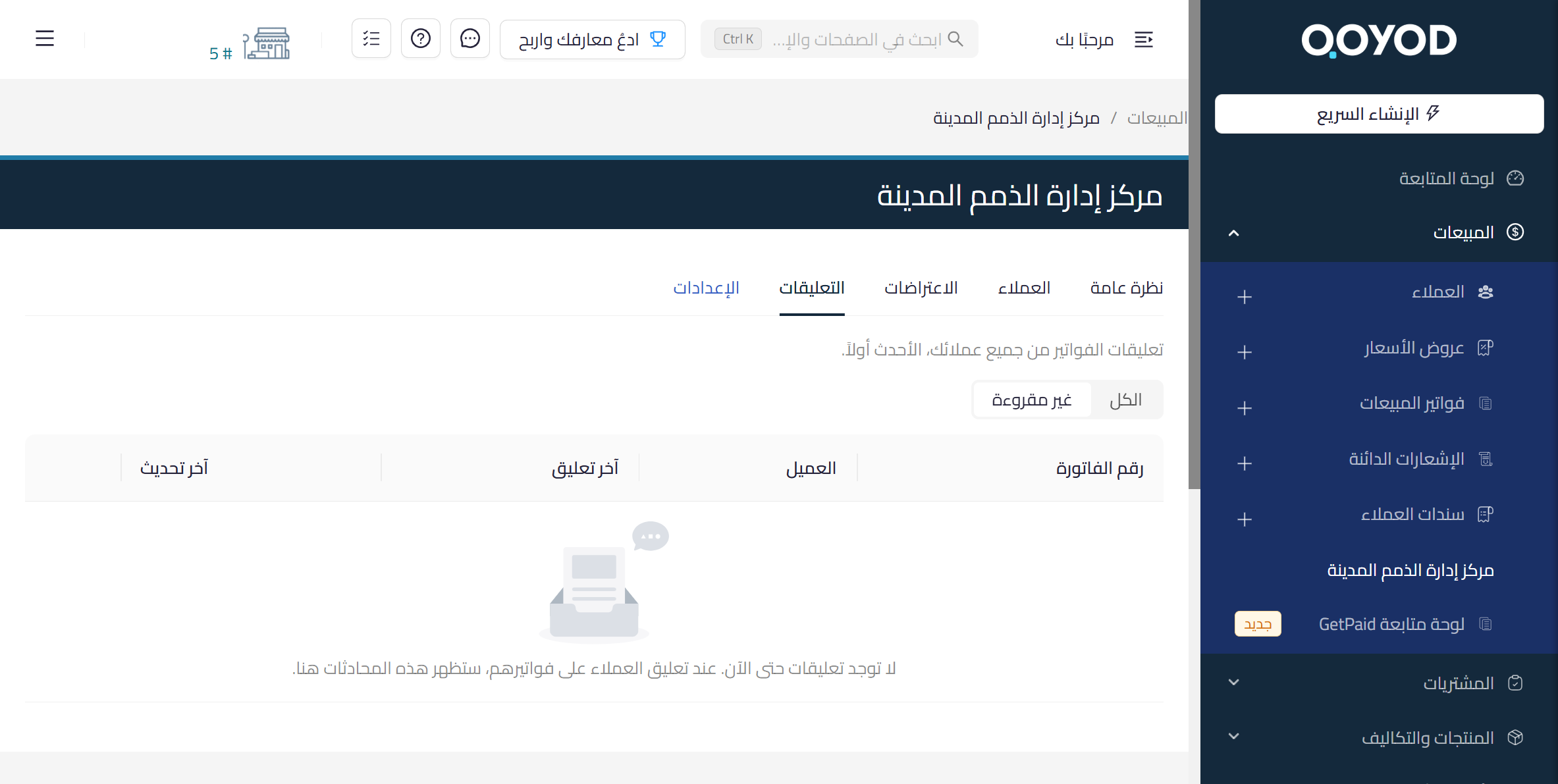
- Open the Comments tab (التعليقات). It lists invoice comments from all your customers, newest first.
- Choose All (الكل) to see every comment, or Unread (غير مقروءة) to see the ones you have not read.
 View full size
For each conversation, the Comments tab shows Invoice number (رقم الفاتورة), Customer (العميل), Latest comment (آخر تعليق) and Last updated (آخر تحديث). Until a customer comments, the tab says there are no comments yet, and that conversations will appear there when customers comment on their invoices.
Why the Customer Portal matters to your customers
The Customer Portal is a permanent page for each of your customers that stays up to date. They find what concerns their account with you there, without asking you for a copy of an invoice or a statement. Here is what it gives them:
- Their account in one place: approved invoices by status, the outstanding and overdue balance, and the credit notes issued to them.
- Entry without an account: they open the link and receive a verification code by email to get in.
- Paying from the invoice itself: they pay through the payment link or the QR code on the invoice page.
- A statement whenever they need one: they create it themselves for the period they choose, covering up to 24 months, with each currency in its own section and no conversion.
- A clear channel to reach you: they can dispute an invoice, comment on it or message you, and your reply to a message reaches them in the portal and by email.
- Their language, your brand: the portal shows in Arabic or English, with the logo and colour you set in Brand identity.
- Their data stays private: they see only their own data, and drafts and unapproved invoices never appear.
How your customer uses the portal
Portal link › Verification code › Dashboard
Entering the portal
- Your customer opens the portal link you sent them.
- A verification code arrives in their email inbox, with your business name at the top of the email.
- They type the code in to enter the portal.
The portal sections
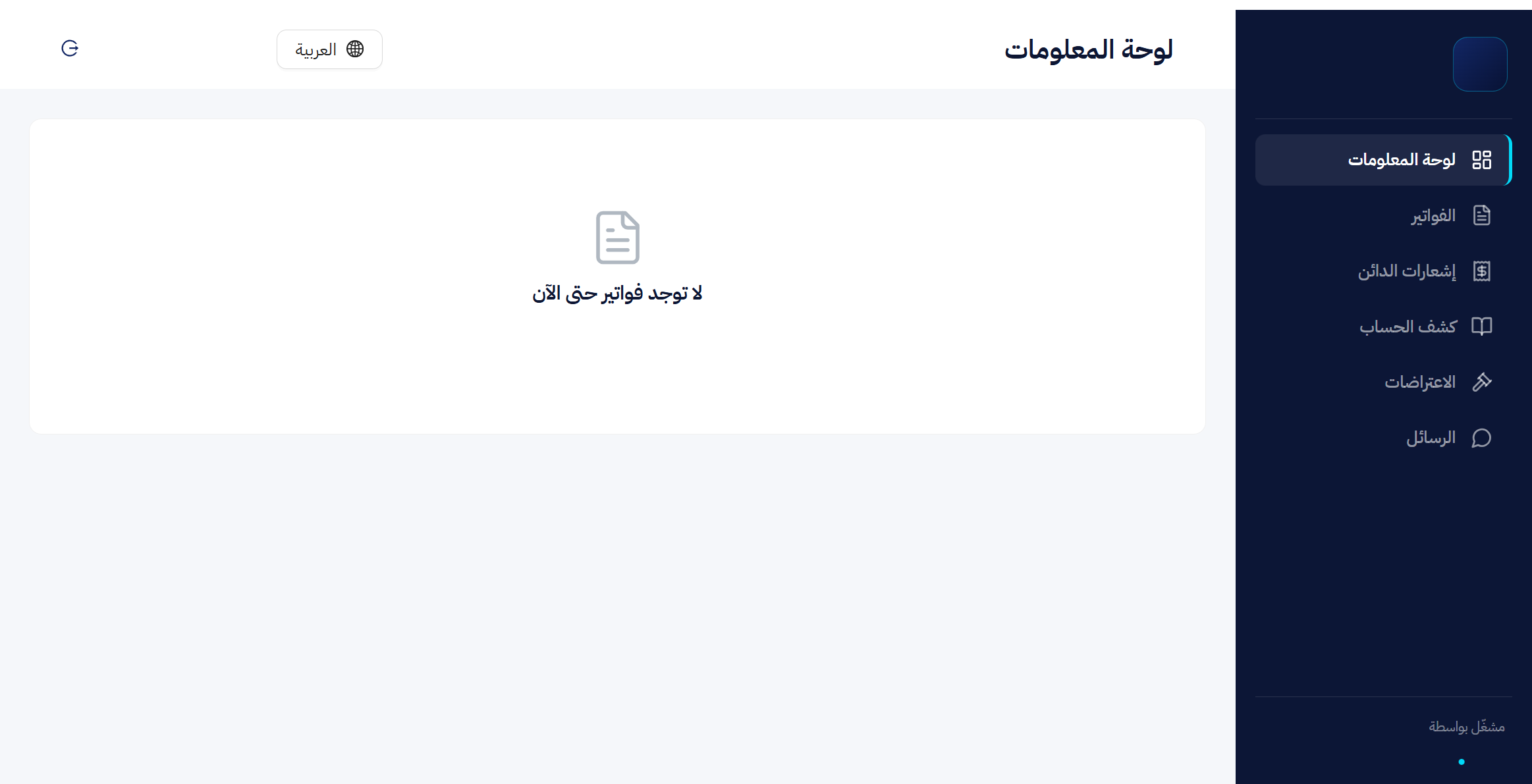
The sidebar lists six sections. Your business name sits at the top of the sidebar; the customer’s name and the language switch sit at the top of the page.
 View full size
- Dashboard (لوحة المعلومات): an overview of the invoices sent to them and what they need to pay. With no invoices yet, it says there are no invoices so far.
- Invoices (الفواتير): all their invoices by status: paid, partially paid and overdue.
- Credit notes (إشعارات الدائن): every credit note issued to them, filtered by All, Available, Partially used and Settled (الكل، متاح، مستخدم جزئياً، مسوّى).
- Account statement (كشف الحساب): where they create their statement for a period they choose.
- Disputes (الاعتراضات): the disputes they have raised on their invoices.
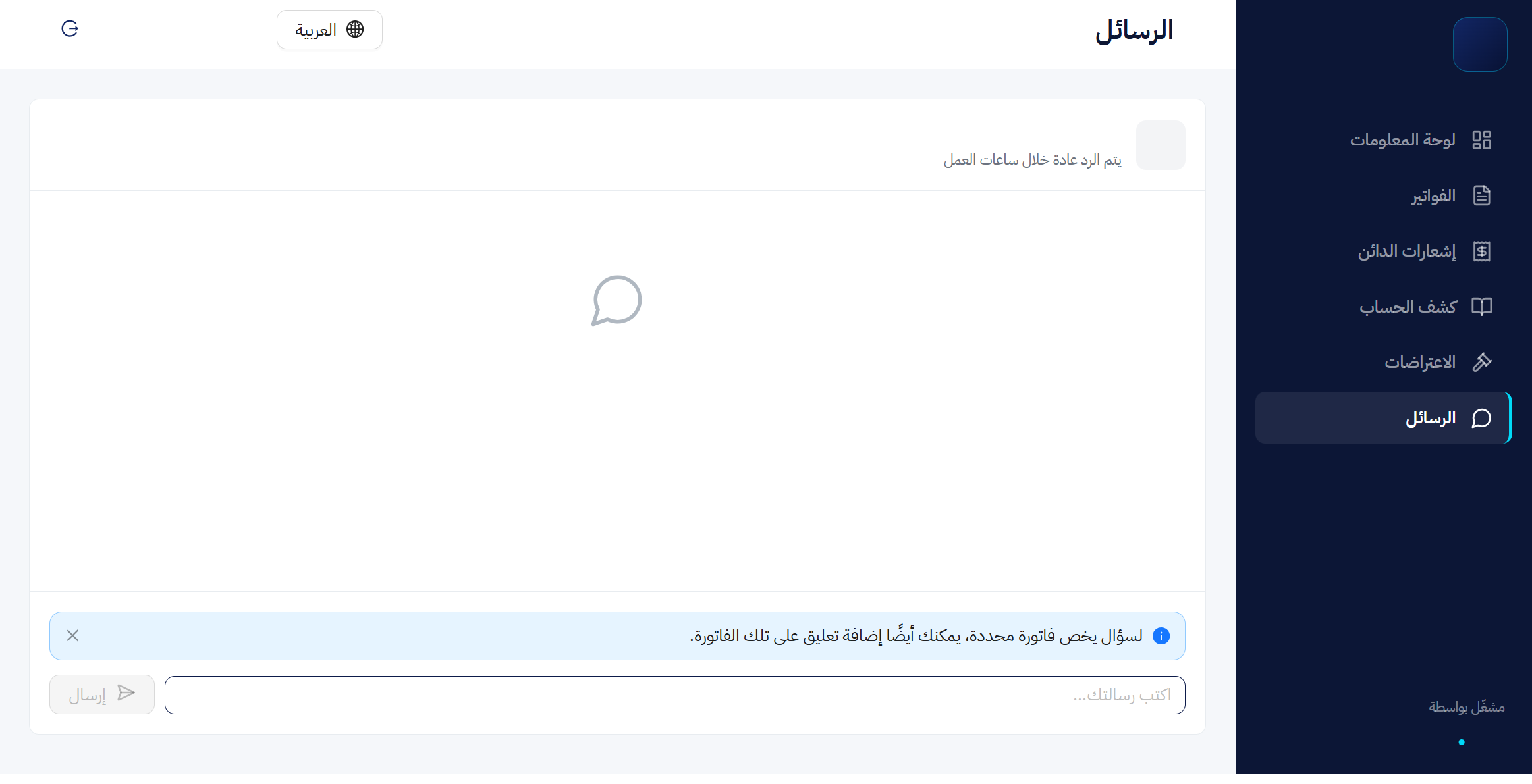
- Messages (الرسائل): a general conversation with your business.
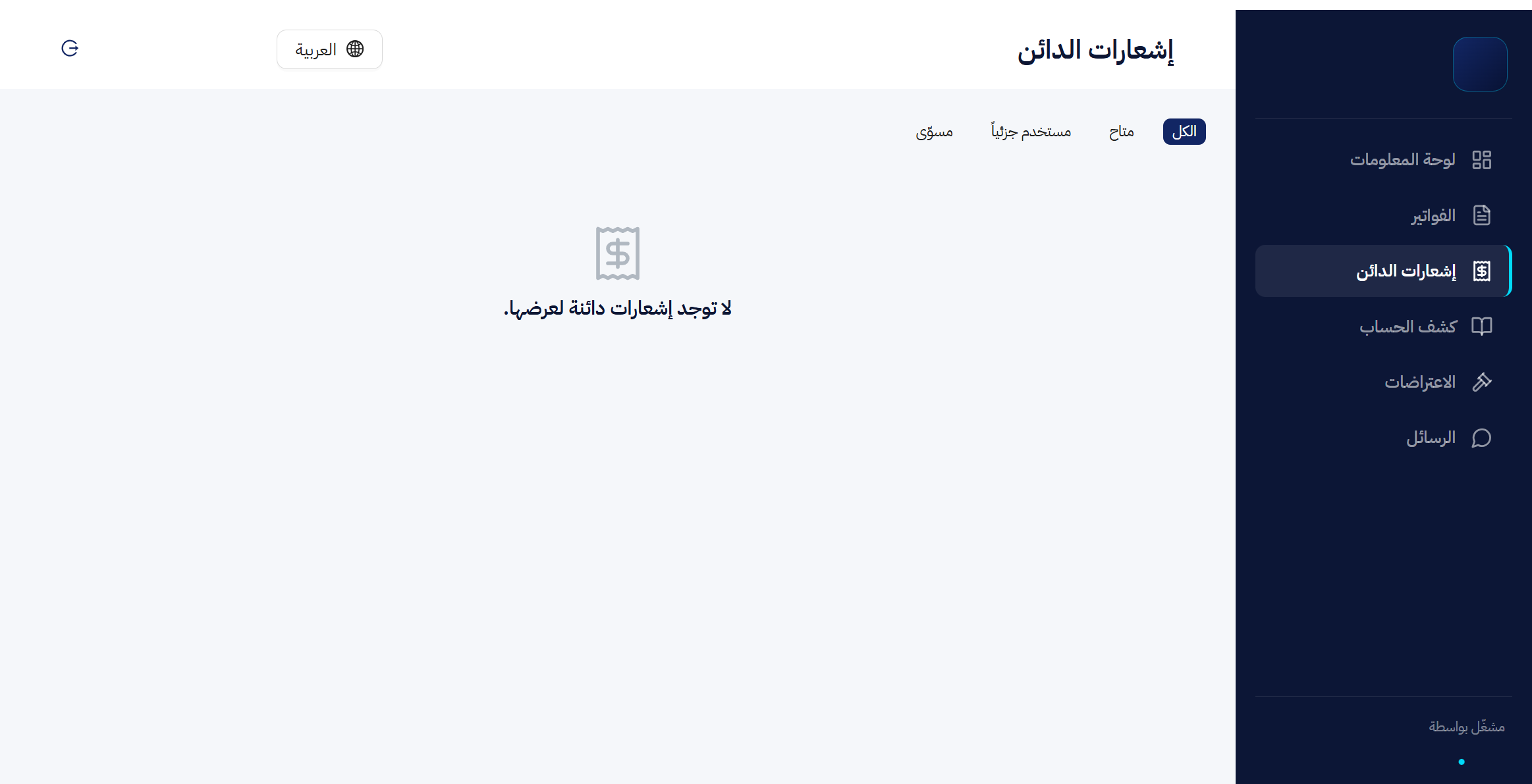 View full size
Paying an invoice
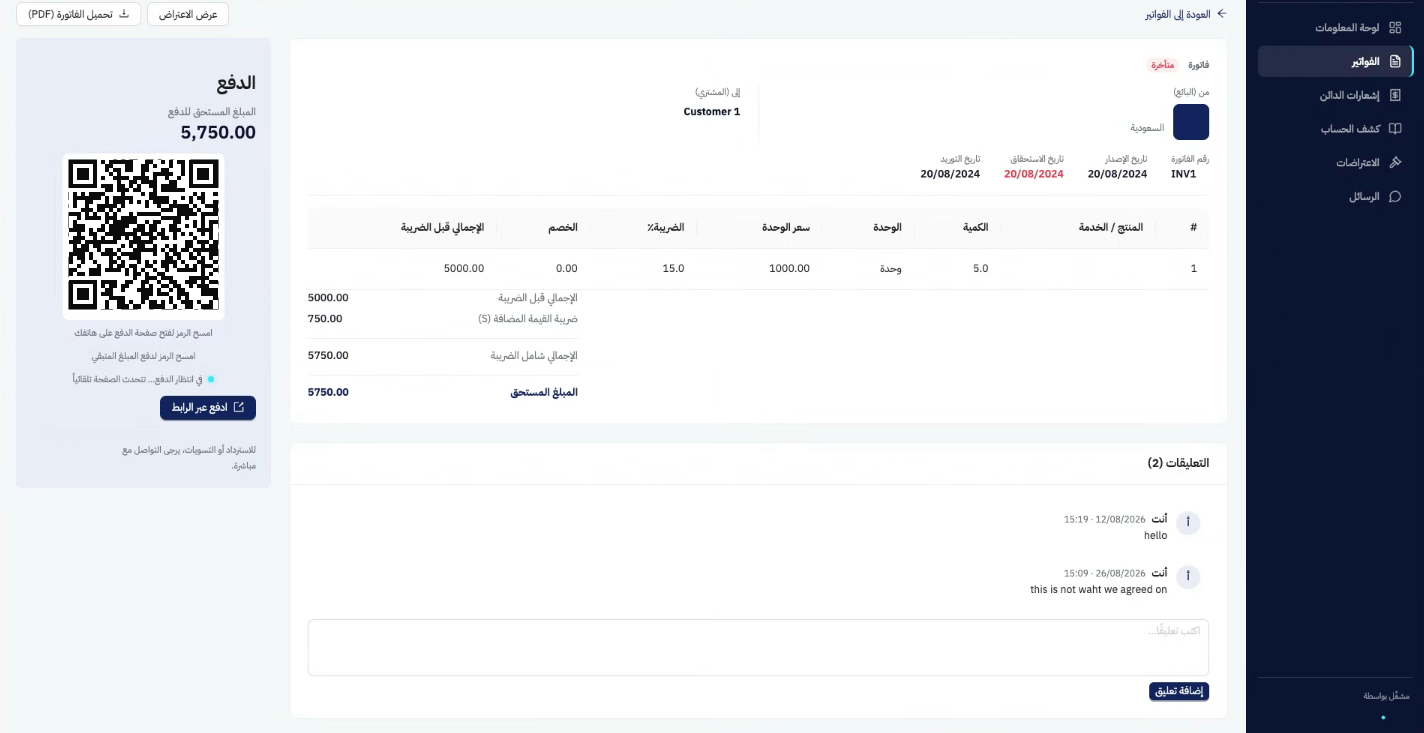
- Your customer opens Invoices, then the invoice they want to pay.
- The Payment panel (الدفع) shows the amount due.
- They scan the QR code with their phone to open the payment page, or click Pay via link (ادفع عبر الرابط).
- While the payment is pending, the panel says it is waiting for payment and that the page updates automatically.
The invoice page also shows the amount due, a Download invoice (PDF) button (تحميل الفاتورة (PDF)), a View dispute button (عرض الاعتراض), and a Comments section (التعليقات) with an Add comment button (إضافة تعليق). A Back to invoices link (العودة إلى الفواتير) returns to the list. The Payment panel asks your customer to contact your business directly about refunds or settlements.
 View full size
Creating an account statement
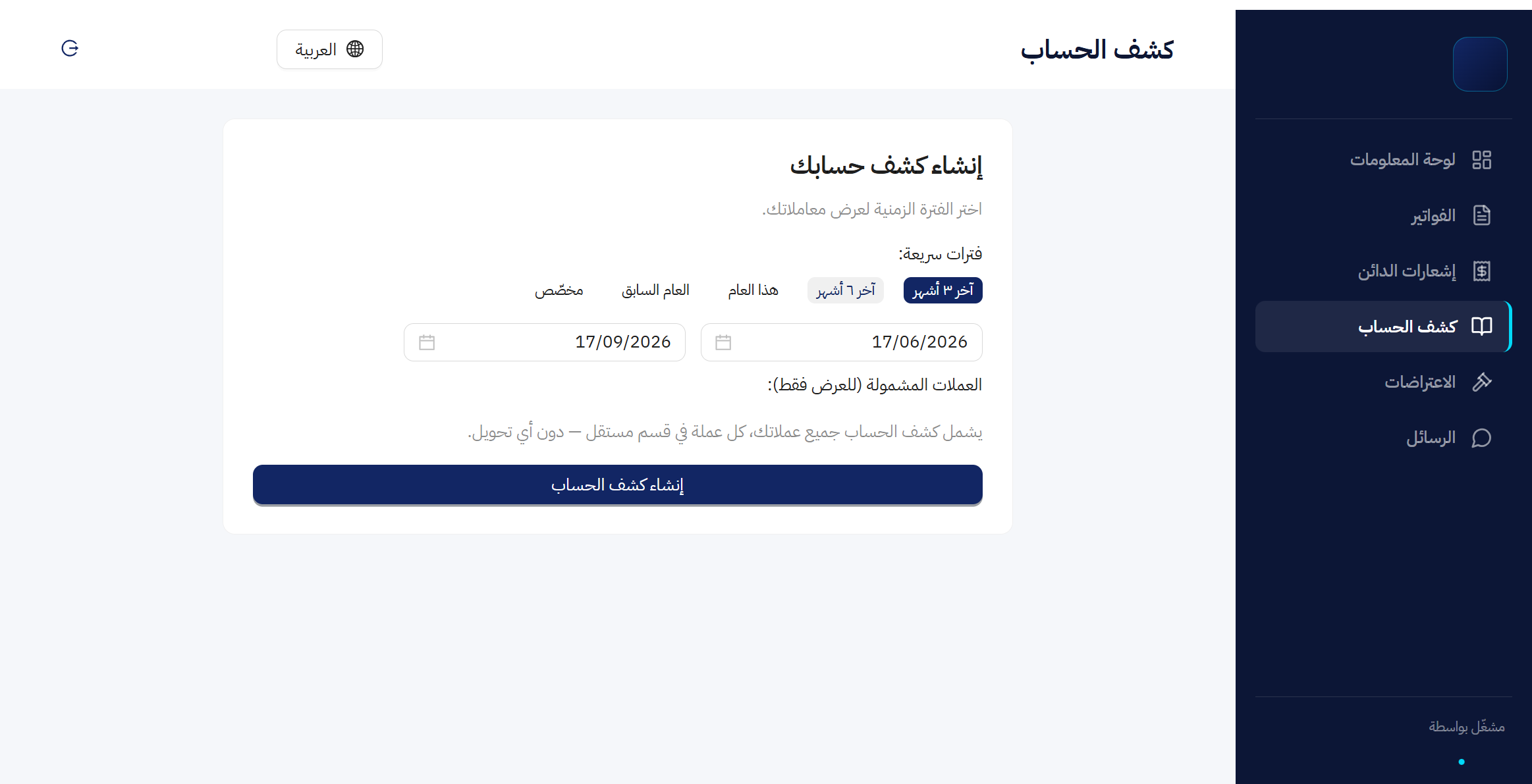
- Your customer opens Account statement and finds a card to create their statement, asking them to choose the period for the transactions to show.
- They pick one of the Quick periods (فترات سريعة): last 3 months, last 6 months, this year, last year or custom, or set a start and end date.
- They check Currencies included, for display only (العملات المشمولة (للعرض فقط)), then click Create statement (إنشاء كشف الحساب).
 View full size
Disputing an invoice
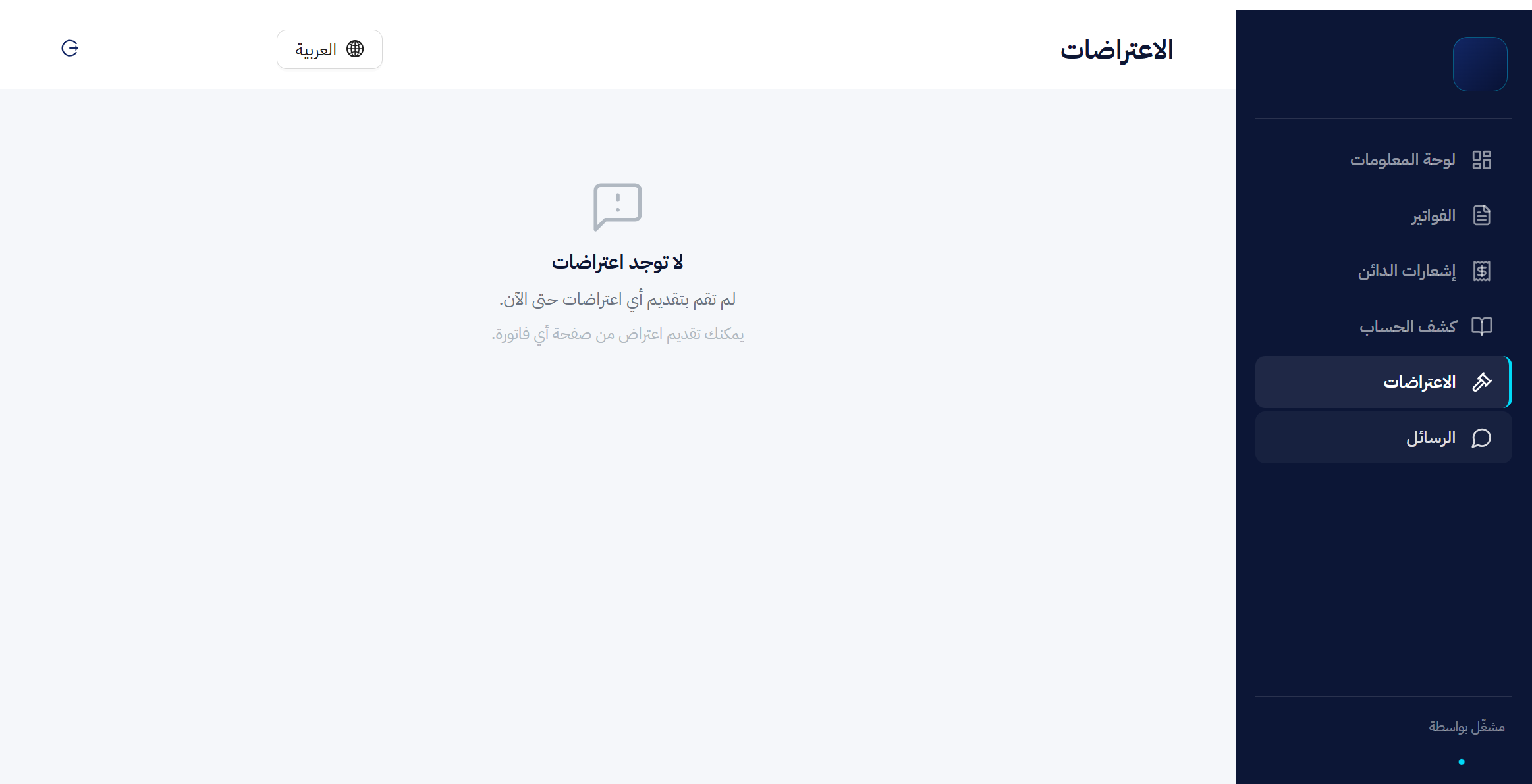
Your customer raises a dispute from the invoice page itself. It reaches you in the center’s Disputes tab, and they follow it from the Disputes section of their portal. Until they have raised one, that section tells them they have not submitted any disputes yet and can raise one from the page of any invoice.
 View full size
Commenting and messaging
- Comment: your customer writes it under the invoice in the Comments section, then clicks Add comment. It is the better route for a question about one invoice.
- Message: in Messages they type in the message box (اكتب رسالتك…) and click Send (إرسال). The top of the section shows your business name and says replies usually come during working hours.
 View full size
Key questions answered
How is the portal different from sending invoices by hand?
Sending an invoice file does not guarantee it gets paid. With the portal you stop sending each invoice by hand, and you see from one place which customers have paid and which invoices are paid or due.
Can my customer see other customers’ data?
No. Each portal is tied to one customer and shows that customer’s data only. Drafts and unapproved invoices never appear.
Does my customer need to create an account?
No. They open the portal without creating an account, and receive a verification code by email to enter it.
What language is the portal in?
Arabic or English. You set the default under Settings, Default portal language, and your customer can switch it from the language switch in the portal.
Can I turn off disputes or chat?
Yes, under Settings, then Portal features.
Is the add-on trial different from the Qoyod free trial?
Yes. The add-on has its own 14-day trial, with no credit card and no fee if you cancel during it, and its own end date, shown on the Add-on status card and under Settings, then Billing.
14-day free trial
Your late invoices in one place, and a portal for every customer
Try the AR Command Center free for 14 days, no credit card needed. See who is late paying and when reminders go out, and invite each customer to a portal where they pay their invoices.



