




This article explains the VAT exemption reason code alert in Qoyod, which appears when a VAT-exempt line item has no exemption reason code selected, and how to choose the approved code before submission to reduce the risk of invoice rejection.
When this alert appears
The alert appears when saving an invoice that contains a VAT-exempt line item without an exemption reason code (BT-121) selected. You can proceed, but choosing the approved code from the authority’s reasons list is advised so the invoice is submitted correctly. This alert concerns exempt line items and differs from the zero-rate tax alert, which concerns items at a 0% rate.
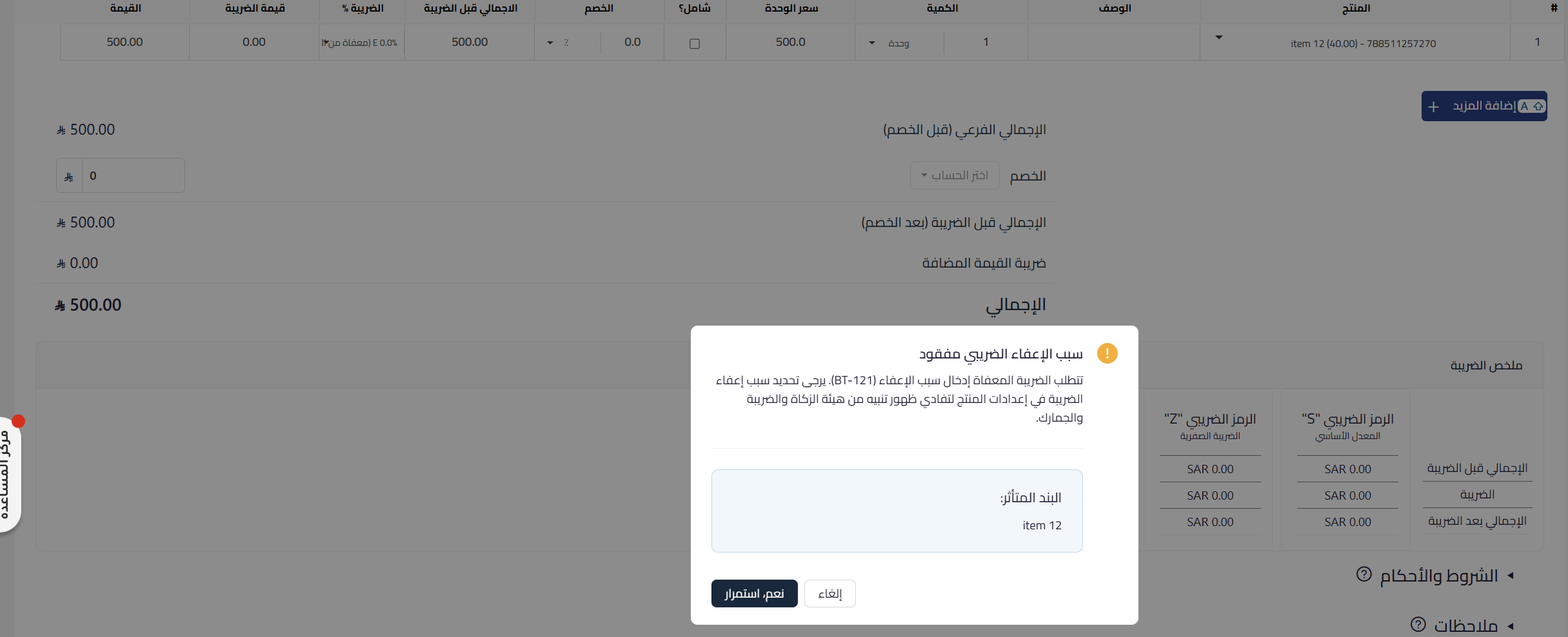 View full size
Path in Qoyod
Sales › Sales Invoices › Create sales invoice
Resolution steps
- When the alert appears, identify the affected VAT-exempt line item.
- Go to the product settings and choose the appropriate exemption reason code from the authority’s approved list.
- Return to the invoice and confirm the code appears on the line item.
- Complete saving the invoice and submitting it to the authority after adding the code.
Fields
- Exemption reason code (BT-121) (required for exempt items): the reason for exempting the item from tax, chosen from the authority’s approved reasons list.
- Line tax status: when the item is marked as exempt, the exemption reason code becomes required for the invoice data to be complete.
Notes
- This is a non-blocking guidance alert, and you can proceed, but submitting an exempt line item without the reason code raises the risk of invoice rejection by the authority.
- The exemption reason code shares the same field code (BT-121) used for zero-rate tax, but its values and tax category differ, so check that the item is genuinely exempt rather than at a 0% rate.
- The code is configured in the product settings, so once set it appears automatically on similar line items.



