




Guidelines on how to upgrade or downgrade the plan by the customer and the additional procedures that should be followed to ensure the process is completed.
Procedures to follow:
Customer Answer:
The customer can upgrade or downgrade the plan and change the plan through the following steps:
-
- Go to Settings – Subscription Settings.
- Click on “Manage Plan” and then “Change Plan“.
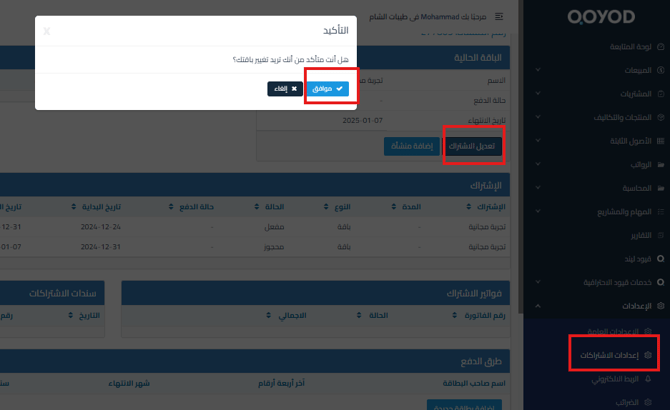
- A confirmation message will appear, click OK and choose the new plan while considering the following:
- In case of downgrading the plan:
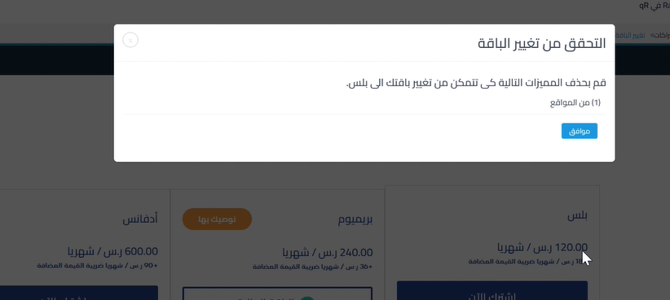
- The customer must delete any data or operations related to features that are not available in the lower plan.
- Example: If the lower plan does not include the fixed assets feature, you must delete all operations related to it before downgrading the plan.
A notification will appear saying “Please delete the following features” and you will see the features that require data deletion during the downgrade process, as shown in the attached image

- In case of upgrading:
- The difference between the two plan values is calculated proportionally based on the remaining subscription period.
- Practical example:
- The customer is on the “Premium” plan worth 1852 SAR (tax inclusive).
- After half the subscription period, the customer wants to upgrade to the “Advanced” plan worth 3312 SAR.
- The difference is calculated: (3312 – 1852) ÷ 2 = 730 SAR.
- 730 SAR is paid and you move to the higher plan for the remaining period.
- In case of downgrading the plan:
- In case of downgrading:
- If his plan is monthly and he wants to downgrade it, he is required to pay the full cost of the new monthly plan (to be downgraded to) and will immediately switch to it from the downgrade date and the old plan will end, so it is recommended to downgrade at the end of the current plan period.
- Practical example:
If the customer is on the Premium plan and subscribed on 1-12-2024 and wants to switch to the Plus plan on 10-12-2024, he is required to pay the full value of the new plan and will immediately switch to the new plan from 10-12-2024 to 10-1-2025.

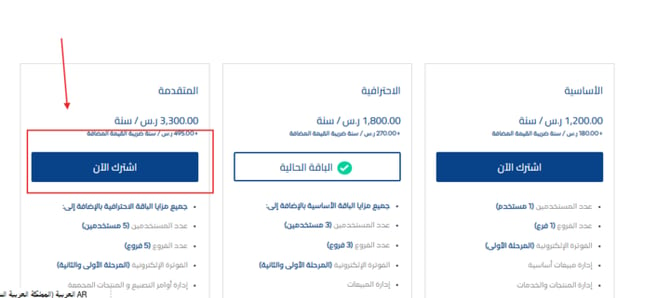
5. After selecting the plan, the following will appear:
-
-
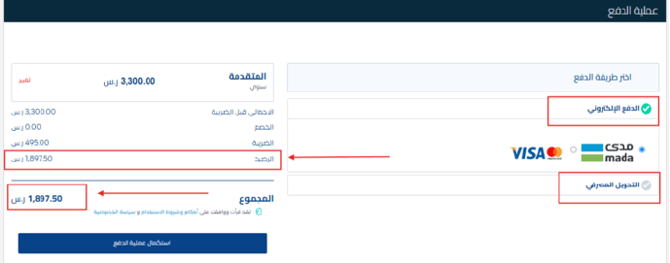
Current subscription balance
-
Amount due after upgrade
-
Available payment methods

-
-
If you have a special discount:
-
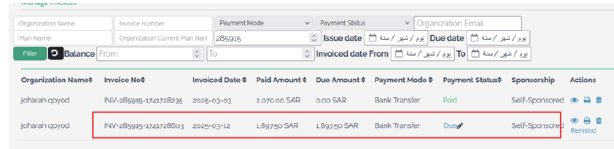
It is preferred to select Bank Transfer, as after selecting Bank Transfer, the invoice will be reflected in the admin page in Qoyod as shown without discount.

-
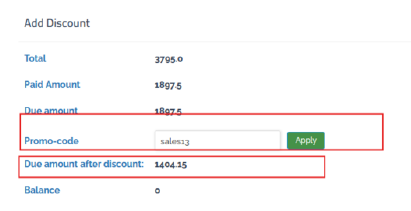
After that, the discount will be manually activated by the subscriptions staff.

-
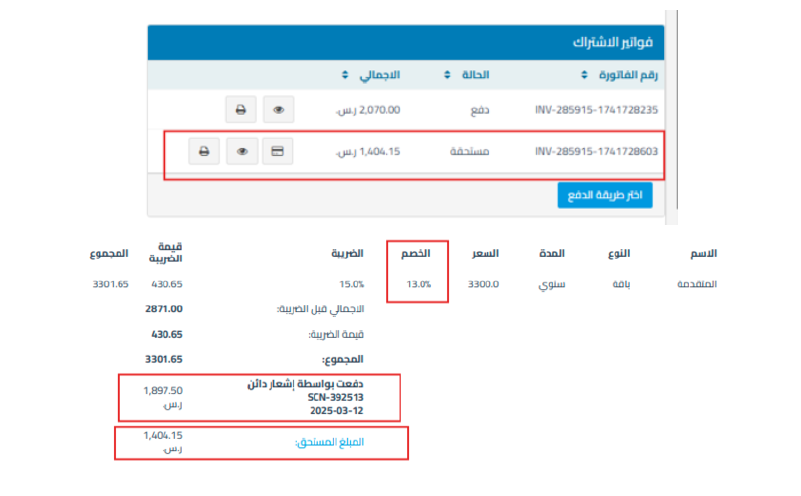
The discount will be reflected in the invoice within subscription settings.

-
After the update, you can pay via electronic payment or bank transfer
-
Additional notes:
If the subscription and grace period have ended, the “Modify Subscription” option will not appear, and after entering subscription settings, the plans will appear and you can select the plan you want to activate again.



