




You can easily search for customers using additional information by following these steps:
- Navigate to the Sales menu.
- Select Customers.
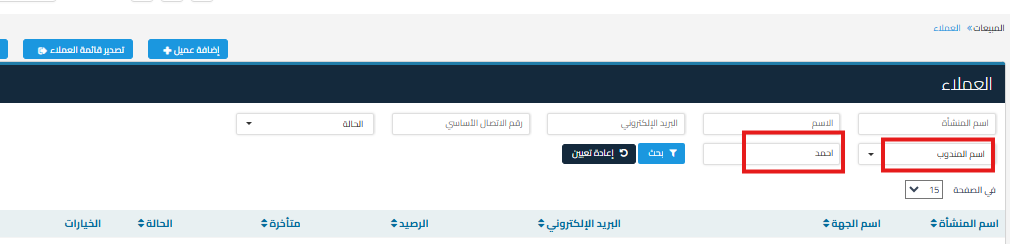
- From the Filter options, select the required additional field (for example: sales representative name).
- Enter the sales representative name or the value you want to search for in the additional field.
- Click on Search
Exporting Data After Filtering:
- You can export the filtered customer list to an Excel file by clicking on the “Export Customer List” icon located in the top options.
Additional Notes:
- Only previously enabled additional fields will appear in the filter options.
- You can refer to the detailed helper content for exporting customers:
How to Export Customer Data to Excel.



