Here is an explanation of the problem where data appears in a single cell when exporting Excel files and its formatting is incorrect. When exporting data from the system, it may appear in a single cell instead of being distributed across columns properly.
Solution:
- To adjust Excel settings and display data correctly:
- Open Excel.
- From the top menu bar, select Data.
- Click on Get External Data > From Text.
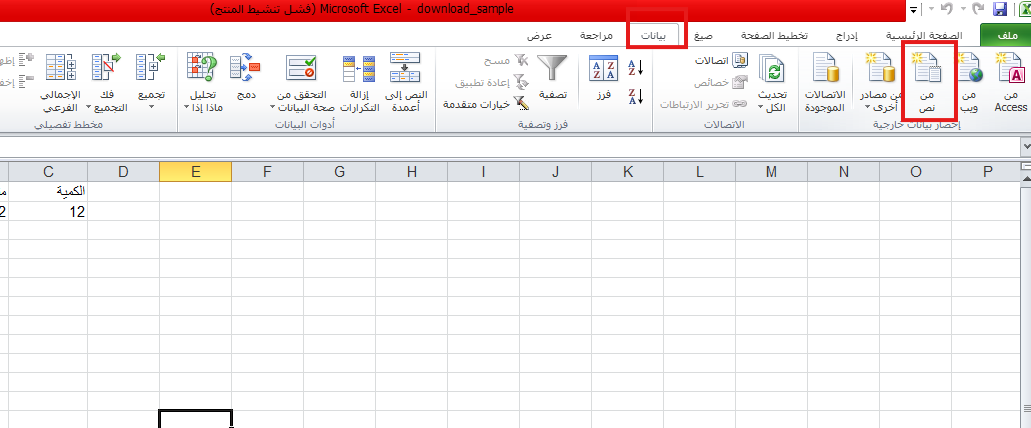
- Select the Excel file that you exported from the program.
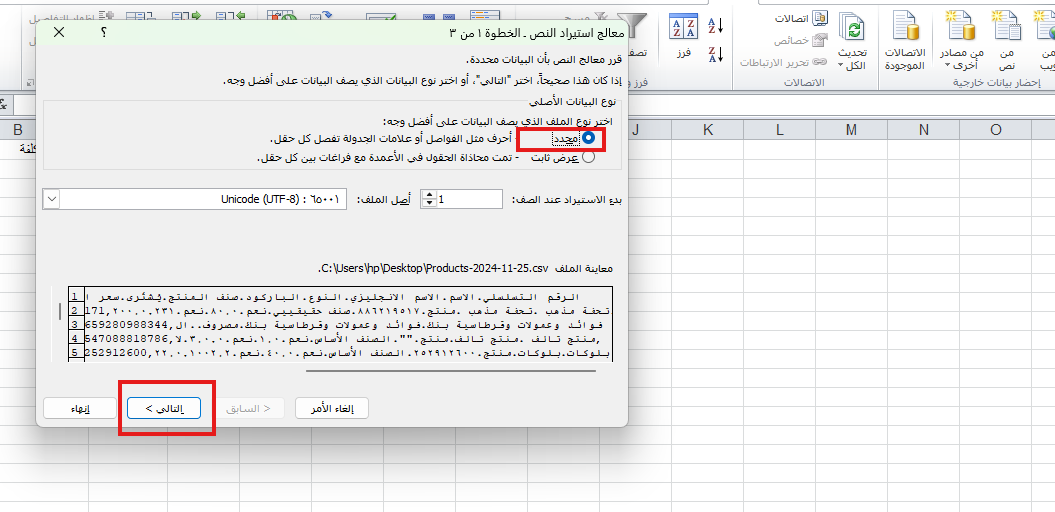
- In the Data Import window:
- Select the Delimited option and click Next.

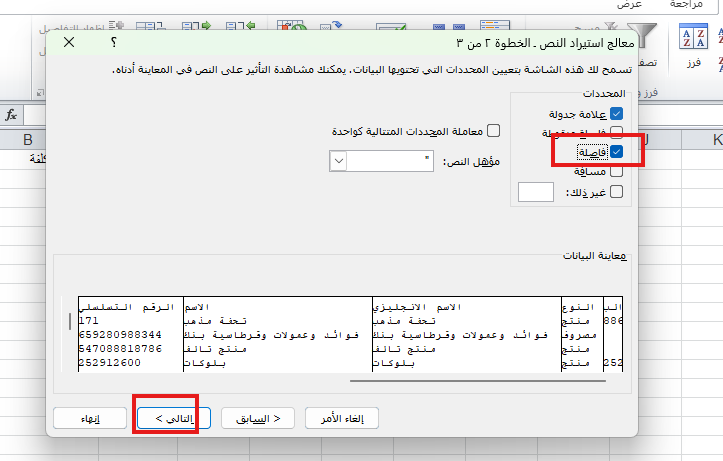
- Choose Comma as the column delimiter.

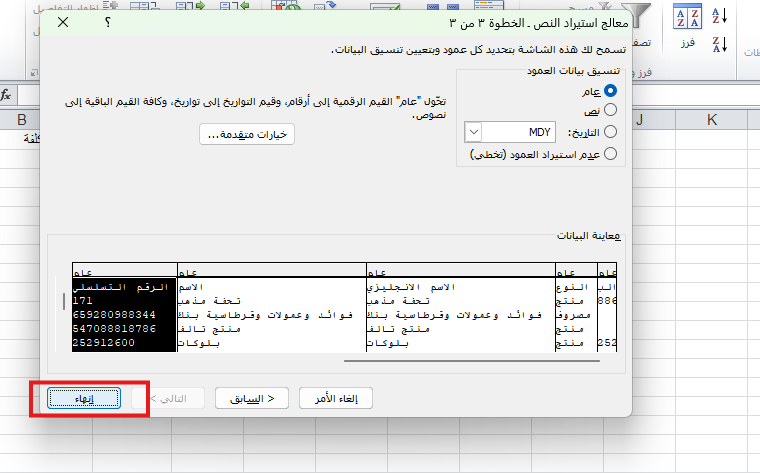
- Click Next, then click Finish.

- Select the Delimited option and click Next.
- The data will now appear distributed correctly across the columns.