




Yes, you can customize the format and layout of manual journal entries according to your needs, and add the accountant’s signature if you’d like.
Steps
-
Create a New Template
-
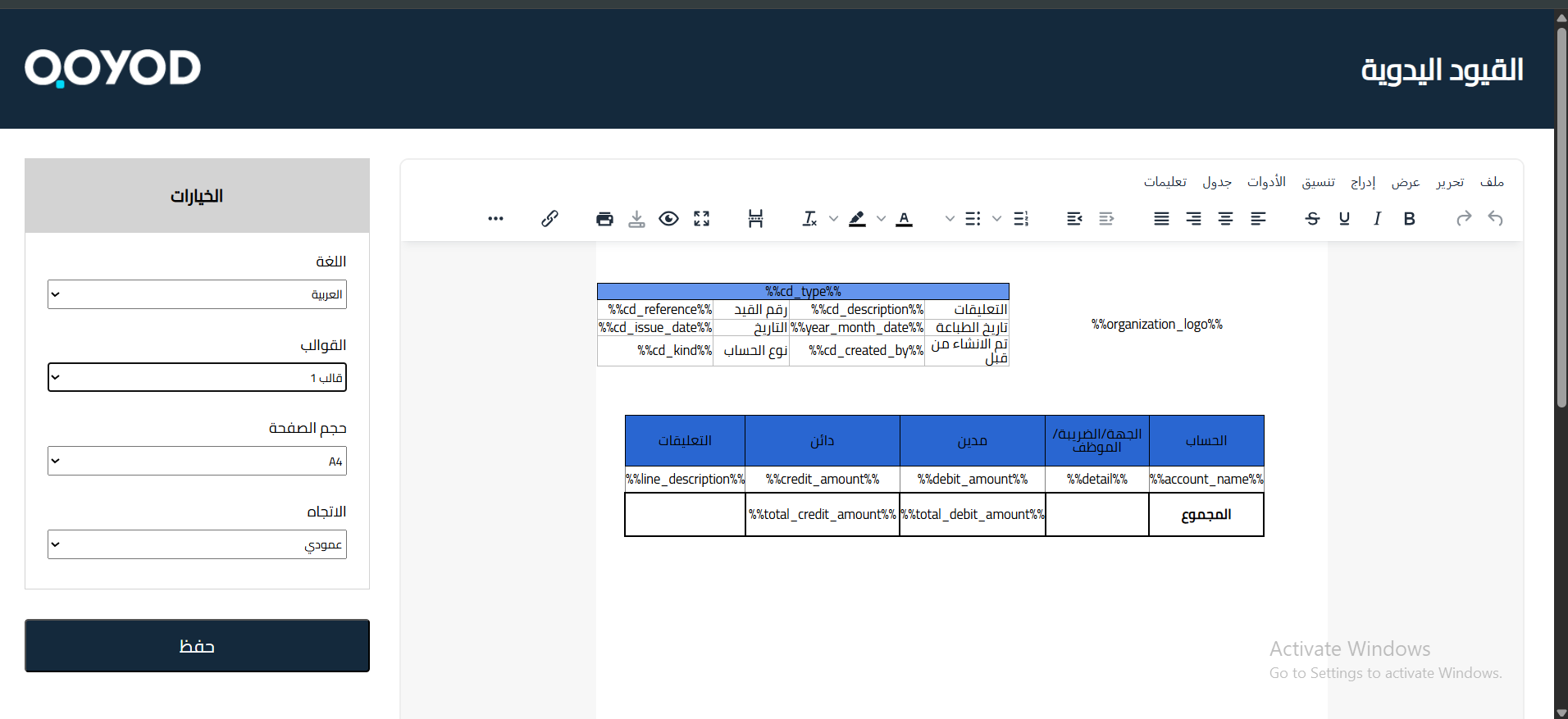
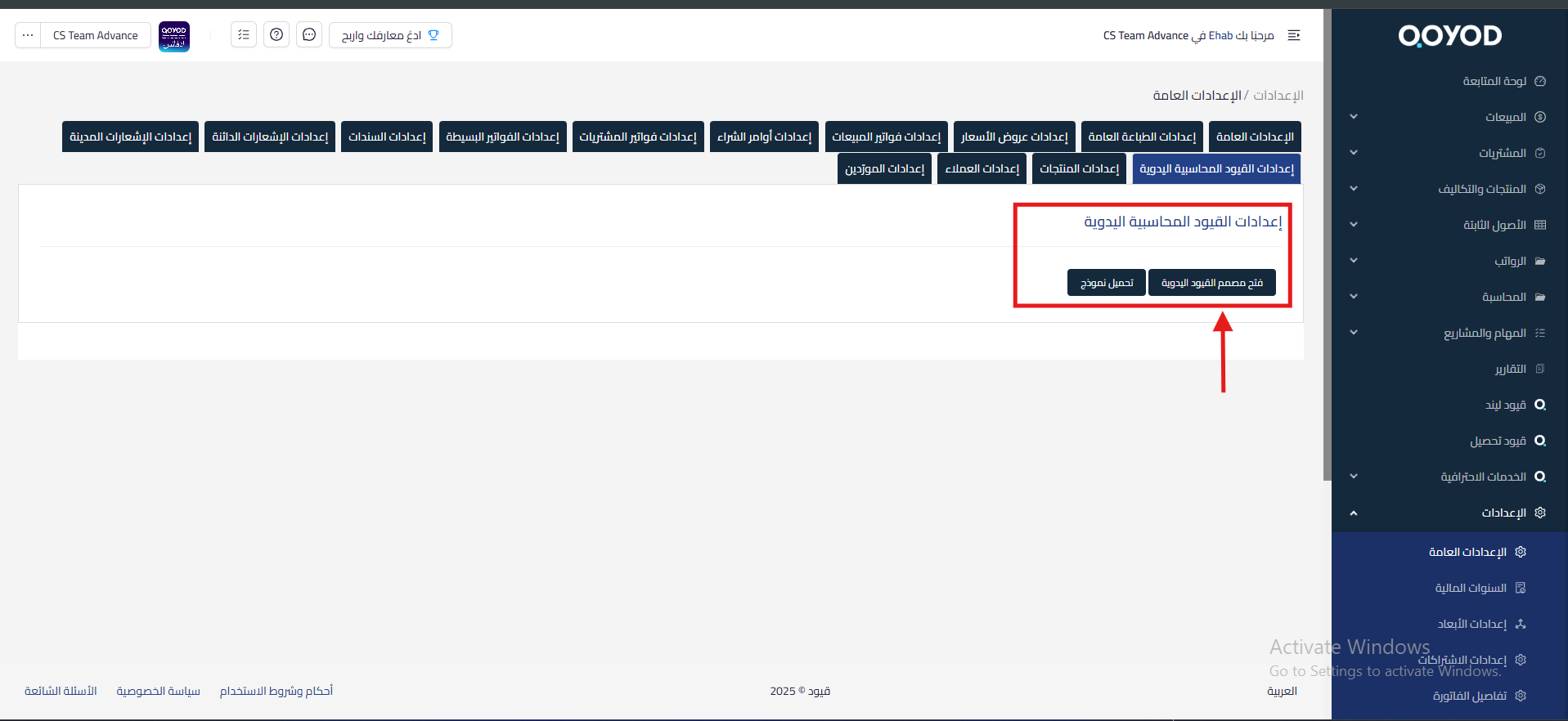
Go to Settings and then Manual Entry Settings from the top options.
- Click on “Manual Entry Designer”.
-
You can start designing from scratch or choose from existing templates and modify them by clicking on “Templates” next to the page and selecting the template.
-
Choose the language that suits you (Arabic or English).
-
-
Customize the Template
-
Edit the design as you like
-
Select the page size (A4 or A5) and its orientation (portrait or landscape)
-
Add any additional data you want, such as: a space for the accountant’s signature.
-
-
Preview the Template
-
Click on preview before saving
-
Make sure everything is in its correct place
-
-
Save and Use the Template
-
Save the template.


-
Data That Can Be Added in the Manual Entry Designer
You can control the data displayed within the manual entry design through the manual entry designer, by entering the designer and then clicking on ( … ) next to the toolbar.
How to Access Data Addition Options
-
Enter the document designer.
-
Click on the ( … ) icon next to the toolbar.
-
Select the data you want to add to the design.
Types of Data That Can Be Added Through the Designer
First: Organization Data
-
Organization Name
-
Logo
Second: Document Details
-
Document Type
-
Reference
-
Issue Date
-
Created By
-
Account Type
Third: Rows
-
Account Name
-
Details
-
Credit
-
Debit
-
Total Credit
-
Total Debit
-
Comments
Fourth: Date and Time
-
Date
-
Time
Important Notes
-
Preview is important before saving to ensure the final appearance.
- Currently, the name of the project associated with the manual entry cannot be displayed in the manual entry design.
- If a custom template is designed and then another template is selected, the old design will be deleted and cannot be recovered.
-
After using the new designer, you can return to the default designer by going to Settings, then General Settings, then Manual Accounting Entry Settings, and you will find the “Default Designer” option at the bottom of the page.



