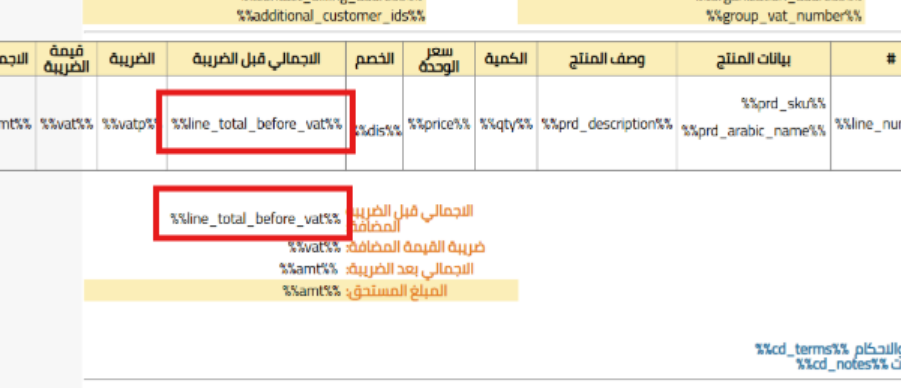
Reason for Error “Item Box Cannot Be Duplicated”
When designing invoices or business documents
You may encounter this error when trying to save an invoice design or any business document in the document designer in Qoyod.
This error is directly related to document design
What is Meant by “Item Box”?
In the invoice designer, all data added to the design is inserted as pre-made items (Codes), such as:
-
Business name
-
Customer or supplier name
-
Row details (quantity, price, discount…)
-
Subtotal, tax, total
-
QR code
-
Any element added by clicking the ( … ) button next to the toolbar
️ None of these items can be duplicated more than once in the same design.
Why This Error Appears
This error appears due to:
-
Adding the same item more than once in the design
-
Inserting the same code in multiple locations (even if in different areas of the invoice)
When Does This Error Appear?
-
It appears only when saving the design
-
It appears as an error message at the top of the designer
Does This Error Only Apply to Sales Invoices?
No.
This error can appear in all business documents, such as:
-
Sales invoices
-
Purchase invoices
-
Price quotes
-
Purchase orders
-
Credit and debit notes
-
Vouchers
-
Manual journal entries
What is the Impact of This Error?
This is design error only:
-
It only prevents saving the design until the duplication is corrected
How to Solve the Problem
-
Open the document design
-
Review all items added to the design
-
Make sure that:
-
Each item is added only once
-
There is no duplication of the same element (business name, customer, total, rows…)
-
-
Delete the duplicate item
-
Resave the design
Tip to Avoid This Error in the Future
-
When using pre-made templates, do not add the same items again
-
Before saving, review the entire design and make sure no element is duplicated
-
If you have difficulty identifying the duplication, start with a clean template or reset the default design and then modify it