




This article explains how to create, edit and archive your products from Qoyod POS, on the Web and on the Android app, and how to manage categories, units of measure and product settings without opening Qoyod accounting.
What is this, and when do you use it?
Qoyod POS lets you manage your full product catalog from the POS itself. Every product you create there is a complete Qoyod product, with its accounts and the ZATCA tax reason where one is needed. Use it in these cases:
- Adding a new product or service and selling it right away from the POS.
- Changing a product’s price or details without going back to the accounting system.
- Creating a recipe, a product made of other products.
- Taking a product off the sales screen while keeping its past invoices.
See the release announcement for what was added.
Before you start
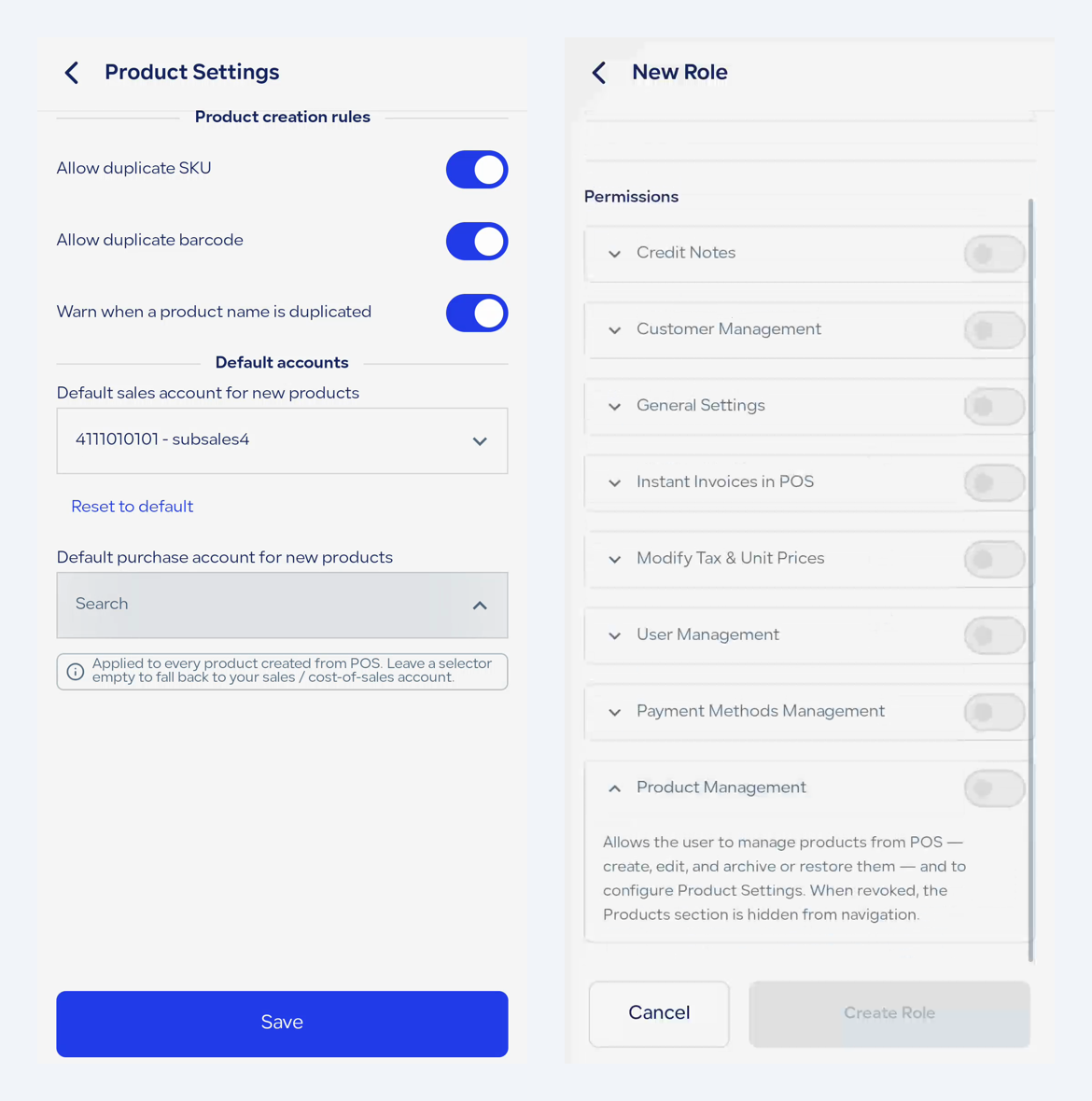
- Your role needs the Product Management permission, and product settings also require the Settings permission.
- Saving products needs an internet connection.
- If you changed the standard accounts in the chart of accounts, set the default accounts in product settings before creating products.
The path in Qoyod
On the Web POS:
Products › Add Product
On the Android app:
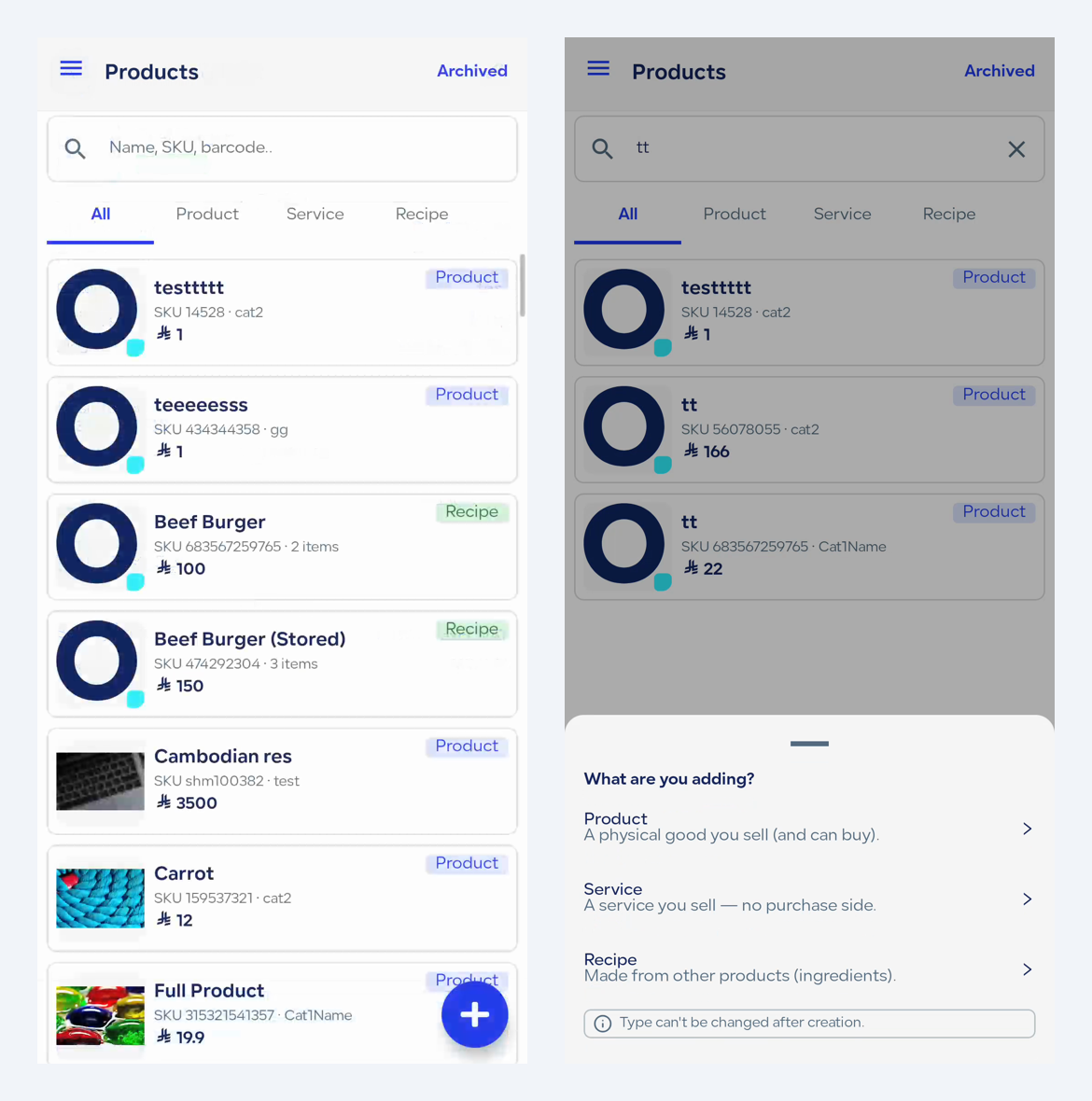
Side menu › Products › Add button
For product settings:
Settings › Product Settings
 View full size
Steps
Create a product or service
- Open Products and select Add Product.
- Choose the type: Product, Service or Recipe. The type cannot be changed after you save.
- Enter the name in Arabic or English; one is enough.
- Choose the category and the unit of measure.
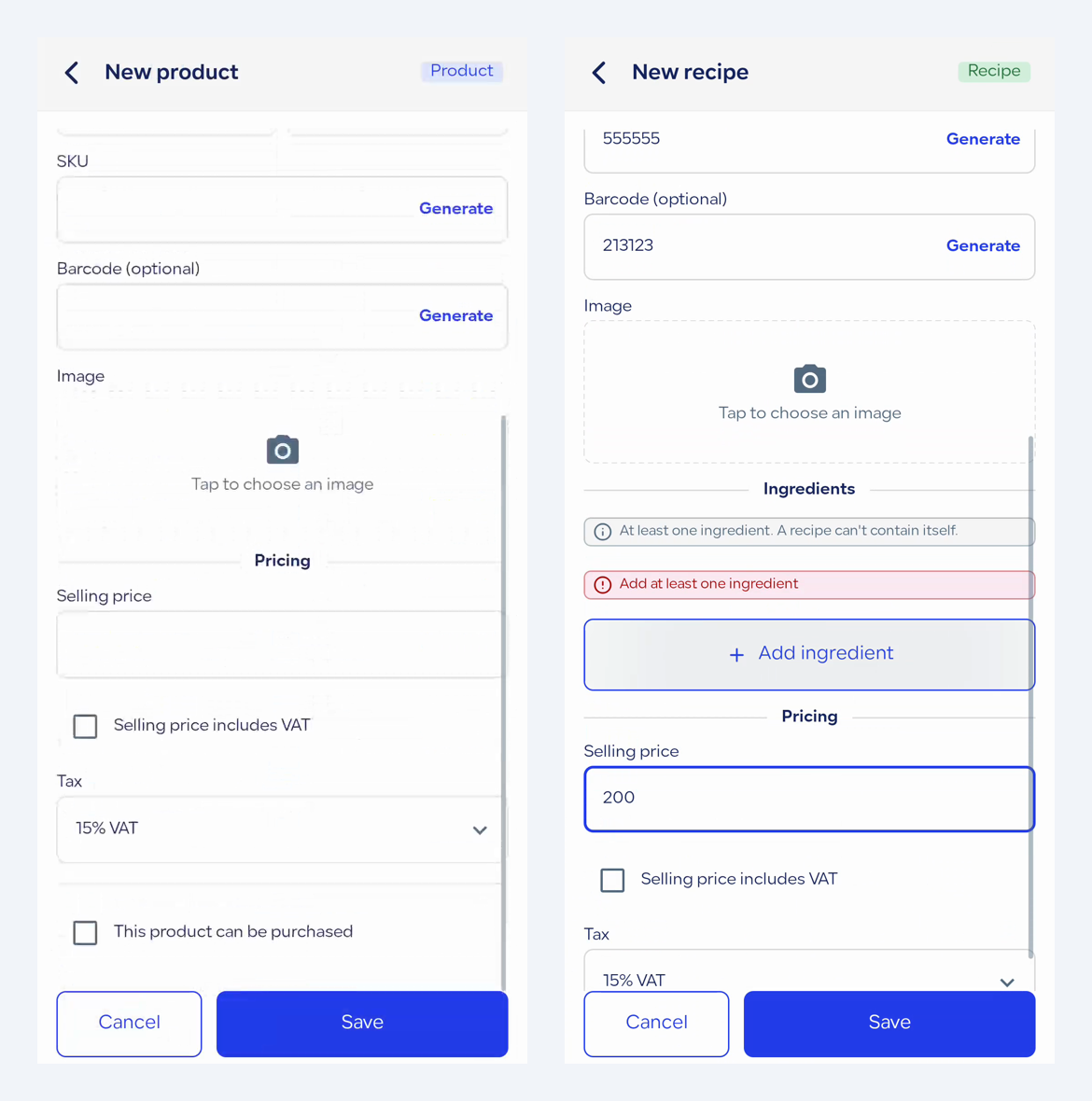
- Enter the selling price, set whether it includes VAT, then choose the tax.
- If you choose a zero-rated, exempt or not-subject tax, pick the reason from the list that appears.
- Select Generate next to the SKU and the barcode, or type them by hand.
- For the Product type only: turn on “This product can be purchased” if you need it, then enter the buying price and set whether it includes VAT.
- Select Save. The product is available for sale on the POS right away.
Create a recipe
- Select Add Product and choose the Recipe type.
- Fill in the name, category, unit, price and tax as for a regular product.
- In the ingredients section, add each ingredient: choose the product, enter a quantity above zero, and choose the unit.
- Repeat for the remaining ingredients, then select Save.
 View full size
Archive or unarchive a product
- Select the product in the products list to open its details.
- Select Archive.
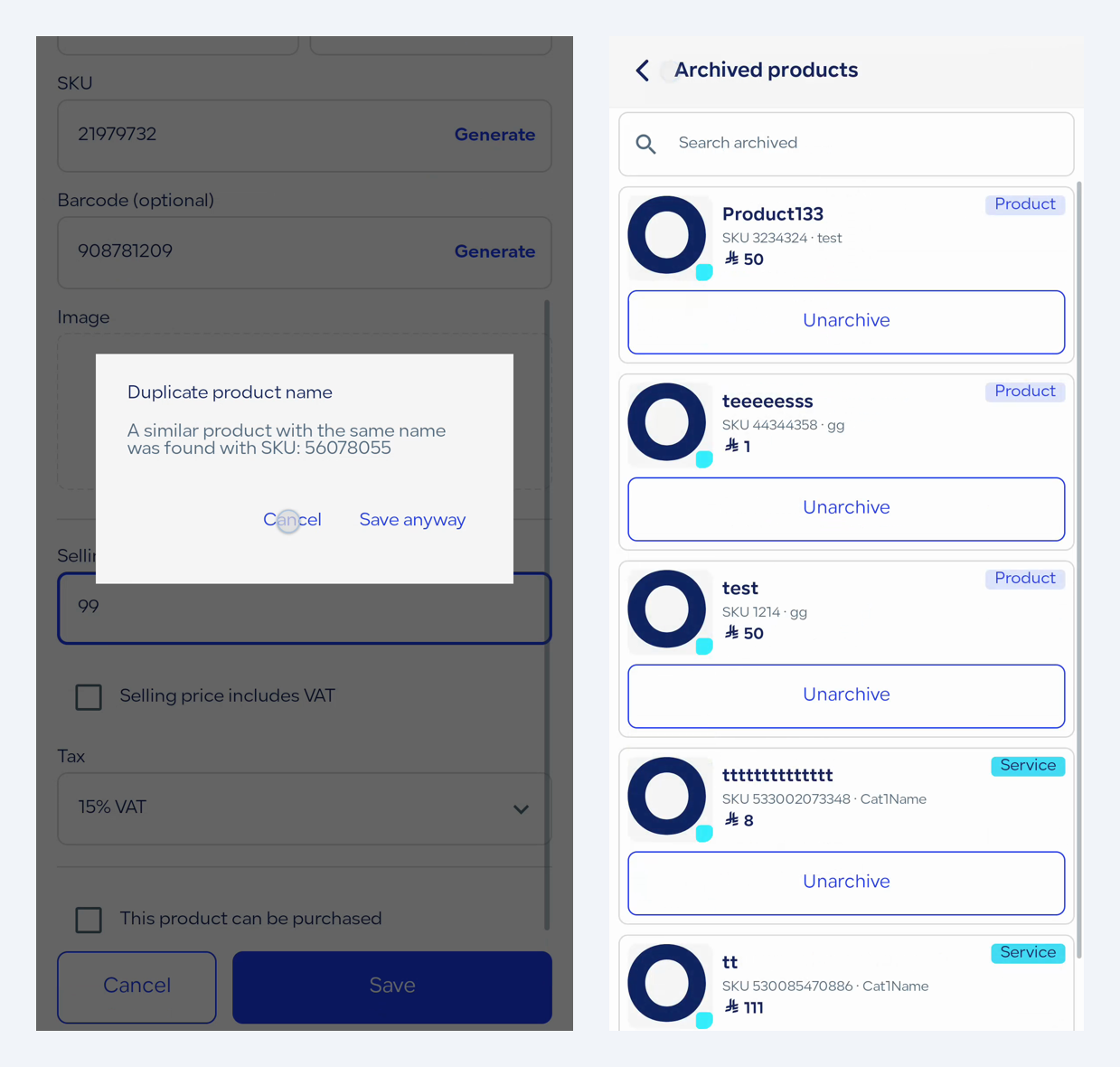
- To bring it back, show archived products (the Archived filter on the Web, or the Archived products screen in the app), then select Unarchive.
 View full size
Add a category or unit of measure
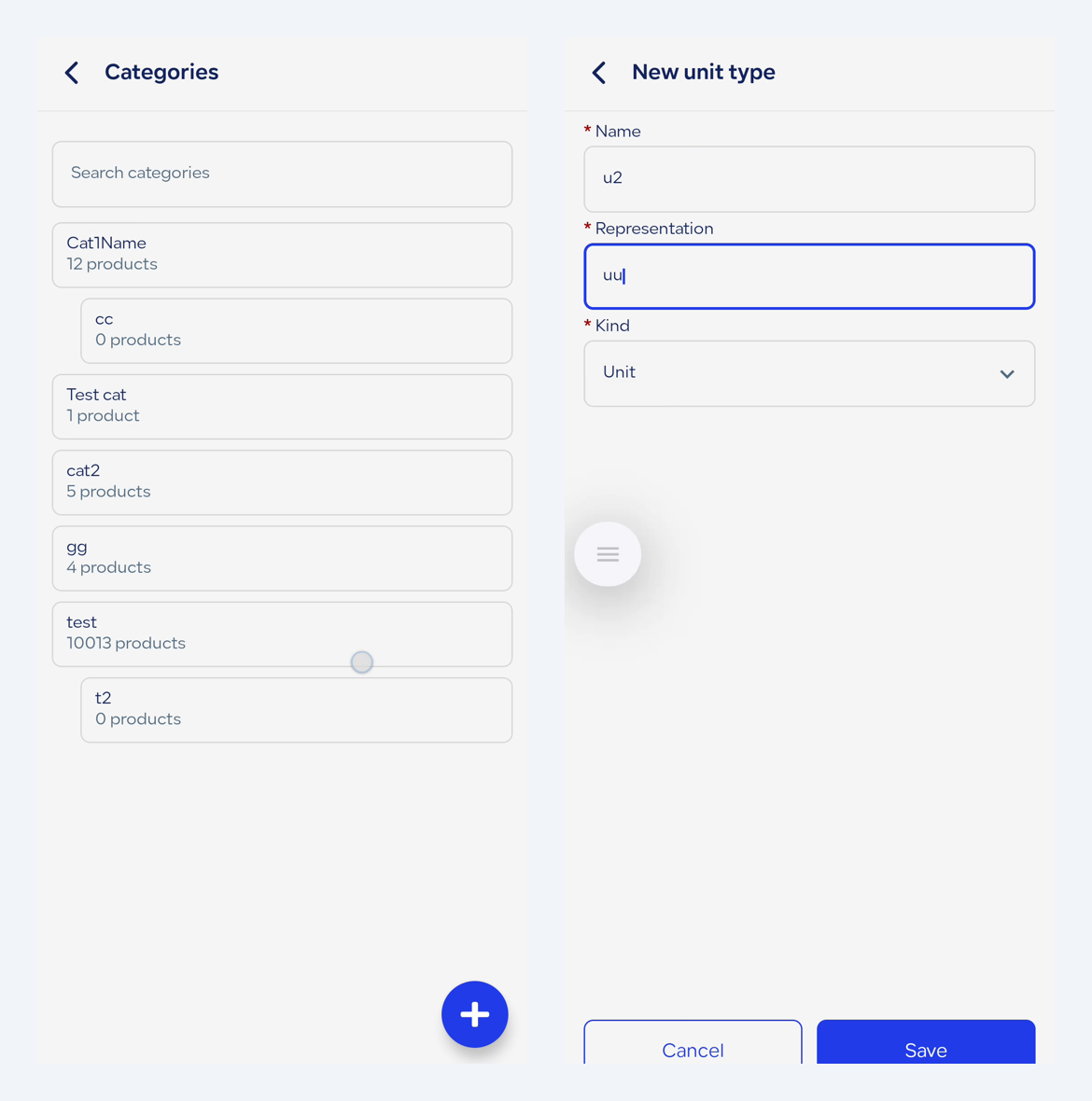
- On the Web, open the Categories or Units of Measure tab inside Products. In the app, you find both under Settings.
- Select the add button.
- For a category: enter the name, and choose a parent category if it is a sub-category.
- For a unit of measure: enter the name and the symbol, and choose the kind.
- Select Save. You can also add a new category or unit from inside the product form.
 View full size
Set up product settings
- Open Settings, then Product Settings.
- Under Product creation rules, set how duplicate SKUs, duplicate barcodes and duplicate product names are handled.
- Under Default accounts, choose the default sales account and default purchase account for new products.
- Select Save.
 View full size
Fields
- Type (required): Product, Service or Recipe. Fixed after creation.
- Arabic name / English name: entering one is enough.
- Description (optional): text that describes the product.
- Image (optional): from the camera or gallery in the app, or an upload of up to 5 MB on the Web.
- Category (required): one of your categories, or a new one from inside the form.
- Unit of measure (required): one of your units, or a new one from inside the form.
- Selling price (required): with whether it includes VAT.
- Tax (required): the tax applied to the product.
- Tax reason (required for a zero-rated, exempt or not-subject tax): only the reasons that match the selected tax are offered.
- SKU (required): generated automatically or typed by hand.
- Barcode (optional): generated automatically or typed by hand.
- This product can be purchased (Product type only): adds a buying price with its own VAT-inclusive switch.
- Ingredients (Recipe only): a product, a quantity above zero and a unit for each, with at least one ingredient.
Special cases
A name already used by another product
A warning shows the SKU of the product that carries the same name. You can change the name, or choose Save anyway to continue.
A duplicate SKU or barcode
Duplicates are checked against the Product creation rules in product settings. Use Generate to get a unique value.
A zero-rated or exempt tax
The product cannot be saved until a reason is chosen. Choosing the right reason at creation helps you avoid the VAT exemption reason code alert and the zero-rate tax reason code alert.
Deleting a product that was already used
Delete is available only for products never used in sales, purchases, stock movements or recipes. If the product was used in any of them, archive it instead.
Deleting a category or unit of measure in use
A category cannot be deleted while it holds products or sub-categories, and a unit of measure cannot be deleted while any product uses it.
Product creation blocked with an accounts message
This happens when no default account is set and the standard accounts were changed in the chart of accounts. Open Product Settings, choose the default sales and purchase accounts, then try again.
Notes
- The product type cannot be changed after creation, and the unit of measure is locked once the product has transactions.
- When offline, a message explains that saving needs a connection, and selling from saved products continues.
- Products created at the POS do not track quantity in this phase. See why product quantities cannot be added from the POS app.
- Selling a recipe does not deduct ingredient stock.
- Recipes require the advanced products feature on your plan.
- An archived product leaves the sales screen and the active list, and its past invoices are kept.
- Categories have two levels only: a parent category and sub-categories under it.
- There are six kinds of units of measure: Unit, Weight, Working Time, Length or Distance, Area, Volume.
Frequently asked questions
Do I need to open Qoyod accounting to add a product to the POS?
No. You create the product from Products in the Web POS or the Android app, and it is available for sale right after you save. It is a complete Qoyod product with its accounts.
Can I change a product’s type after creating it?
No. You choose the type (Product, Service or Recipe) at creation, and it cannot be changed after you save.
What is the difference between archiving and deleting a product?
Archiving takes the product off the sales screen and the active list and keeps its past invoices, and you can unarchive it later. Deleting is available only for products never used in sales, purchases, stock movements or recipes.
Why am I asked for a tax reason?
The reason is required when you choose a zero-rated, exempt or not-subject tax, and only the reasons that match the selected tax are offered, so the product’s tax data is complete from the start.
Does selling a recipe deduct its ingredients from stock?
No. Selling a recipe does not deduct ingredient stock, and products created at the POS do not track quantity in this phase.
Can I create a product while offline?
No. Saving products needs an internet connection. When offline, a message explains this, and selling from saved products continues.
Who can manage products from the POS?
Users whose role has the Product Management permission. Changing product settings also requires the Settings permission.




