




To configure which products appear on your POS, follow these steps:
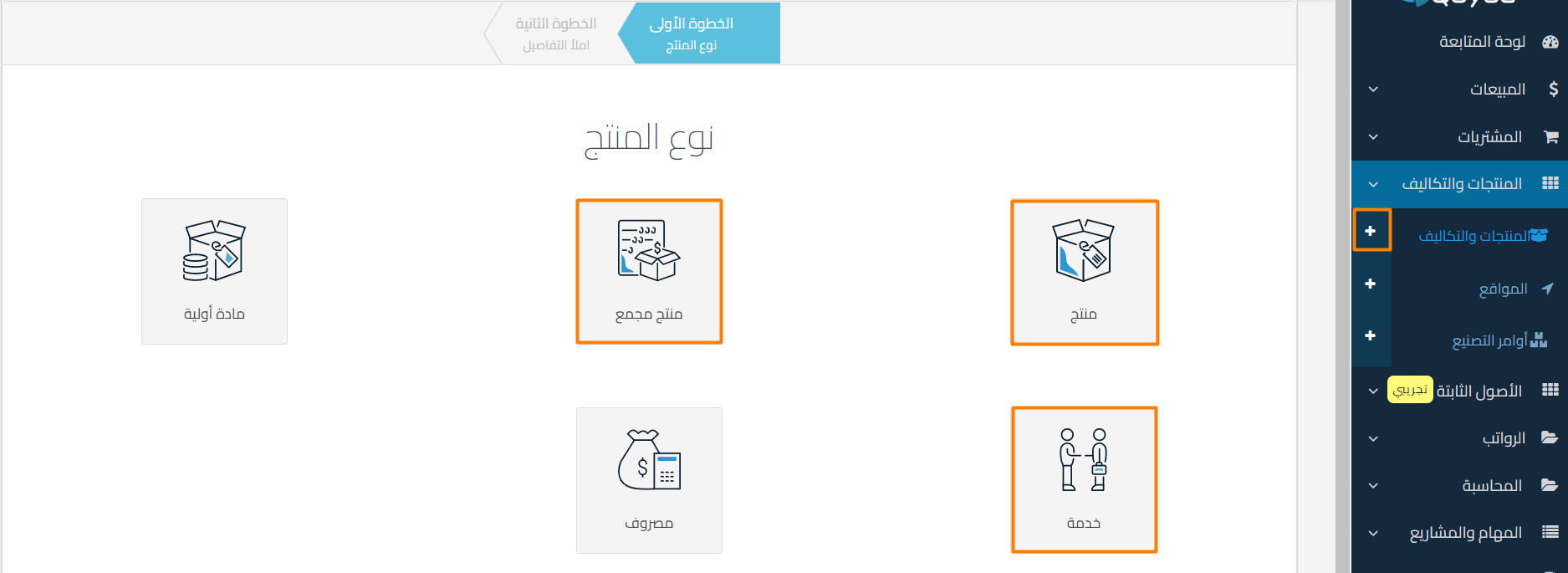
- Open the main menu and click on the “+” icon to create a new product
- Choose the type of sellable product, such as:
- Product
- Bundle
- Service
- or click Edit next to the product if it was already added
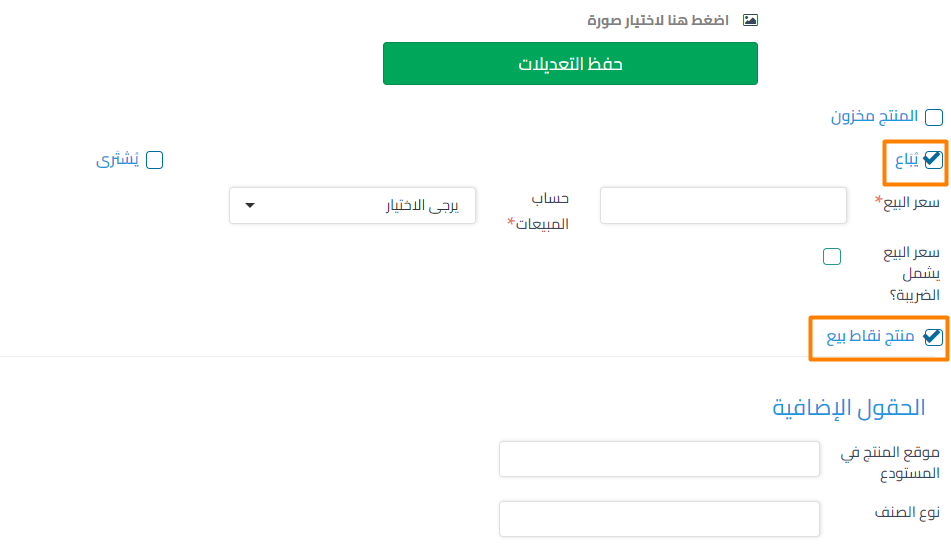
- When you enable the “Product for sale” option, you’ll see the option to make the product available on the POS app.

- If the option is enabled, the product will appear on the POS. If the option is not enabled, the product will not appear on the app.
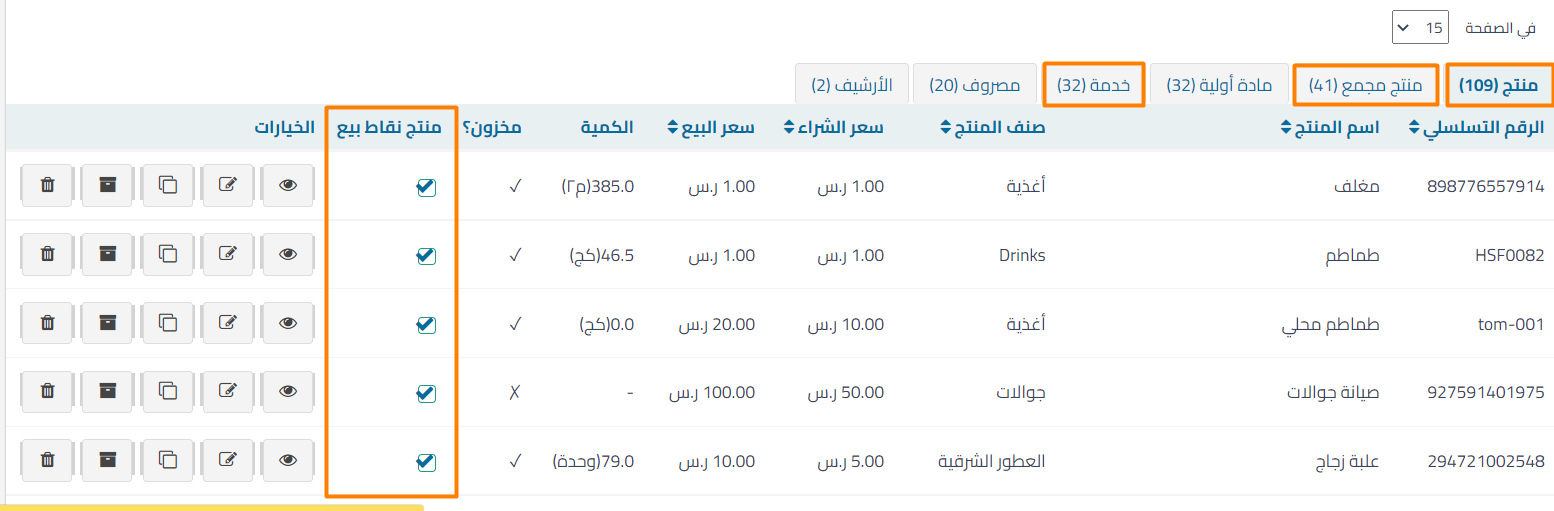
- You can also control product availability on the POS app from the main Products page.

Additional notes:
- Make sure to enable the option only for products you want to sell through the POS.
- You can modify these options at any time from the Products and Costs page.
- You can change the product price on the POS when adding the product; the default price will appear and you can modify it in the invoice.



