




Salla Platform
It is an integrated electronic platform that makes it easy for merchants to conduct and manage their businesses electronically through various packages equipped with all the services that suit the merchant to achieve profitable commerce.
Here are the steps to integrate Salla with Qoyod:
1. From the sidebar menu of the Qoyod dashboard, click (Settings), then click (General Settings).

2. From the General Settings page, click (Generate New Key) to create a tracking code to link your Salla store with your Qoyod account.

Then copy the code that is created to paste it later in the Qoyod settings on your store.
It is necessary at this stage to click (Save) to save the tracking code in Qoyod in the same way as your store.
3. Open the store in Salla and from the sidebar menu of the dashboard, click on (Installed Applications).

2. From the Qoyod application, click (Application Settings).
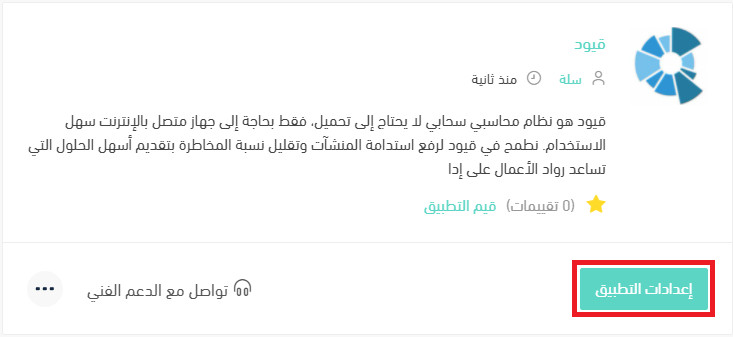
You must install the application if it is not already installed in your store, for more details about Installing an application from the Salla app store
3. From the Connection Data tab, paste the tracking link you copied from the Qoyod platform in the first step, then click (Activate Integration).

The Qoyod icon will appear after activation as follows:

Explanation of the displayed options:
- Enable Inventory Update from Qoyod
- When quantities are purchased from inventory in Qoyod, it is reflected in the Salla system.
This means synchronization occurs in only one direction from Qoyod to Salla. The inventory in Qoyod is synchronized with your store’s inventory on Salla, but your store’s inventory on Salla is not synchronized with your Qoyod account.

You can specify the warehouse from which the sold quantities are deducted, and the synchronization occurs for it from the menu:

Note that this menu appears after the integration.
- When quantities are purchased from inventory in Qoyod, it is reflected in the Salla system.


- Create Financial Invoices When Sending Order to Qoyod
-

In case:
- If the option (Create Financial Invoices When Sending Order to Qoyod) is enabled, the order will be transferred and a financial voucher will be created for the order in Qoyod, and it will appear with the status (Paid) in Qoyod.
- If the option (Create Financial Invoices When Sending Order to Qoyod) is not enabled, only the order will be transferred without creating a financial voucher, and it will appear with the status (Approved) in Qoyod.

Important Note: When integrating with Qoyod, all your store’s categories on Salla will be transferred to Qoyod, in addition to creating default accounts for Salla (Sales Account, Expense Account, ..)
-


Important Notes:
1- The order in Salla must be changed to “Completed” to be reflected from Salla to Qoyod.
2- Or through the Salla orders screen, click on “Send Order to Qoyod”
3- The first order transferred from Salla to Qoyod is reflected as a stock inventory account with an opening balance to prove the quantities in Qoyod, and after that quantities are transferred from Qoyod to Salla through purchase invoices or opening balances
4- If the products are already registered in Qoyod, the product ID in Qoyod must match the SKU in Salla.
5- Only new orders are automatically transferred from Salla to Qoyod.
6- For previous orders, they are transferred manually through the orders screen, but you must change the order status to “Completed” and then click on “Send Order to Qoyod”
7- For products to be reflected from Salla to Qoyod, the product in Salla must have an SKU.
8- Only one location (warehouse) can be linked with your store on Salla, and you cannot select more than one location
Keywords:
I need to integrate with Salla.
How to integrate with Salla.
Integration mechanism with Salla.
How to integrate with Salla.



