




Guidelines on how to add a POS customer through the Qoyod mobile app:
Qoyod mobile app users can create a customer and control whether this created customer appears on the POS device or choose not to display them based on our customers’ feedback.
To create a customer from the mobile app, you can access this option from the main menu of the app
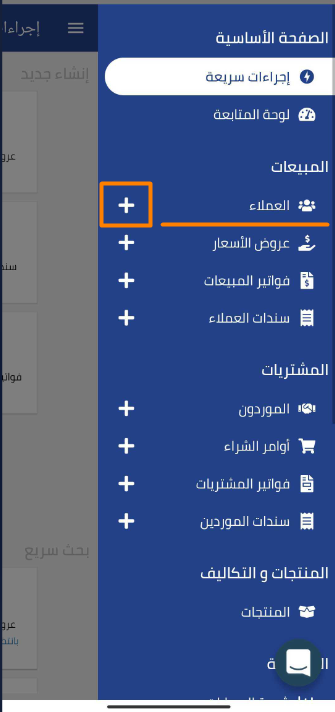 View full size
or from the customers page and select the “+” sign in the top menu
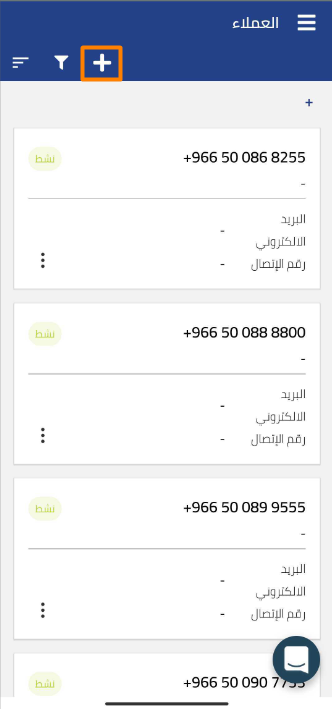 View full size
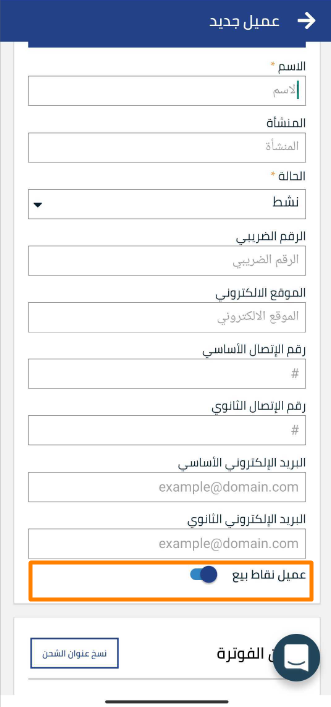
On the customer details page, you can enable or disable the option to make the created customer a POS customer from the indicator shown in the following image
 View full size
Additional Notes:
- You must ensure that the option is enabled on the customer details page to allow the customer to appear in POS.
- You can control the customer’s visibility in the POS app through this option.



