




You can now choose a customer’s locations and the sales representatives responsible for them by editing the customer while you create a sales invoice or a quotation. You fix the customer’s setup on the spot, then carry on with the document.
Where to find it
Once you pick the customer on the create sales invoice or create quotation screen, the Customer Details card appears with an Edit customer details link at the top. Click it to open the Edit Customer Details panel over the document.
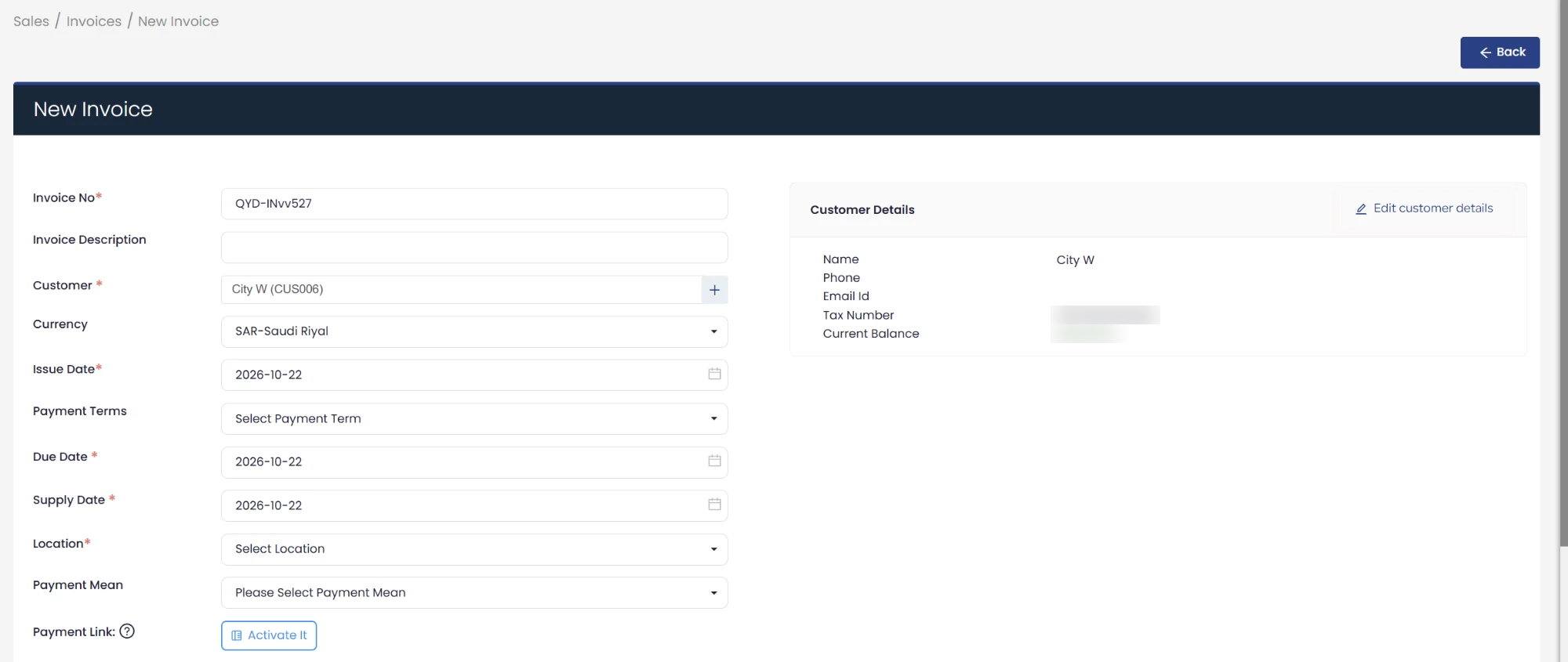
Choosing locations and sales representatives
The panel includes the Locations field and the Sales Representative field, and both are multi-select: add one or more locations and one or more representatives, and remove any choice with the remove mark next to it. Then click Save Changes. The panel also shows the rest of the customer’s details, such as the status, currency and billing address.
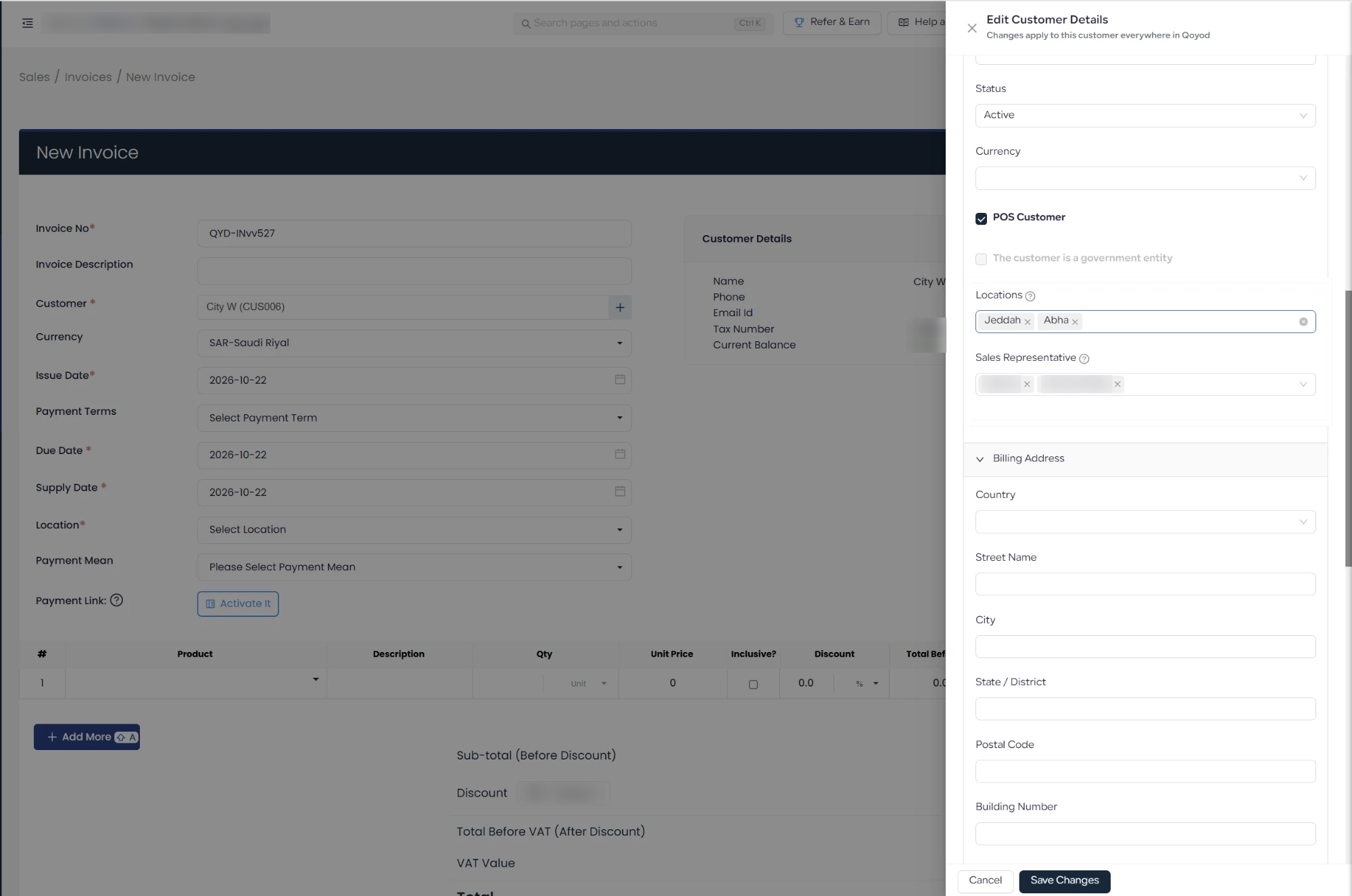
The change applies to the customer record
The panel points out that your changes apply to this customer everywhere in Qoyod. The locations and representatives you choose here are saved on the customer itself, not only on the document you are creating.
Who this update is for
Anyone issuing invoices and quotations who notices mid-document that a customer is linked to the wrong location or has no assigned representative, and wants to fix it without leaving the document for the customers page.
Notes
- The Sales Representative field follows the permission rules announced in the Linking Customers to Sales Representatives update, including that assigning or removing a representative is available to users with edit permission on customers.
- To see what linking a customer to locations does, read How to Link Customers to Locations in Qoyod.
For step-by-step instructions, read Edit Customer Locations and Reps from Invoices or Quotations.