Two-factor authentication is an additional security feature that protects the account by requesting a verification code upon login.
- Two-factor authentication adds an additional layer of security by using a password and a verification tool such as a phone.
- When the feature is enabled, a variable verification code must be entered at each login.
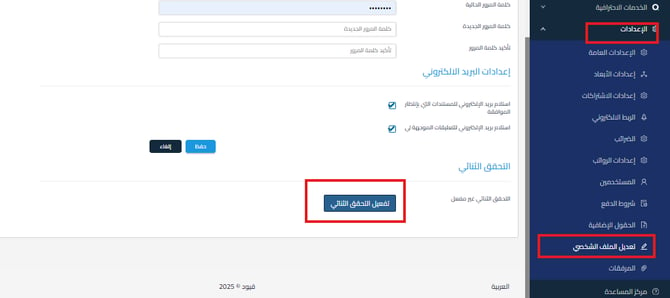
- To enable two-factor authentication:
- Go to “Settings“.
- Click on “Edit Profile“.
- Select “Enable Two-Factor Authentication“.
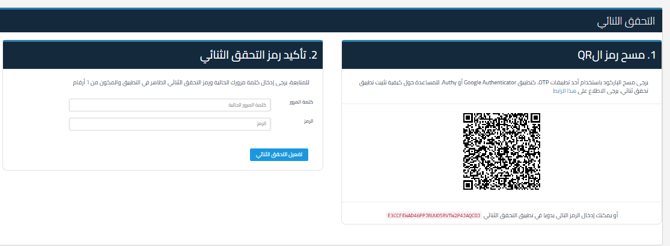
- Scan the QR code using one of the following apps:
- Google Authenticator
- Authy
- Or enter the manually generated code in the app.
- Enter the password and the 6-digit code generated from the app to proceed.

Additional Notes:
- You must keep a backup of the codes to use if your phone is lost.
- For more information about installing verification apps, you can visit:
Google’s guide on two-step verification
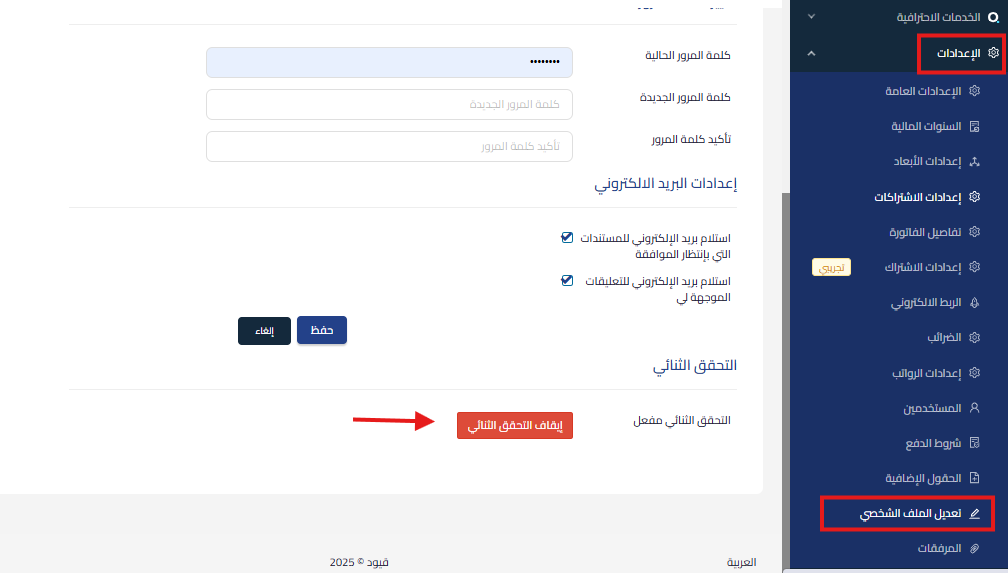
How to disable two-factor authentication after enabling it:
- Go to “Settings“.
- Click on “Edit Profile“.
- Click on “Disable Two-Factor Authentication“.
- Then click “OK” to confirm cancellation.