




Answer: How to Create a Manual Journal Entry to Pay an Invoice
Answer:
You can create a journal entry to pay an invoice and allocate it to the invoice
Steps
-
Open the Manual Entry
-
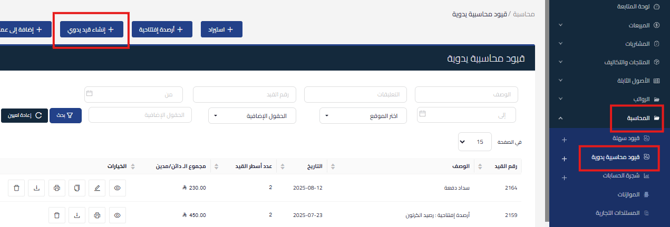
Go to Accounting and then Manual Journal Entries
- and click on Create Manual Entry from the top options.
-
-
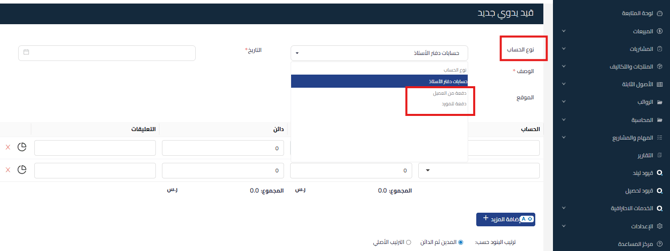
Select Account Type
-
Select Customer Payment or Vendor Payment from the Account Type dropdown
-
-
Allocate Invoices
-
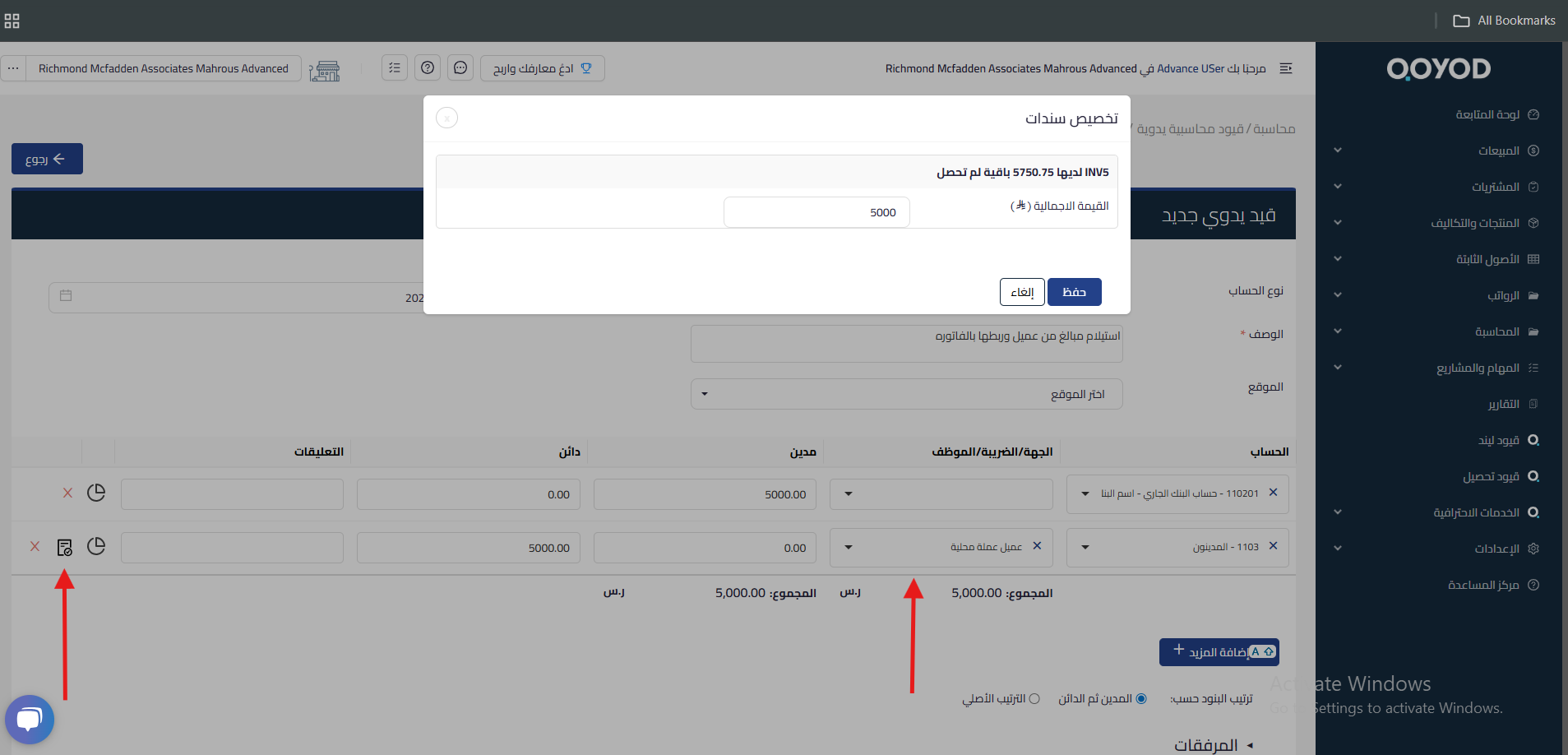
Select the required account (Receivables or Payables) and choose the party name
-
Click on the invoice icon in the same row and select the due invoices
-
Specify the amount collected or paid for each invoice
-
Save the entry

-
Important Notes
-
When allocating the manual journal entry to customer or vendor invoices, the invoice status will change to Paid and will affect the dashboard.
You can also pay the invoice through Payment Vouchers. You can click on “Pay Against Invoice” to create a voucher, where the paid amount will be directly reflected as a journal entry without the need to create a separate journal entry.
Related Search Terms:
-
How can I pay an invoice without creating a manual entry?
-
What is the difference between paying an invoice through a voucher and a manual entry?
-
If I paid the invoice with a manual entry, why does it still show as ‘Unpaid’?
-
Do I have to create a voucher so the amount is deducted from the customer’s account?
-
Can I directly link the manual entry to a specific invoice?
-
When does the invoice status change to ‘Paid’ after payment?
-
If I create a voucher, does the journal entry appear automatically?
-
What is the best way to pay an invoice and have the payment show in accounting reports?
-
If I pay the invoice with a voucher, does the customer balance update automatically?
-
If I paid an amount through an entry and the invoice status didn’t change, what is the solution?



