




Instructions explaining how to enable and print the payment method on POS invoices.
Enabling the option to print the payment method on POS invoices
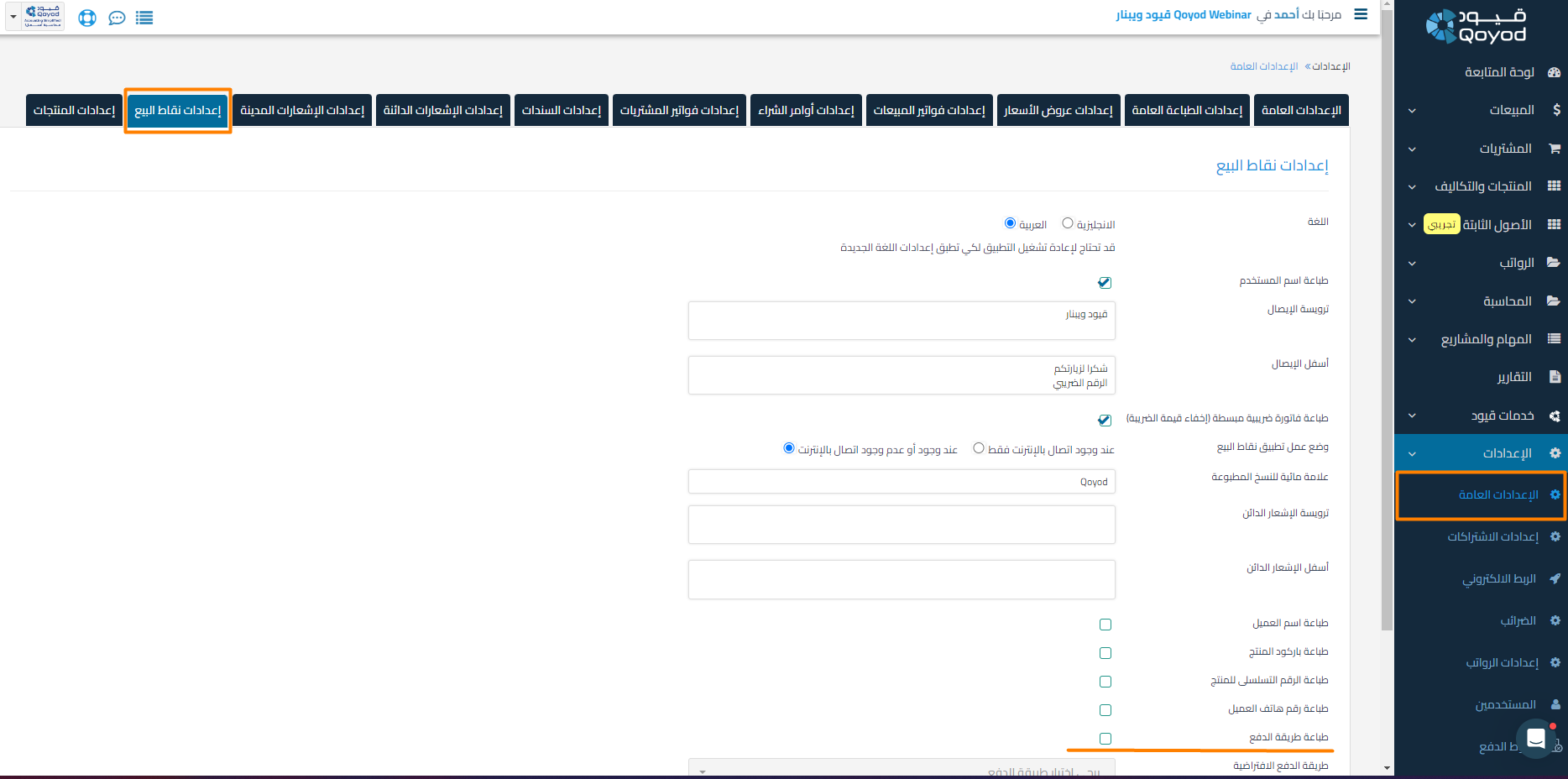
This is done from General Settings then POS Settings
 View full size
As shown in the previous image
Enabling the option to print the payment method displays the different payment methods available in the application that were selected during the payment process
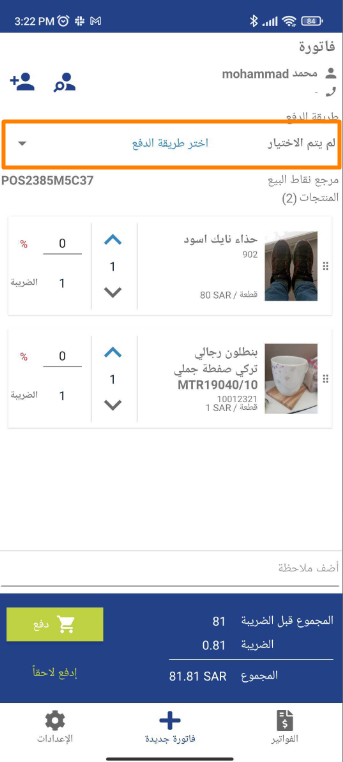
From the POS application interface, before the payment step, the payment method option is shown in the following image
 View full size
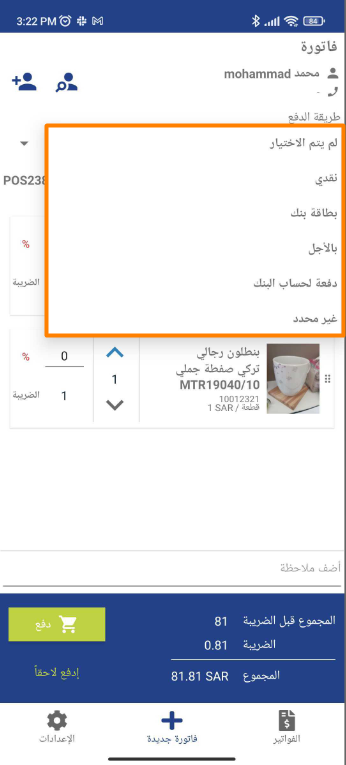
These are the different payment methods that appear from the application interface
 View full size
Specifying the payment method for a POS invoice (the account through which the invoice was paid)
This is done after clicking the “Pay” option below the POS invoice while creating it.
– All accounts that the user is permitted to pay and collect through, which were previously defined in the accounting system, will be displayed.
– You can view and modify these accounts through the accounting website by:
– Logging into the entity.
– Going to Settings.
– Selecting “Users”.
– Clicking “Edit” next to the desired user.
– Viewing the accounts permitted for payment and collection with the ability to edit and save.
– After clicking “Pay”, you can enter the amount paid against the selected account so that the collection is recorded correctly in the system.
Default Transaction Settings in POS
Through the transaction settings in the POS application, you can specify the default payment method and select the default customer. To access it: from the Settings icon at the bottom of the screen in the application, select “Default Transaction Settings”, which contains:
-
Specifying the default payment method for all invoices (Cash, Bank Card, On Account, Bank Account Transfer, or Unspecified).
-
Selecting the default customer that is automatically assigned to all invoices.
-
Enabling the “Enter Total as Quantity” option to enter the total amount for the item directly, and the system will automatically calculate the quantity based on the unit price and tax.
Keywords: You can specify the default payment method and select the default customer through transaction settings in POS



