




Guidelines on how to use the multiple cost centers feature in purchase invoices, debit notes, and simplified invoices.
Answer:
Yes, you can use the multiple cost centers feature in purchase invoices and debit notes. This feature allows you to select a project for each line item in the invoice based on project permissions.
How to Use:
- Go to Purchases > Purchase Invoices > Create Purchase Invoice.
- A chart icon will appear next to each line item in the invoice.
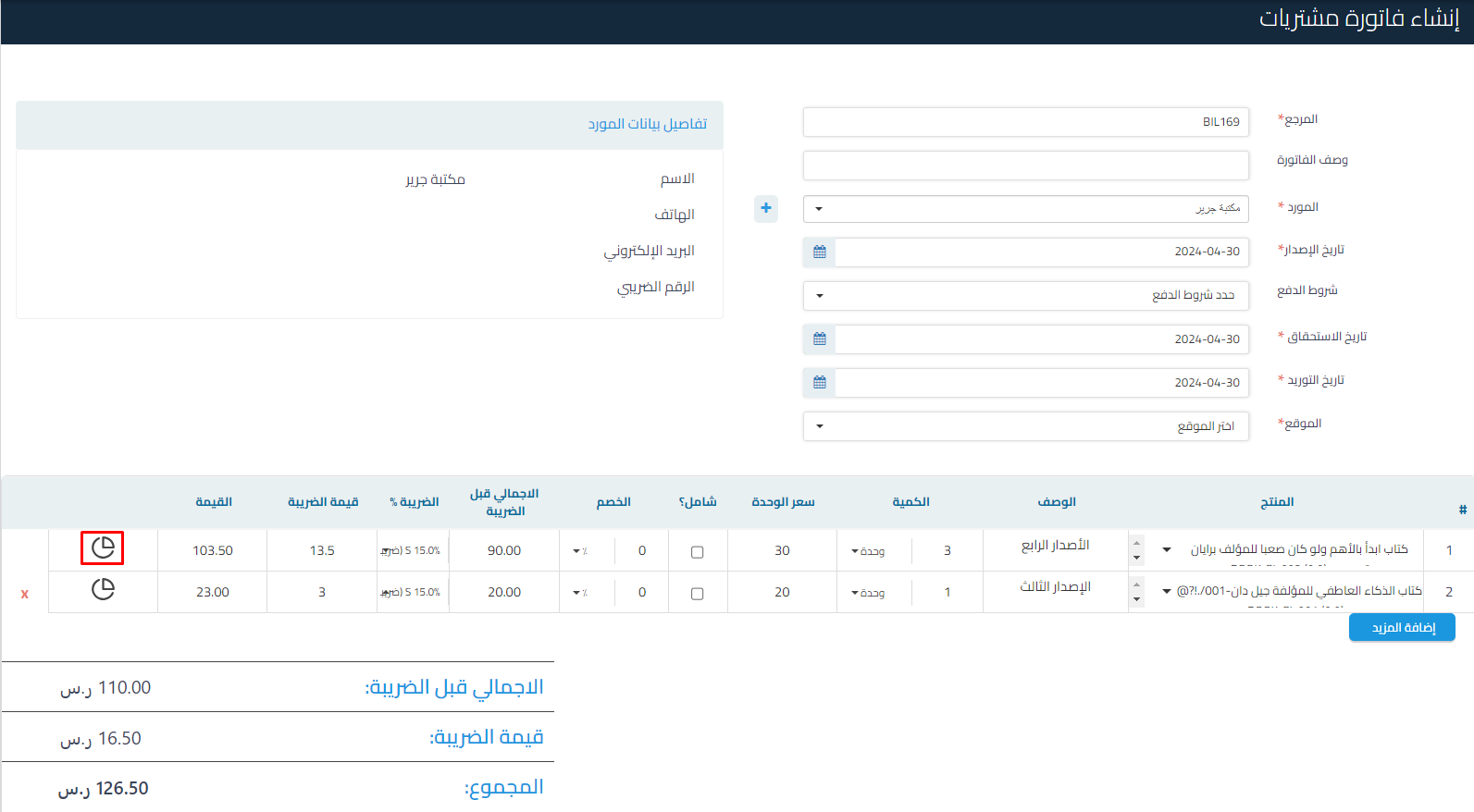
- Click on the icon, then select the project for the account.

- When you select the project, the icon color will change to blue.

- You can modify the selected project for the line item at any time if the invoice is in draft mode.
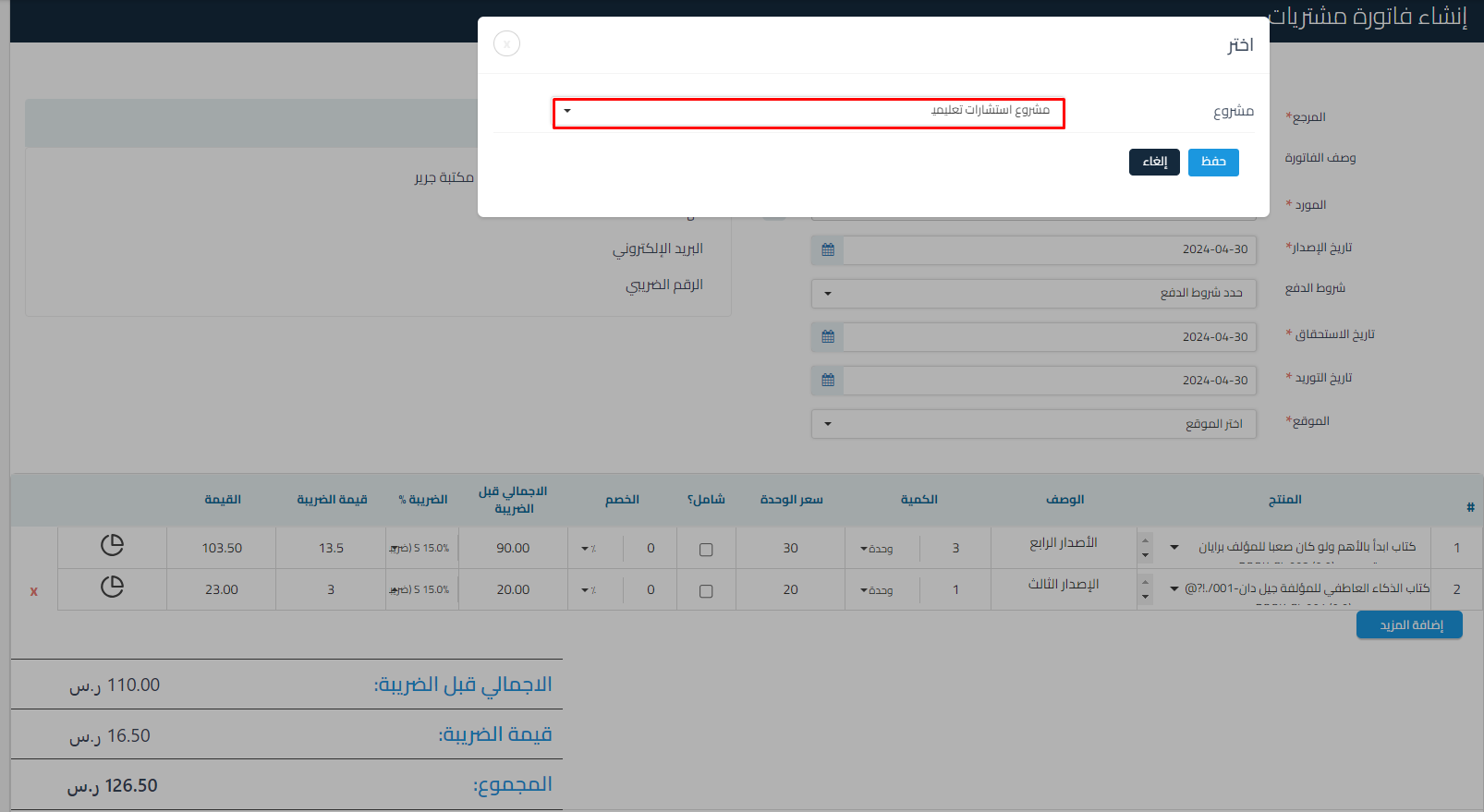
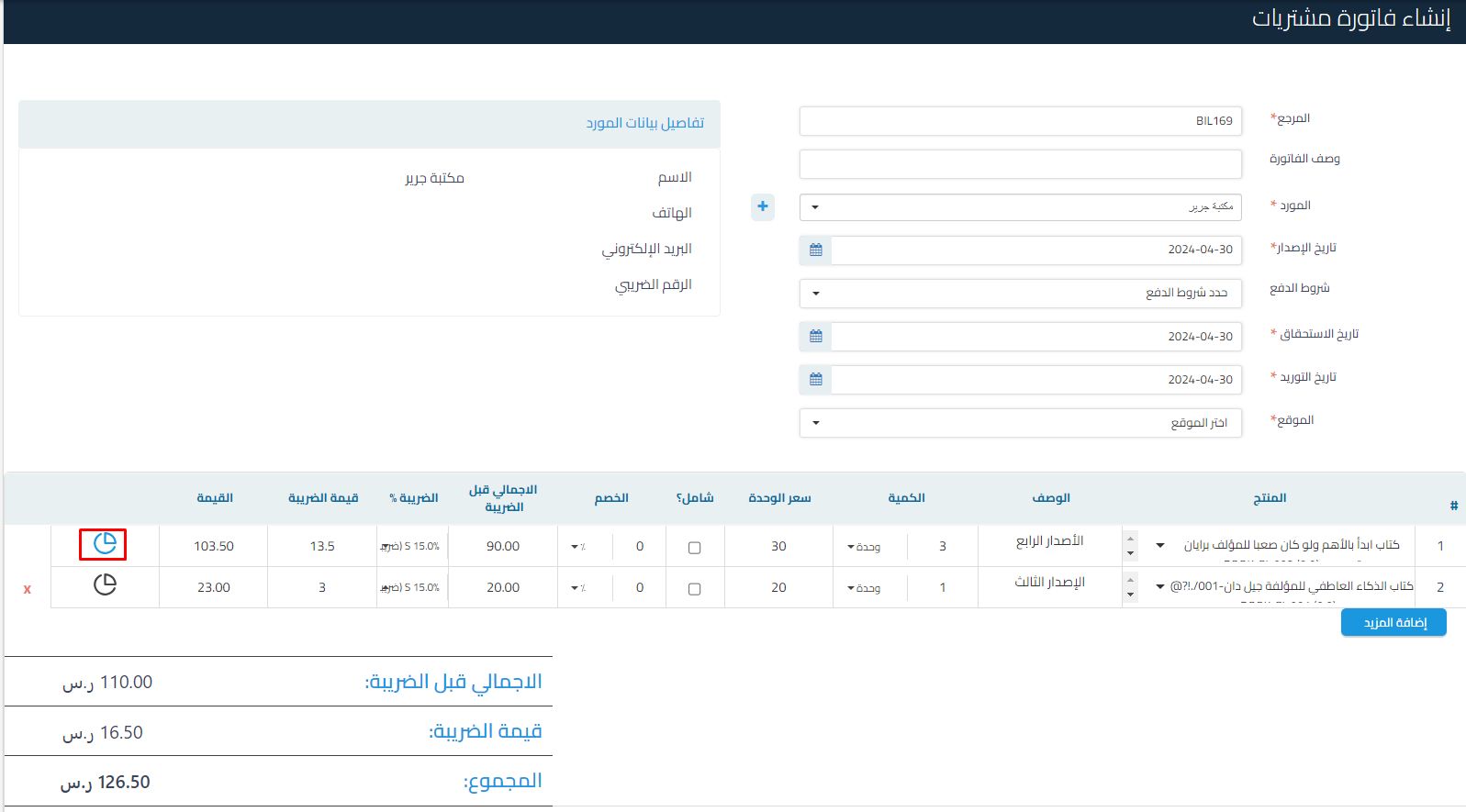
Important Notes:
- If a specific project is selected at the line level, then the project selected at the invoice level will not affect this line item. However, the project added at the invoice level will affect lines that do not have a project assigned.
- If no project is selected at the line level, then the project selected at the invoice level will affect all line items.
- In the same way, you can add multiple cost centers for debit notes and simplified invoices.
Affected Reports:
- Income Statement: Analysis of expenses and revenues for each project.
- Balance Sheet: Analysis of assets, liabilities, or equity for each project.
- Account Statement: Analysis of accounts associated with each project.
- Trial Balance: Analysis of accounts by projects (note that debit and credit balances may not match due to linking).
- Cash Flow Statement: Analysis of accounts associated with projects (note that the final balance may not match due to a mismatch between the debit and credit linked to the project in the entry).



