




The discount on total amount feature is available for the following commercial documents:
- Quotations
- Sales Invoices
- Credit Notes
- Purchase Orders
- Purchase Invoices
- Debit Notes

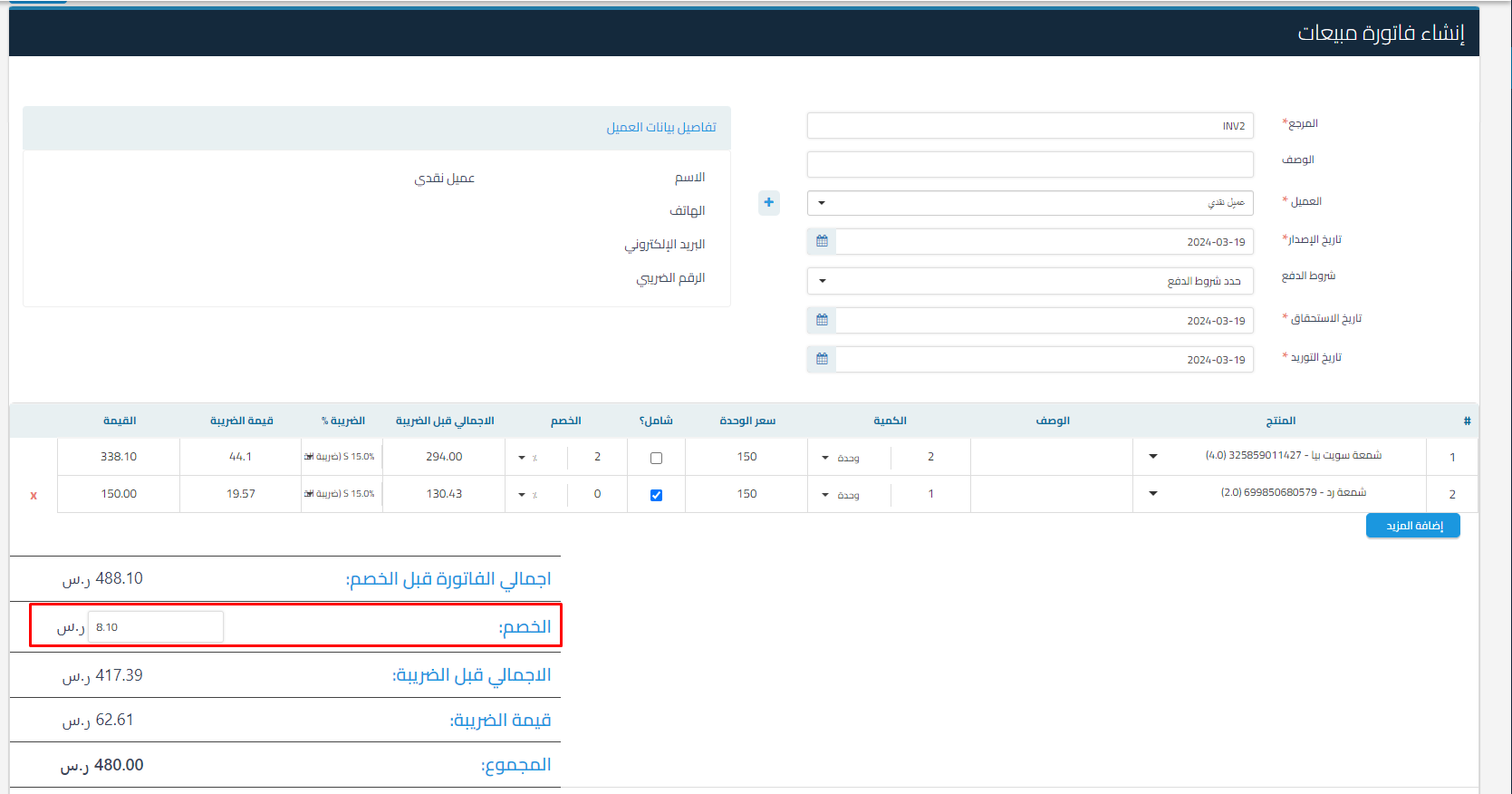
How to Enable or Disable the Total Discount on Sales and Purchase Invoices in the System and Use It:
Activation Steps:
- Navigate to Settings from the main menu.
- Then click on General Settings.
- Select Sales Invoice Settings or Purchase Invoice Settings.
- Enable or disable the Total Document Discount option.
- Click Save.
Accounting Impact of the Feature:
-
In Purchase Invoices:
- The discount is reflected in the purchase value after the discount, which leads to updating the average cost of the product in inventory.
- It affects purchase reports to reflect the applied discount.
-
In Sales Invoices:
- The discount is distributed proportionally to the products, affecting sales reports and inventory movements as a result of the commercial discount at the product level.
-
In Reports:
- All reports (such as sales, purchases, and inventory) are updated with the total discount value.
-
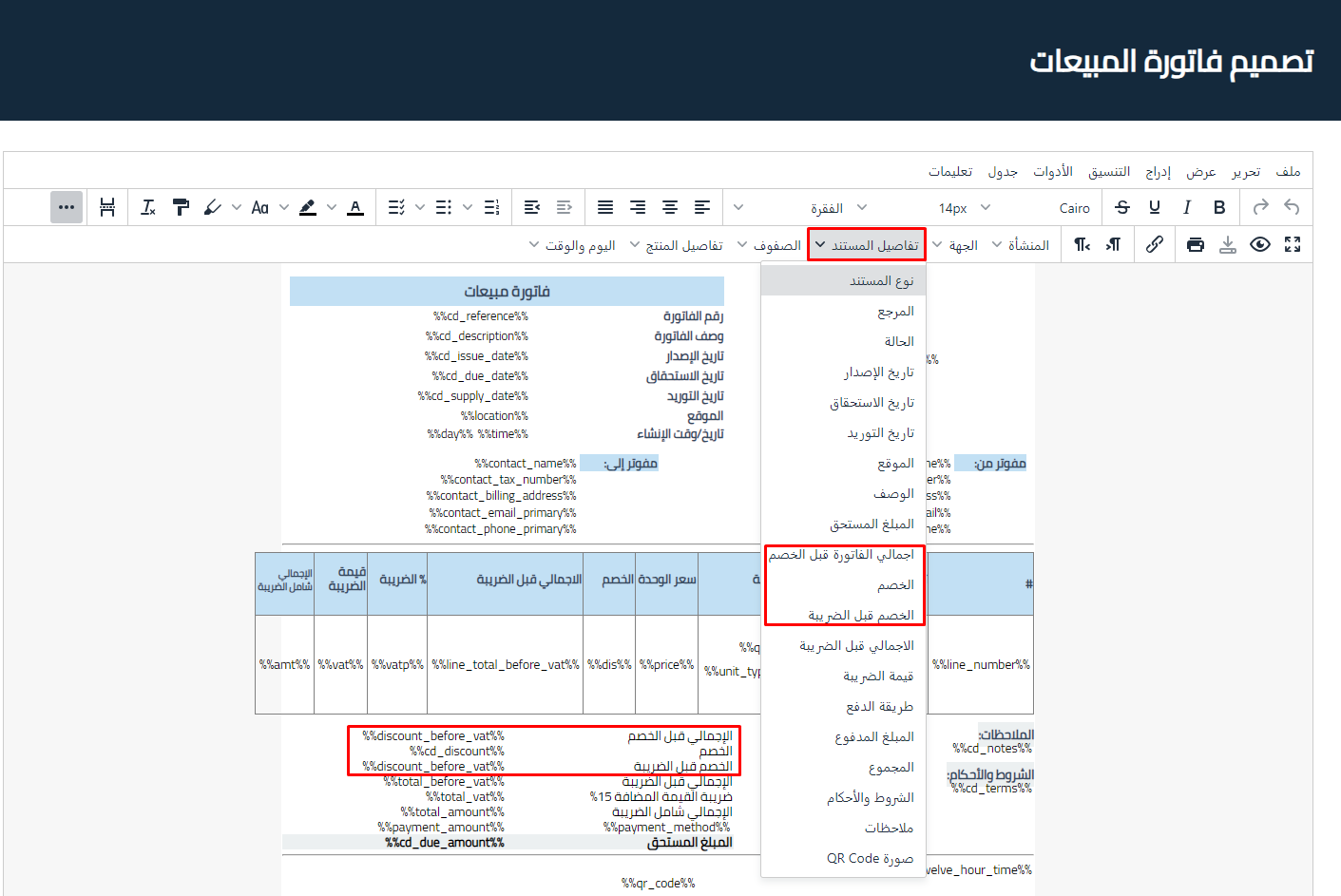
In the New Designer:
- The designer must be updated by adding:
- Total Before Discount.
- Total Discount.
- Total Discount Before Tax.
- To ensure the discount appears on printed or exported invoices.

- The designer must be updated by adding:
User Permissions:
- Users with specified permissions can apply a discount on the total amount up to the allowed limit according to their permissions.
Mechanism for Calculating the Discount on the Total Invoice Amount and How to Distribute it to Invoice Items (Amount Before Tax and Tax Value).
The Basic Principle
-
The discount is distributed on the invoice proportionally.
-
The amount before tax takes its share of the discount according to its proportion of the total.
-
The tax value takes its share of the discount according to its proportion of the total.
Discount Calculation Steps
-
Determine the Ratio of Each Item from the Total
-
For the amount before tax: calculate (Amount Before Tax ÷ Final Total).
-
Example: 20 ÷ 23 = approximately 86%.
-
-
For the tax value: calculate (Tax Value ÷ Final Total).
-
Example: 3 ÷ 23 = approximately 13%.
-
-
-
Distribute the Discount to Each Item
-
Discount on Amount Before Tax = (Total Discount × Ratio of Amount Before Tax).
-
Discount on Tax = (Total Discount × Tax Ratio).
-
-
Calculate the New Amounts After Discount
-
Amount Before Tax After Discount = (Amount Before Tax – Its Discount).
-
Tax After Discount = (Original Tax – Its Discount).
-
Illustrative Example
-
Final Invoice Total = 23 SAR.
-
Amount Before Tax = 20 SAR.
-
Tax = 3 SAR.
-
Required Discount = 3 SAR.
Calculation:
-
Ratio of Amount Before Tax = 20 ÷ 23 ≈ 86.95%
-
Tax Ratio = 3 ÷ 23 ≈ 13.04%
-
Discount on Amount Before Tax = 3 × 86.95% = approximately 2.61 SAR
-
Discount on Tax = 3 × 13.04% = approximately 0.39 SAR
-
Amount Before Tax After Discount = 20 – 2.61 = 17.39 SAR
-
Tax After Discount = 3 – 0.39 = 2.61 SAR
-
Total After Discount = 20 SAR
Additional Notes:
- The discount can be applied at the product level or on the total in the same document.
- Please ensure the new designer is updated to ensure discounts appear correctly.
- The total discount is available through the website only and cannot be added through the POS application (cashier).



