




This feature is available only for the Advanced package and is not available for other packages
Defining and Setting Up Dimensions
What Are Accounting Dimensions:
Accounting dimensions refer to the different aspects through which financial data is recorded and displayed. They aim to analyze financial performance in a more accurate and comprehensive way. Examples of accounting dimensions:
- Knowing employee performance.
- Analyzing sales for each employee.
- Tracking expenses related to drivers.
Types of Dimensions
-
The Time Dimension
- It is based on dividing time periods such as quarters or seasons.
- Example: A clothing company can extract reports for sales performance during the summer or winter season.
-
The Spatial Dimension
- It is based on dividing locations, projects, branches, or warehouses.
- Example: Analyzing the performance of different company branches or projects specific to each region.
-
The Functional Dimension
- It is based on dividing the company according to functional departments.
- Example:
- Product Management Department.
- Human Resources Management Department.
- Accounting Department.
- Marketing Department.
- Sales Department.
The Dimensions feature makes it easy to extract accurate and customized reports to understand performance in multiple contexts.
-
Accessing Dimensions Settings:
- Primary User (Super Admin): Dimensions are activated directly and accessed from Settings, then Dimensions Settings.
- Other Users: The feature must be enabled for them through Settings → Users → Manage Positions → Enable Dimensions Feature.
-
Creating Dimensions:
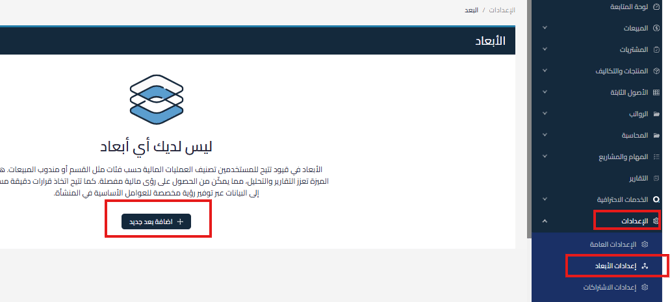
- From Settings → Dimensions Settings → Add New Dimension.

- Name the dimension (such as: “Employee” or “Departments”).
Fill in the Arabic and English names and specify whether the dimension is general or specialized.
General: appears on all documents
Specialized: only on documents you specifyNote: Currently, dimensions are available only for purchase invoices, simple invoices, and debit notes. Other sections will be added later such as sales, payroll, warehouses, and others,
Then save
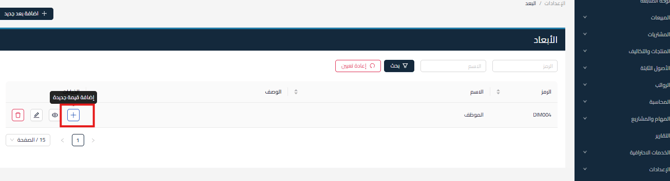
- Add values associated with the dimension, such as employee names
By clicking Add Value

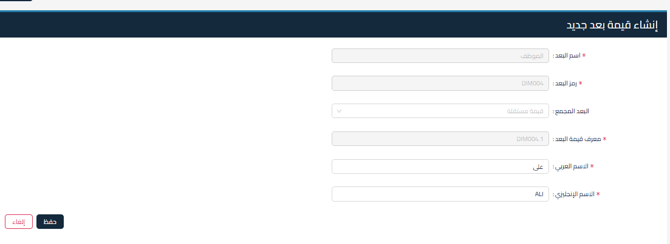
Fill in the data as shown below and write the employee name from the employees

And save, as well as add the rest of the employees.
- From Settings → Dimensions Settings → Add New Dimension.
-
Setting Up Available Options for Each Dimension:
- Add New Value: To add a new item within the dimension.
- Display Dimension: To view all values associated with it.
- Edit Dimension: To update the name or properties of the dimension.
- Delete Dimension: Allowed only if it is not linked to any value or document.

Linking Dimensions to Business Documents
-
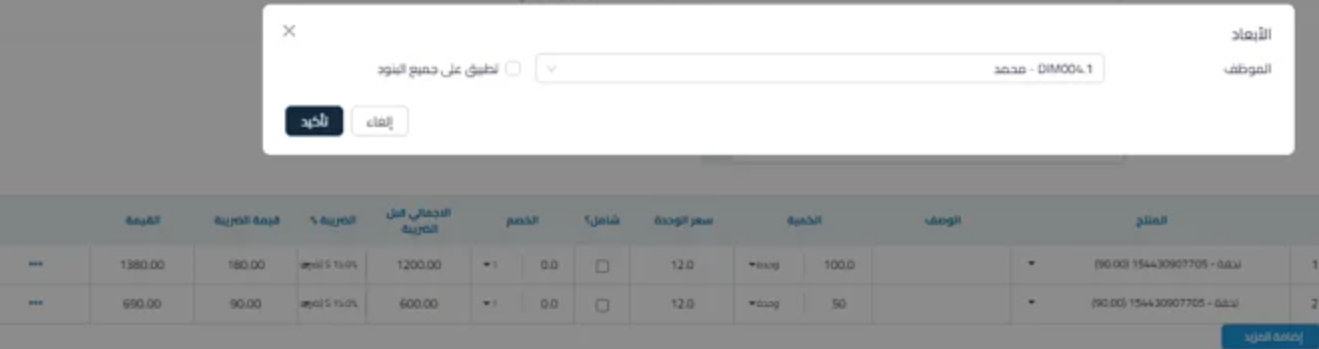
When creating an invoice (such as a purchase invoice):
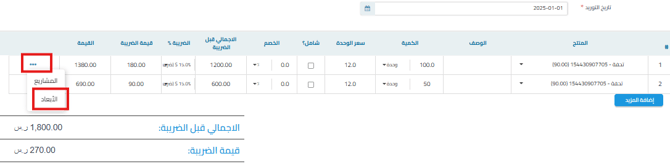
- Add the required products.
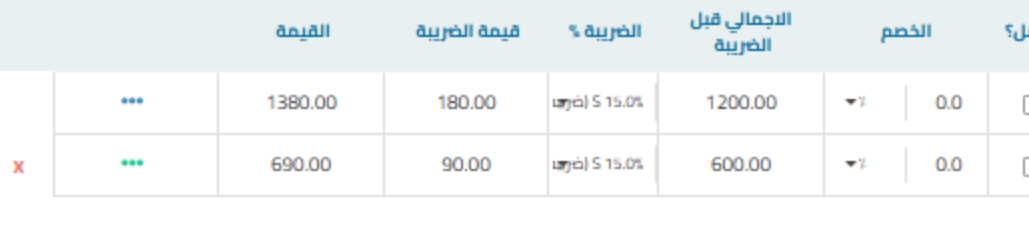
- Click the (…) icon next to each product to select the appropriate dimension (such as employee or department).


- Once selected, the color will change from blue to green.

-
Applying Dimensions to Old Invoices:
- You can edit old invoices and link them to the dimensions that have been added.
-
Recalling the Invoice:
- In case of recalling an invoice, you can also select dimensions for the recalled document.
Data Analysis Using Dimensions Analysis Report
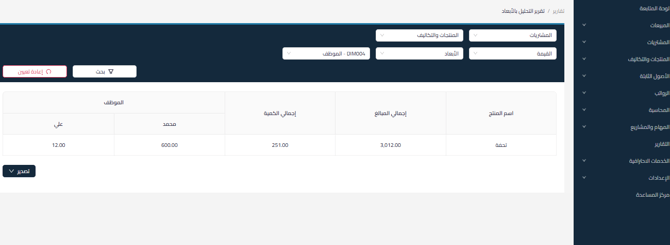
- Go to Reports → Dimensions Analysis Report.
- Setting Up the Report:
- Analyze By: Choose the analysis type (Purchases).
- Display Rows As: Select Products, Locations, Departments, or Projects.
- Display Columns As: Select Dimensions or Time Periods.
- Values: Choose to display data by value or quantity.
- Click Search to view the results.

Advanced Report Filter Options:
-
Dimensions
-
Products
-
Locations: Only locations that the user has access permissions to
-
Projects: Public and private according to user permissions
-
Period: Specify “From” and “To” dates
-
Dimensions Tree: Display main dimensions and their associated values
-
Account: Display accounts from level three and above
-
Consolidated Account: Display main accounts at all levels (1 to 6)
Additional Notes:
- Dimensions are used at the line level within the document, not on the entire document.
- You can export the report to Excel for further analysis.
- You can customize the report as you wish.



