




Inventory management is considered the brain behind profit and loss within the system.
Through it, you not only manage quantities, but you build precise conversion equations to convert purchase units (carton / kilo) into actual sales units (gram / piece), which enables you to:
-
Calculate the cost of each product (Cost of Goods Sold) accurately
-
Know true profitability
-
Reduce waste
-
Prevent sudden stock depletion
First: Accessing Inventory Management
⚙️ Inventory management is done from the web dashboard only
The app is designed for sales and does not contain advanced inventory settings.
Path
Sidebar Menu → Inventory
After entering Inventory, you will find two main options:
-
Inventory (Basic Components / Raw Materials)
-
Recipes
Second: Inventory (Basic Components)
What is Inventory?
Inventory is raw materials that are purchased and consumed in preparing products, such as:
-
Tomatoes
-
Meat
-
Pepsi
-
Cups
-
Packaging
Path
Sidebar Menu → Inventory → Inventory
Third: Adding a New Item to Inventory
Detailed Steps
Click the “Create New Item” button
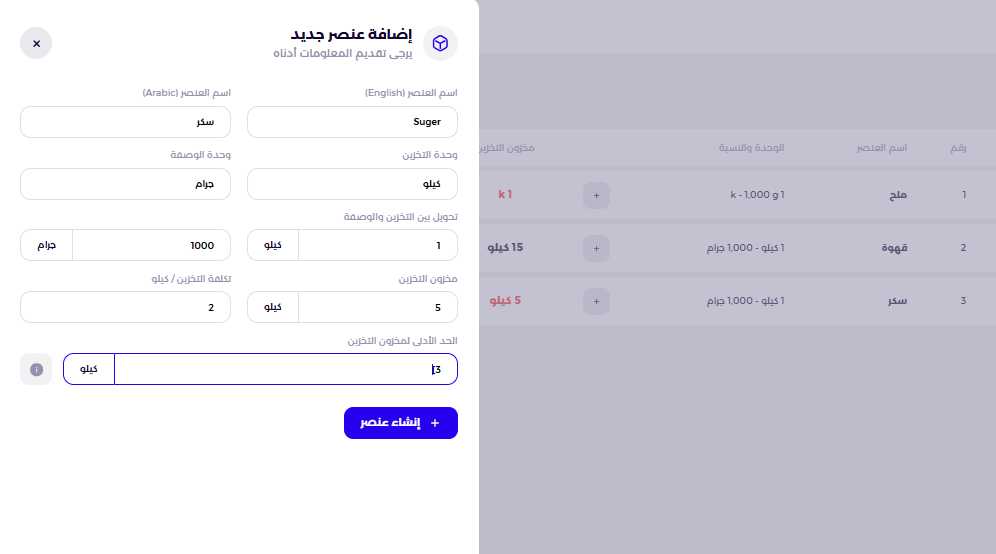
1. Item Name
-
Item name in English
Example:Potato -
Item name in Arabic
Example:بطاطس
2. Conversion Equation, the Most Important Step
This step is the foundation for calculating correct cost and discounts from inventory.
The system asks you to define two units:
Storage Unit
This is the unit in which you purchase goods from the supplier, such as:
-
Kilo
-
Carton
-
Bag
Recipe Unit
This is the unit that is actually consumed during sales or cooking, such as:
-
Gram
-
Piece
Defining the Equation
You must tell the system:
How many recipe units equal one storage unit?
Examples:
-
Weight example:
1 kilo = 1000 grams -
Quantity example:
1 carton = 25 pieces
3. Current Stock
-
Enter the quantity you currently have
-
Entry is done in storage unit
Example:20 kilos
4. Cost
-
Enter the cost of one storage unit
Example:
If:
-
One kilo costs 5 SAR
→ Enter: 5
Important Note
-
This field is later used to calculate profits
-
It can be left empty during creation
-
It can be filled in later through the Edit option next to the item
5. Low Stock Alert
-
Enter a number representing the minimum acceptable inventory level
-
This field is required
Example:3
Result:
-
If inventory reaches this number
-
An alert will appear that the item is Low Stock
6. Save the Item
After entering all data:
-
Click Create
Fourth: Inventory Table After Adding Items
After adding items, a table will appear on the Inventory page containing the following columns:
-
Item Number
-
Item Name
-
Unit and Equation
Example:1 kilo = 1000 grams -
Storage Inventory
-
Appears in red if below the minimum threshold
-
Has beside it:
-
( + ) to add quantity
-
( – ) to reduce quantity
-
-
-
Item control options opposite each item.
Fifth: Control Options for Each Item
In front of each item there are 3 main options:
1. View Details
Displays:
-
Complete item data
-
Detailed movement history, such as:
-
Quantity X was deducted in order number Y
-
Quantity was added on date Z
-
Export Movements
-
Export all movements to Excel via the “Export All” button in the top options
-
Or:
-
Select one item via the Check Box
-
Then choose “Export Selected”
-
-
You can select:
-
Date
-
Branch
-
2. Edit Item
-
Edit the name
-
Edit the equation
-
Edit the cost
-
Edit the minimum threshold
-
Edit the inventory
3. Delete Item
-
Delete the item from inventory
Sixth: Search and Filter Within Inventory
Search
-
There is a search field next to the table at the top
-
Supports searching by keywords for item name
Filter Items That Are Out of Stock
-
There is an option at the top of the page:
“Items Out of Stock” -
Displays:
-
Items whose inventory has been depleted
-
Or below the minimum threshold
-
Seventh: Important Notes
-
Incorrect conversion equation leads to incorrect cost calculation
-
Leaving cost empty means profit reports will not be accurate
-
All data can be edited later
-
Alerts help you reorder before stock runs out



