




You can add the commercial registration number for the customer through additional identifiers when creating the customer and add it to the sales invoice design
Steps
- Go to the customer list through Sales
- Click Edit next to the customer name.
- In the Additional Identifiers section, enter the Commercial Registration Number or any additional information.
- This field appears only when E-Invoicing is enabled.
- If you need to add the commercial registration number without enabling E-Invoicing, use the Additional Fields feature.
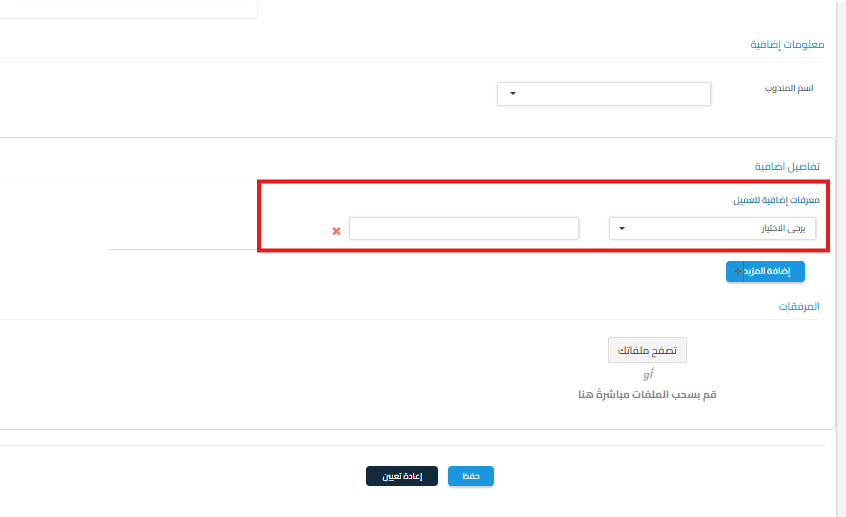
How to display the commercial registration number in the sales invoice when exporting and printing it after adding it to the customer data:
For the commercial registration number to appear in the sales invoice when exporting and printing it, you must add it to the sales invoice designer. Follow these steps:
1. Go to “Settings”.
2. Select “General Settings”.
3. From the top options, select “Sales Invoice Settings”.
4. At the bottom of the page, choose “Tax Invoice Designer” or “Simplified Invoice Designer”.
5. Position the cursor at the location where you want the commercial registration number to appear.
6. Click the ( … ) next to the toolbar.
7. Click “Entity”.
8. Click “Additional Customer Identifiers”.
9. Click “Save” next to the designer.
2. Select “General Settings”.
3. From the top options, select “Sales Invoice Settings”.
4. At the bottom of the page, choose “Tax Invoice Designer” or “Simplified Invoice Designer”.
5. Position the cursor at the location where you want the commercial registration number to appear.
6. Click the ( … ) next to the toolbar.
7. Click “Entity”.
8. Click “Additional Customer Identifiers”.
9. Click “Save” next to the designer.
Additional Notes
- Make sure to enter the commercial registration number correctly to ensure it appears properly in invoices and official documents.



