




Performance Bond is a legal commitment provided by a contractor, supplier, or service provider to ensure that work or a project is executed in accordance with the specifications and terms agreed upon in the contract. This guarantee aims to protect the owner or customer from any breach or failure to fulfill the contract by the other party.
Here’s how to enable the Performance Bond discount and apply it:
-
Enable the Performance Bond Option:
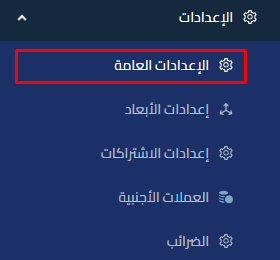
- Go to Settings > General Settings.
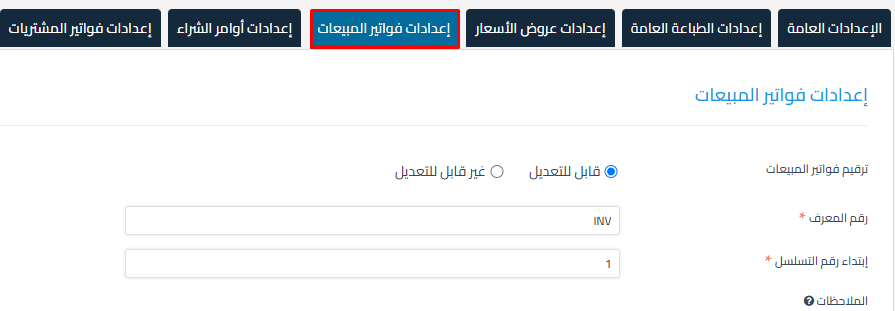
- Select: Sales Invoice Settings.

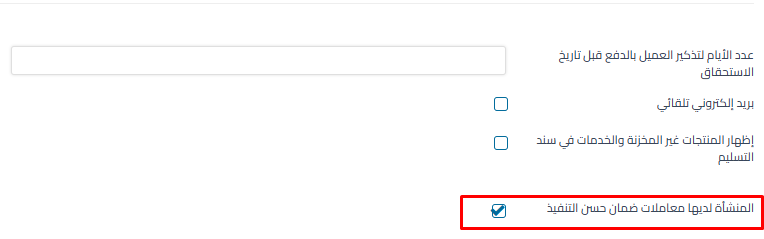
- Enable the option: “The business has Performance Bond transactions“.

- Click “Save“.
- Go to Settings > General Settings.
-
Adding Performance Bond to the Invoice:
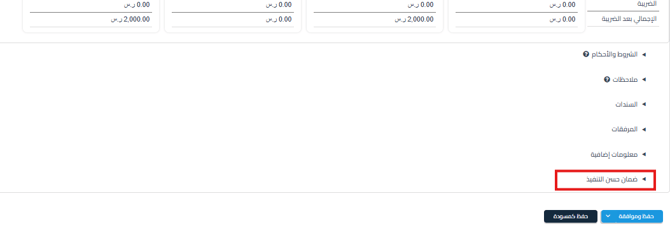
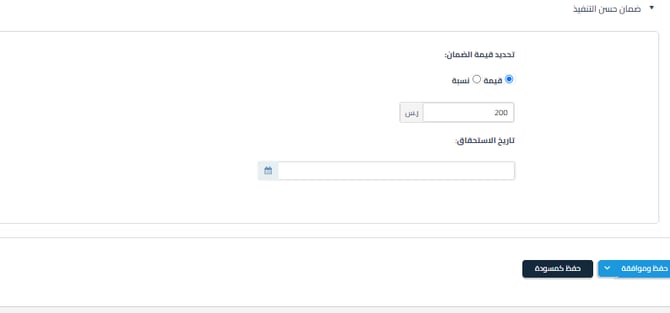
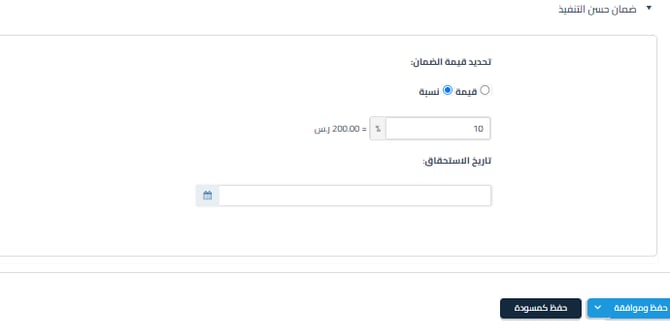
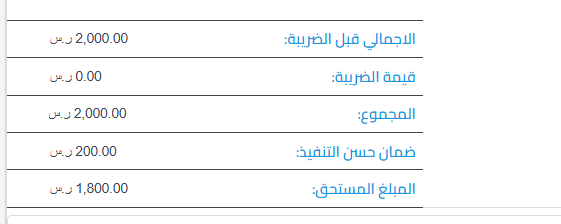
- When creating a sales invoice, a “Performance Bond” option will appear at the bottom of the invoice as shown below:

- Choose the discount type:
- Fixed Amount: A specific amount is deducted as a guarantee.

- Percentage: The percentage is calculated from the total invoice amount before VAT.

- Fixed Amount: A specific amount is deducted as a guarantee.
- The Performance Bond amount will be reflected in a dedicated field, which reduces the amount due from the customer.

- When creating a sales invoice, a “Performance Bond” option will appear at the bottom of the invoice as shown below:
3. Payment Methods for Performance Bond and the Impact of the Paid Amount:
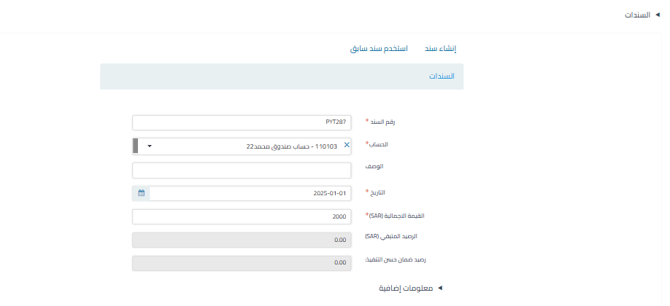
First: When creating a sales invoice from the Receipts field:
If the paid amount is less than or equal to the amount due, it will be allocated to the receivables only.
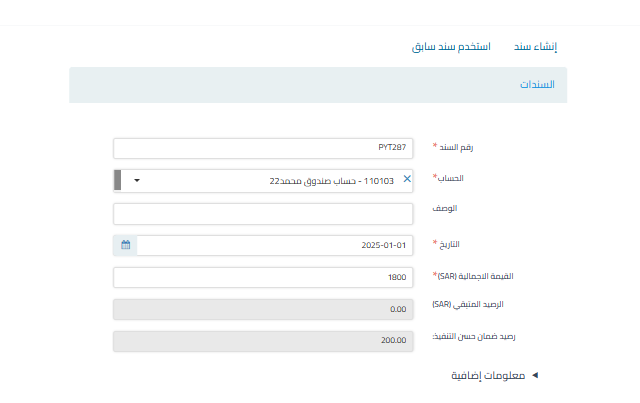
If the paid amount is higher than the amount due, the difference will be allocated to the Performance Bond.
Second: By paying the invoice from the main Sales Invoices page
If the paid amount is less than or equal to the amount due, it will be allocated to the receivables only.
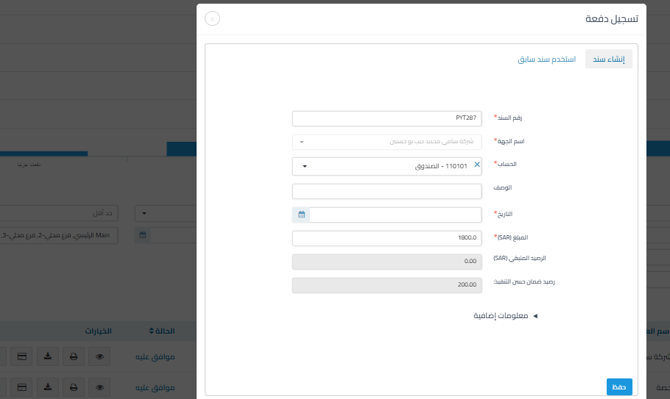
If the paid amount is higher than the amount due, the difference will be allocated to the Performance Bond.
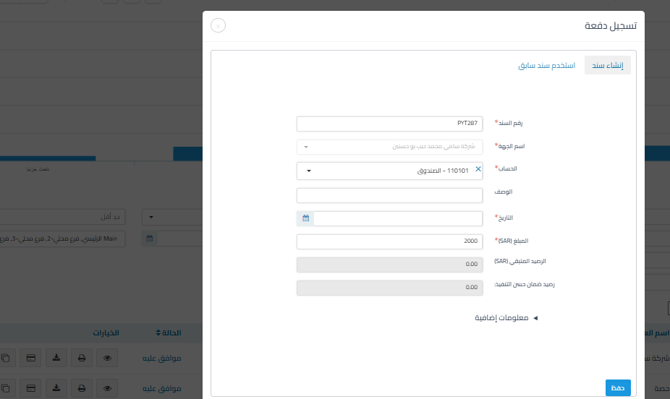
4. Journal Entry Reflected from the Invoice After Adding Performance Bond
The customer is charged with the amount in a separate line item with Performance Bond noted in the remarks.

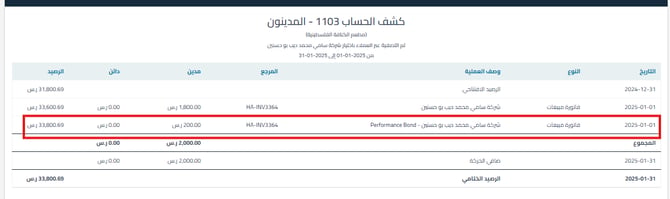
5. How the Performance Bond Line Item Appears in the Account Statement:
It will appear as a separate line item with “Performance Bond” written next to it so the user can easily distinguish it.
To display the Performance Bond discount (Performance of Work) in the sales invoice design so it appears when printed, follow these steps:
1. Go to Settings, then select General Settings.
2. From the top options, select “Sales Invoice Settings”.
3. Scroll to the bottom of the page and select “Tax Invoice Designer” or “Simplified Tax Invoices”.
4. Position your cursor where you want the Performance Bond discount to appear.
5. Click the (…) button next to the toolbar.
6. Select “Document Details”.
7. Select “Performance Bond”.
8. Click “Save” next to the designer.
Additional Notes:
- The guarantee can be analyzed through reports such as:
- Customer Balance Statement (Receivables)
- Outstanding Invoice Aging
- When enabling the Performance Bond feature, it applies only to new invoices, drafts, and those pending approval. However, it will not be applied to old approved invoices.
- Here’s helpful content that explains with images how to enable and add the Performance Bond discount (Performance of Work)
- Here’s a training course that explains the Performance Bond feature and transactions.
Keywords:
How do I enable the Performance Bond discount?
How do I add a Performance Bond to a sales invoice?
Can I set the Performance Bond value as a percentage or fixed amount?
How is the paid amount allocated in the Performance Bond?
What is the impact of payment on the amount due after adding a Performance Bond?
How does the Performance Bond appear in the journal entry reflected from the invoice?
How does the Performance Bond line item appear in the account statement?
Can a Performance Bond be applied to old invoices?
Is the Performance Bond applied to draft invoices or those pending approval?
The customer needs an invoice with both advance payment discount and Performance Bond.



